Playing sheet music
The performance player on phone and tablet – show sheet music full screen, turn pages, zoom, put two pages side by side in landscape, listen to the programme and follow the conductor.
The performance player shows your sheet music full screen – made for the rehearsal room and the stage. You turn the page with a tap and keep both hands free for your instrument.
Phone app only
The performance player is available only in the app on your smartphone or tablet. It's not available on a computer in the browser – there you use the regular preview.
Open sheet music
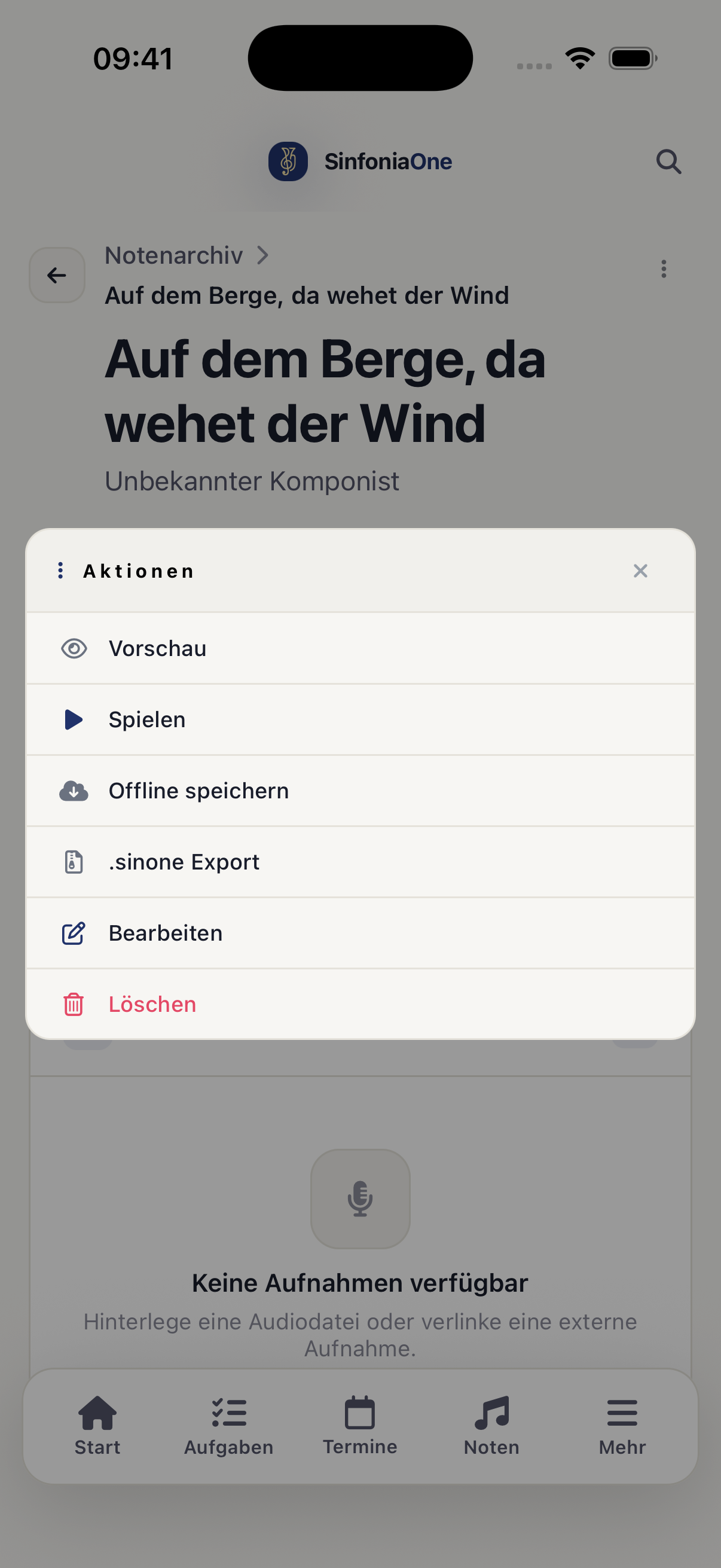
Select part(s)
Choose which part(s) you want to see. By default all parts are selected – for your performance it's best to choose only your own.
You choose your own part
The player doesn't automatically know which part you play. Set it once when you open a piece – that way you immediately see only the sheet music you need.
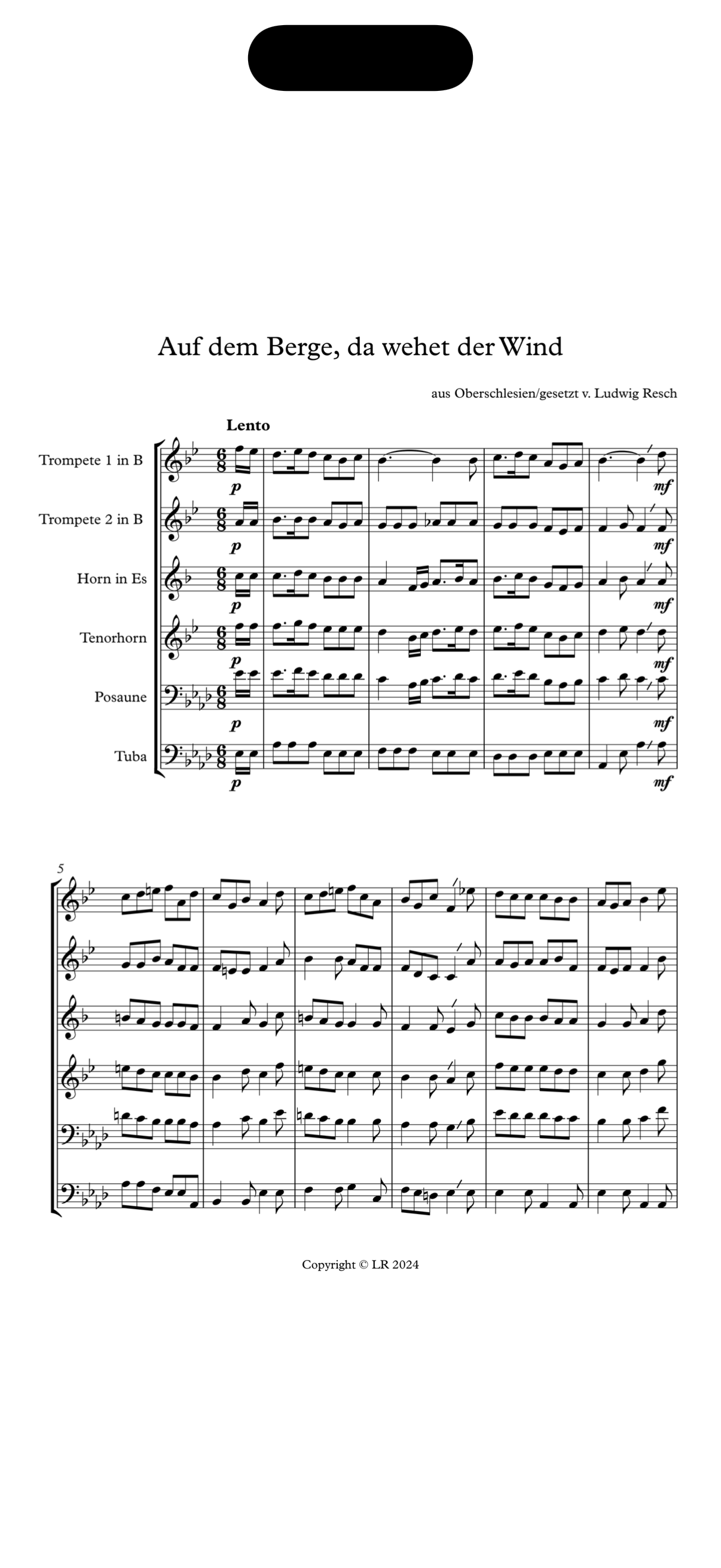
Controls in the player
- Turn forward: tap the right side of the screen.
- Turn back: tap the left side.
- Show/hide bars: tap the middle. This gets the controls out of the way and gives you the whole page for the sheet music.
- Zoom: pinch with two fingers (out or in) to see a section larger.
- Move the section: Once you have zoomed in, move the enlarged section with one finger to wherever you want to look. Without zoom the finger keeps turning pages – nothing changes there.
Keep writing, not just reading
You can write your own notes directly into the sheet music in the player – fingerings, cues, breath marks. You can read how that works under Notes.
Two pages side by side
Turn the device to landscape: the player then puts two pages side by side, like an open music folder. You turn two pages at once – so you take your hand off the instrument less often in the middle of a piece.
- Switching: The button with the open book at the top switches between one and two pages. The player remembers your choice – on this device, because a phone and a tablet call for different answers here.
- Landscape only: There is no two-page view in portrait. Two pages side by side would be so small there that nobody would gain anything.
- Pieces start on the left: If you have opened a setlist, every piece starts on the left page. If a piece has an odd number of pages, the slot to its right stays empty – in return every piece opens cleanly, instead of showing the end of the previous one on the right.
- Notes can be written on both pages without turning first.
Best on a tablet
On a tablet in landscape, two pages sit side by side at a usable size. On a phone in landscape each page gets very small – there you are usually better off with a single page.
The programme in the player
If you opened a set list, you'll find the list icon at the top. It opens the programme: every piece in playing order, with number, title, composer and duration.
- Tap a row – the player opens that piece. No searching, no counting.
- Tap the play button on the right – the piece's recording starts. When a piece ends, the next one with a recording continues.
- Playback keeps running when you lock the screen – handy for listening to the programme on your way to the performance.
You add recordings on the piece itself (see Pieces). Pieces without a recording have no play button in the list.
Why some pieces show a lock
The list shows all pieces of the programme – but those without a part released to you carry a lock. They can't be opened and their recording won't play. The programme item stays in the list so you still know what's coming during the performance.
Following the conductor
Your device turns the page along with the conductor – no more shouting, no more hand signals.
The conductor broadcasts
They tap the broadcast tower icon at the top of the player. Their bar now reads "You are broadcasting".
You follow
You tap the eye icon. The player then shows "You are following <name>" – and even with the bars hidden, a small bubble stays visible at the top.
Leaving
Tap "Stop" – or simply turn a page yourself. As soon as you change a page by hand, you stop following. Nothing to confirm, nothing to look for.
Following never happens unasked
As long as you don't tap "Follow" yourself, nothing moves on your device. Nobody can turn your page, and you can always see that you're following.
What is locked for you won’t be opened
If the conductor turns to a part you're not allowed to see under sheet music visibility, your page stays where it is. The same applies if you have a different programme or a different part selection open: your device only jumps to where that same sheet music page sits in your bundle.
Who may broadcast: the conductor, the sheet music archivist and the board. Every band member may follow along. If the connection drops, the player simply stays where it is – no error message in the middle of a performance.