Pieces & parts
Create a piece, upload and assign part PDFs, and link recordings.
A piece is the central unit in the sheet music archive. It holds together everything that belongs to a work: the metadata (title, composer, storage location …), the individual part PDFs and recordings to listen to.
Two ways to create a piece
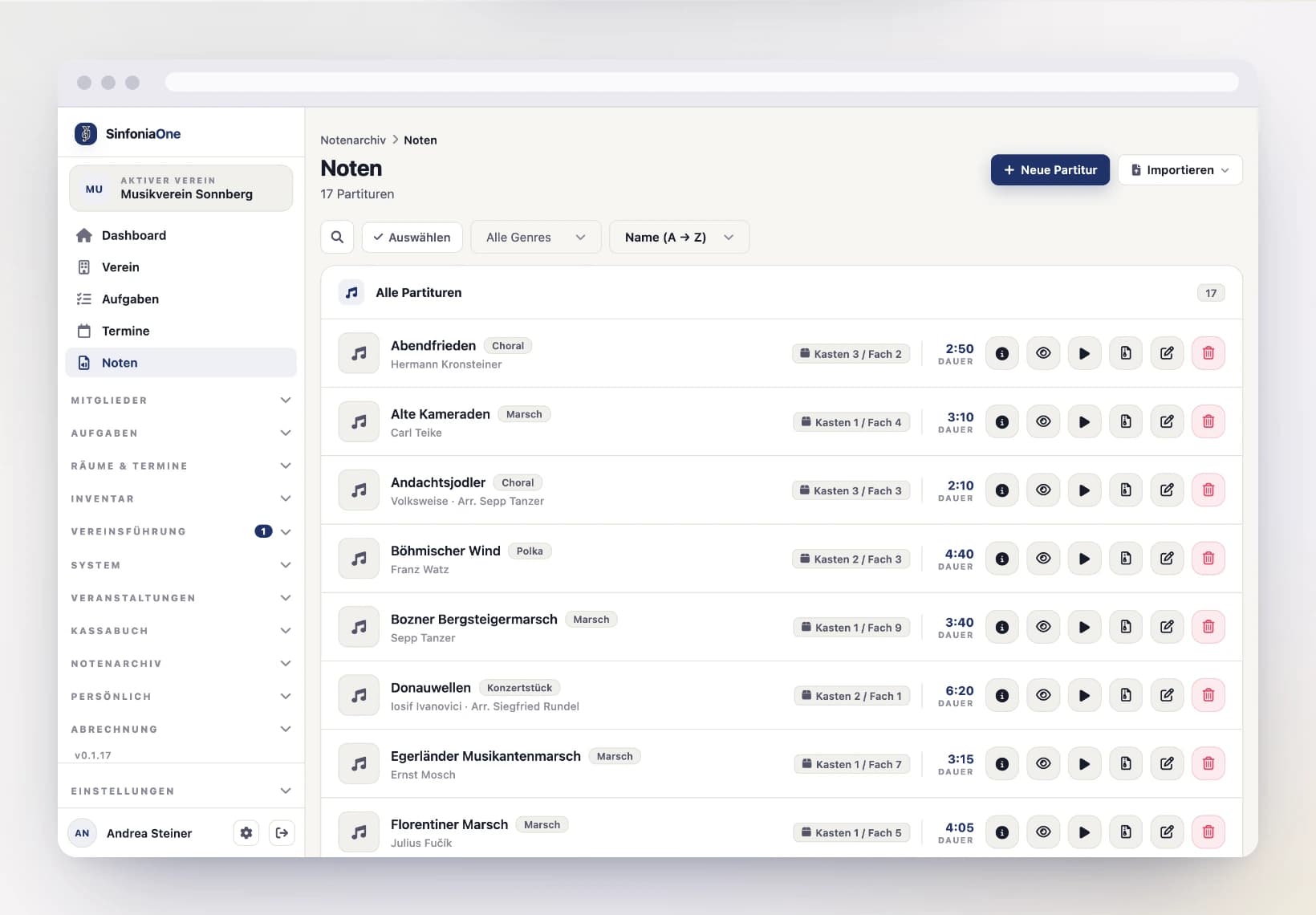
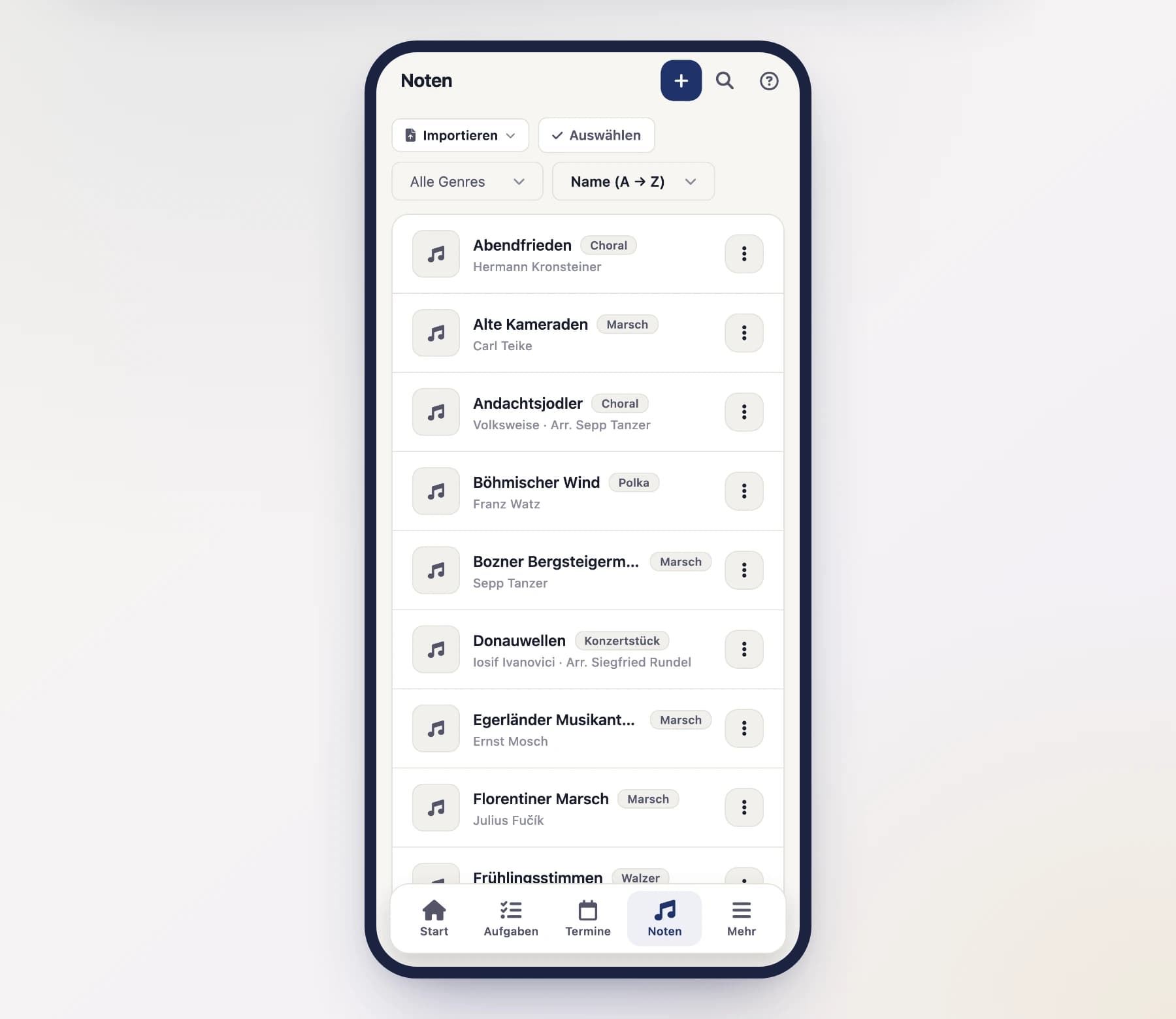
The sheet music list offers two buttons side by side:
- "Upload piece" — the usual way. You hand over the whole piece as a PDF, all parts in one file. SinfoniaOne reads the sheets and suggests the title, the composer and a part for every sheet; you check and confirm. Described on Digitising paper sheet music.
- "Create manually" — for when every part comes as its own file (or there is no sheet music yet at all). You fill in the details yourself and add the sheets one by one. That is what the rest of this page describes.
When in doubt, upload
A scanned stack belongs in the upload, even if it is crooked and unsorted — rotating, splitting and assigning all happen there in one pass. Creating manually pays off when you have ready-made individual files from the publisher.
Manually: master data first, then parts
Creating a piece manually happens in two stages: first save the metadata, then add the parts and recordings. So the piece has to exist first before you can upload sheet music PDFs.
Create a piece manually
Fill in the metadata
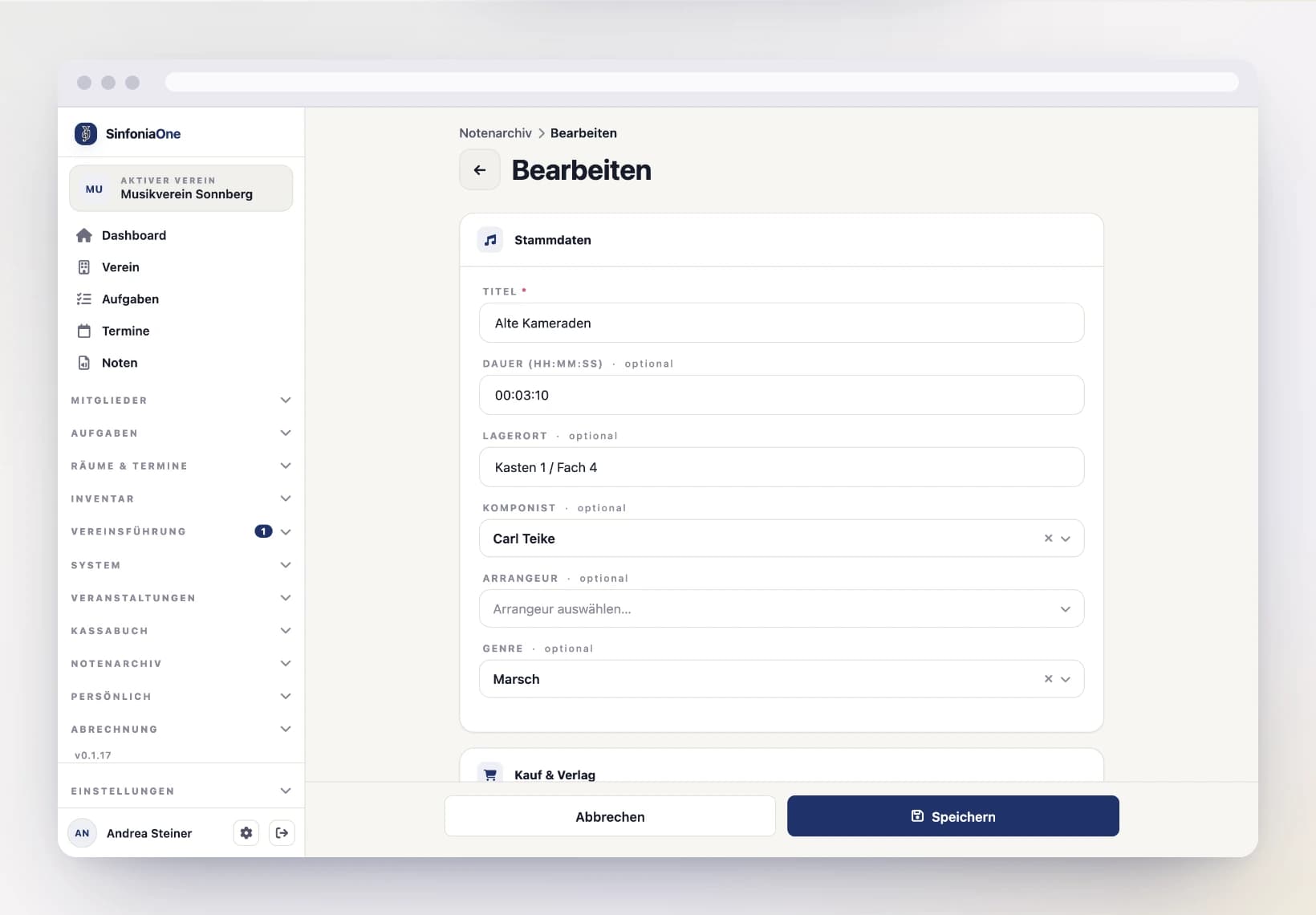
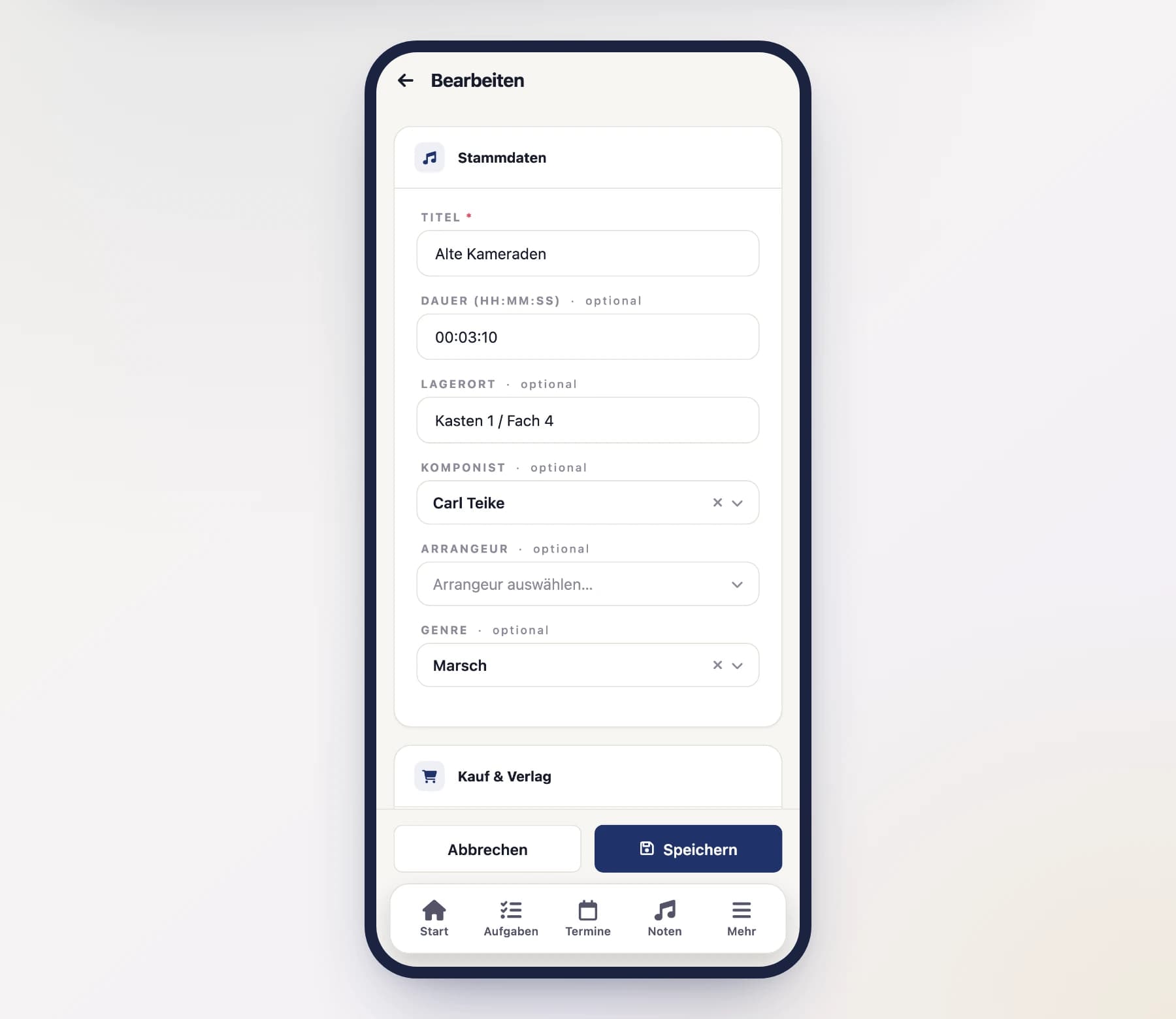
Enter the details about the piece:
- Title – the name of the work (required).
- Playing time – in the format hours:minutes:seconds, e.g.
00:04:30. - Storage location – where the paper original is, e.g. "Cabinet A, folder 12".
- Composer, arranger and genre – each selected from your master data.
- Cover – optionally a title image.
Record purchase & publisher
In the "Purchase & publisher" section you record where the piece came from and what it cost:
- Publisher – selected from your master data.
- Purchase price in euros, purchase date, bought from (the dealer or publisher you ordered from) and the order number.
All of it is optional. For older holdings nobody usually remembers what a piece cost – that shouldn't hold up creating it. Whatever you do enter will help you reorder years later.
Why not in the cash book?
You can still have a matching entry in the cash book. But the question "what did this piece cost and where did we get it" comes up at the piece – often years later and without a look at the journal. That's why the purchase details sit right on the piece.
Save
Tap "Save". The piece is now created – in the next step you add the parts.
Upload and assign part PDFs
A part PDF is the sheet music page of an instrument as a PDF file. So that your musicians can find it later on their phone, you assign each file to one or more parts.
Assign part(s)
Choose which part (or parts) the file belongs to. A single PDF can also serve several parts – for example when the 1st and 2nd clarinet are on one sheet.
At least one part is required
Without an assigned part, "Save" stays greyed out. Otherwise the sheet would sit in the archive without anyone finding it through their instrument.
Specify the format
Enter the paper format (A5, A4, B4, A3, Letter, Legal, Tabloid or non-standard) and the orientation. This makes sure the sheet music prints cleanly later. Then save.
Measured during import
If the sheet came from the PDF import, you don't have to enter anything here: SinfoniaOne measures the page and fills in the format itself. If the size matches no standard — not unusual with older holdings — it says “Sonderformat” (non-standard), with the measured millimetres below.
Pages still crooked or turned?
Scanned pages are sometimes crooked, upside down or have an extra page. You can fix that afterwards in the PDF editor.
Which parts are missing?
A piece's detail page has a “Parts” section. It starts from every part your band has and shows, for each one, whether this piece holds a sheet for it:
- Green with a check – at least one sheet is there for this part. A ×2 behind it means there are several: the same part in two paper sizes, for instance.
- Grey and dashed – no sheet for this part yet.
At the top you see the state as a counter and a bar (“18 of 24”); below it, “Missing” switches the list to the open parts only. Parts are grouped by section and listed in orchestral order – the way they appear in the score.
All parts, not just the staffed ones
The yardstick is your band's full list of parts, not the current ensemble. A part nobody plays right now is still missing from the folder – and that is exactly what this section is meant to show. The part “Gesangstext” only counts once lyrics are stored: a march without singing has no gap.
Sheets without a part
If a sheet is assigned to no part at all, the section says so separately. Such sheets do sit in the archive, but they never make it into a printout of parts. Tap the notice to assign them in the form.
The section only appears if you may see the whole archive. Anyone who only sees their own parts (see Sheet music visibility) gets no information about the band's holdings.
Store the lyrics
For pieces with singing everyone needs the lyrics – not just the singer. That is what the part “Gesangstext” is for: an ordinary part that every band has from the start.
Add the sheet
Create a new sheet as usual and upload the PDF containing the lyrics.
Assign it to the part “Gesangstext”
Under Parts, pick “Gesangstext” — just as you would pick “Trompete” or “Tuba”. That is all it takes.
The name must be exactly “Gesangstext”
“Gesangstext” is a part like any other: you can rename it and delete it. But SinfoniaOne recognises the lyrics by the name — call the part something else and it becomes an ordinary part, and the lyrics no longer travel behind the others. If you have no lyrics at all, you can simply delete the part.
From now on SinfoniaOne appends the lyrics automatically behind every part on every export. Whoever gets the flugelhorn part gets the lyrics with it; so does whoever gets the tuba part.
Double-sided printing stays clean
If the lyrics have an odd number of pages, SinfoniaOne adds a blank page. That way the next part starts on a fresh front side when printing double-sided – the lyrics don't shift anything.
Leaving the lyrics out for once
Sometimes you do not want the lyrics behind every part — when only the wind players rehearse, for example. The preview (for a piece as well as for a setlist) has an option “Gesangstext” for exactly that:
- An jede Stimme (behind every part) — the normal case described above.
- Eigene Stimme (its own part) — the lyrics travel nowhere. They only come along if you pick them under Einzelstimmen (or choose “Alle”), and then exactly once.
The option only appears if the piece or the setlist actually has lyrics stored.
Record "Solo for …"
If one part plays a solo in a piece, you record that right on the piece. Open the piece for editing and go to the "Solo for …" section:
Choose the part
Pick the part that plays the solo – for example "Flugelhorn".
Add a hint (optional)
Enter where in the piece the solo is – such as "from bar 42" or "middle section".
Add
Tap "Add solo". The entry is saved immediately.
Several entries are the normal case: with mixed instrumentation, flugelhorn and tenor horn might share a solo, for example. And a piece may list the same part twice if it plays solo in two places.
On the piece's detail page the solos appear in orchestral order – the way they sit in the score.
Add recordings
For each piece you can store recordings so everyone knows how it should sound:
- a link to a video (e.g. YouTube), or
- an uploaded audio file (e.g. your own recording).
Recordings can be played directly in the app. You'll find them on the piece's detail page in the "Recordings" section.
Recordings are asked about separately
A recording carries rights beyond the work itself — those of the performers and of the producer. So the app asks separately for the basis there, even if you hold the sheet music legitimately. See Rights for a piece.
The detail view
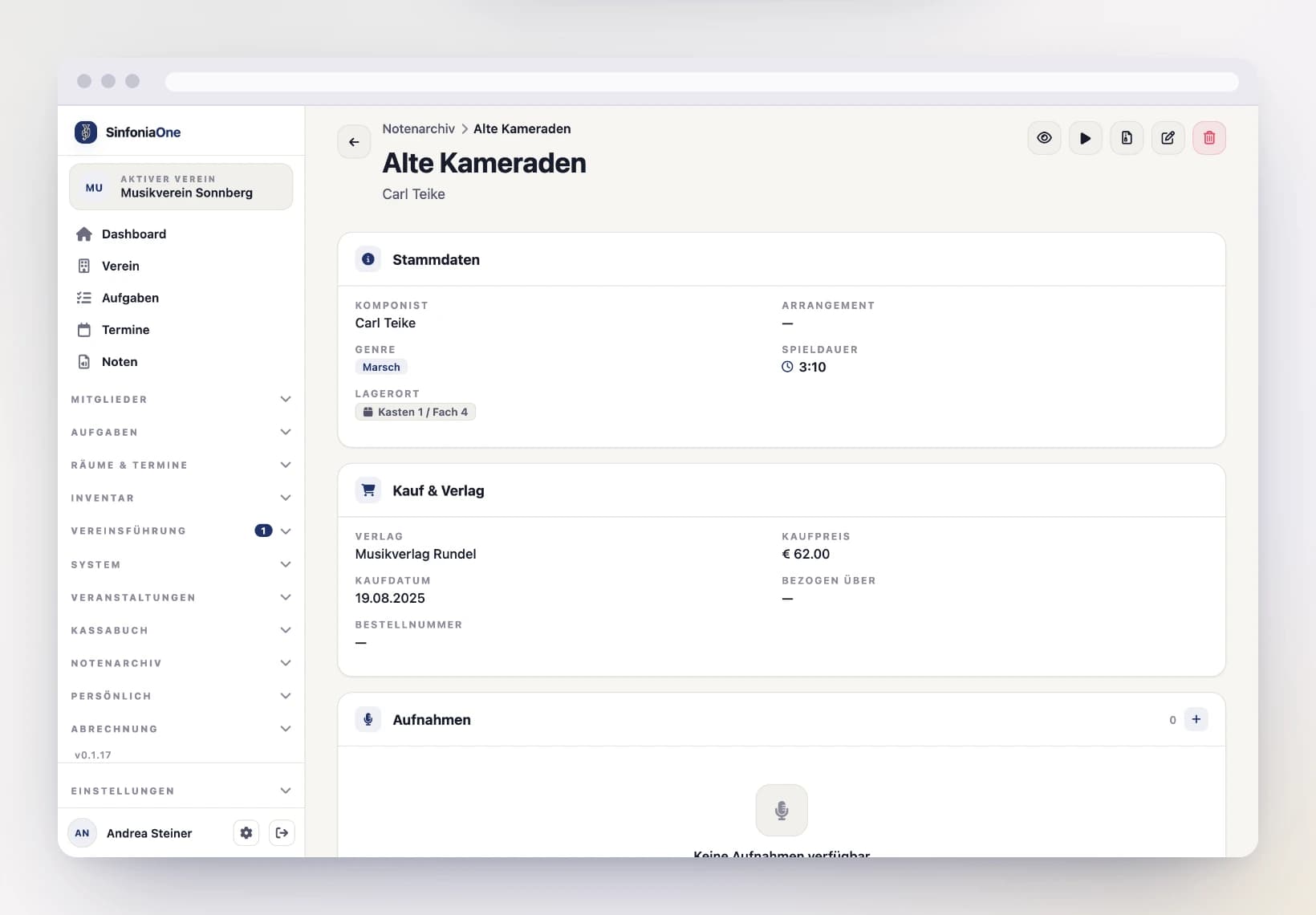
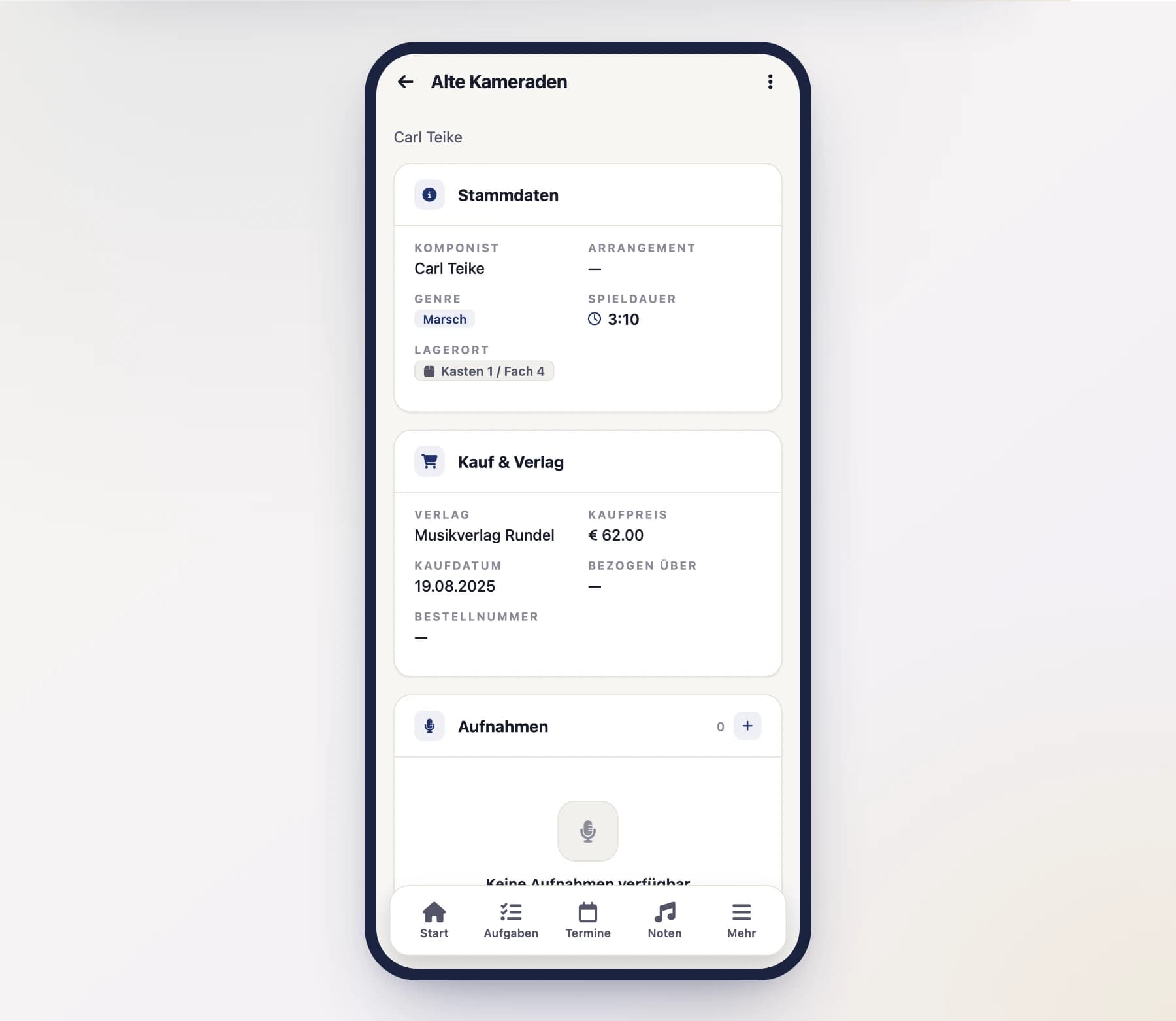
On a piece's detail page you see everything at a glance: the metadata, the solos, publisher and purchase details, the recordings and the cover. From here you edit the piece, open the performance player or generate a preview.
The "Solo for …" and "Purchase & publisher" sections only appear when something is stored there – so for older holdings the page stays as tidy as before.
Further down you'll find this piece's performances, the “Parts” section with the state of the assignment and the folder history (which setlist or march book it was in, and when). Both are described on Repertoire & performances.
Printing parts
On a piece, "Preview" leads to the print settings. Three of them concern the paper:
- Format — A4, A3, B4, A5 or Letter. If a part exists in several sizes in the archive, the format decides which sheet is used.
- Mixed formats — if A3 or custom sizes sit next to A4, "Single size" brings every page to the chosen format. Meant for printing: a stack with changing sizes never runs through a feeder cleanly. On screen you are better off with "Keep the original" — scaled up it only gets blurrier.
- Orientation — the default is "As in the original": every page stays the way it lies. If you pick "Portrait" or "Landscape", then together with "Single size" every page that lies across it is rotated along and fills the sheet. An A4 march sheet on A4 landscape therefore comes out at full size instead of shrunk with white margins.
Orientation without “Single size”
With "Mixed formats" set to "Keep the original", nothing is rotated. The orientation then only decides which sheet is used when a part exists in both portrait and landscape in the archive.
Several pieces at once
Tap “Select” in the filter row to tick several pieces and add them to a setlist, set genre or publisher for all of them, or delete them. See Working on several entries at once.