Back up & restore
Back up a piece as a .sinone file and later restore it back into the archive.
Sometimes you want to back up a single piece outside the app – as a reserve, to move it to another club, or to pass it on to a friendly club. That's what the .sinone file is for: a single file that contains a complete piece.
What's inside a .sinone file?
A .sinone file backs up an entire piece at once: all part PDFs, the recordings, the cover and the metadata such as title, composer and storage location. That way the piece can later be restored exactly as it was.
Back up a piece (export)
No rights info, no export
A piece whose origin is still open cannot be exported — that applies to every route, including PDF, setlist bundles and march books. Viewing and playing still work. How to fill it in is on Rights for a piece.
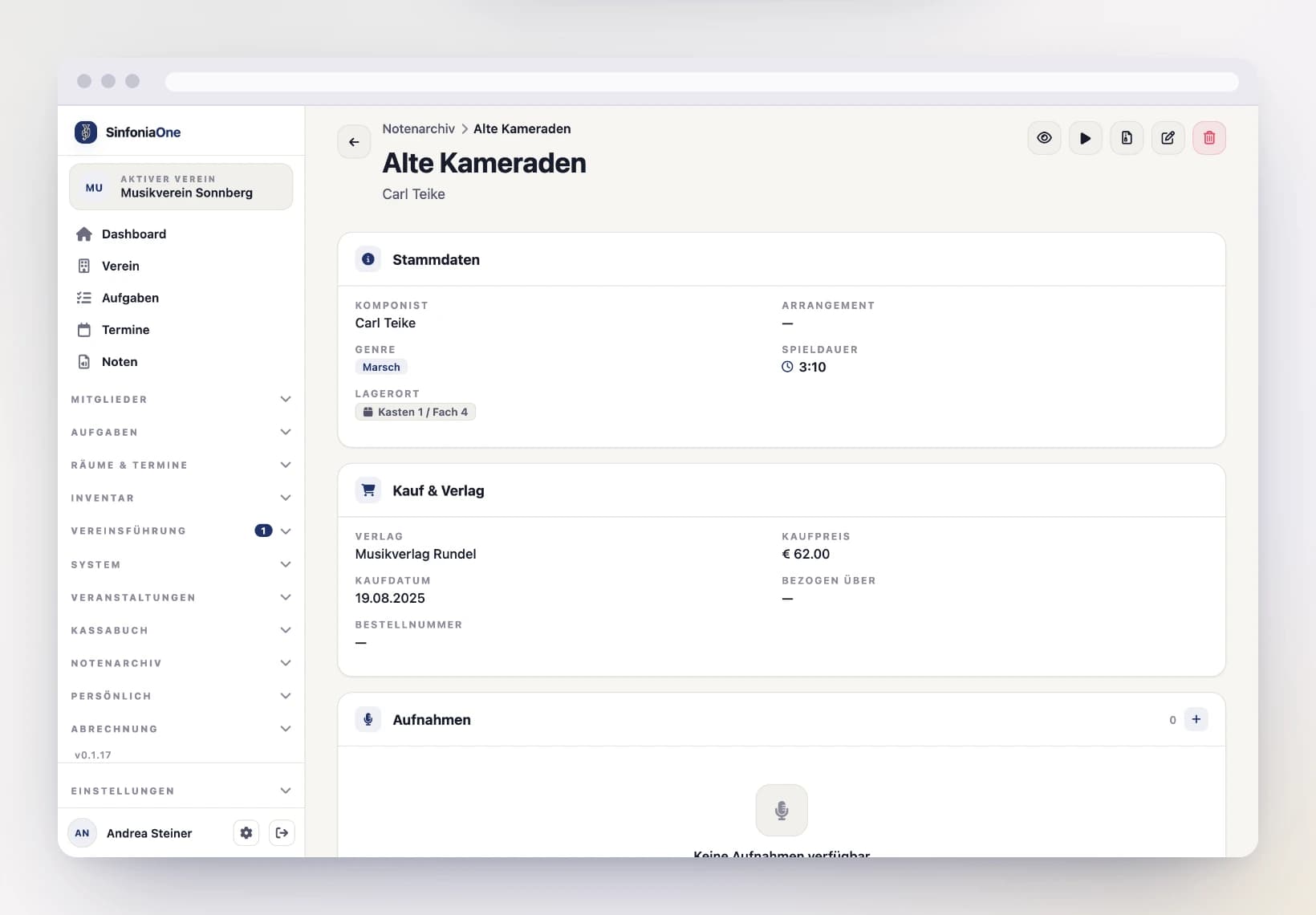
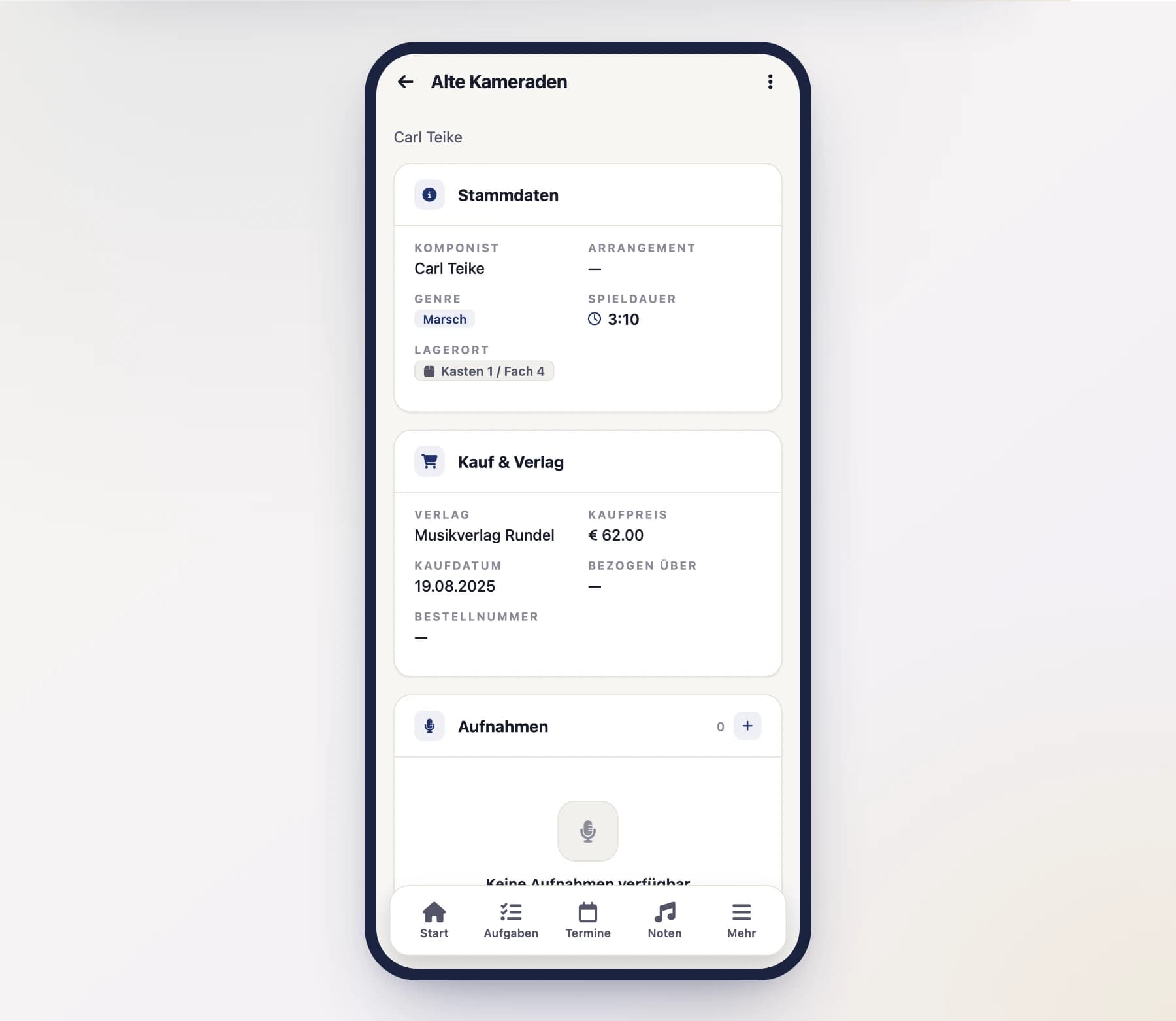
Open the piece
Open "Sheet music" in the menu and open the piece you want to back up.
Export as a file
Choose "Back up as .sinone file" (export). SinfoniaOne generates the file, which you can then store on your device or pass on.
Restore a piece (import)
Administrator only
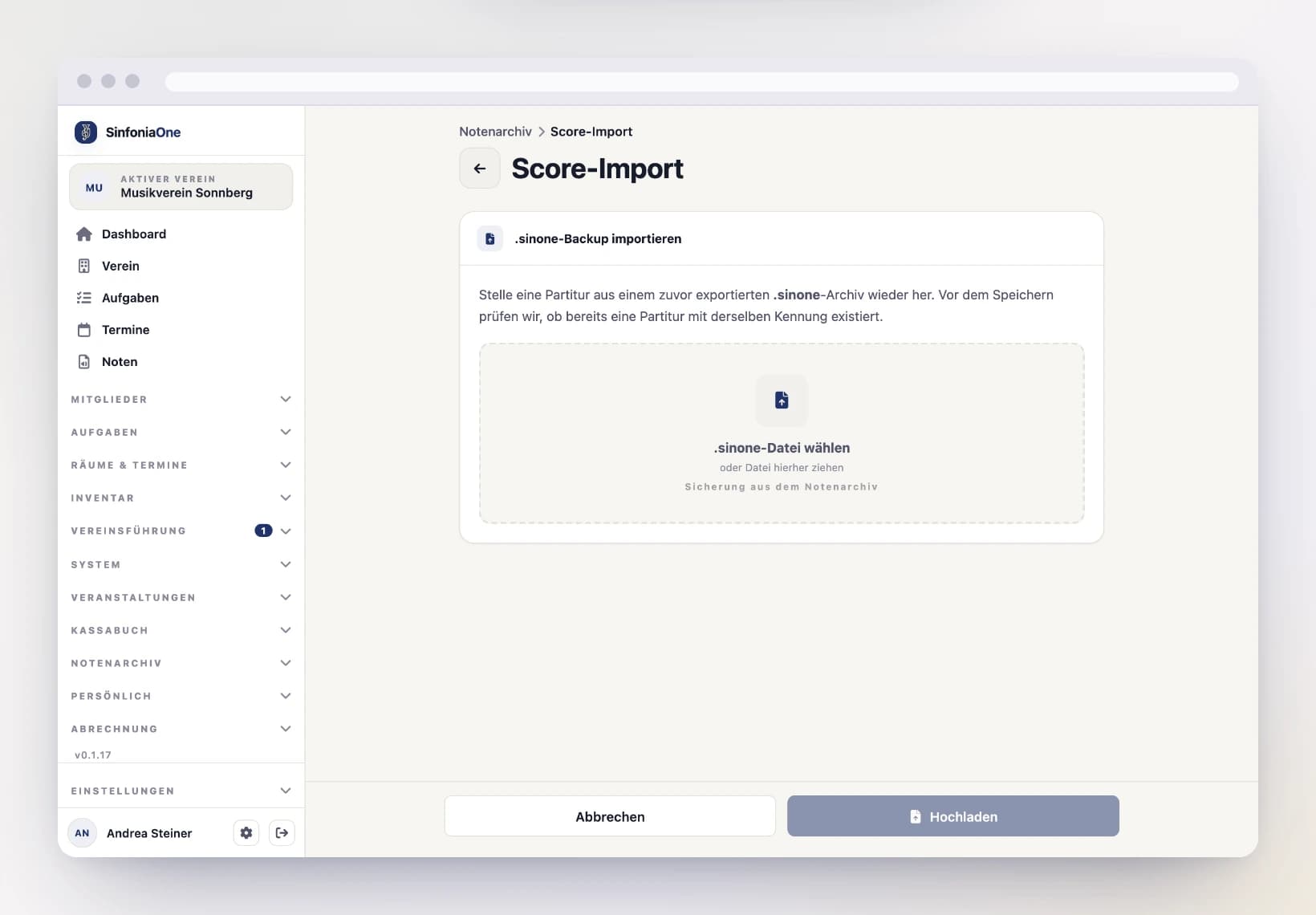
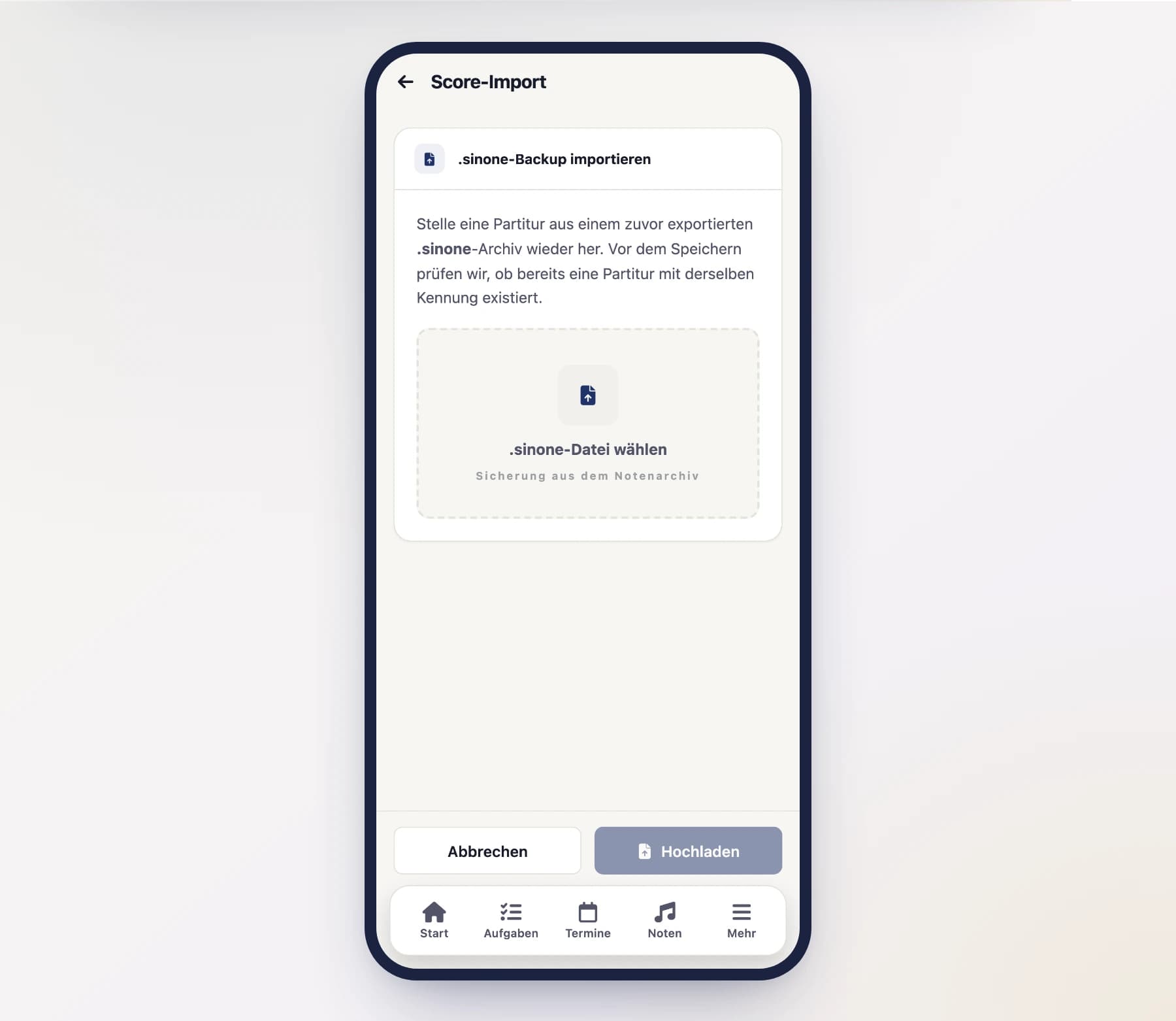
Only the club's administrator may restore a .sinone file back into the archive.
Upload the file
Select the backed-up .sinone file — on a computer you can also drag it onto the field. SinfoniaOne reads it in and restores the piece with all parts, recordings and details.
Decide in case of a duplicate
If the piece already exists in the archive, SinfoniaOne asks what should happen:
- Overwrite – the existing piece is replaced by the version from the file.
- Merge – the contents are combined; the existing one is kept and supplemented.
Don't confuse it with digitizing
Importing a .sinone file restores a previously exported, finished piece. If instead you want to read in fresh paper sheet music, use the automatic analysis.