PDF editor
Rotate, crop, delete and reorder the pages of a part PDF.
Scanned sheet music is rarely perfect: one page is upside down, another is scanned too large, or a blank page has crept in. With the PDF editor you tidy up a part PDF – with no extra program on the computer.
Only with edit permission
Only someone allowed to edit the sheet music can open the PDF editor and save – that is, the sheet music archivist or the administrator.
What you can do with it
- Rotate pages – straighten pages scanned crooked or upside down.
- Crop – trim the margins so the sheet music is larger and more readable.
- Delete pages – remove unnecessary blank or duplicate pages.
- Reorder – adjust the page order by dragging.
How to edit a PDF
Open the editor
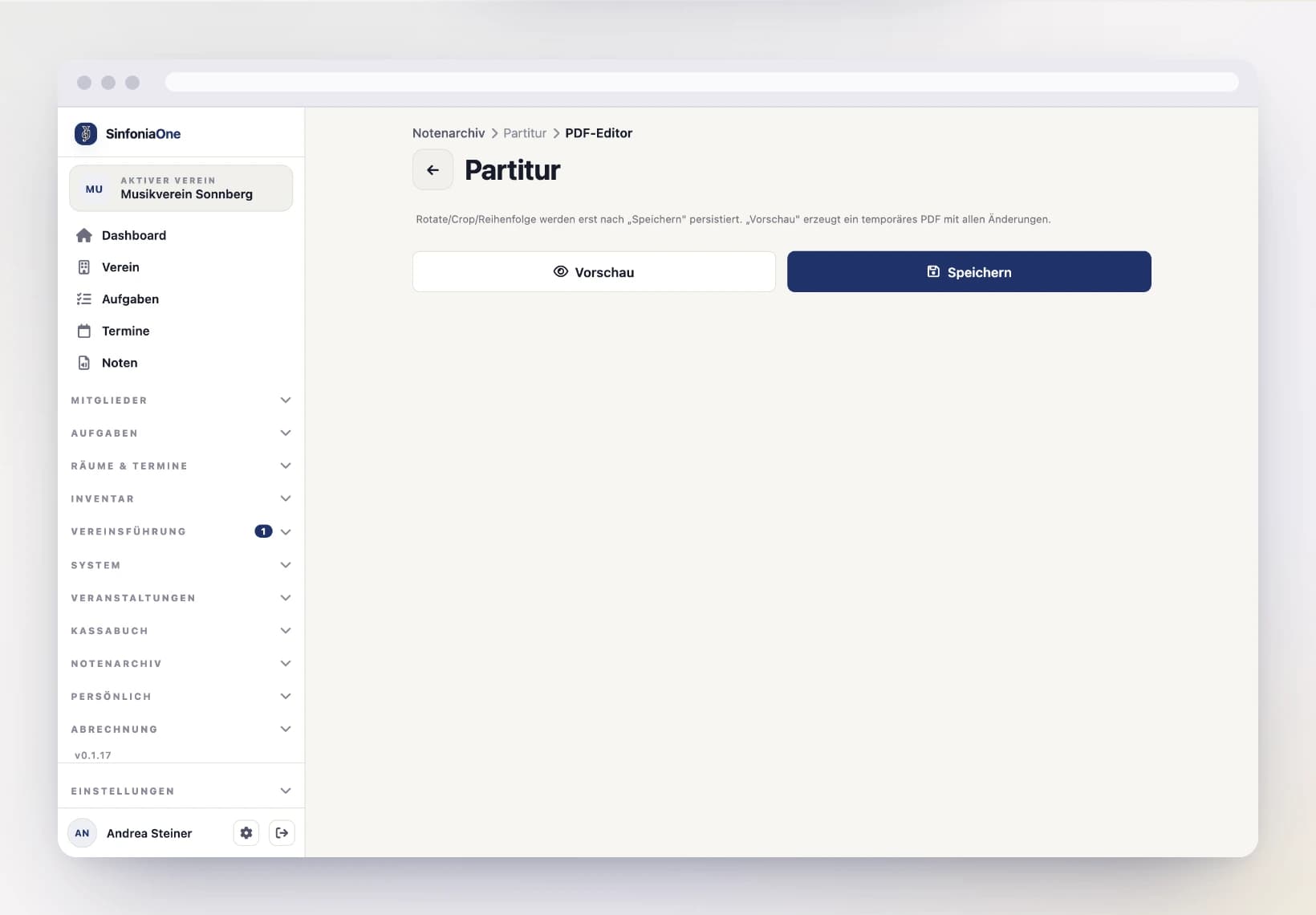
Open the piece, choose the part PDF you want and tap "Edit". The PDF editor shows you all the pages as a preview.
Edit pages
Select a page and use the tools to rotate, crop or delete. To reorder, drag a page to its new position.
Check the preview
Look at the preview and check that all pages are the right way up, complete and in the right order.
Save
Tap "Save". Your changes are applied.
Saving replaces the file
When you save, the previous PDF is replaced by the edited version. The old version cannot be restored. So check the preview carefully before you save.