Trash
Restore accidentally deleted items for 30 days or remove them for good – and what actually ends up in the trash.
Did you delete something by accident? No need to panic. Most things first go to the trash and stay there for 30 days. During that time you can restore them with a tap – or, if you're sure, delete them permanently.
How to restore something
Open the trash
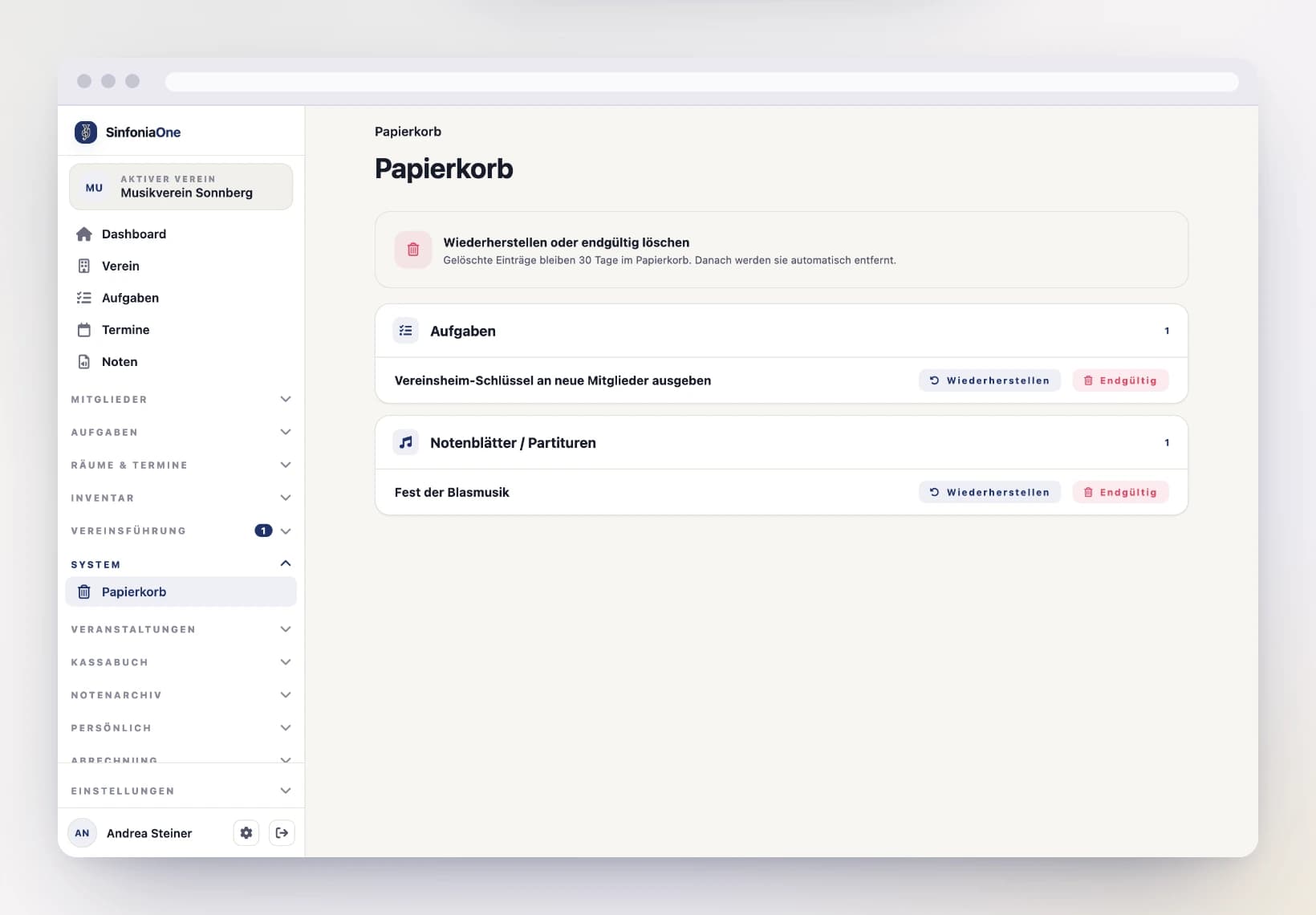
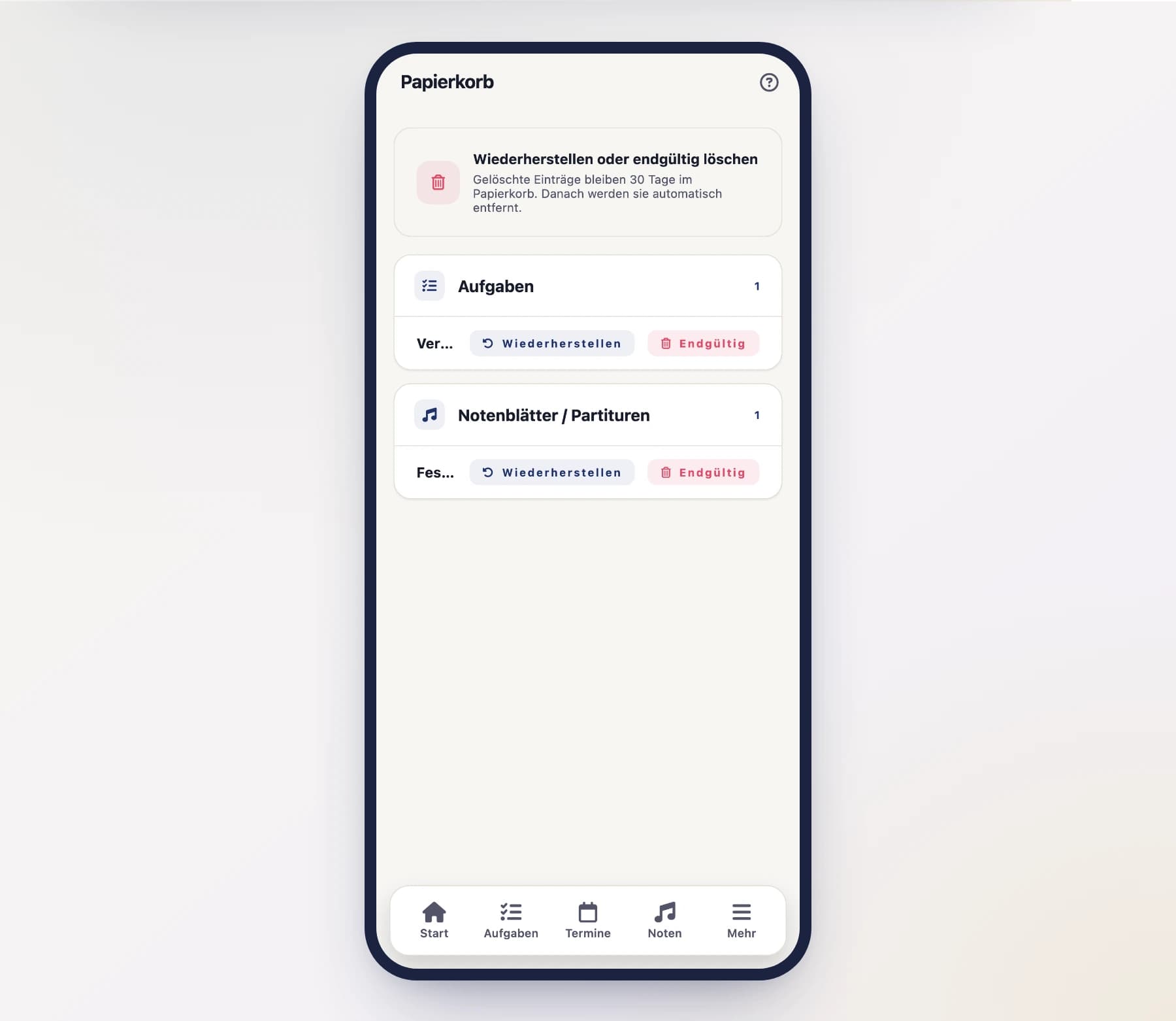
Open the "Trash" from the menu. You'll see what was deleted most recently – newest first, each with the date, who deleted it and how many days are left to restore it.
Select an item
Find the item you want to bring back.
Restore or delete permanently
Tap "Restore" to return the item to its original place. Or tap "Delete permanently" if you want to remove it right away and for good – that can't be undone afterward. Before that, the app asks and tells you what disappears for good along with the item – for an area of a festival its finance items with receipts, shifts and tills, for example, for a sheet the notes on it. A member doesn't take their attendance along: it stays on the event without a name or note and still counts in the attendance export. The confirmation says the same when you delete several items for good at once.
After 30 days it's gone
Anything you don't restore is automatically removed for good after 30 days. So don't leave something you want back sitting for too long.
Each entry shows how many nights are left to restore it; “deleted for good next night” means it's gone at 3 a.m. Some things can't be deleted for good while something still depends on them – a cash box with bookings, for example. The entry then says “stays while … still depend on it”, and the nightly clean-up leaves it in place too.
What ends up in the trash
In the trash you'll find deleted items from almost every area – many of them including their associated templates and series, where they exist:
- Appointments – including appointment templates and series
- Tasks – including task templates and series and individually deleted attachments
- Festivals – along with suppliers and orders, plus anything you delete on its own at a festival: areas, shifts, finance items, attachments, comments, tills, items on the price list, order lines and a supplier's articles
- Cash book – accounts/tills, booking categories, bookings, transfers, membership fees and rental fees
- Sheet music – pieces, setlists, ensembles, parts, genres, plus individually deleted sheets and recordings
- March books
- Members and supporters
- Instruments
- Rooms – along with room bookings and their series
- Subgroups
- Photos – photos and photo albums; a deleted album brings its photos back with it
- File storage – deleted, empty folders; deleted files stay in their folder's own trash (see Files)
- Meeting minutes
- Club messages
If you restore a piece, setlist, ensemble or march book, whatever was deleted along with it comes back – sheets, recordings, programme items. Anything you had deleted on its own before stays deleted; it is listed on its own in the trash and can be restored on its own.
If you delete a part, its sheets are missing wherever music is put together – in a piece's PDF and when playing it, in setlists, ensembles and march books, also in a .sinone file – until you restore the part. The sheets themselves stay with the piece. If a sheet also belongs to another part, that part still gets it. A sheet without a part doesn't step in instead: if all the music of a piece or a setlist belongs to parts in the trash, the app says so for the PDF and names the parts, even if you choose “All”. The same happens if you want to print the march book of a deleted part or import a .sinone file that names such a part.
What belongs to something else
A sheet belongs to a piece, a shift to an area and a festival, an attachment to a task. Below such an entry the trash shows where it comes from – “from ‘Bar’”, for example. If the piece, the festival, the area or the task is in the trash itself by now, it says so too: restore that first, then the entry. If you try it the other way round, the app declines and tells you what has to come back first.
Deleted for good stays for good
The trash protects you from mistakes – but not from everything. Whatever you tap "Delete permanently" on inside the trash itself is gone right away and for good. And a few things have no trash at all, such as notices/announcements, composers, arrangers and publishers, receipts in the cash book and attachments to instruments and meeting minutes. For these: think twice before deleting.
Who sees the trash
The trash isn't visible to everyone. By default the administrator, the media officer and the secretary have it – and the owner anyway. You only see what you may also delete: the media officer, for example, sees photos and photo albums but no members; the secretary sees members, appointments, festivals or minutes, but no sheet music, no cash book and no photos.
In the cash book, appointments, tasks, festivals, meeting minutes, club messages, rooms and subgroups, it isn't a separate delete tick that decides, but the right to run the area: keeping the cash book, managing appointments, tasks, festivals, rooms or subgroups, sending meeting minutes, sending club messages. If the menu item or an area is missing, it's down to your role.
Suppliers, purchase orders and a festival's figures – finance items, tills, price list, order lines and the suppliers' articles – only show up if you also have the finance permission for festivals. Folders from file storage are restored by whoever may create and shape folders – and only the folders they can see. For sheet music, the parts you may see also count: if you only see your own, the trash only shows their sheets and the pieces and recordings they belong to. You can restore such a piece, but delete it for good only if you see every one of its sheets.
Several entries at once
If a failed import dropped many entries into the recycle bin you do not have to fish them out one by one: every group has a “Select” button in its header. Use it to tick several entries of one group and restore or permanently delete them together. See Working on several entries at once.