Subgroups
Youth band, brass ensemble & co. — bundle members into groups and invite them to events directly.
Many clubs are more than just the main band: there's the youth band, a brass ensemble, perhaps a drum major team or a group of standard-bearers. A subgroup is exactly that: a named group of members you can address directly.
What subgroups are for
- Invite to events directly — the youth rehearsal goes to the youth band, not the whole club. Whoever is in the group sees the event and accepts or declines; nobody else is bothered with it.
- Recognisable at a glance — the group's abbreviation appears as a coloured badge in the event list.
- Filter down — the pills above the event list hide everything but one group.
- Plan the line-up — the "Line-up" card on the event then counts against that group's roster: "The youth band is short two clarinets."
Section or subgroup?
A section follows from the instrument — whoever plays clarinet is in the clarinet section, without anyone entering anything. A subgroup is a decision: "plays clarinet" does not imply "is in the youth band". That's why you add the members by hand here. On events both work the same way — you can even combine them.
Creating subgroups
You'll find subgroups in the menu under Configuration › Members › Subgroups.
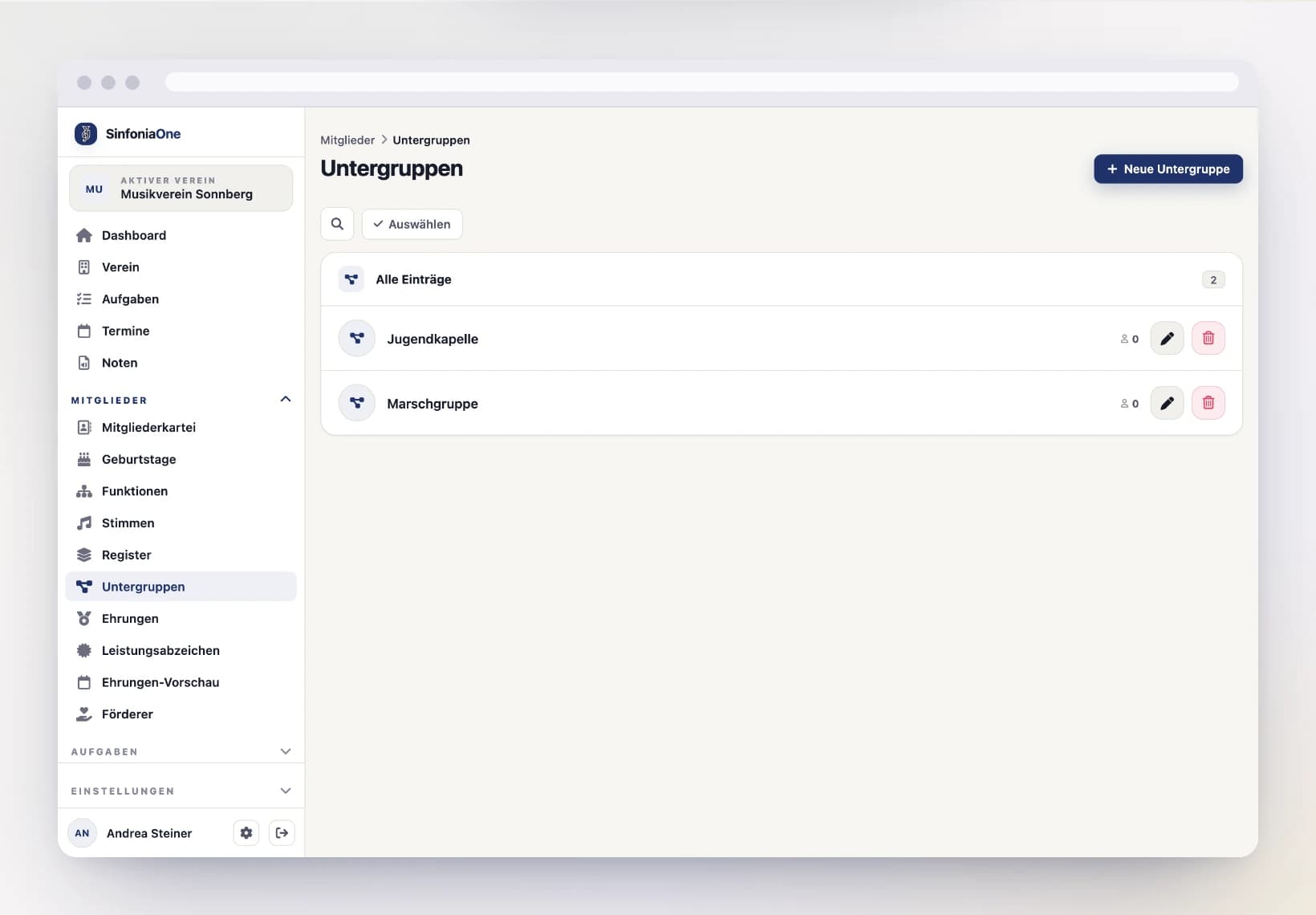
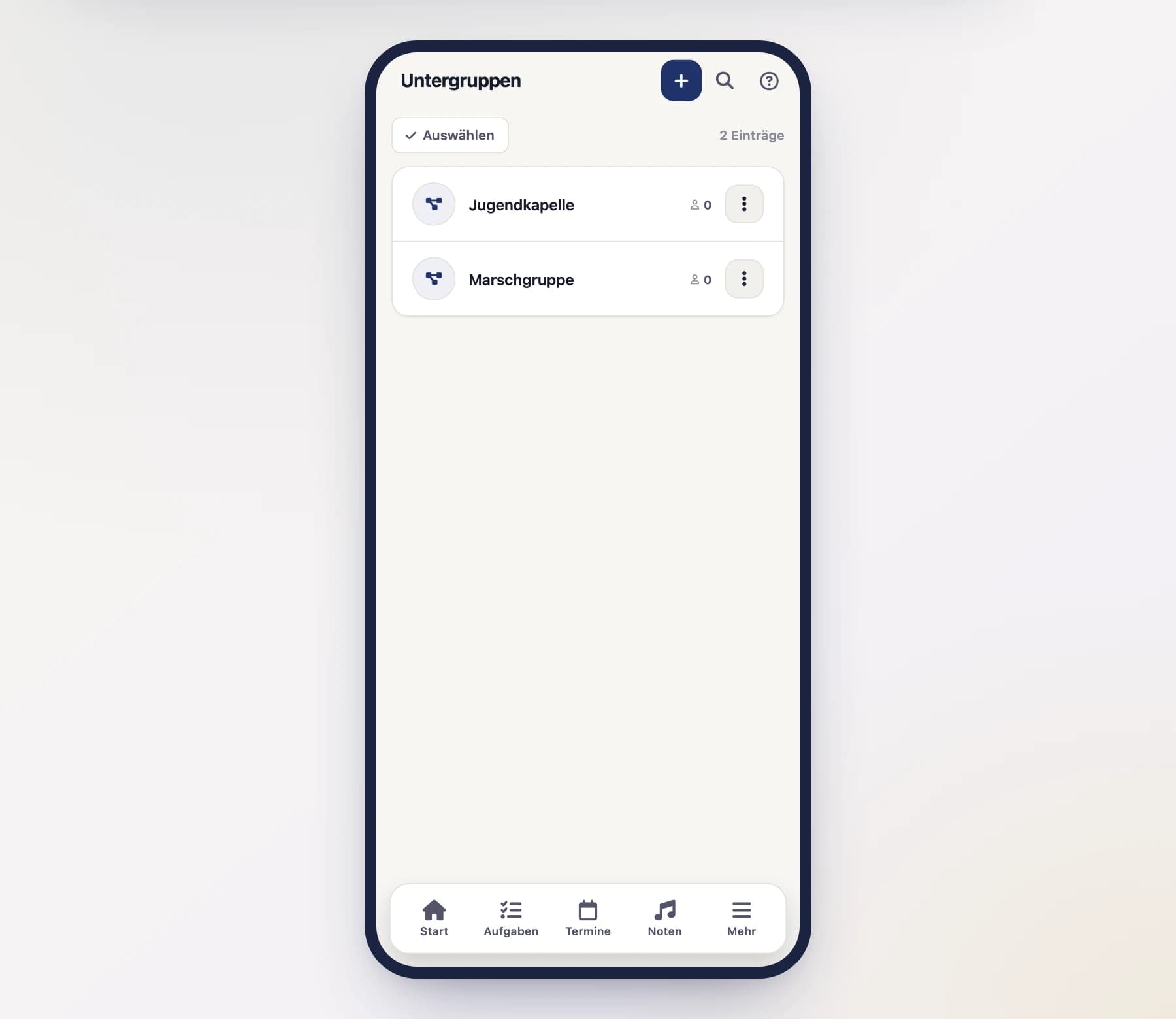
Create a new subgroup
Open "Subgroups" and tap "New".
Describe the group
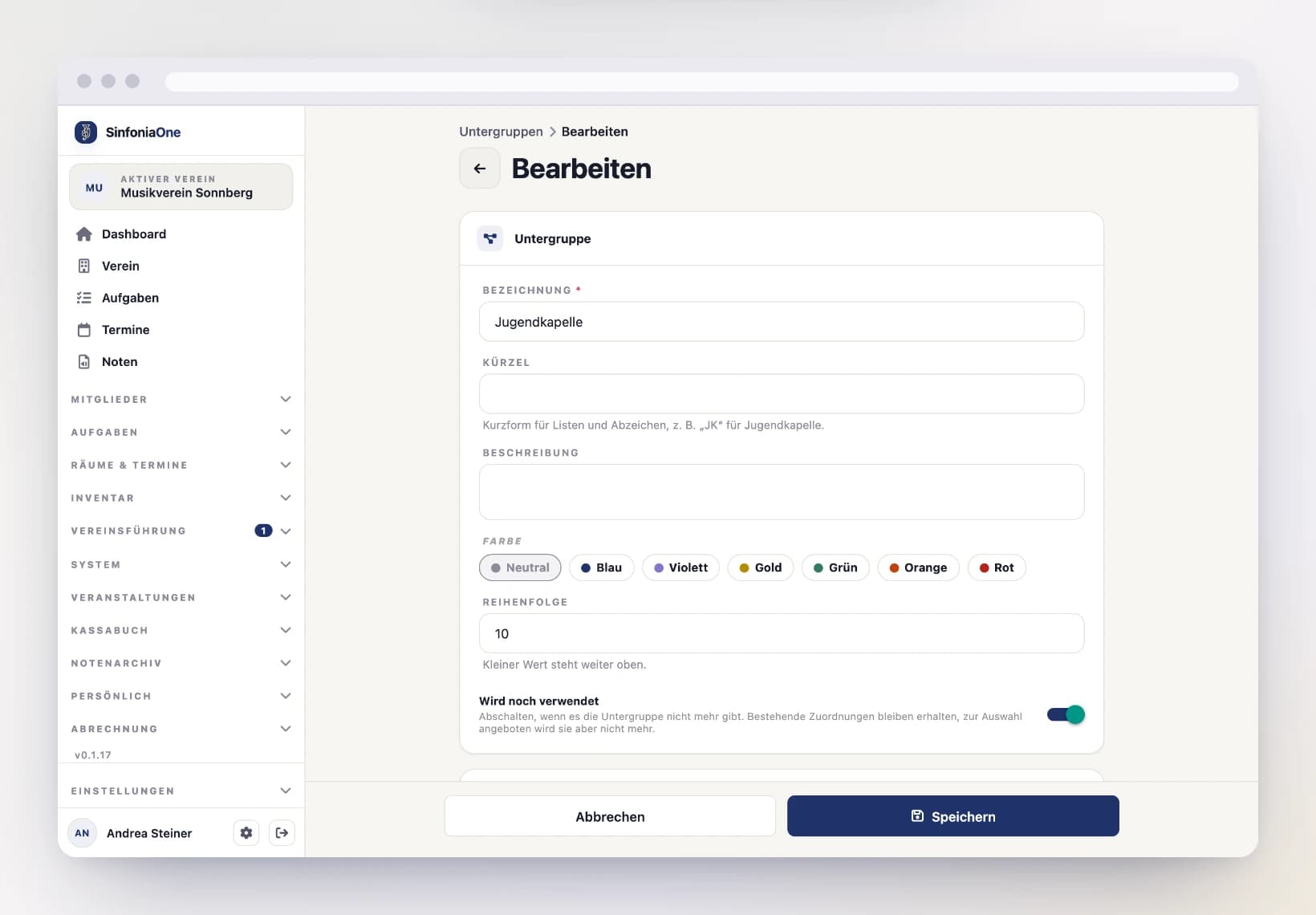
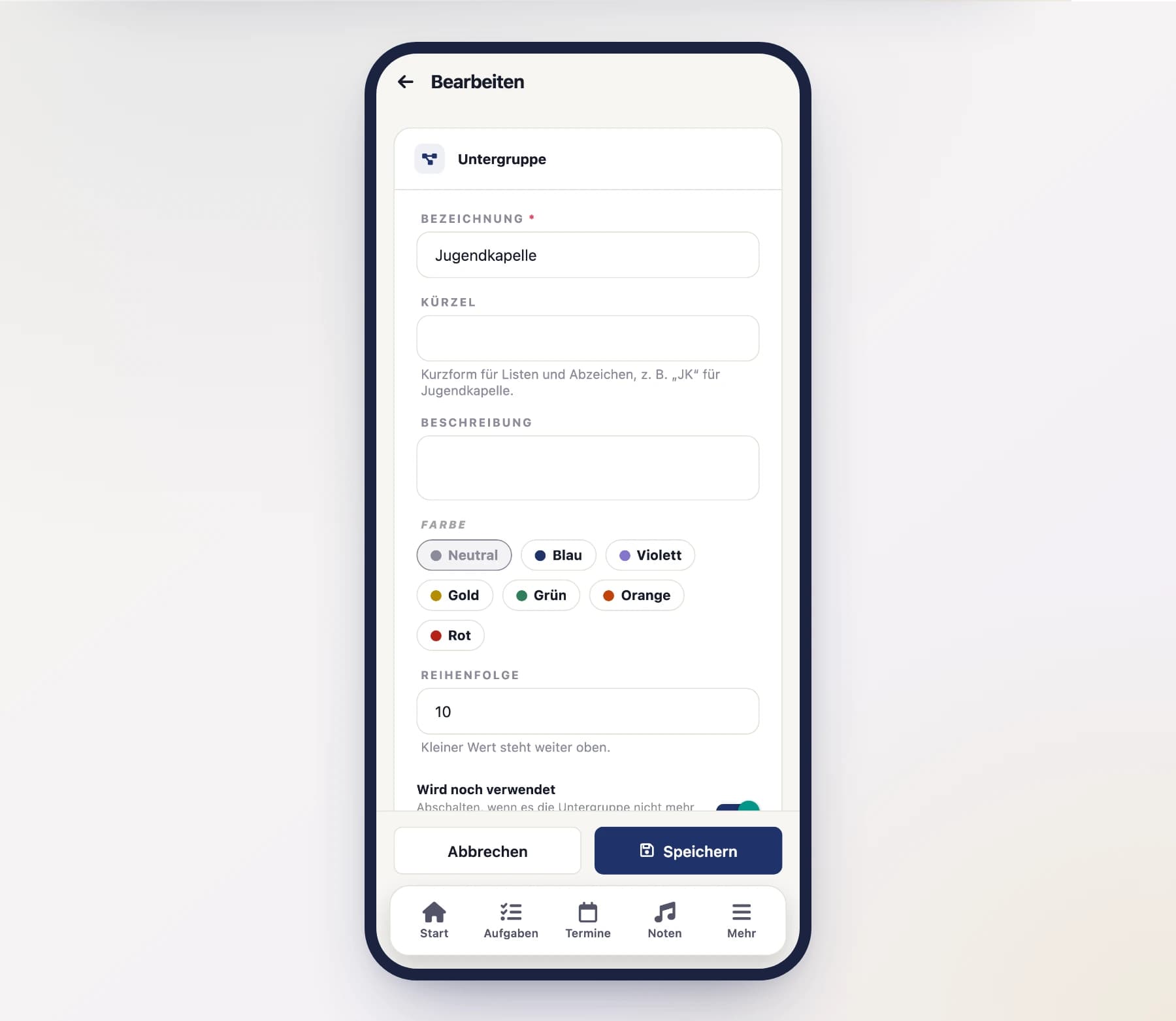
Each group has:
- Name — e.g. "Youth band". Each name can only be used once per club, and upper- or lowercase makes no difference. Delete a group and its name becomes available again.
- Abbreviation — the short form for the badge in lists, e.g. "YB". Without one, the full name is shown.
- Description — optional, for everything nobody else remembers.
- Colour — from a fixed selection, so the badge stays readable in both light and dark appearance.
- Order — a lower number appears higher up in the selection.
- Still in use — groups switched off are no longer offered for selection. Existing assignments remain.
Assign members
In the "Members" section, tap "Add member…" and pick the person. Members without a user account are offered too — you don't need to be in the app to play in the youth band.
A person may be in several subgroups, for instance the youth band and the brass ensemble.
Save
From now on the group appears in the invitation when you create an event.
Addressing an event to a subgroup
When creating or editing an event, you'll find the subgroups in the "Invited members" section — right below the sections. Tap the groups that should come.
- You can pick several groups and combine them with sections and individual people.
- If you pick a group while "Whole club" is active, SinfoniaOne switches to exactly that group — you clearly mean the opposite of "everyone".
- Individual people can still be excluded explicitly, even if they are in the group.
More on this under Events.
Removing a subgroup
Reassign first, then delete
A subgroup that still invites people to upcoming events cannot be deleted. SinfoniaOne tells you how many events are affected. Pick a different audience there first — otherwise nobody would see the event any more.
Deleted subgroups go to the recycle bin. Past events keep their assignment, so you can still trace who was invited back then.
Who may maintain subgroups?
Administrators, the board, the secretary, and the conductor may create and change subgroups and assign members. The conductor is explicitly included: whoever calls the rehearsal must be able to put the group together. Every member may view them — otherwise the badges on events would stay empty.