Roles & permissions
Who can see and edit which areas of the app – Owner, Administrator, Member, the 13 default roles and your own roles.
A role determines what someone is allowed to do in the app – for example keep the cash book, manage members, or only see their own events. That way you make sure everyone gets exactly the areas they need for their job in the club – no more and no less.
The three basic terms
Before we get to individual roles, this overview helps:
- Owner – the person who founded the club. The owner always has all rights, and nothing can change that. Every club has exactly one owner.
- Administrator – a person to whom the owner has handed full administration. An administrator can do practically everything the owner can.
- Member – the base role that every new account gets automatically. It allows the essentials for everyday club life: seeing and responding to the dashboard, events and tasks, submitting your own uniform report and helping at festivals. The member list, sheet music archive and finances are not included.
You grant all further rights by assigning a person additional roles. Rights from multiple roles add up: someone who is "Member" and "Treasurer" may do everything from both roles.
A role is not a position
A role only controls the rights in the app. It's a different thing from a function (a position such as chairperson, treasurer or drum major), which you maintain in the menu under "Functions". A function is a position in the club with a term of office – it grants no app rights. More on this under Functions & positions.
The 13 default roles
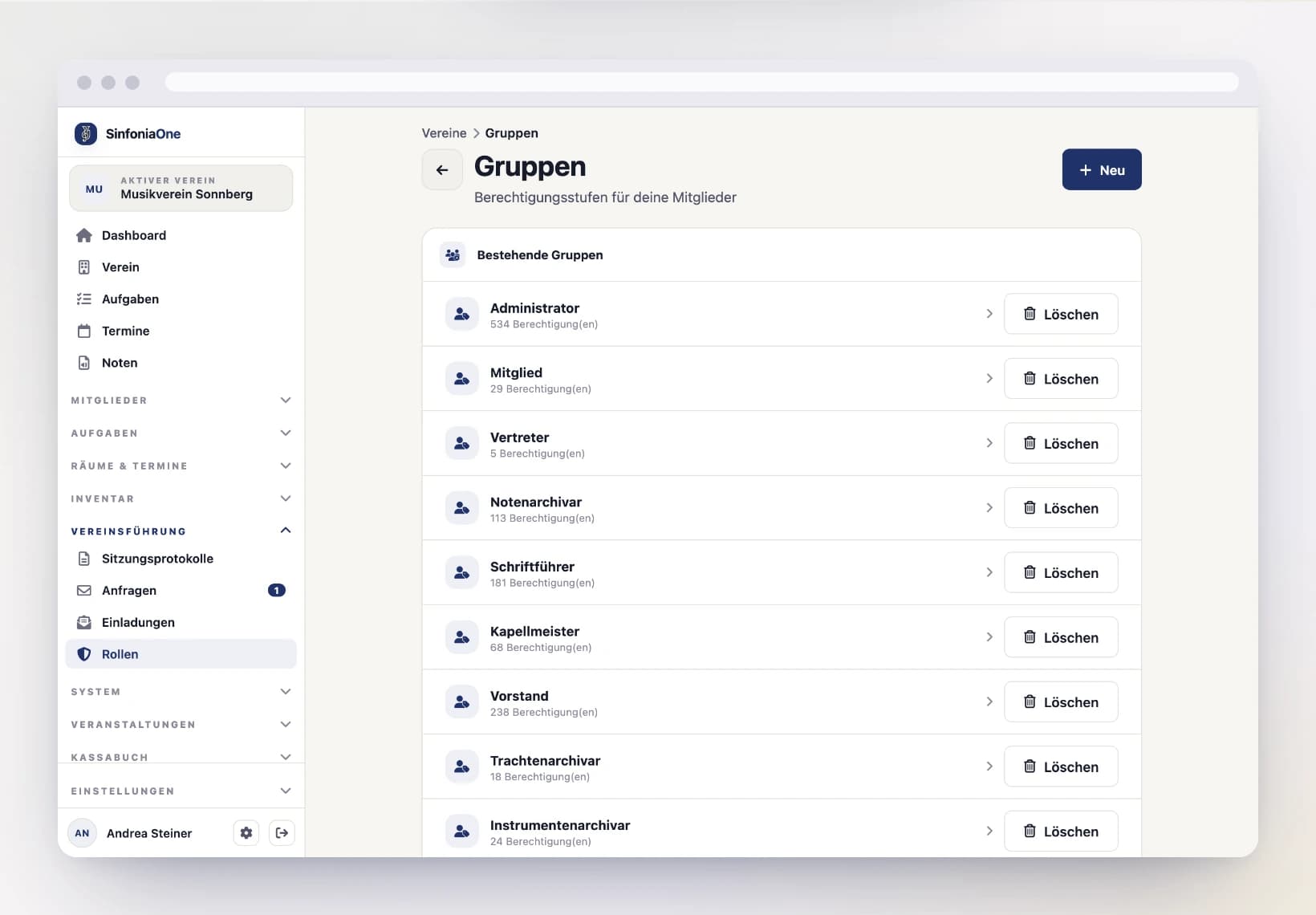
When your club is founded, SinfoniaOne creates these roles for you automatically. You can use them right away, adjust them at any time, or add your own.
| Role | Meant for | What it can do (simplified) |
|---|---|---|
| Administrator | club leadership | Everything – full administration including the trash. |
| Member | every club member | See and respond to the dashboard, events and tasks, submit their own uniform report, see the items issued to them in the uniform stock, help at festivals. No member list, no sheet music, no finances, no view of the whole uniform stock. |
| Representative | parents and guardians of young musicians | See the dashboard and events, and accept or decline on behalf of the youngsters in their care. |
| Sheet music archivist | music librarian | Manage the whole sheet music archive, including its own trash for deleted sheet music. Used to be called “Archivist”. |
| Secretary | club administration | Manage members and the club, assign roles, maintain rooms, write and send meeting minutes; view the uniform stock and its issues (without changing them). |
| Bandmaster | rehearsal leadership | Manage events and tasks (including series and templates), create setlists; view members, parts and rooms. |
| Section leader | leading a section | View members, parts and sections, and manage their own section – only the one the person actually leads according to the section leadership. |
| Board | management | See everything; manage members, supporters, instruments, events and tasks; festivals including finances; read the cash book and approve budgets. Can't edit the sheet music archive. |
| Uniform archivist | uniform officer | Manage all uniform reports; run the uniform stock and issue items to members and take them back; view members and parts. |
| Instrument archivist | instrument officer | Manage the club instruments: stock, lending, damage reports, service and cost history; view members and parts. |
| Event manager | festival committee | Fully manage festivals, including festival finances. |
| Treasurer | cash management | The whole cash book: bookings, accounts, dues, bank import, year-end closing and budget. |
| Auditor | cash audit | Only view the cash book and export the reports including the audit package. |
“Archivist” is now “Sheet music archivist”
If your club has been with us for a while, this role used to be called simply “Archivist”. Only the name changed – the permissions are exactly the same, and everyone who had the role still has it, unchanged. There is nothing for you to do.
The reason for the rename: the role has always unlocked only the sheet music archive – never the uniforms and never the instruments. With the uniform archivist and the new instrument archivist, all three now sit side by side, and “Archivist” would have been a misleading name.
You don't have to memorize this
These are just the presets. If they don't fit you, simply change a role's rights or create one entirely of your own – that's what the next two sections show.
Special case: section leader
All other roles apply club-wide: whoever may manage events may manage every event. The "Section leader" role is the only exception – its permissions apply only within the sections the person currently leads according to the section leadership. Without a recorded leadership the role does nothing; whoever leads the clarinets cannot change anything about the brass. So you can hand it out to all your section leaders without hesitation.
Creating your own role
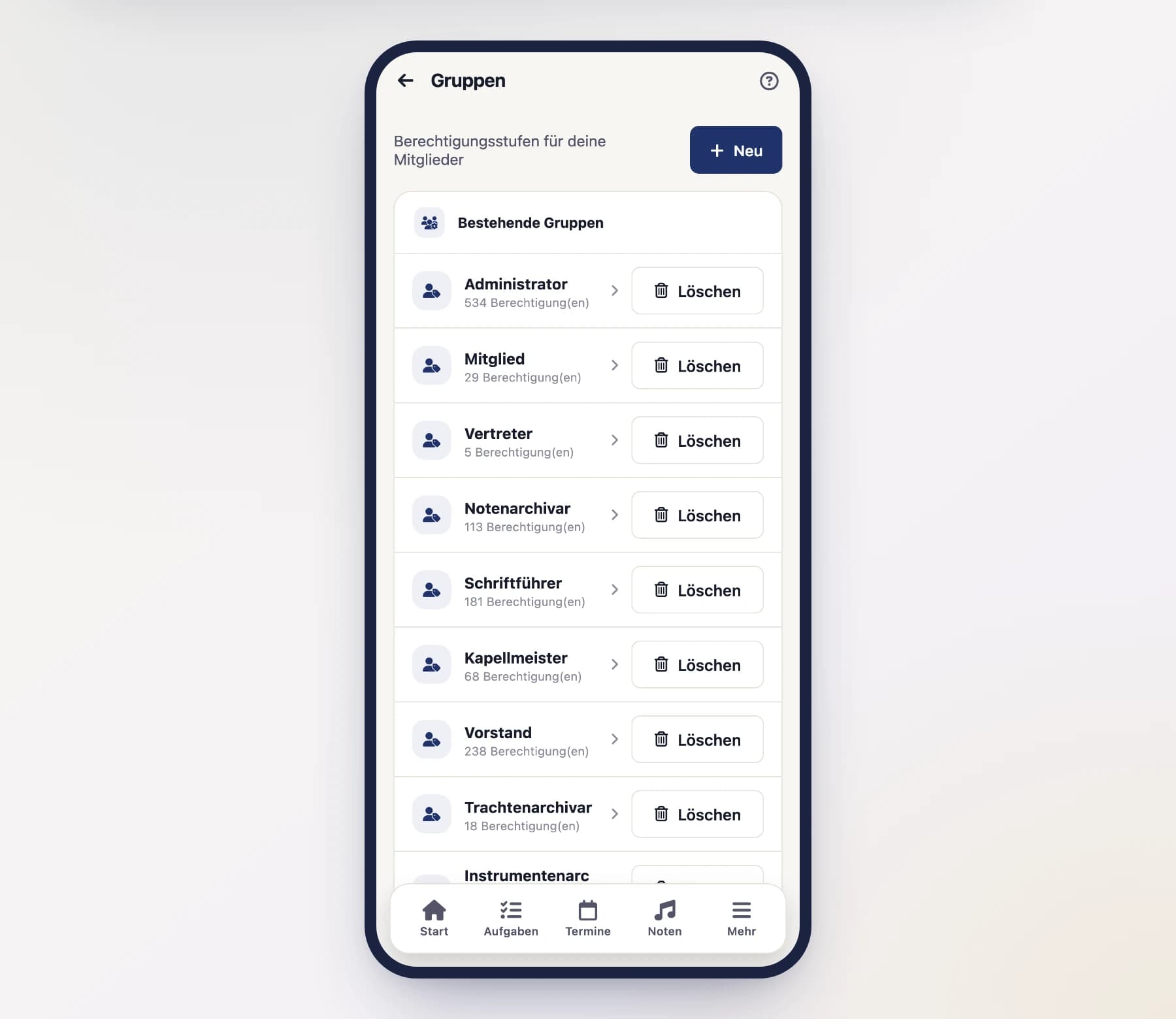
You can create as many custom roles as you like – for example a "Youth officer" role that unlocks exactly the areas that person needs.
Create and name the role
Tap "New" and give the role a meaningful name (e.g. "Youth officer").
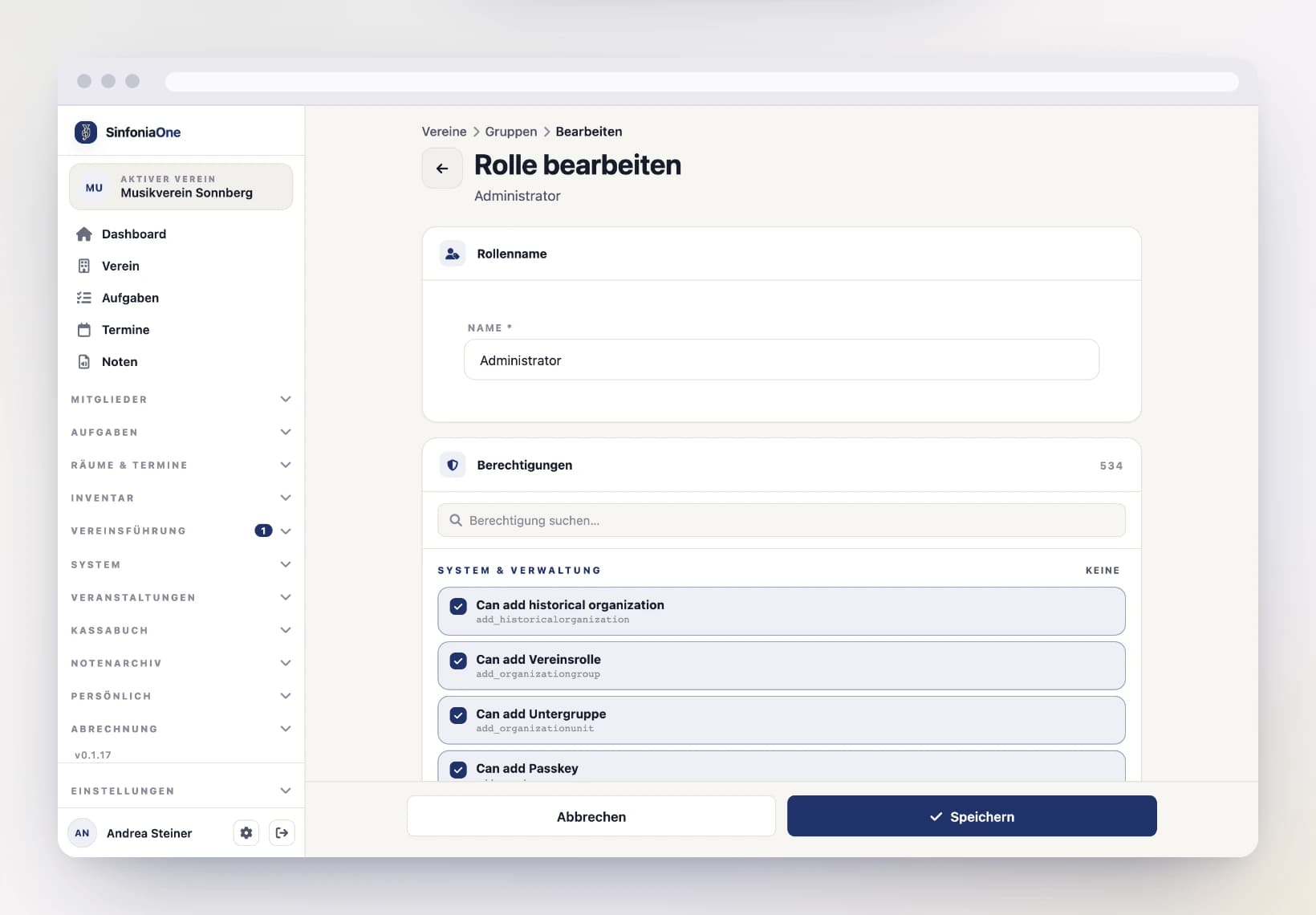
Set permissions
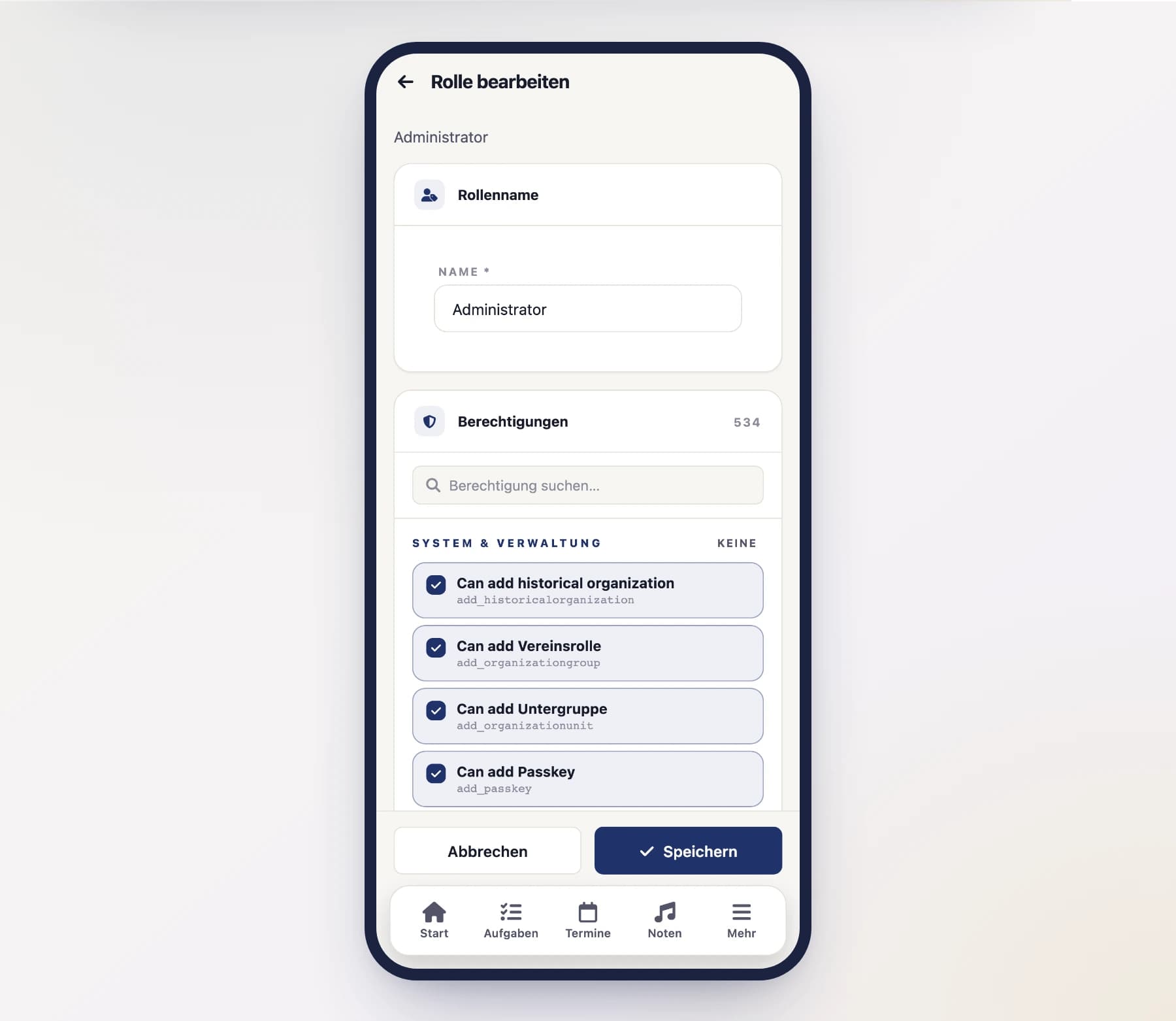
Use the checkboxes to set exactly the rights this role should have. The rights are grouped by area (e.g. members, events, sheet music, cash book) so you can find your way quickly. A checkmark on "view" only allows viewing; a checkmark on "manage" also allows creating, editing and deleting.
Save
Tap "Save". The new role is ready to assign right away.
You can rename existing roles, change their rights or delete them the same way.
Your changes stick
If you take a right away from a standard role, it stays away — even when an update extends the standard roles. Rights for new features are added to the standard roles automatically; only what you deliberately removed is never switched back on. If you want a removed right back, simply tick the checkbox again.
Assigning a role to a person
A role only takes effect once you give it to a person. You do that in that person's member record.
Only for linked accounts
Roles can only be granted to people whose member record is linked to a login account. Only then can the person use the app at all and exercise rights. To learn how to connect a record and an account, read Linking accounts.
Open the member
Open the member list and tap the person you want to give a role.
Open the "Roles" section
In the person's details you'll find the "Roles" section. It only appears if an account is linked.
Add a role
Select the desired role and confirm. You can give a person multiple roles – the rights add up. To remove one, take the role away again in the same place.
Changes take effect immediately
As soon as you assign or remove a role, what the person sees and can do in the app changes. They may have to reopen the app once for new menu items to appear.