Club messages
Send quick news to the whole club, to subgroups or to sections – as a push notification on the phone and in the “Club messages” list, marked urgent if needed.
Rehearsal starts later today, the outing is cancelled, the annual general meeting is coming up: with club messages you reach your musicians quickly. Every message goes out as a push notification to their phones and also appears in the “Club messages” list in the app. Anyone who doesn't get push notifications – because they only use SinfoniaOne in the browser or have switched push off – reads it there.
Reading messages
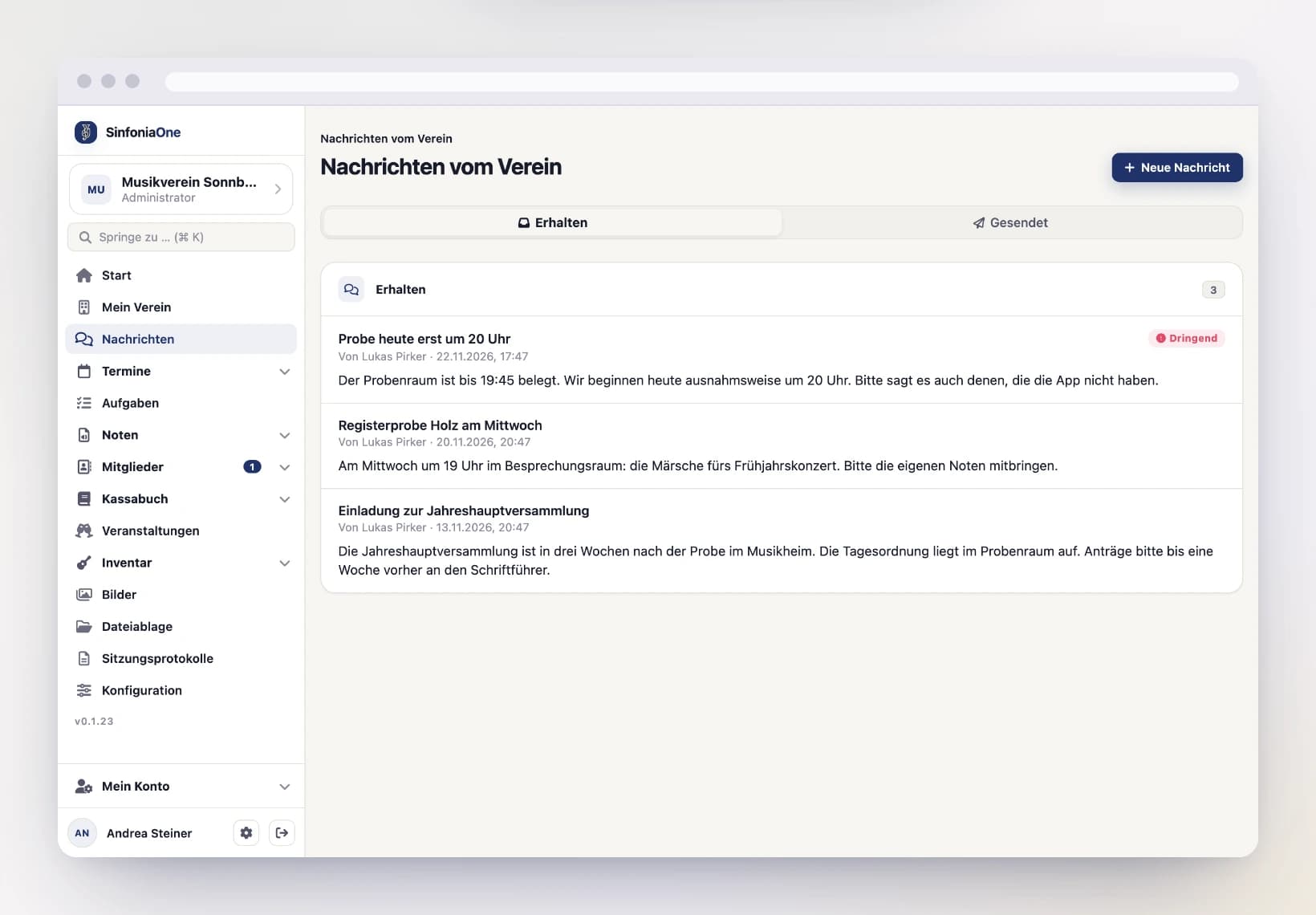
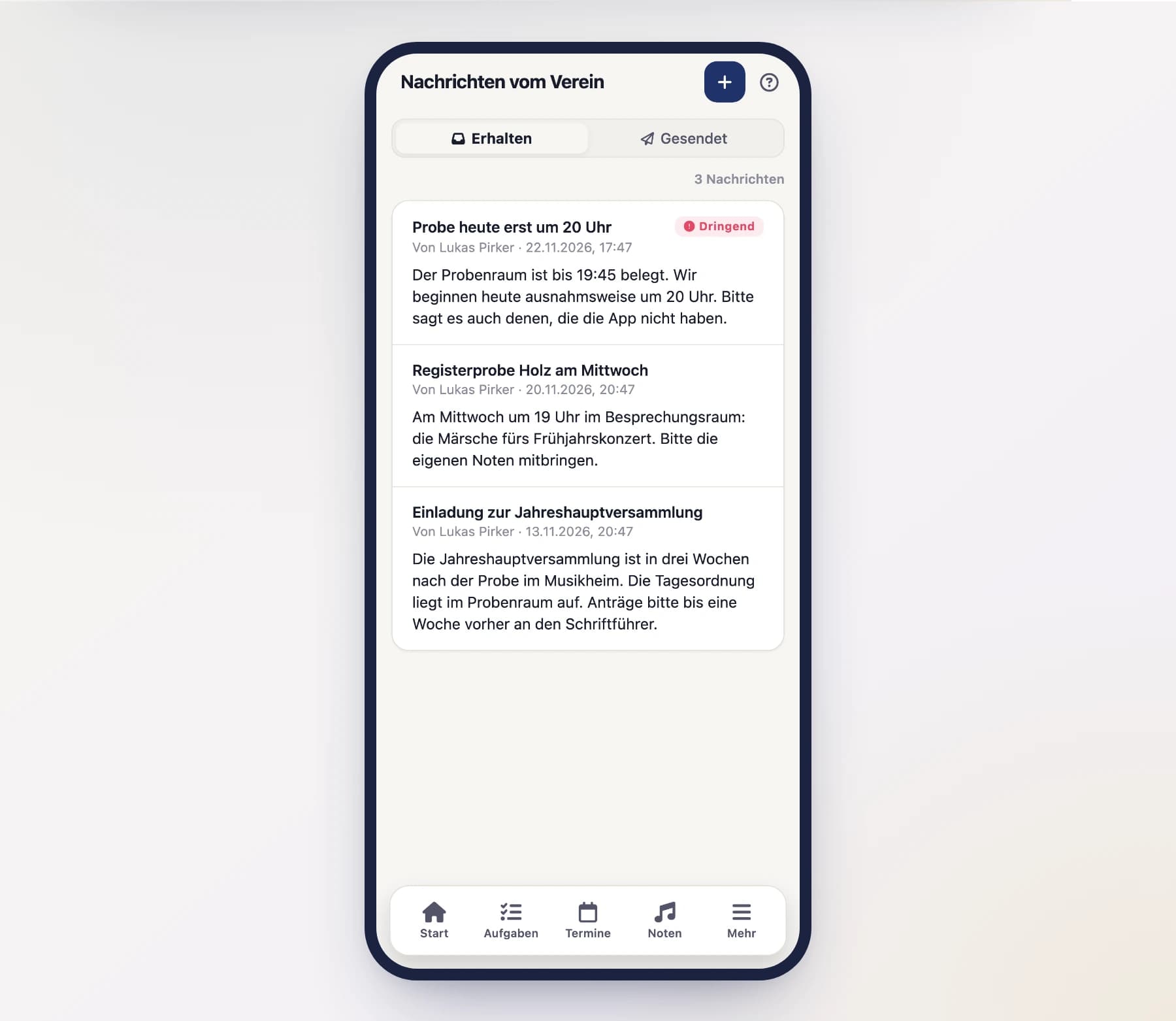
Open “Messages” from the menu. The number on the menu entry tells you how many messages you haven't read yet.
- New messages are at the top under “New” and carry a coloured stripe on the left edge; below them comes “Earlier”.
- For each message you see the title, who sent it and when, followed by the full text. Urgent messages carry the label “Urgent”.
- A message counts as read once you leave the list with it on screen or open it on its own – then the counter goes down, on all your devices. While you're reading, everything stays put.
- Tapping a push notification opens exactly that message. If it belongs to a different club than the active one, the app switches there first.
- The list goes back one year.
You only see what was sent to you
Your list only contains messages that were sent to you. A message to the clarinet section doesn't show up for anyone who doesn't play the clarinet.
Who can send messages
Anyone with the right “Send messages to the club” can send. By default that's the administrator – usually the chairperson – and the secretary. If someone else should be able to send messages, the conductor for example, give them the right in the role editor. The same right lets you see all sent messages of the club and delete them.
With the right, you see the “Received” and “Sent” tabs at the top and the “New message” button. Every member can receive messages; that needs no right.
Sending a message
Open a new message
Open “Messages” and tap “New message”.
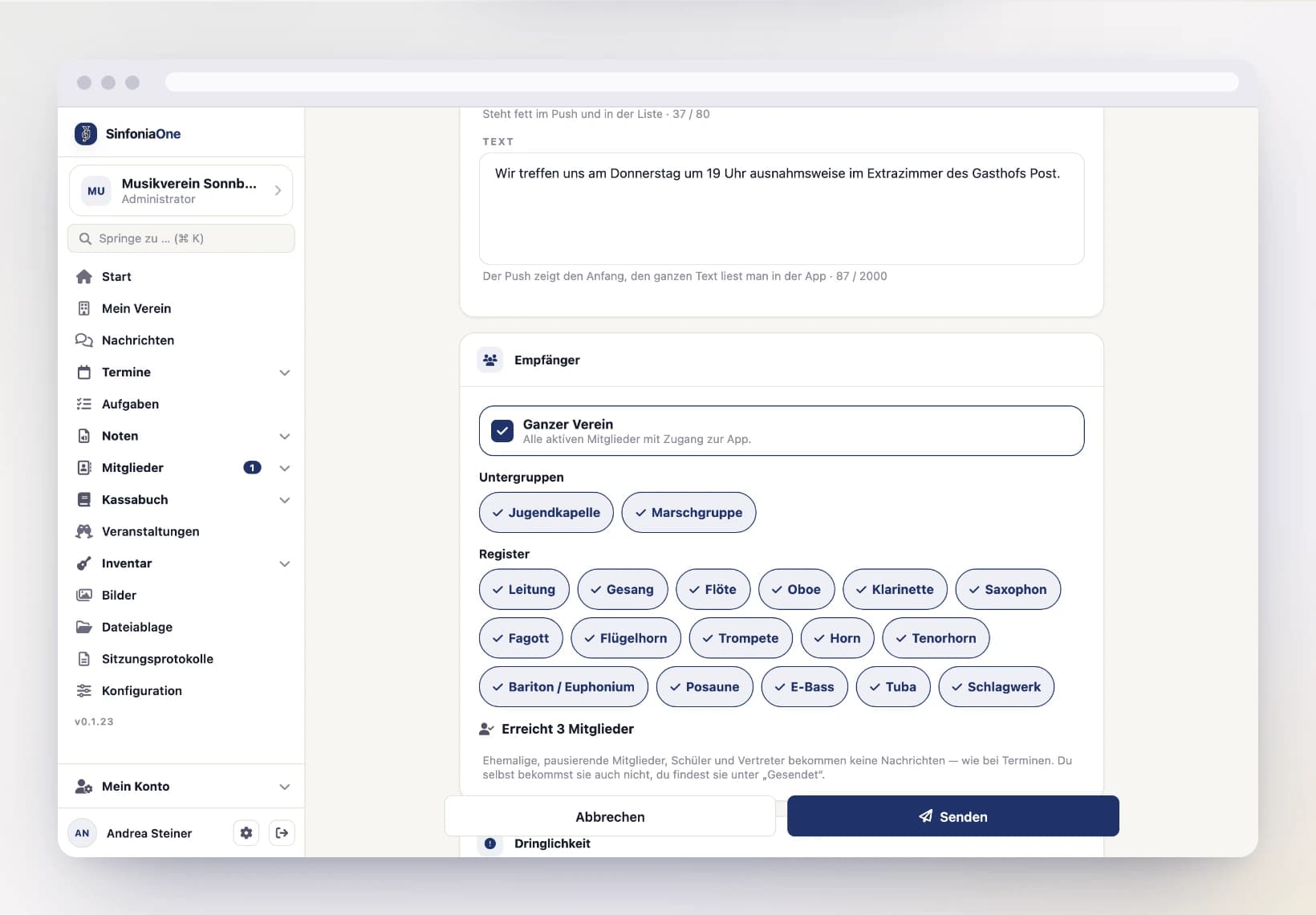
Write the title and text
- Title – short and clear, e.g. “Rehearsal starts at 8 pm today”. It's required and can be at most 80 characters.
- Text – the details, at most 2000 characters. You can also leave it out.
The push notification shows the title with the club's name and the beginning of the text, about 240 characters. Everyone reads the full text in the app. Without a text, the push shows the club's name on top and the title below it.
Choose the recipients
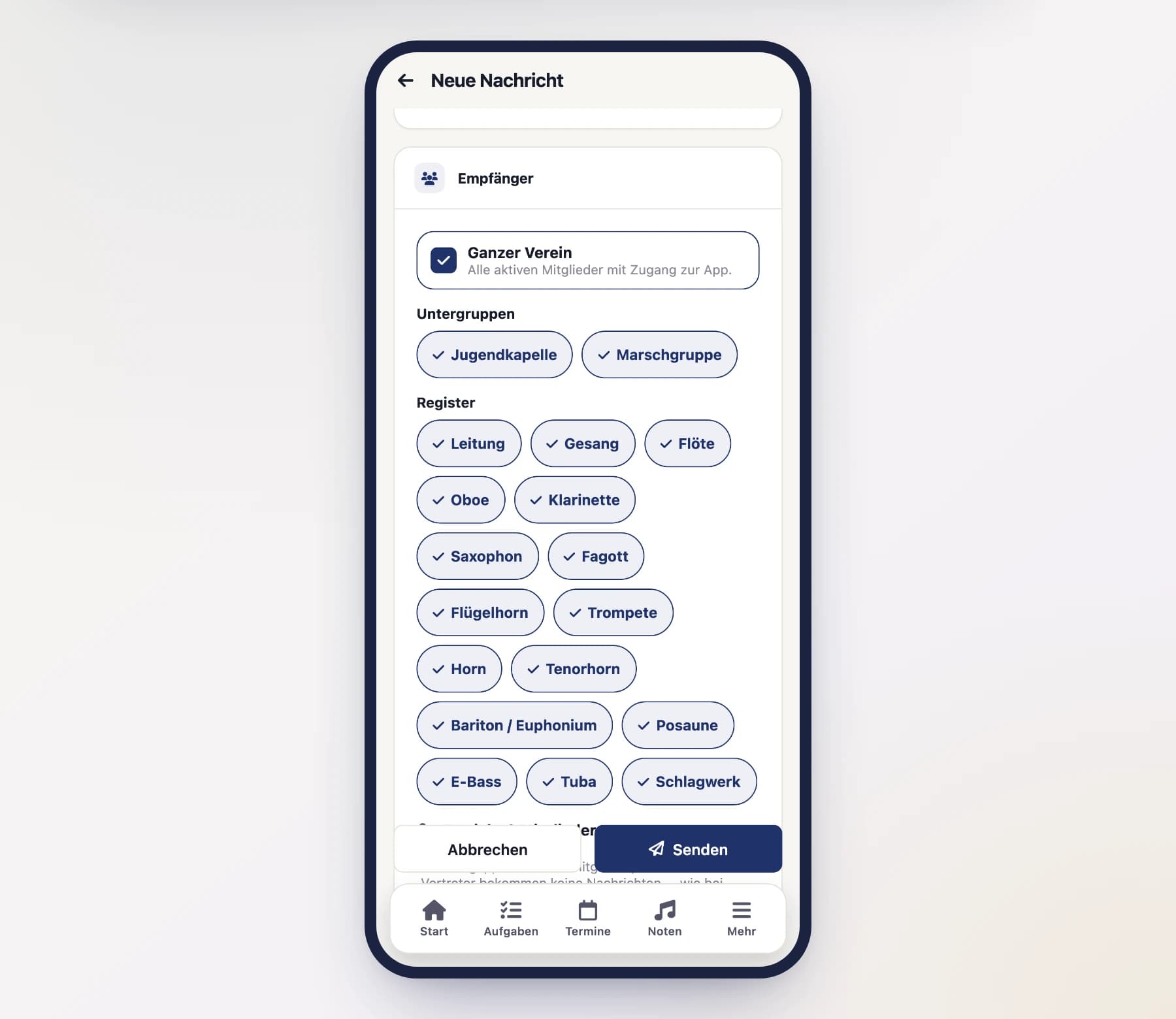
Under “Recipients” you decide who gets the message:
- Whole club – everyone in the active roster.
- Subgroups – only the youth band, for example.
- Sections – only clarinets and flutes, for example.
You can combine subgroups and sections; anyone in several of them still gets the message just once. Below, SinfoniaOne works out how many members your selection reaches: “Reaches 42 members”.
Urgent or not
If it's really pressing, switch on “Urgent” (see below).
Send
Tap “Send”. The app asks first, e.g. “Send message to 42 members?” – the push only goes out once you confirm.
A push notification can't be called back
As soon as you've sent it, the message is on people's phones. You can't change it afterwards – read it through once more before sending.
Who gets the message
Messages follow the same rule as invitations to events: what counts is the active roster.
- Former and paused members, students and deputies don't get messages – not even if they're in a selected subgroup or section.
- Through a section you reach everyone assigned to it directly or playing an active instrument with a part in that section.
- Someone with an account but no member record belongs to the roster and gets messages to the whole club; they aren't in any subgroup or section.
- Members without an account don't use the app and therefore don't get messages either.
- You don't get your own message; you find it under “Sent”.
Who gets the message is fixed when it's sent. If someone joins the youth band later, they won't see an earlier message to it.
Urgent messages
With “Urgent” a message gets through even when things are supposed to be quiet:
- On an iPhone it's a time-sensitive notification: it appears even during a Focus (such as “Do Not Disturb”) if you've allowed that for SinfoniaOne.
- On Android it uses its own channel, “Urgent club messages”, with high importance.
- Urgent messages always arrive, even for people who have turned off club messages in their settings.
Only for what can't wait
A cancelled rehearsal or a changed meeting point shortly before a performance is urgent; the invitation to the annual general meeting isn't. Send urgent messages too often and in the end you reach no one.
Sent messages
“Sent” lists all of your club's messages, newest first – not just your own. For each you see the title, who it went to (“To: …”), the date and how many have read it, e.g. “12 of 42 read”.
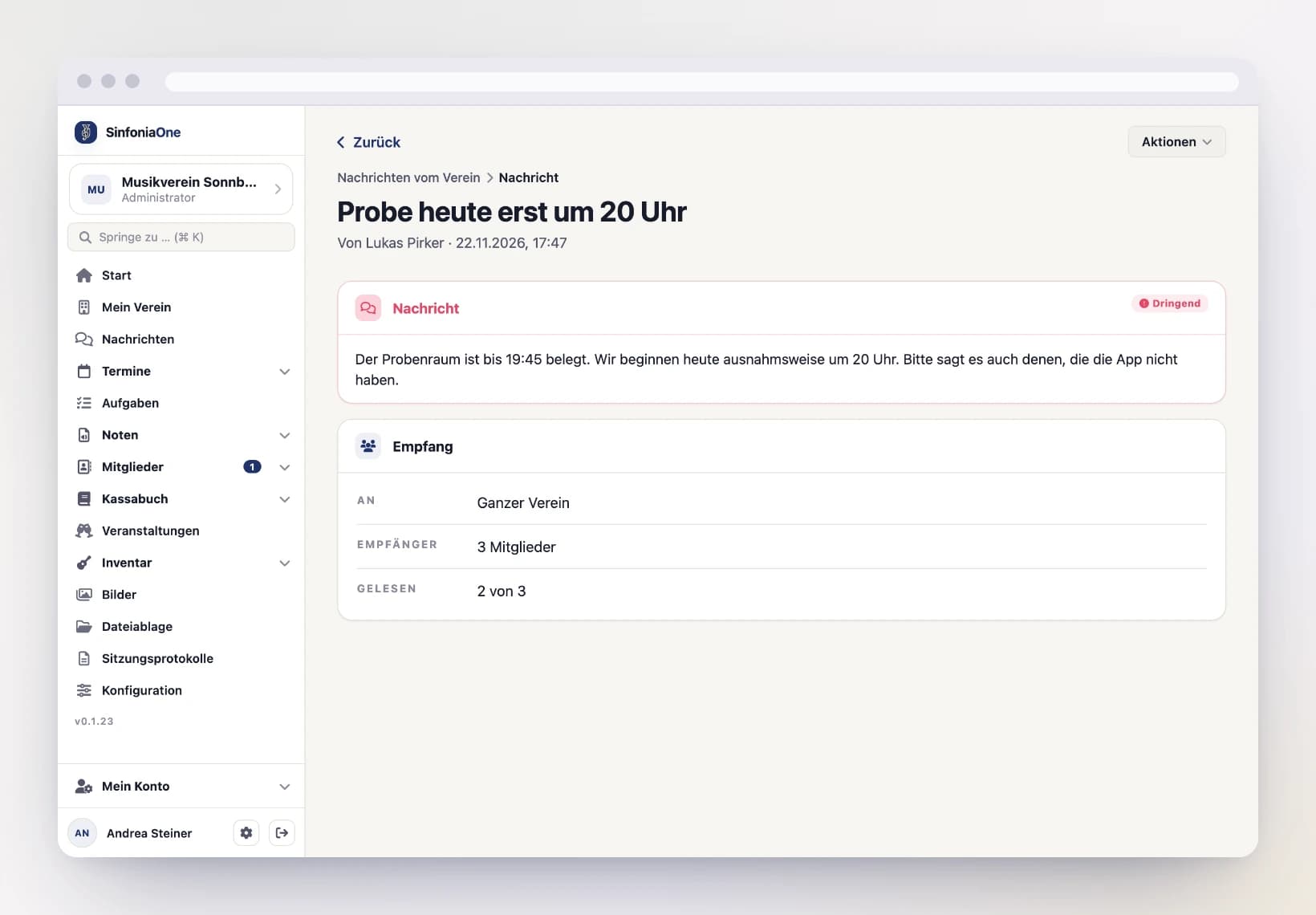
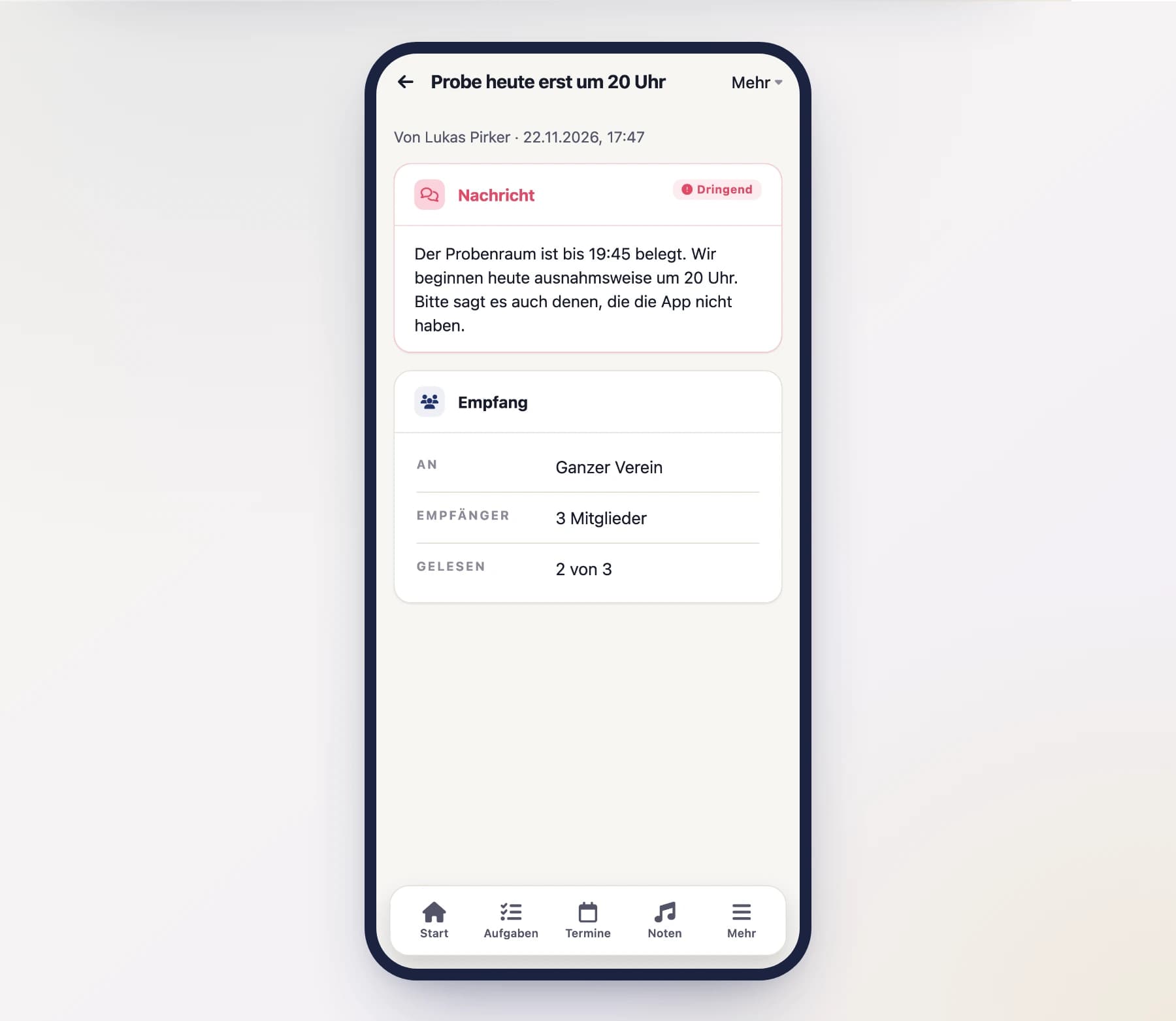
Tap a message to see it in full, with To, Recipients and Read. SinfoniaOne doesn't show who exactly has read it – only the number.
Deleting
Open the message and choose “Delete” – on a computer under “Actions”, on a phone via “⋯” at the top right; in the “Sent” list you can also use the row. The message moves to the trash, under “Club messages”, and from then on no longer appears in any list. If you restore it within 30 days, it's back for everyone it was sent to – without a second push notification. Push notifications already on people's phones stay there.
Turning off push notifications
You can turn off ordinary club messages: under Settings → Notifications, topic “Club messages”. They only come as push notifications; there's no email for them. They still appear in the list. Urgent messages always arrive. More under Settings.