Creating events
Plan a rehearsal or performance, invite people, set reminders and cancel events.
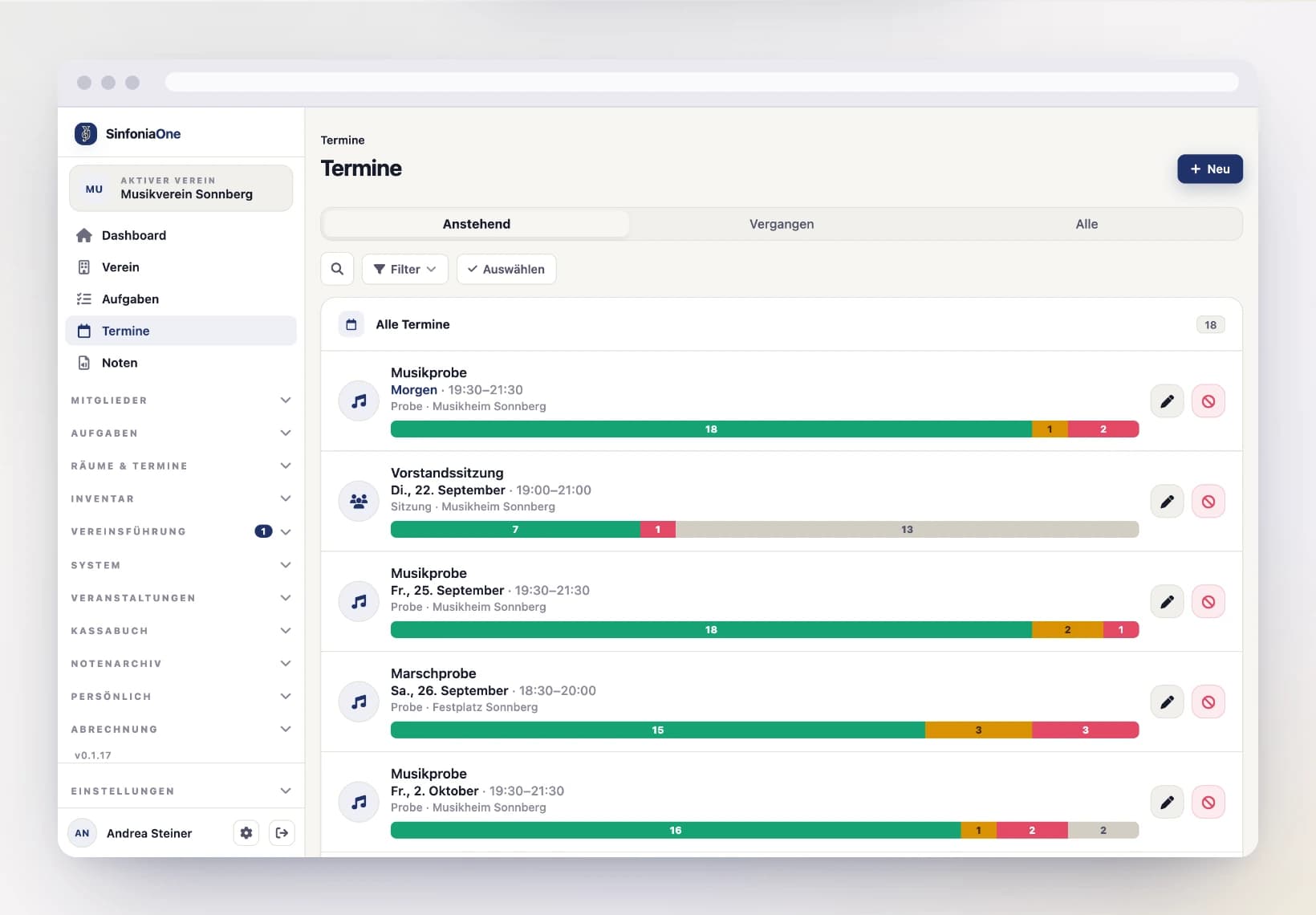
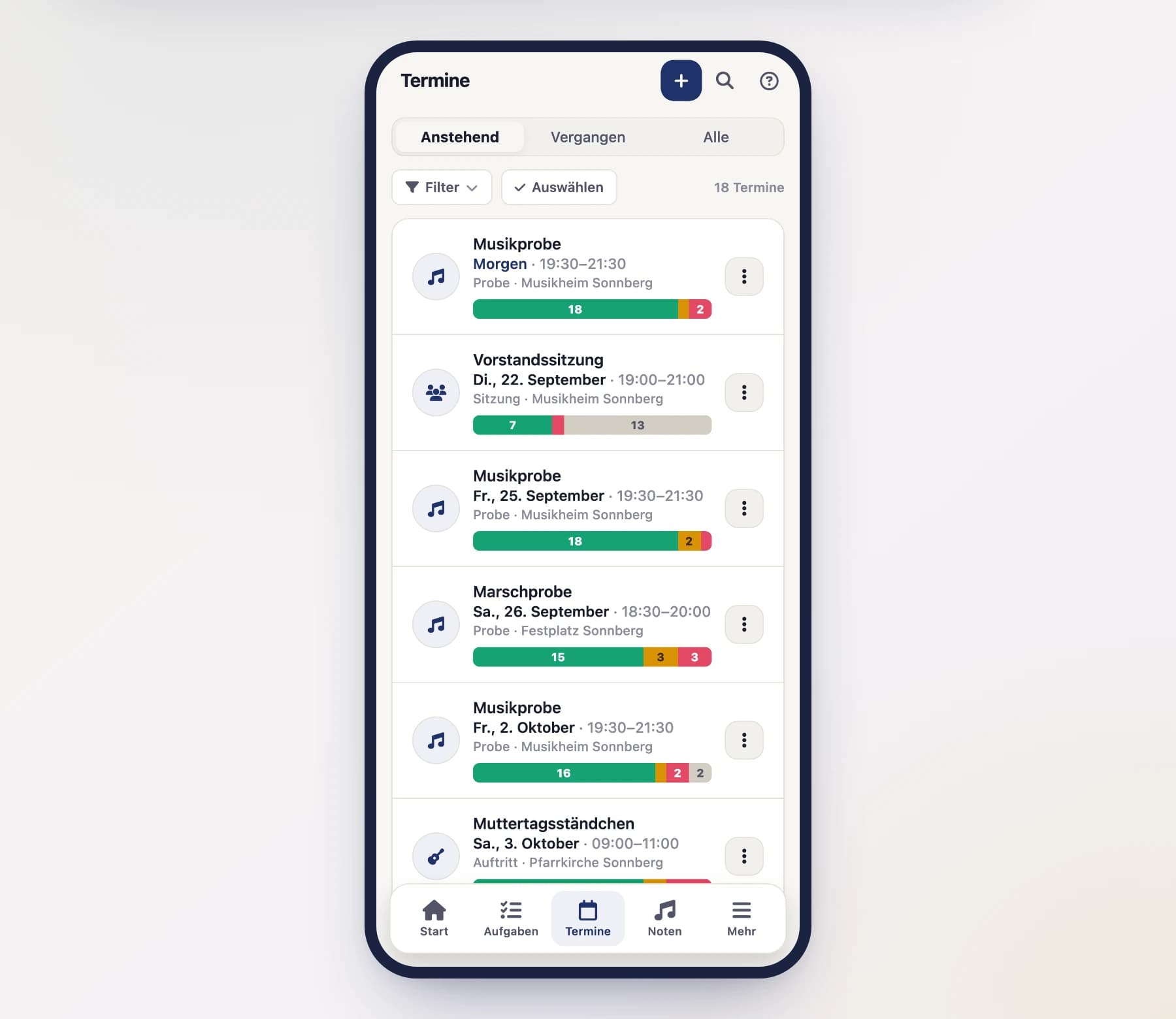
In the Events area you see all your club's rehearsals, performances and info items. Only whoever is allowed to manage events can create new ones – for example the conductor, board or administrator.
Creating an event
Open a new event
In the event list, tap "New event" (on the phone usually a plus button in the bottom right).
Set title, description and type
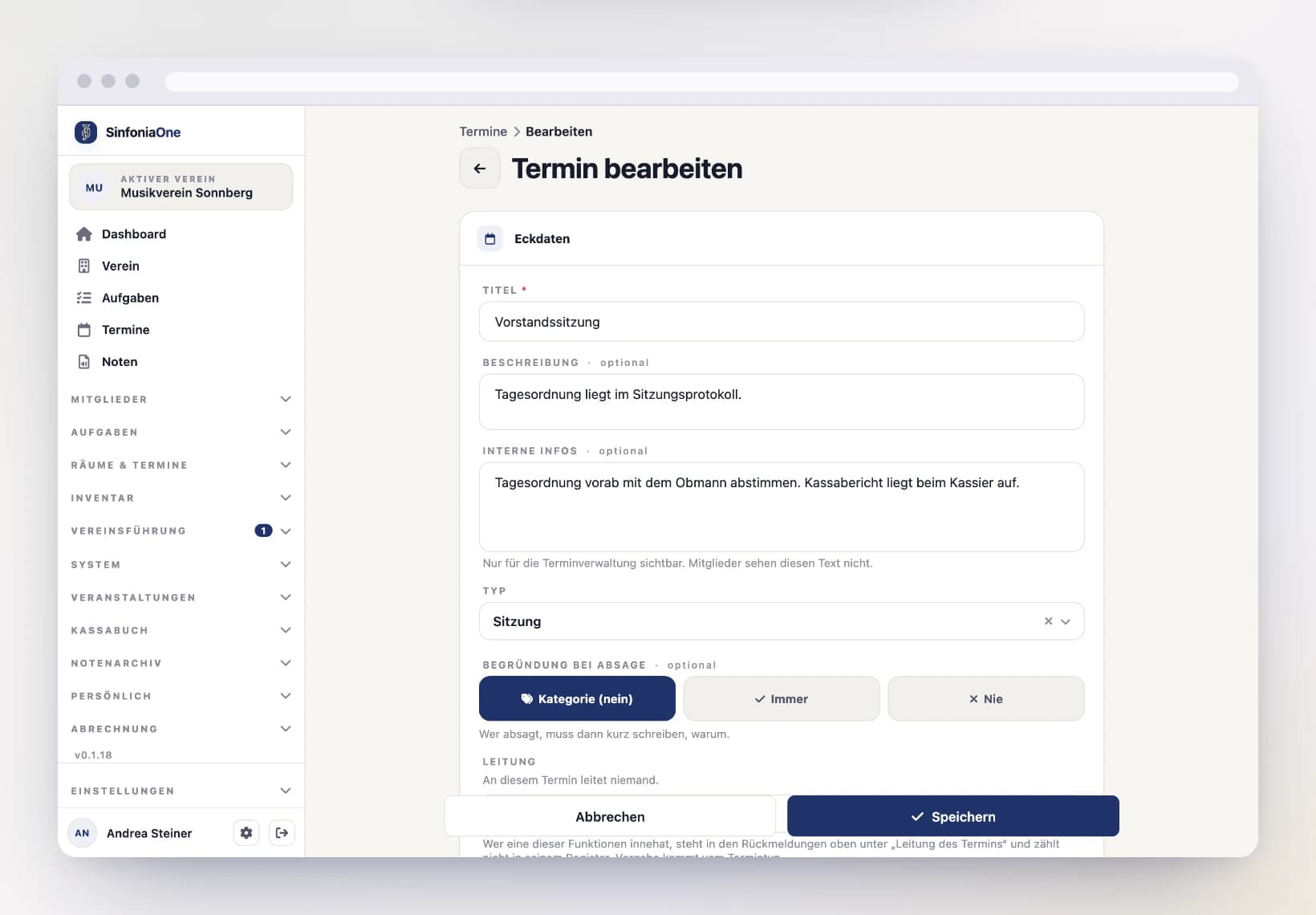
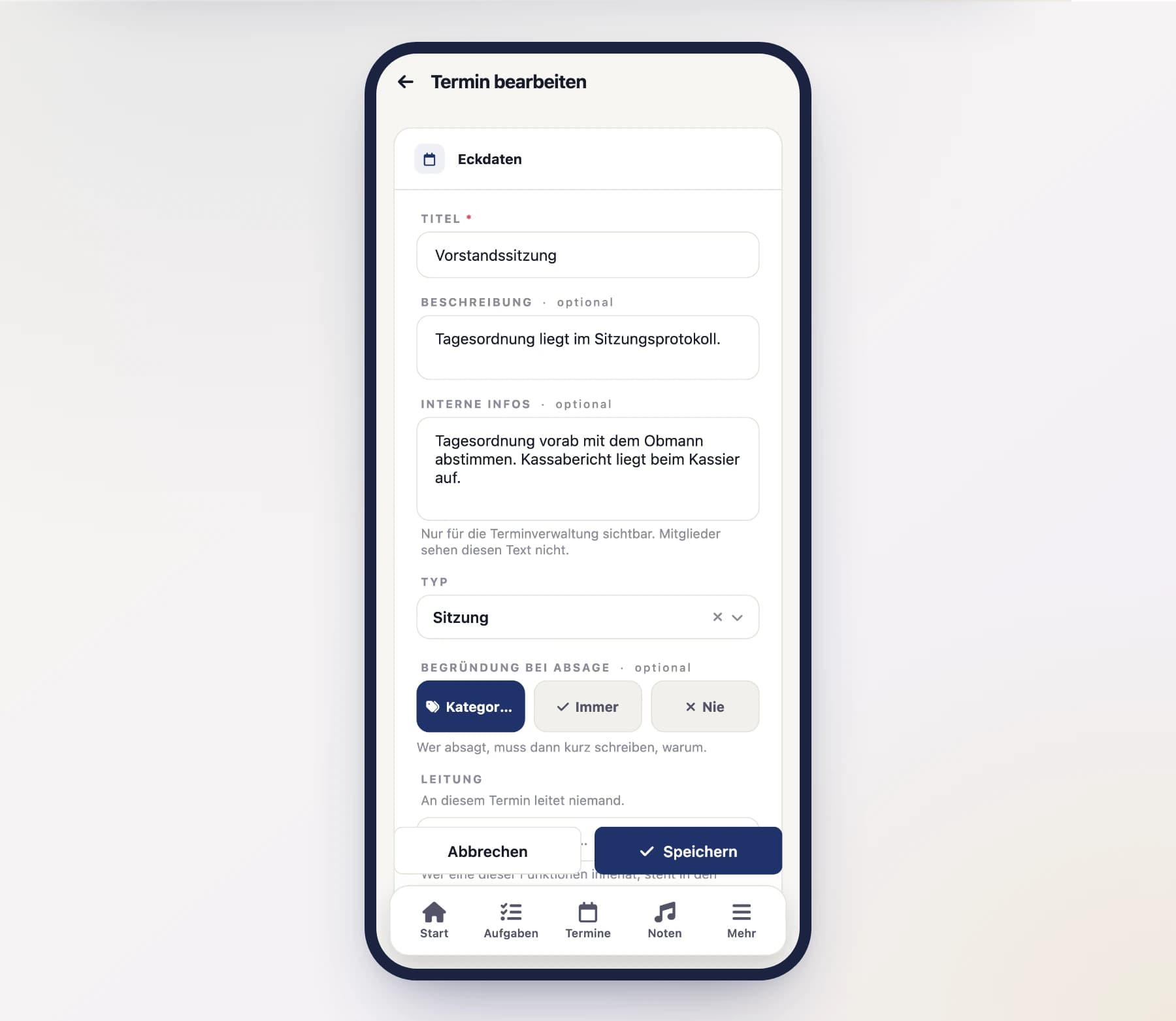
Give the event a title (e.g. "Full rehearsal") and – if you like – a description with more info.
Right below it sits “Internal notes”. That is where everything goes that only concerns the people managing events: where the key is, what the hall costs, which arrangement is still open.
Internal notes stay internal
Everyone invited reads the description — the internal notes are only visible to people who may manage events. Members never see the text, and a search will not surface an event through a word that appears only there.
Choose the type so everyone immediately knows what it's about. Which types are available is up to your band — by default that's Rehearsal, Performance, Meeting, Information and Other. See Event types for how to add your own.
If the right type is missing, you do not have to leave the form: type its name into the search box of the type picker — “Create …” appears above the list. One tap and the type is created and selected. You can adjust its colour and icon later under Event types. This is only offered if you are allowed to manage events.
Right below it sits “Reason when declining” with three options:
- Category – whatever the event type says applies.
- Always – anyone declining this event has to write down why.
- Never – for this event a decline without words is fine.
Below that sits the leadership: the club functions that lead this event. It's pre-filled with what the event type says – the conductor for a rehearsal, the drum major as well for a performance. If you change the type, the leadership is pre-filled again. Whoever holds the leadership appears at the top of the responses and isn't counted in their section; if the conductor plays along at this event, take them out here. See Event types.
Enter start and end
Set the start and end – date and time. That way everyone sees how much time to set aside.
Give a location or room
You have two options, which you can also combine:
- Location as free text (e.g. "Music hall, large room" or an address).
- Room picked from your created rooms – handy if you have fixed rehearsal rooms.
Allow "Maybe"
Decide whether members can also respond with "Maybe". If you turn it off, there's only Accept or Decline – good when you need a firm response.
Who do you invite?
An event only becomes visible to respond to once a person is invited.
By default no one is invited
A new event doesn't invite anyone at first. So remember to set the invitation – otherwise no one gets asked whether they're coming.
You can invite:
- the whole club at once,
- individual sections (e.g. only the clarinets),
- entire subgroups (e.g. the youth band), or
- individual people.
These can be combined: "all the brass plus the youth band plus one standard-bearer" is a single invitation.
On top of that, you can specifically exclude individual people – for instance when the whole section is invited but one person isn't needed that day.
Only the active roster gets invited
Whichever way you choose, only people listed in the member file as an active member are invited. Students, deputies, members on a break and former members stay out, even with “Whole club”. They get no notification, don't find the event in their list and appear in no response or attendance list. If a student should play along, set their status in the member file to Active member.
Only invited people can respond
Accepting and declining is limited to the audience. Whoever manages events also sees the others — but those carry no response card and don't appear on the home screen. That way the response rate always counts against the people who were actually asked.
“Without section” catches the rest
Next to the sections there is a “Ohne Register” button. It invites everyone who cannot be reached through any section – people with no part, with only parts that have no section, or with no direct assignment. Ticking every section does not reach them; this is the only way.
The button remembers a rule, not a list of names: anyone who joins the member file later without a section belongs to it from then on, and anyone who gets a section drops out. The number beside it only says how many there are right now.
That anyone is in this group at all is usually an oversight – see Parts & sections.
The audience always stays current
A section isn't resolved into a fixed list of names and frozen. If someone later takes up an instrument of that section, is assigned to it directly, or moves from student to active member, they belong to all upcoming events of that section straight away – nobody has to update the invitation. Their default response and any recorded absence follow automatically.
They deliberately get no notification: with a weekly rehearsal that would be dozens at once. The event is in their list from now on – that is the invitation. If you want to tell people explicitly, add the section on the individual event; then an invitation goes out, and only to those newly added.
Past events stay untouched. Nobody has given an acceptance for a rehearsal that has already happened.
Subgroups invite just like sections
A subgroup is a group of members you put together yourself – unlike a section, which follows from the instrument. If the event is addressed to a subgroup, its abbreviation appears in the event list at the start of the info line below the time, and you can filter the list by it. How to create subgroups is described under Subgroups.
Setting reminders
So no one forgets the event, you can turn on automatic reminders. The app sends them as a notification to the phone:
- 1 hour before
- 1 day before
- 1 week before
You can activate several at once. Finally, tap "Save".
Reminders travel into the calendar
Anyone who has subscribed to the personal calendar feed also gets these reminders from their calendar app — even without SinfoniaOne on the device. Only reminders set before the start are carried over. Reminders “after the start” and “after creation” stay app notifications: an alarm in the middle of a rehearsal would disturb everyone, and “new event” would arrive late in a calendar subscription anyway.
Late reminders are not sent afterwards
Reminders only go out while they are still useful. Once the event has started, you no longer get a reminder for it — “rehearsal in one hour” after the rehearsal would only confuse. The same applies when a reminder is more than a day overdue. If an event is rescheduled later, its reminder becomes valid again and arrives on time.
Cancelling an event
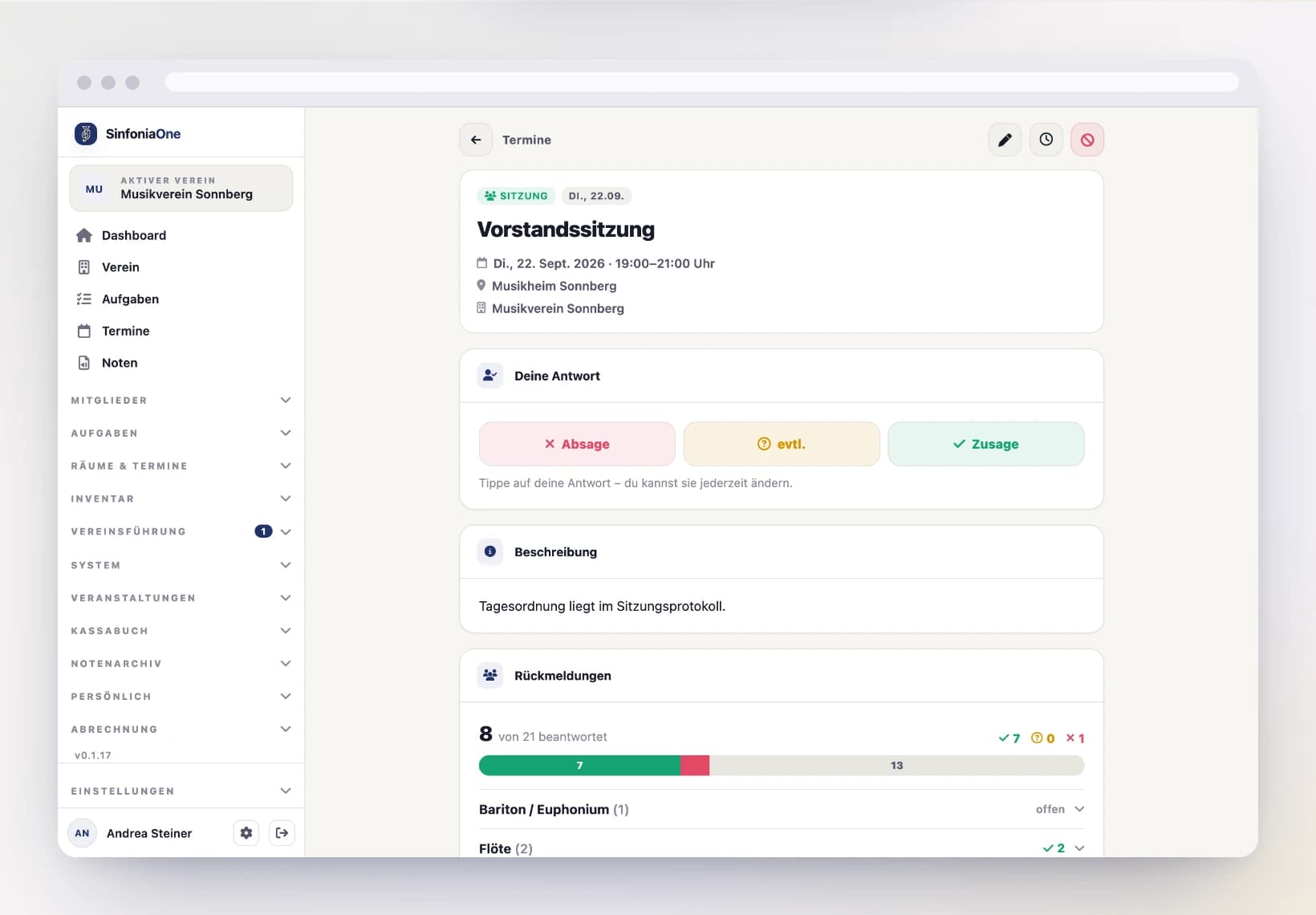
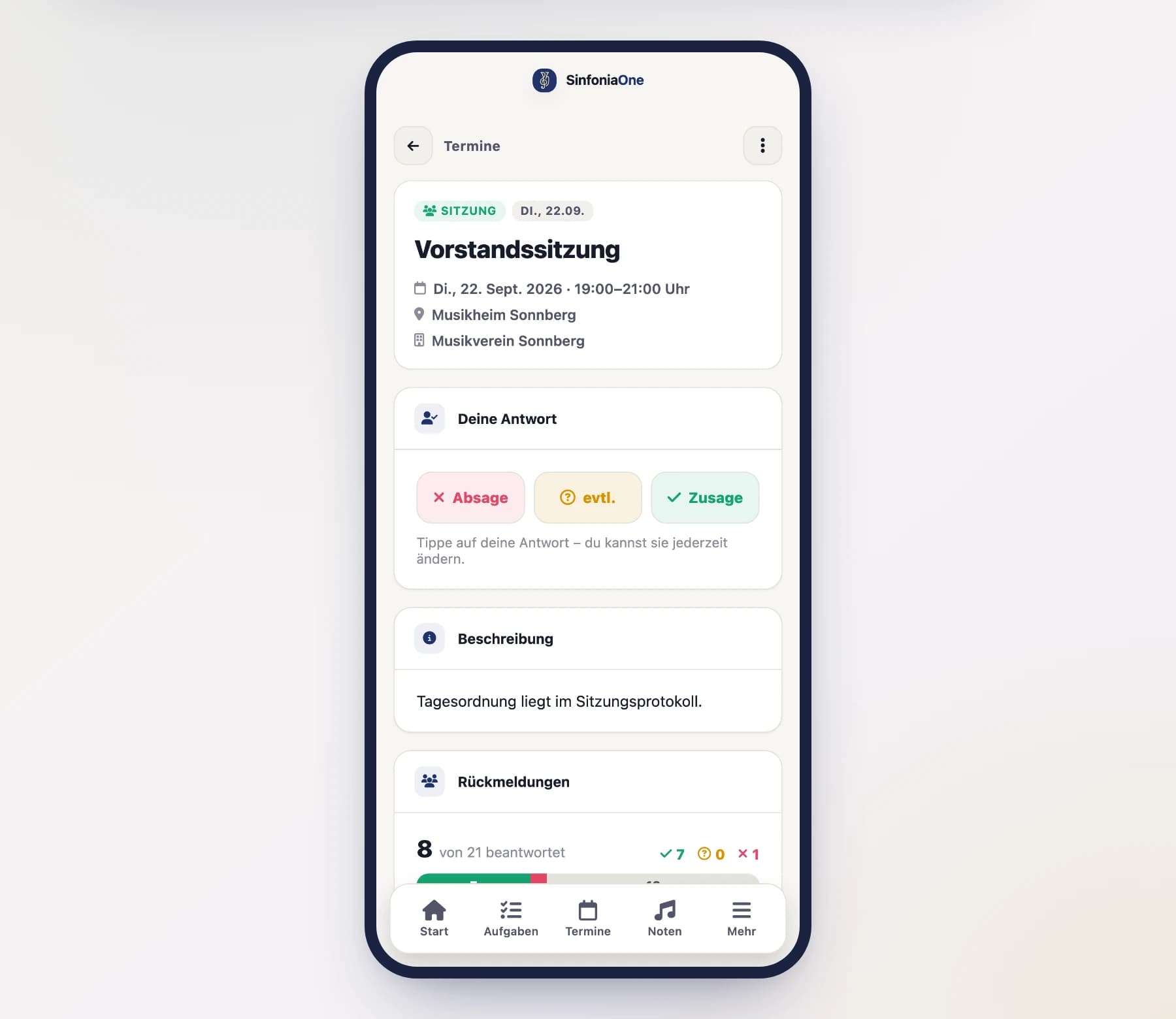
When a rehearsal or performance falls through, you don't delete the event right away – you cancel it first. That way it stays visible to everyone and no one wonders where it disappeared to.
Everyone gets notified
The event stays in the list but is clearly marked as cancelled. All invited members automatically get a notification on their phone.
Not cancelled after all?
If the event is back on, tap "Reopen". The event is then fully active again.
Deleting an event
Only when an event should be gone for good can you delete it. Deleted events go to the trash and can be restored there for 30 days.
Several appointments at once
If a whole week of rehearsals is cancelled you do not have to cancel each one separately: tap “Select” to tick several and cancel, reopen or delete them together. Members are still notified per appointment. See Working on several entries at once.