Event Types
Define which kinds of events your band uses, which colour and icon they carry, who leads them and when a decline needs a reason.
Every event has a type — rehearsal, performance, meeting … Which types exist is up to your band.
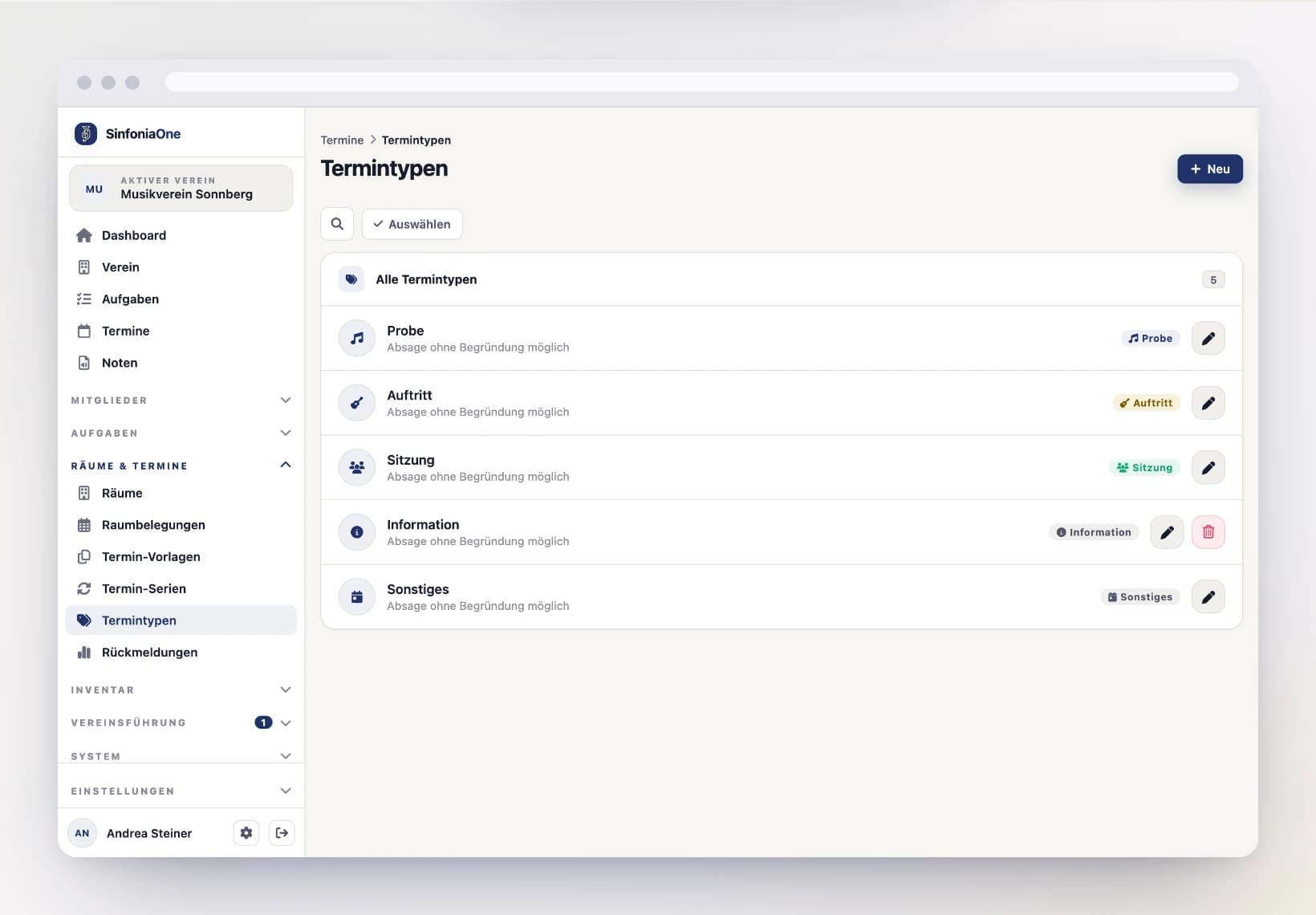
You'll find them in the menu under Configuration › Events › Event types. Changing them is allowed for anyone who may manage events — for example bandmaster, board or administrator.
Your band doesn't start from scratch
When the band is created you get a sensible default set: Rehearsal, Performance, Meeting, Information and Other. You can rename, recolour, extend and (as long as it isn't in use) delete all of them.
Creating or changing an event type
Open the list
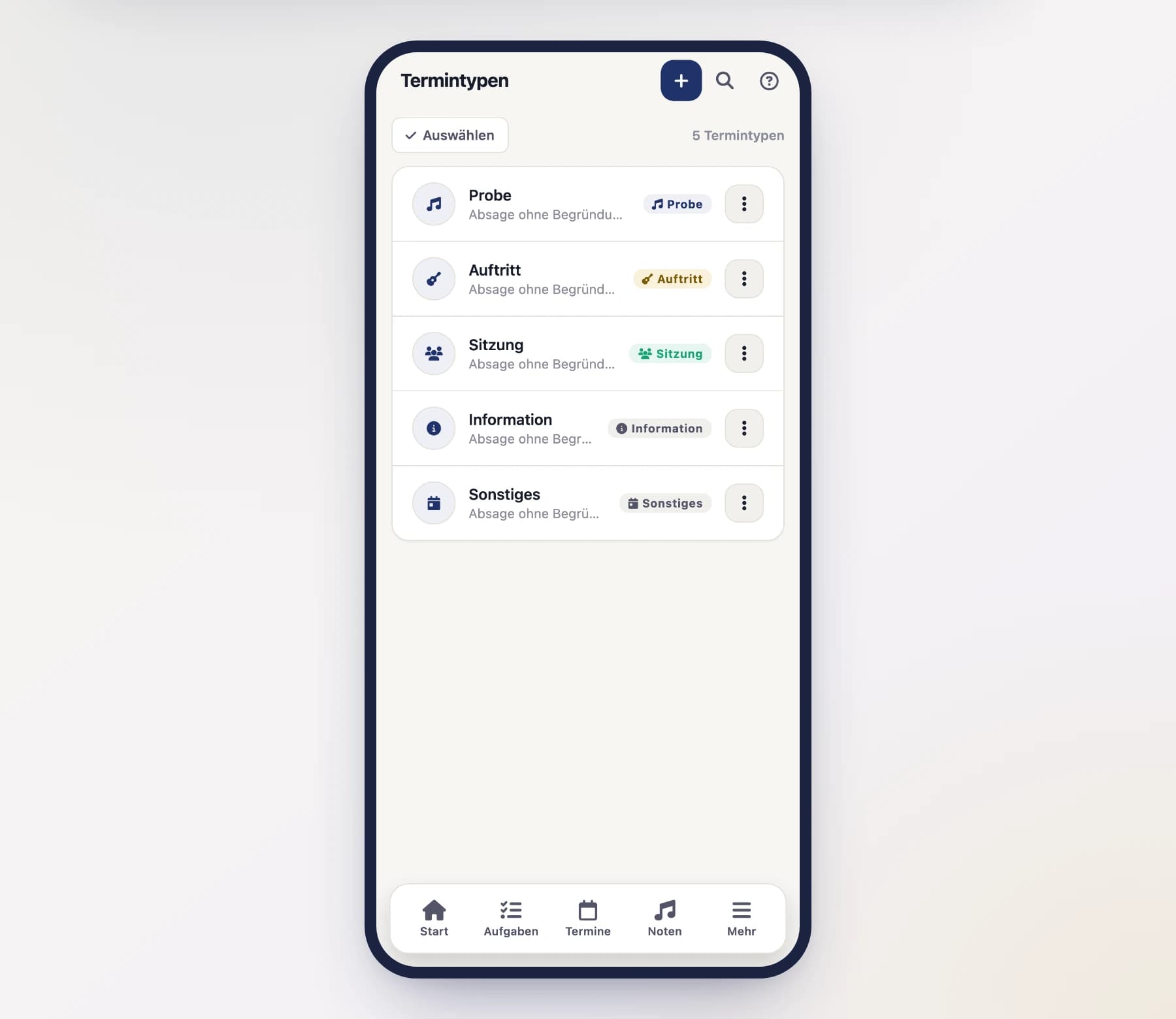
In the menu, open Configuration › Events › Event types. You'll see all your band's types with their colour and icon.
Pick a name, colour and icon
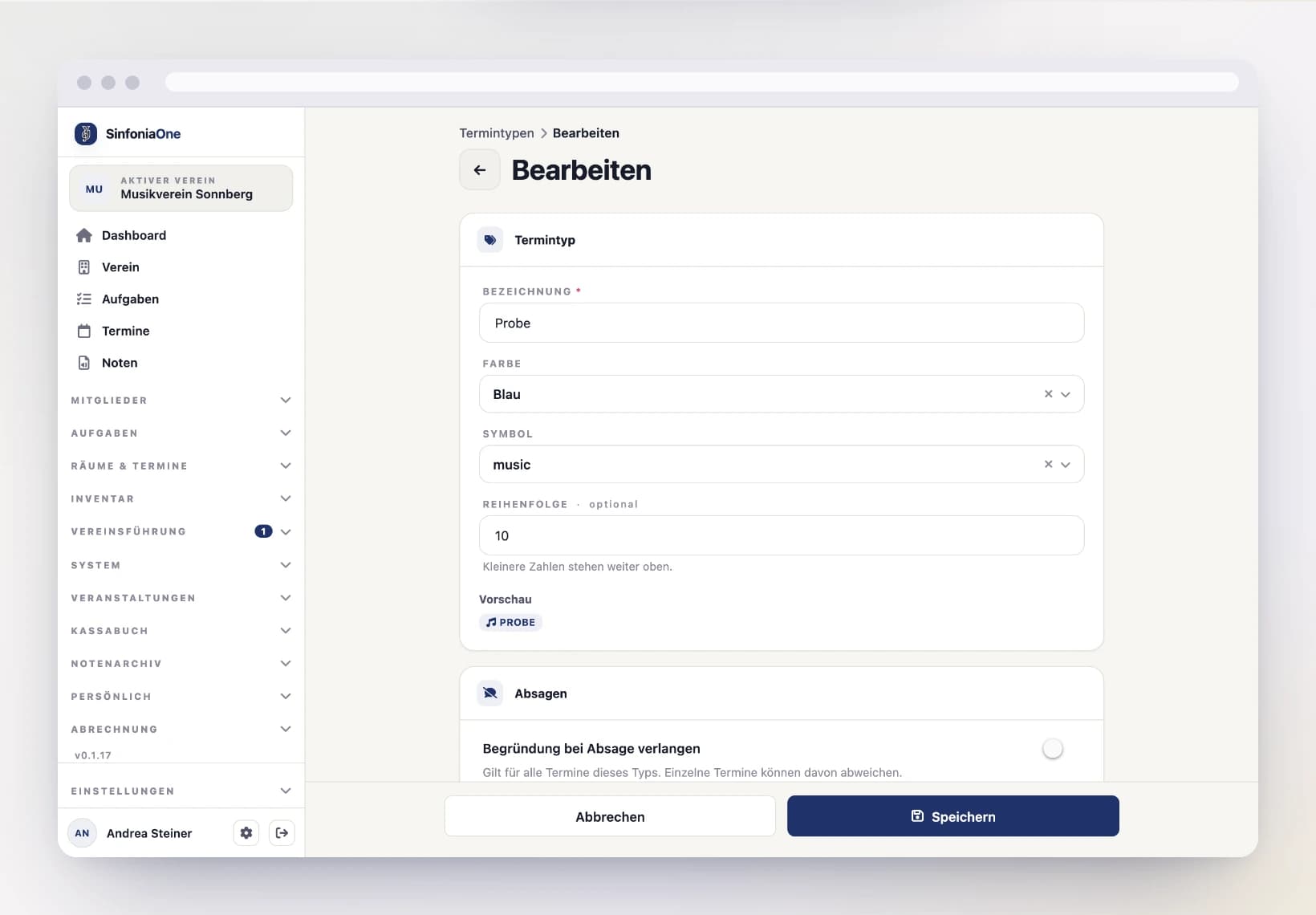
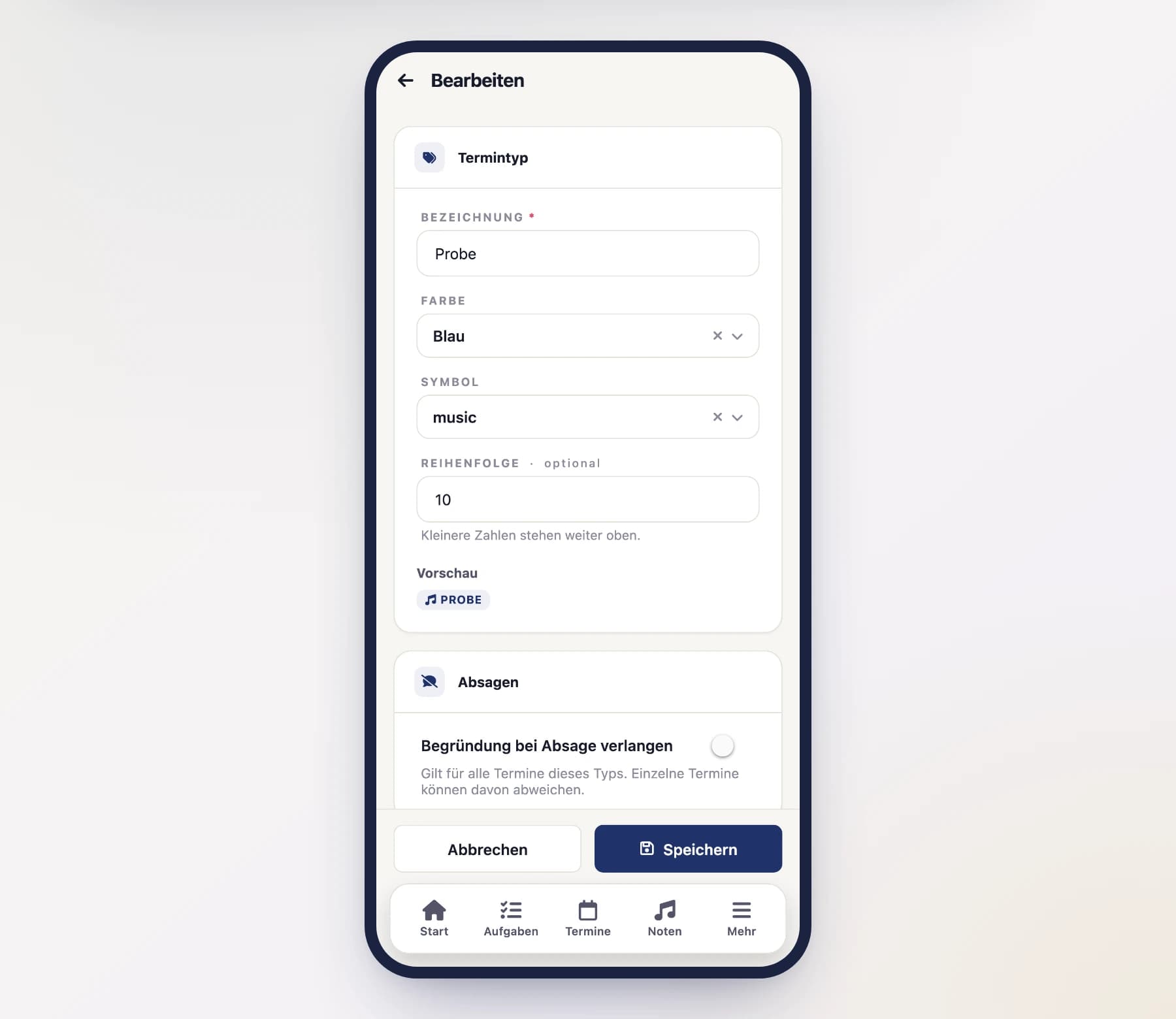
Tap “New” or an existing type.
- Name — what appears on every event (e.g. “Parade”).
- Colour — one of six coordinated colours. Free colour values are deliberately not offered: this way the choice stays readable in both light and dark appearance.
- Icon — the small symbol shown in front of the event in lists.
- Order — smaller numbers appear higher in the list.
Below the fields you get a preview of how the badge will look on an event.
Decide whether declines need a reason
The switch “Require a reason when declining” determines whether someone who declines an event of this type has to write down why. That often makes sense for performances, and rarely for an ordinary rehearsal.
Decide who leads
Under “Leadership” you pick the club functions that lead events of this type. Whoever holds one of them appears at the very top of every such event's responses under “Event leadership” – and isn't counted in their section. That way everyone sees at a glance whether the rehearsal is led, and the trumpets don't count the conductor as a trumpeter.
By default a rehearsal is led by the conductor, a performance additionally by the drum major. All other types have no leadership. Festivals in the calendar run as Other and take over its leadership if you set one there.
Finally tap “Save”.
Create one straight from the event
If you notice a missing type while entering an event, you do not have to switch over here: type the name into the search box of the type picker and create it with “Create …”. It starts out with a neutral colour and the default icon — the fine-tuning happens here.
A type that is in use cannot be deleted
As long as events, series or templates still point at a type, the app won't even offer to delete it. Move those events to another type first — then you can remove it.
Overriding the default on a single event
The switch on the type is a default. Inside the event itself (and in series and templates) you'll find the same setting again, there with three options:
- Category — whatever the event type says applies. If the type changes later, the event follows.
- Always — a reason is mandatory for this event, no matter what the type says.
- Never — for this event a decline without words is fine.
That way you can require a reason for the New Year's concert without turning every rehearsal into an exercise in paperwork.
Changing the leadership of a single event
The leadership of the type is copied into the event when it's created. In the event itself you can change it – for example when the conductor plays along at a performance: take “Conductor” out of the leadership, and they appear and count in their section again. A later change to the type's default only applies to new events; existing ones stay as they are. If you switch the type of a series, its upcoming events get the new type's leadership – except where you changed it on the event itself.
Who holds a function depends on the term of office in the year of the event: a rehearsal from last year shows the leadership of that time. If the conductor hands over during the current year, the successor already leads in that year – for functions that several people may hold at once (such as a deputy), both lead.