Linking accounts
Connect a directory entry to a login account – and set up deputies for young musicians.
A directory entry contains only a person's data. Only once it's linked to a login account can the person really use the app for your club – sign in, open sheet music, accept or decline events. On this page you'll read how to connect the two, disconnect them again, and how to set up deputies for young musicians.
A quick reminder
Directory entry = the personal data in your directory. Login account = the personal access (email + password). The overview explains the difference.
Linking an account
Open the member
In the member directory, open the person’s entry and go to the “Account” card, section “Linked account”.
Pick the account
Choose “Link account”. You get the list of all accounts in your club – search by name or email and tap the right one.
Accounts that already have a directory entry can’t be picked; under “Already taken” you see who they belong to. If you can’t find someone in the list at all, that person doesn’t have an account in your club yet – then invite them first.
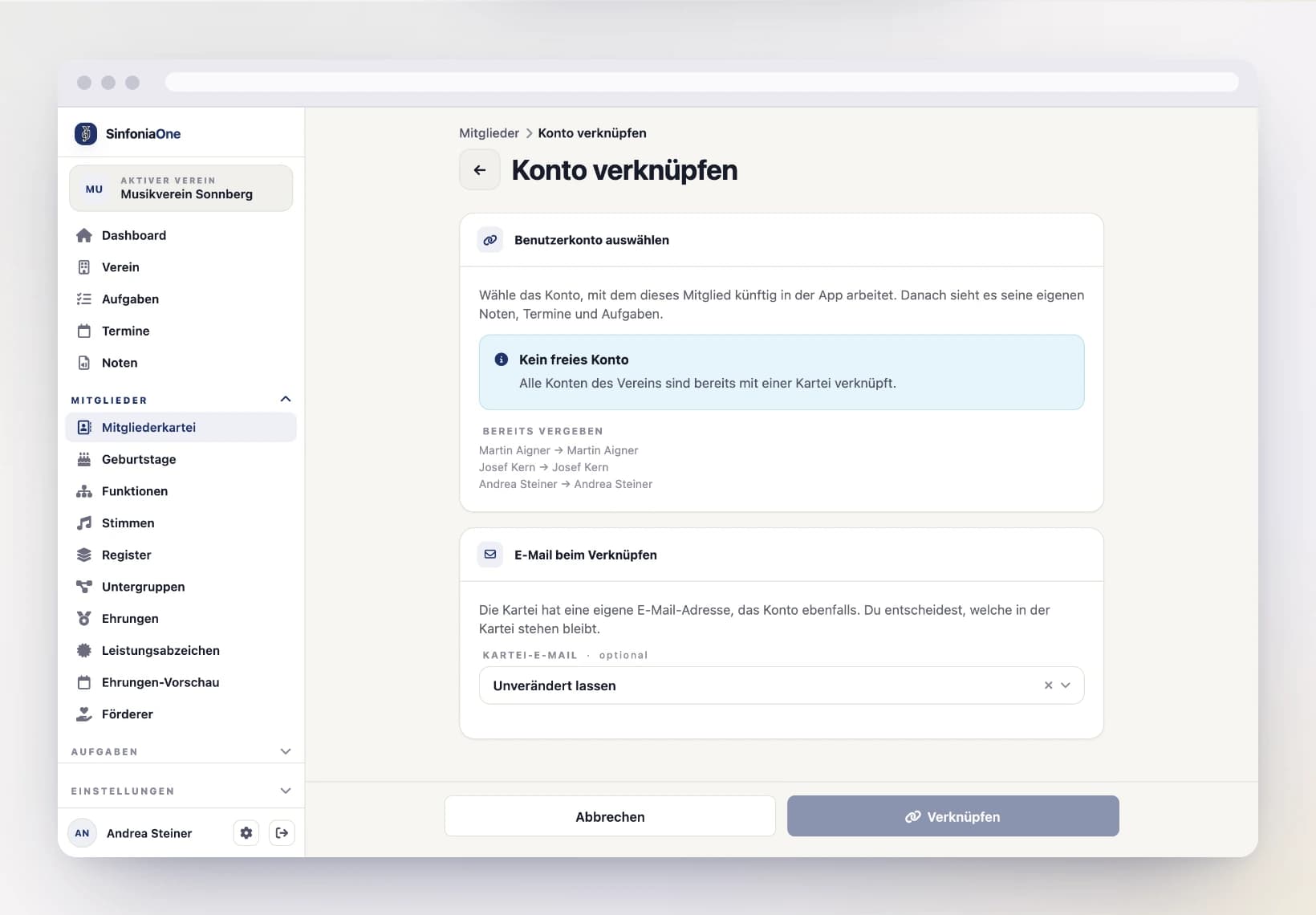
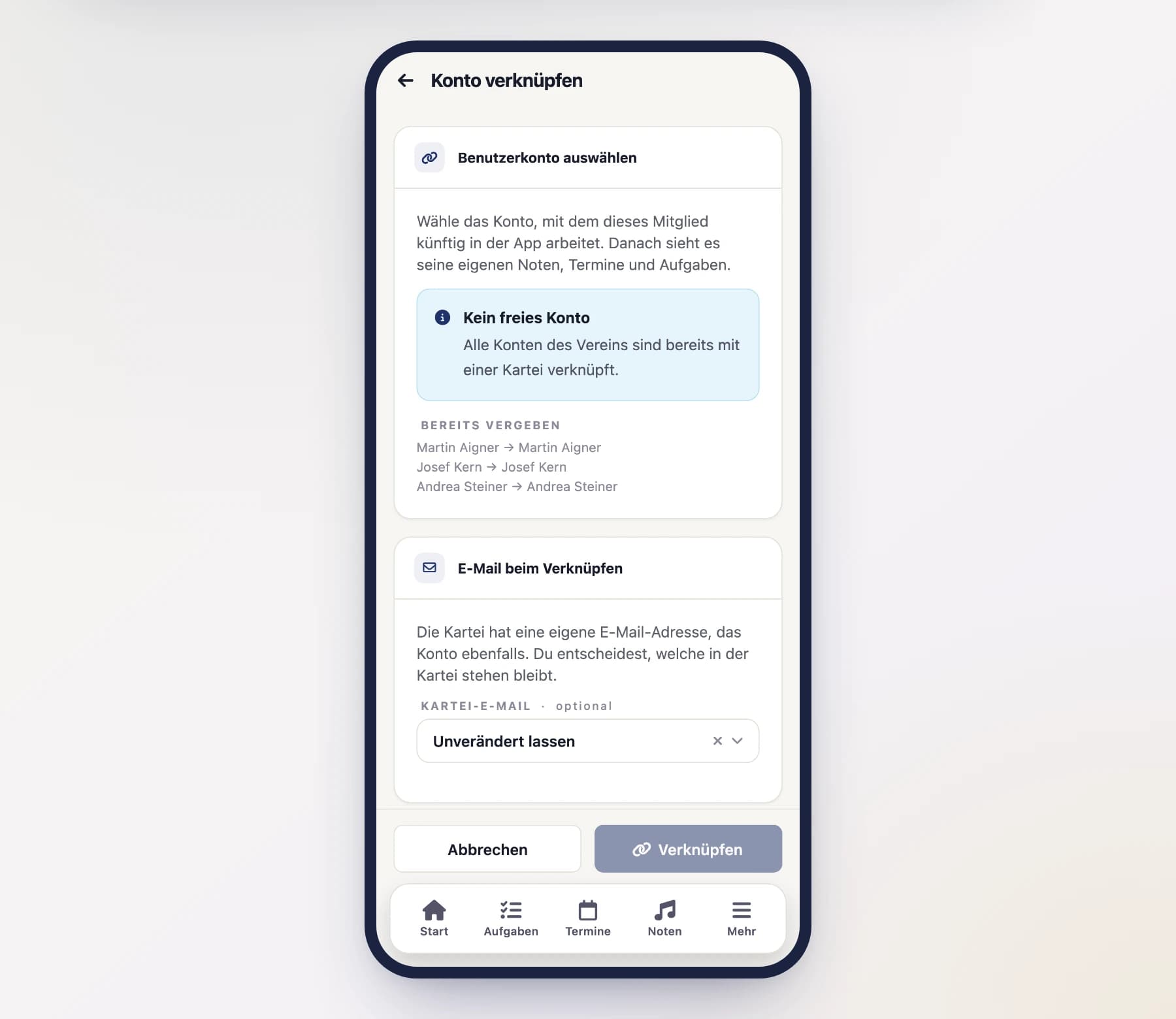
Decide on the email address
There’s an email address in the directory entry and one on the account – usually the same one. You decide what stays in the entry: leave unchanged, take over the account’s address, or remove it from the entry.
Save
After saving, the directory entry and the account belong together. From now on, the person sees your club in their app.
What is carried over when linking
If details are already stored in the account, name and contact details are gently carried over into the directory entry, and the person's profile picture (avatar) appears on the entry. Details already present in the directory are not simply overwritten in the process.
Automatically upon a join request
Most of the time, you don't have to link anything by hand at all: when someone joins your club and you approve the join request, you can choose whether a new directory entry is created or the account is coupled to an existing entry. The link then happens automatically. How this works is explained under Join requests.
Undoing the link
If an account was accidentally coupled to the wrong entry, you dissolve the connection again: open the entry, go to the “Account” card and choose “Unlink” under “Linked account”. Directory entry and account no longer belong together afterwards; both are preserved, and you can link anew.
Unlinking is not a removal
Dissolving the link does not end the membership – the person stays in the club and still sees the app, just without a directory entry. Someone who has left is taken out via Removing from the club, a little further down in the same card.
Accounts without a directory entry
Not every account has a directory entry: whoever comes in through an invitation link has access straight away – whether an entry is created along with it is up to you.
Such accounts sit at the end of the member directory, in their own group “Accounts without a directory entry”. The row takes you to the account’s details, where you set roles, add deputies, trigger a password reset and remove the person from the club; the cross in the row removes them straight away.
Why only those accounts are listed there
If an account has a directory entry, it doesn’t appear twice: the entry itself then handles everything – from roles through the password reset to removal. Note that these extra rows disappear as soon as you filter by status or position; both are directory details that a bare account doesn’t have.
Deputies for young musicians
Some members – especially young musicians – don't (yet) have their own account or shouldn't answer for themselves. That's what deputies are for: one account may act on behalf of another member.
A deputy (e.g. a parent or guardian) can accept and decline events for their charge and add a reason – if an event asks for a reason when declining, that applies to the deputy too. Attendance is still recorded by whoever manages events.
That way parents can help manage their child's events without the child needing their own login. Every event the child is invited to appears in the deputy's event list and in their calendar subscription – even if they aren't invited themselves. In the event, the child's section is already expanded under Responses: tap the row and choose the answer.
The child's events also appear on the home screen, with the child's name on the row (e.g. “For Lena”). From there the deputy answers for the child right away. If they are invited themselves, only their own row appears there; they answer for the child in the event. If several of their children are invited, the row names them all, and the answer is given in the event as well.
If the child has no account of their own, the deputy also receives the child's notifications about events: new events, changes, cancellations, reminders and requests for a response, each with the child's name. If they already receive the same notification because they are invited themselves, it doesn't arrive twice. They can unsubscribe just like their own, under the Events topic. If the child has their own account, the child receives the notifications.
Don't link parents to the child's entry
A deputy is never linked to their child's entry: their account would then carry the child's name, and the child's status would decide about their access. SinfoniaOne therefore doesn't allow an account to act as deputy for the entry it is linked to. If a parent is already linked to the child's entry, undo the link and then add them as a deputy.
Deputy is not a permission, but an assignment
A deputy does not get any broader permissions in the club as a result – they may act exclusively for the member assigned to them. You govern general app permissions via roles.