Attendance
Accept or decline invitations, see who's coming, keep the actual attendance up to date, and log your own absences.
For every event you're invited to, you can accept or decline. That way the rehearsal leadership knows in good time who to count on.
Your own acceptance or decline
You have three ways to respond:
- Accept – you're coming.
- Decline – you're not coming.
- Maybe – still unsure (only if the leadership allowed it for the event).
When you decline (or choose “Maybe”), you can write a short note on why — for example “ill” or “on holiday”.
Some events require a reason
If the leadership set it up that way for the event (or for the whole event type), you can't decline without saying why: a small sheet opens with a text field. A single word like “ill” or “holiday” is enough — but it has to be a real reason. Plain key mashing such as “xxxxxx”, “123456” or “asdf” is rejected, and the app asks you to write something meaningful.
Swiping in the list then opens the event instead of declining right away.
In two sections? Then you choose when accepting
If you're assigned directly to a section – the sutlers, for example – and play your instrument in another one, you appear in both. When you accept, the app asks where you'll take part; you're then counted only there. Swiping in the list opens the event for that. If you accepted via a notification, you choose the section in the event afterwards. Your choice stays until you change it or decline.
The fastest way is right in the event list or on the dashboard – you swipe the event from right to left:
- Pulling part of the way reveals the buttons Accept, Maybe and Decline. Tap the one you want. (Maybe only appears if the organisers allowed it for the event.)
- Pulling all the way through accepts right away – handy when you're coming anyway. The noticeably longer pull clearly sets it apart from just revealing the buttons.
Alternatively, open the event and tap Accept, Decline or Maybe.
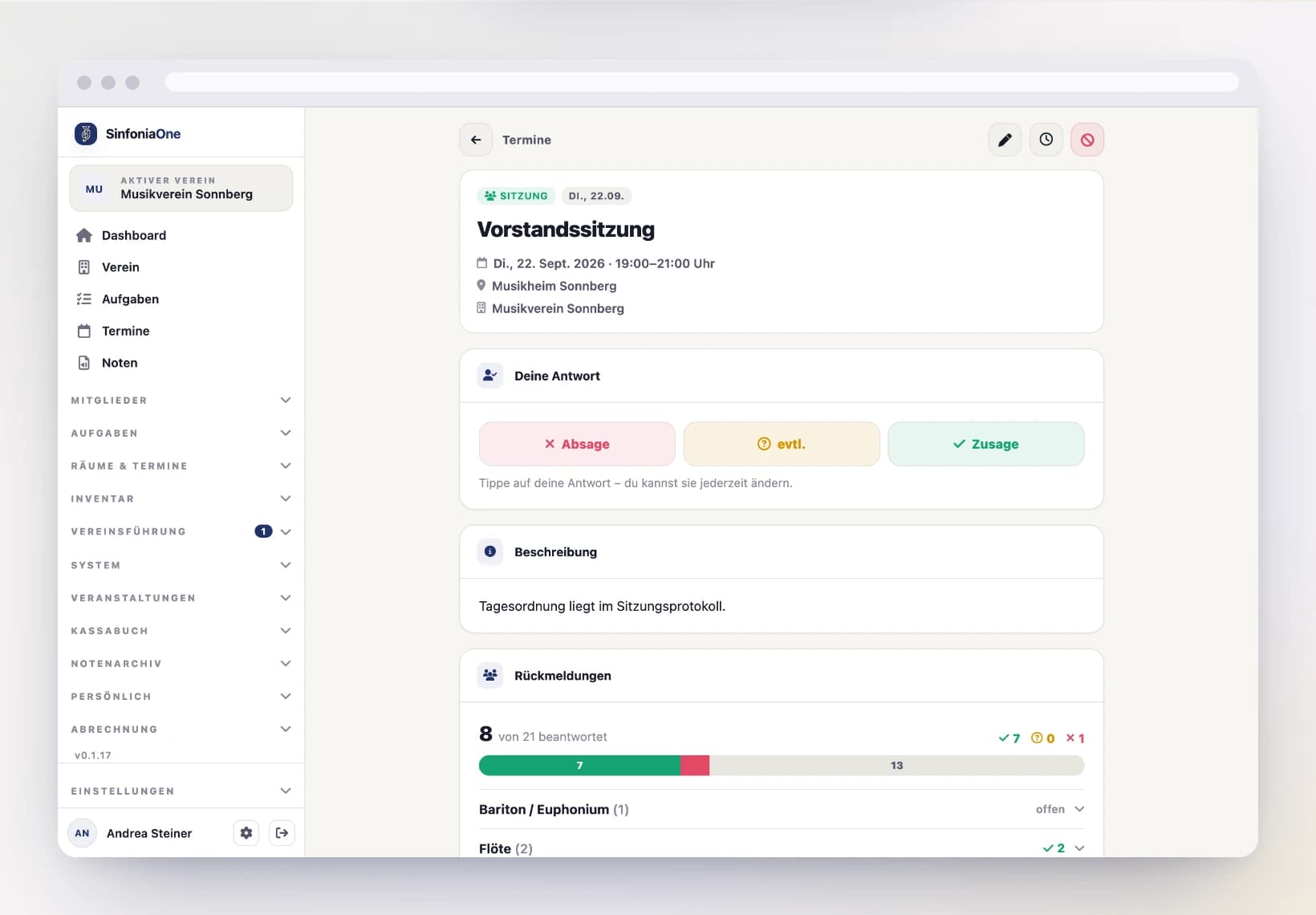
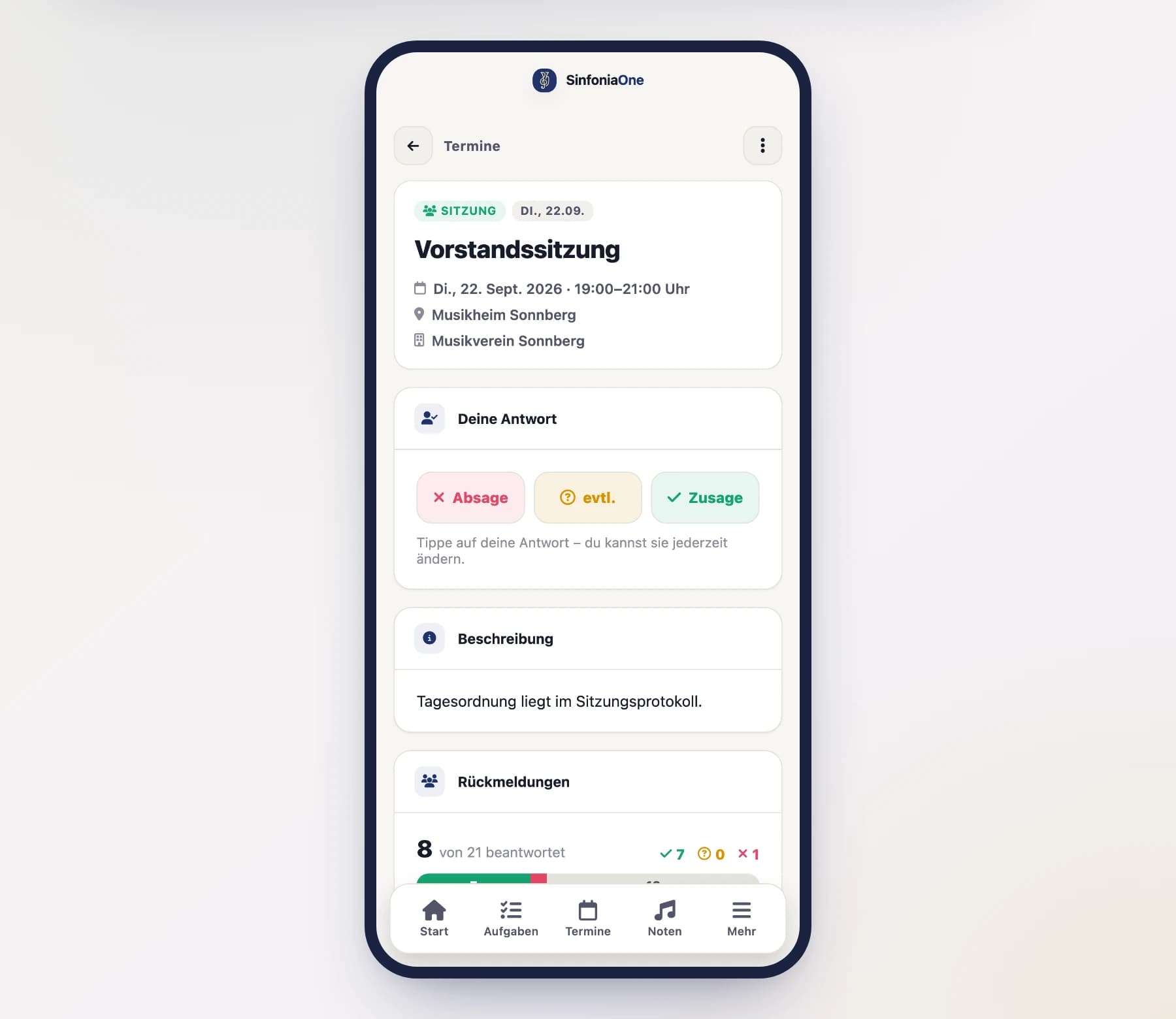
Open the event and tap Accept, Decline or Maybe. When you decline, you can enter a reason in the field below.
Show only unanswered events
In the event list you can use the "Unanswered" filter (below the event type) to narrow the list down to the events you haven't responded to at all yet. That way you won't miss an open reply.
A default response saves typing
In your profile you can set a default event response. Then you're automatically marked for new events and only need to change something when there's an exception.
Upcoming events only
You can give your own acceptance or decline only while the event hasn't happened yet. After that, what counts is the actual attendance recorded by the rehearsal leadership. Only the board or an administrator can still correct a response afterwards.
Seeing who's coming
For every event you see a breakdown by section – for example, how many clarinets have already accepted and how many are still missing. The sections are listed in score order, like in the full score: flutes and clarinets first, percussion last. Sections without instruments, such as the sutlers, follow after them, and “Without section” comes last. A progress bar shows you at a glance how complete the responses are.
At the very top is the event leadership: whoever holds one of the event's leading functions – the conductor at a rehearsal, the drum major as well at a performance. This block is always expanded, and anyone in it isn't counted in any section. Which functions lead is set by the event type; it can be changed for a single event.
Someone who belongs to two sections appears in both. Once they have accepted and chosen their section, they're counted only there; in the other one they're shown faded with “taking part in …”. As long as they haven't chosen, they count in both – after all, both could still be missing them. At a sectional rehearsal there's no choice: someone invited as a clarinettist appears only with the clarinets.
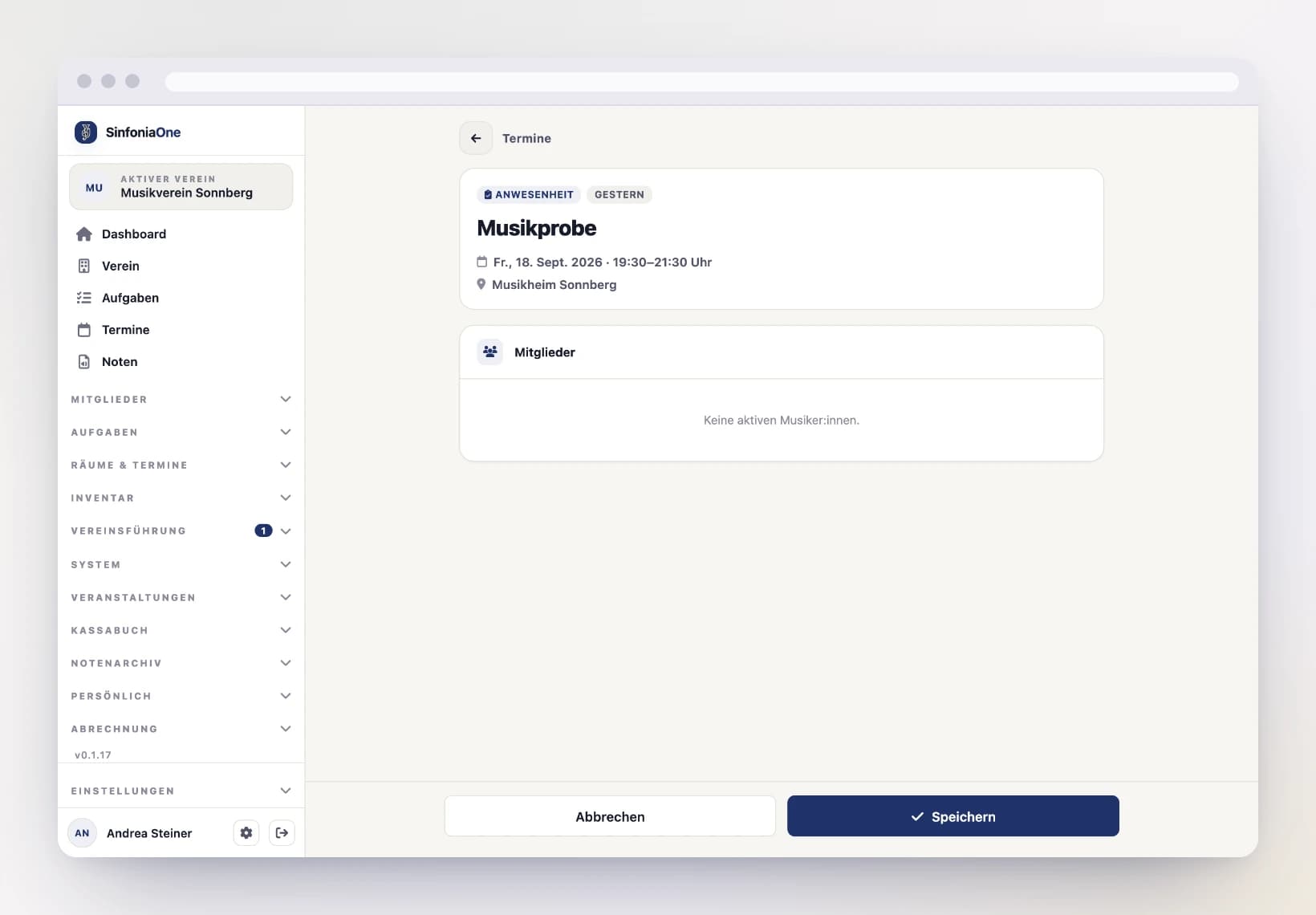
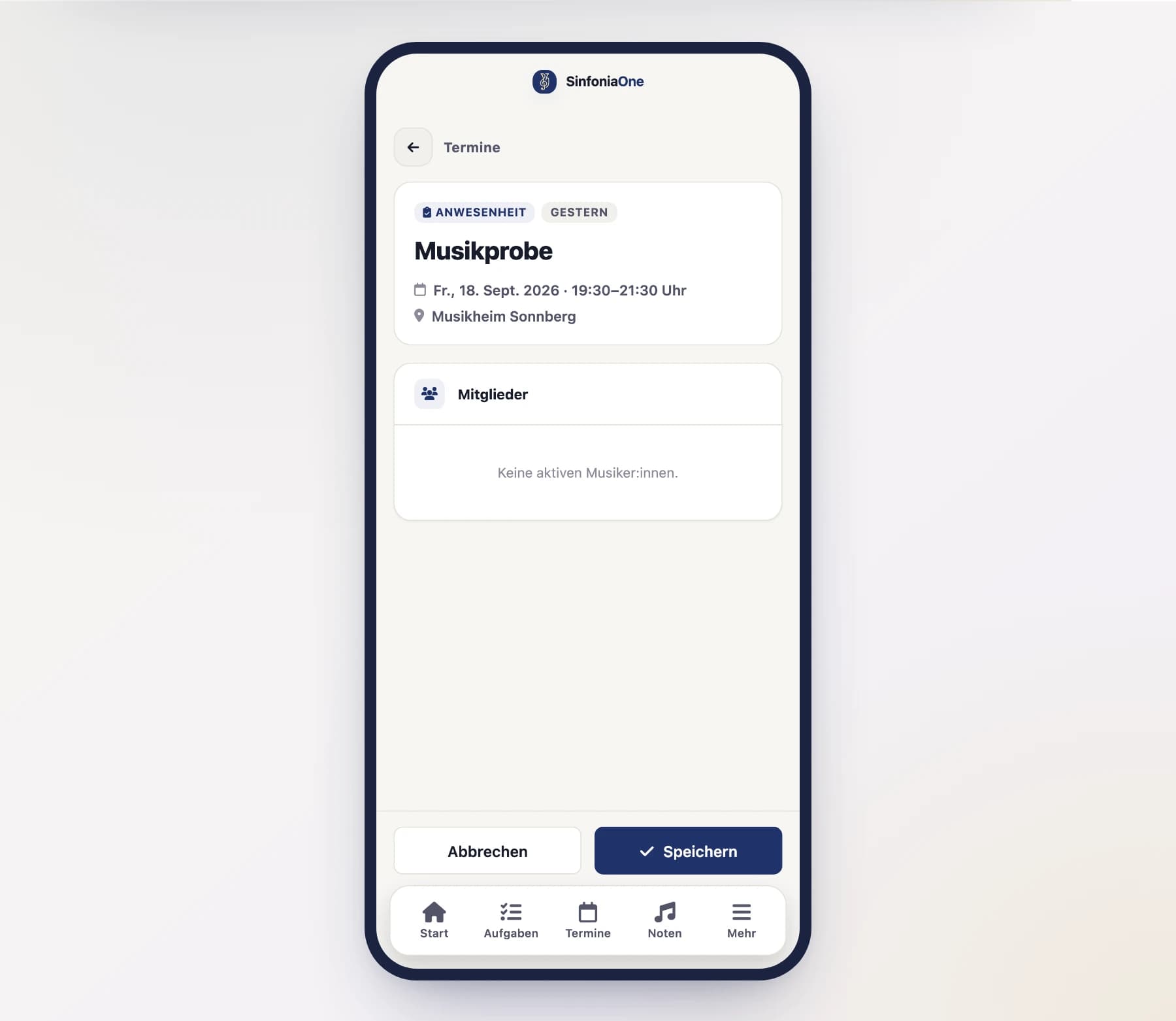
Only the people in charge can see the full history – that is, exactly who accepted or declined and when.
For those in charge: keeping attendance up to date
Anyone who's allowed to manage events (e.g. conductor or board) has additional options.
Responding for others
You can enter the acceptance or decline for other members – for instance when someone declined by phone. Parents or caregivers can also respond for the people in their care (e.g. junior musicians). If the person belongs to two sections, you also choose where they'll take part when you accept for them. The most recent response always counts – even if the person later answers in the app themselves.
Recording the actual attendance
After the rehearsal, you record who was actually there for every member on the list – including musicians without their own account. For each person you choose:
- present
- absent
- excused
Use the responses as a starting point
Instead of setting each person individually, tap "Apply from responses". The app then pre-fills the attendance based on the acceptances and declines – you only need to correct the exceptions.
Logging your own absences
If you're unavailable for a longer stretch – vacation, illness, away on business – you don't have to decline every event one by one. Instead, enter your absence period just once.
Enter the period
In your profile, open the Absences section and enter from when to when you're away.
Events are declined automatically
For all upcoming events within that period, a decline is entered automatically. The leadership sees right away that you'll be missing – without you having to think of every single event.
If you delete or shorten the absence, the automatic declines disappear again from upcoming events that are no longer inside it.