Rooms
Create rehearsal rooms and reserve them for a time slot – with a heads-up on overlaps.
If your club uses fixed rehearsal rooms, you can store them in SinfoniaOne and reserve them for specific times. That way you all keep track of who needs which room and when. Rooms and bookings are managed by whoever is allowed to manage events and rooms (e.g. conductor, board or administrator).
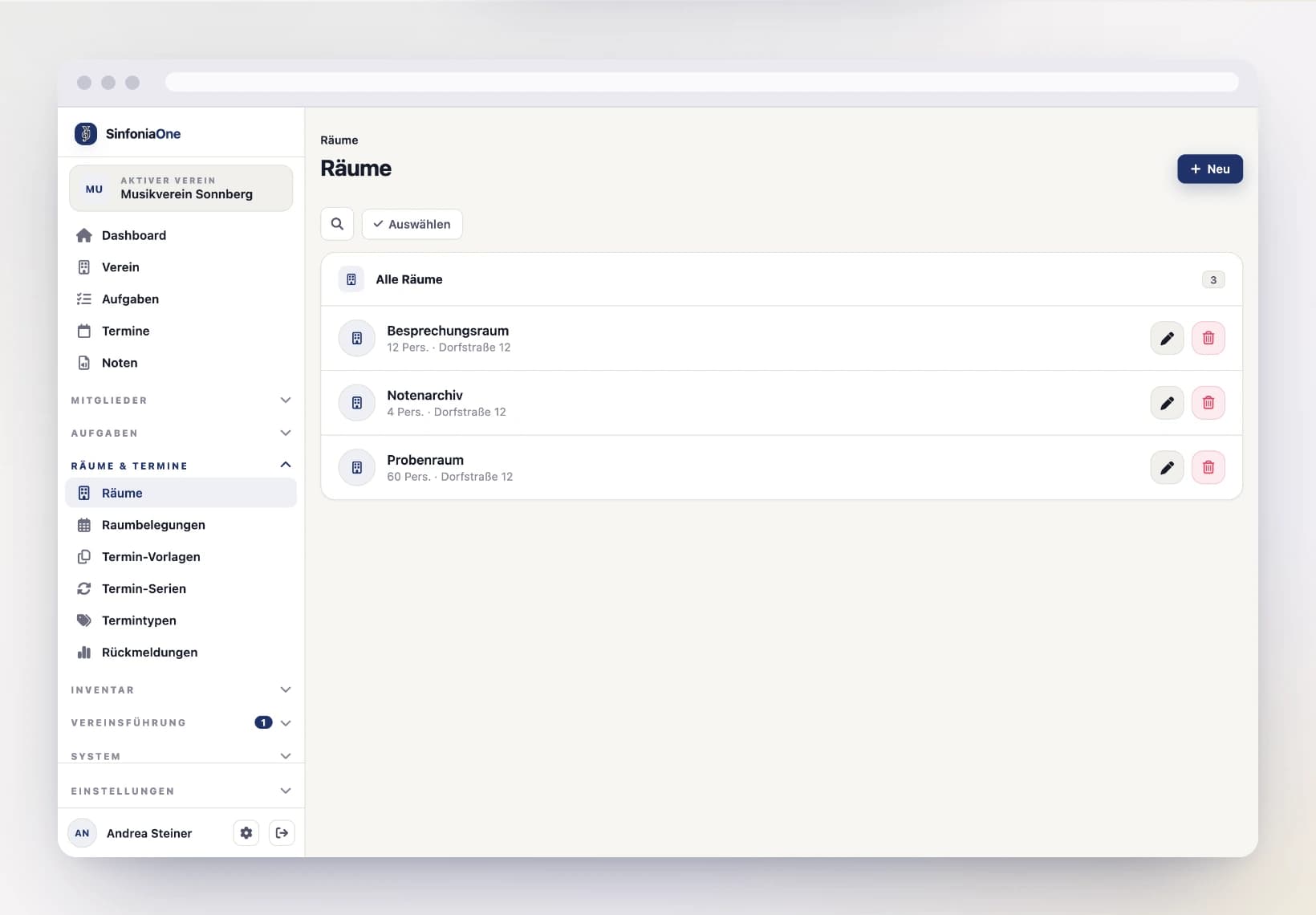
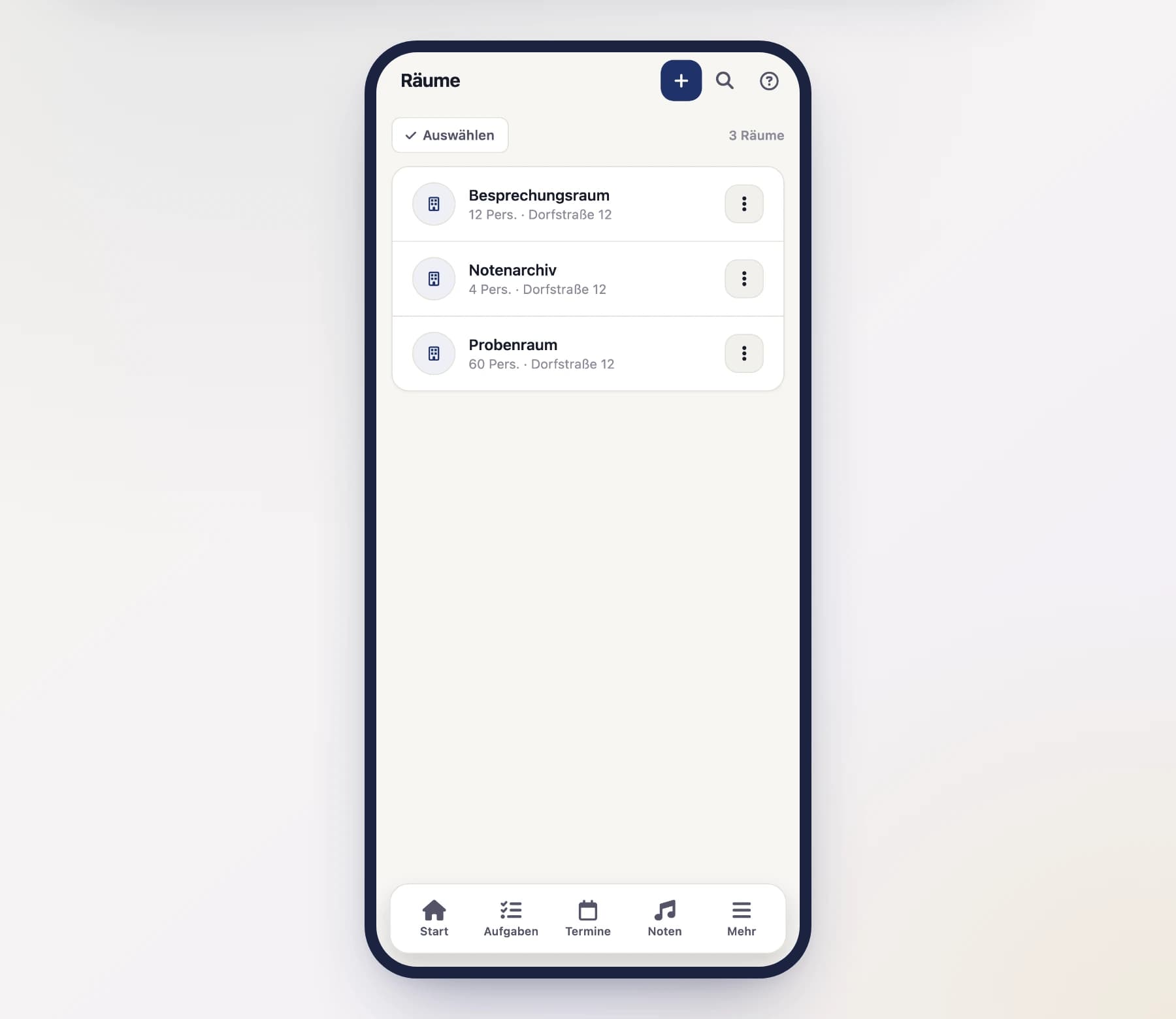
Creating a room
Open a new room
Open the Rooms area and tap "New room".
Fill in the details
Describe the room:
- Name – e.g. "Large rehearsal hall".
- Description – additional info (equipment, access …).
- Capacity – how many people fit inside.
- Address – where the room is located.
Then tap "Save".
Reserving a room (room booking)
A room booking is a pure reservation – with no invitation and no acceptances or declines. It only records that a room is occupied during a certain time slot.
Create a booking
Open the room bookings and create a new one.
Choose room, title and time slot
Choose the room, give the booking a title (e.g. "Brass sectional") and set the time slot – from when to when the room is occupied. Then save.
Creating a series (recurring booking)
Anything that repeats regularly goes in as a series, in the same form – “every Tuesday from 7 to 9 pm” becomes one entry instead of forty individual bookings. The app creates the individual bookings itself as soon as they fall within the lead time.
Create a booking and choose the time slot
Fill in room, title and time slot just like for a single booking. The slot you choose is the first booking of the series – its times and its duration are what repeats.
Switch to “series”
Under Repetition, choose the type “Series – repeats”. The fields for the rhythm appear below it.
Set the rhythm
Set how often it repeats:
- Rhythm – daily, weekly, monthly or yearly.
- Interval – every Nth occurrence, e.g. “every 2 weeks”.
- Weekdays – for a weekly rhythm, e.g. Tuesday and Friday.
- Ends after count or Ends on – leaving both empty means: no end.
Below that the rhythm is spelled out in words, and the preview lists the next bookings with date and time. Then tap “Create series”.
Changing, pausing or deleting a series later
You edit an existing series under Booking series. There you can change title, room, time, duration and rhythm – the upcoming bookings follow along, past ones stay as they are. If a date drops out of the new rhythm, its booking moves to the recycle bin; undo the change and it comes back from there.
Setting the series to “Paused” stops it without losing the bookings already created. If you delete the series, its upcoming bookings go to the recycle bin with it – so the room is free again – while past ones stay as a record.
Adjusting a single booking of a series
You can move, rename or delete a single booking from a series just like any other. The series will not recreate it, and a later change to the series will not overwrite your adjustment.
Pick the room right on the event
You can also pick a room you've created directly when creating an event, instead of creating a separate booking.
Overlaps are only shown, not prevented
If two reservations or events in the same room overlap in time, the app shows you a heads-up about the conflict. But the booking is still saved – the app does not block a double booking. So check the heads-up and sort out among yourselves who gets the room.