Importing members
Read in an existing member list all at once via a CSV file.
If you've been keeping your members in a spreadsheet so far (Excel, LibreOffice, Google Sheets), you don't have to type them in one by one. With the import, SinfoniaOne reads in the whole list at once.
Please save the file as CSV
SinfoniaOne processes CSV files only – no Excel files (.xlsx). Open your spreadsheet in your spreadsheet program and choose "Save as" → file type "CSV". Only this CSV file is what you upload here.
Which columns the file may have
Each row of your CSV file is one member. You can provide the following details, one per column:
- First name and last name
- Date of birth
- Year of joining
- Status (active, student, deputy, on hiatus, former)
- Address
- Phone
- Notes
Spreadsheet first, then CSV
Comfortably create the list in your spreadsheet program with a header row per column – and save it as CSV at the end. As a separator, the import understands semicolon, comma or tab.
Band association roster (Austria)
The export from your band association (Standesliste) can be uploaded as it is — it already is a semicolon CSV. SinfoniaOne recognises its German column names and takes over two details a plain list has no column for:
- Instrument becomes the member's part.
- Function becomes the club role — including feminine forms ("Obfrau", "Beirätin") and deputies ("Kapellmeister Stellvertreterin"). The start year is the current one: the roster says who holds an office, not since when. Add the real year where it matters — honours are calculated from it.
What the association calls differently
- "aktives Mitglied: Falsch" becomes on hiatus. That's how the roster marks people who belong to the club but don't play in the band.
- Professional and academic titles, fax and a second email have no field in the member card — they go into the notes, so nothing is lost. The form of address is not taken over.
- Of work phone, home phone and mobile, the card keeps one number, in that order: mobile first.
Review the parts afterwards
The roster names instruments ("Klarinette", "Tuba-F"), the club keeps parts ("1. Klarinette"). If no part with exactly that name exists yet, the import creates it instead of guessing an existing one. Which ones those were is listed afterwards under "Hinweise" — you can rename or merge them under parts & registers.
New parts are put into the matching register automatically where one of that name exists — otherwise they stay without one, and an appointment aimed "at register …" won't reach those people.
Functions your club doesn't have (such as Rechnungsprüfer or Marketenderin) are reported as well. They are not created: which roles exist is your decision, under club roles. If an office is already held by someone else, it stays there — the import reports it and changes nothing.
How the import works
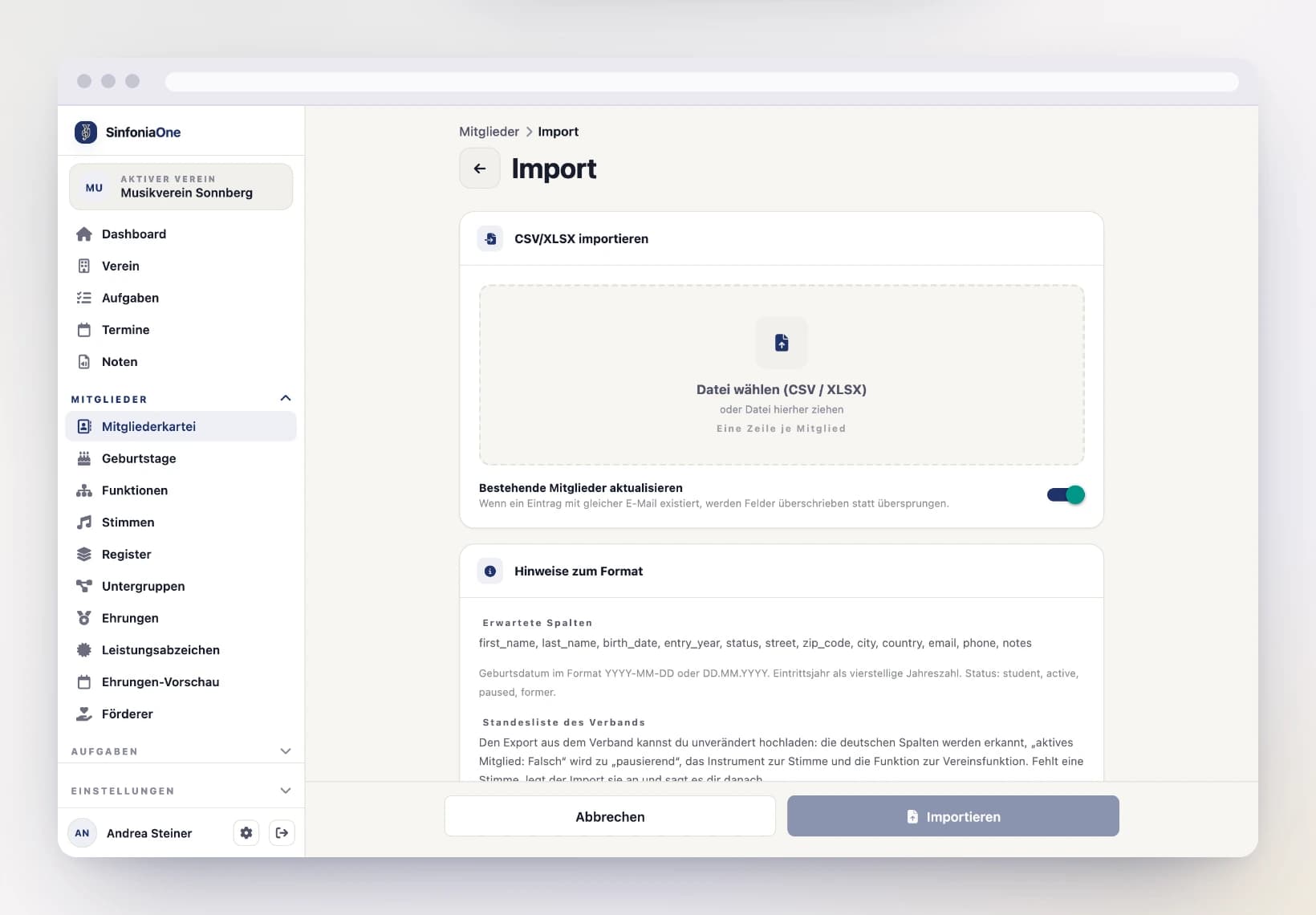
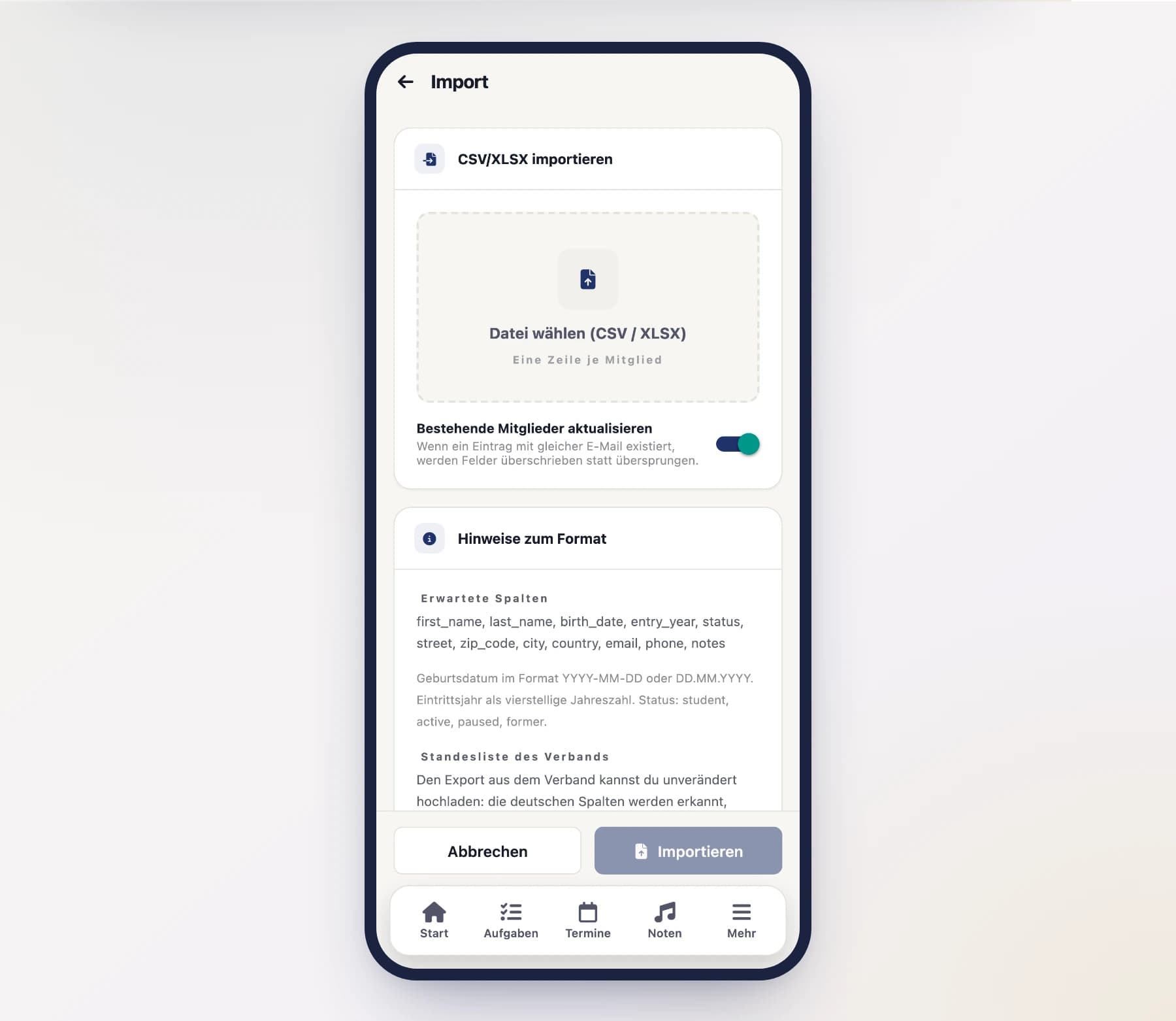
Select the CSV file
Choose your prepared CSV file — on a computer you can also drag it onto the dashed field (see Uploading files).
Choose how to handle existing members
Decide whether existing members should be updated (the "Update existing" option). When it's off, people who already exist stay untouched and only new ones are created.
Import
Start the import. SinfoniaOne reads in the file and then shows you a summary.
How existing members are recognized
So that no one lands in the directory twice, the import matches each row against your existing members:
- first by email address and name together,
- otherwise by the combination of name and date of birth.
The email alone is deliberately not enough: in a band roster, siblings and parents often share one family address.
If a person is recognized this way, the "Update existing" option decides whether their data is overwritten or left unchanged.
The result
After the import, you see at a glance what happened – one of four outcomes per row:
- Created – a new person was added to the directory.
- Updated – an existing person was overwritten with the new data.
- Skipped – the person already existed and was not changed (without the update option).
- Error – the row could not be processed, e.g. due to missing required details.
On top of that there are hints: newly created parts, and functions your club doesn't have.
That way you can specifically correct the error rows in your CSV file and repeat the import if needed.
When the plan does not cover everyone
For your plan’s member count, the entries with the status Active are what counts (see Subscription & billing). If your file brings more active members than the plan allows, the import does not stop: everything there is room for is created, and each further row appears under “Error” with its row number. Rows with the status former or on hiatus are not affected – so an old directory can be taken over in full on any plan.
Who may import?
Only people who may manage the member directory can run the import – usually the board, the secretary or an administrator. It is the same permission that parts and club roles need: the import creates both, and a member's part is part of deciding which sheet music they get to see.