Member directory
Add, edit and delete members – with search, status filter and detail view.
The member directory is the heart of the Members area: a list of all the people in your club. From here you add new members, keep their data up to date and quickly find any entry again.
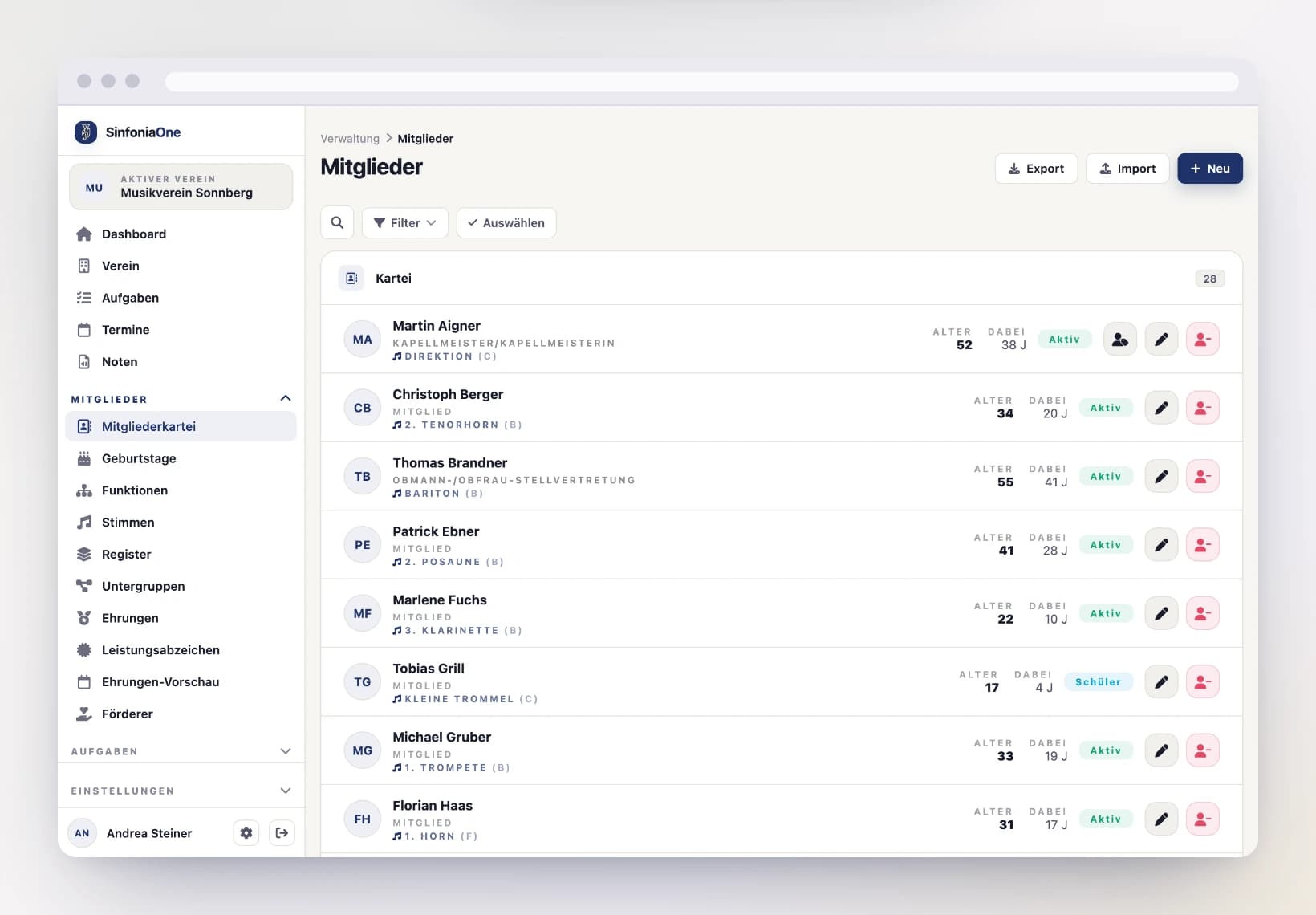
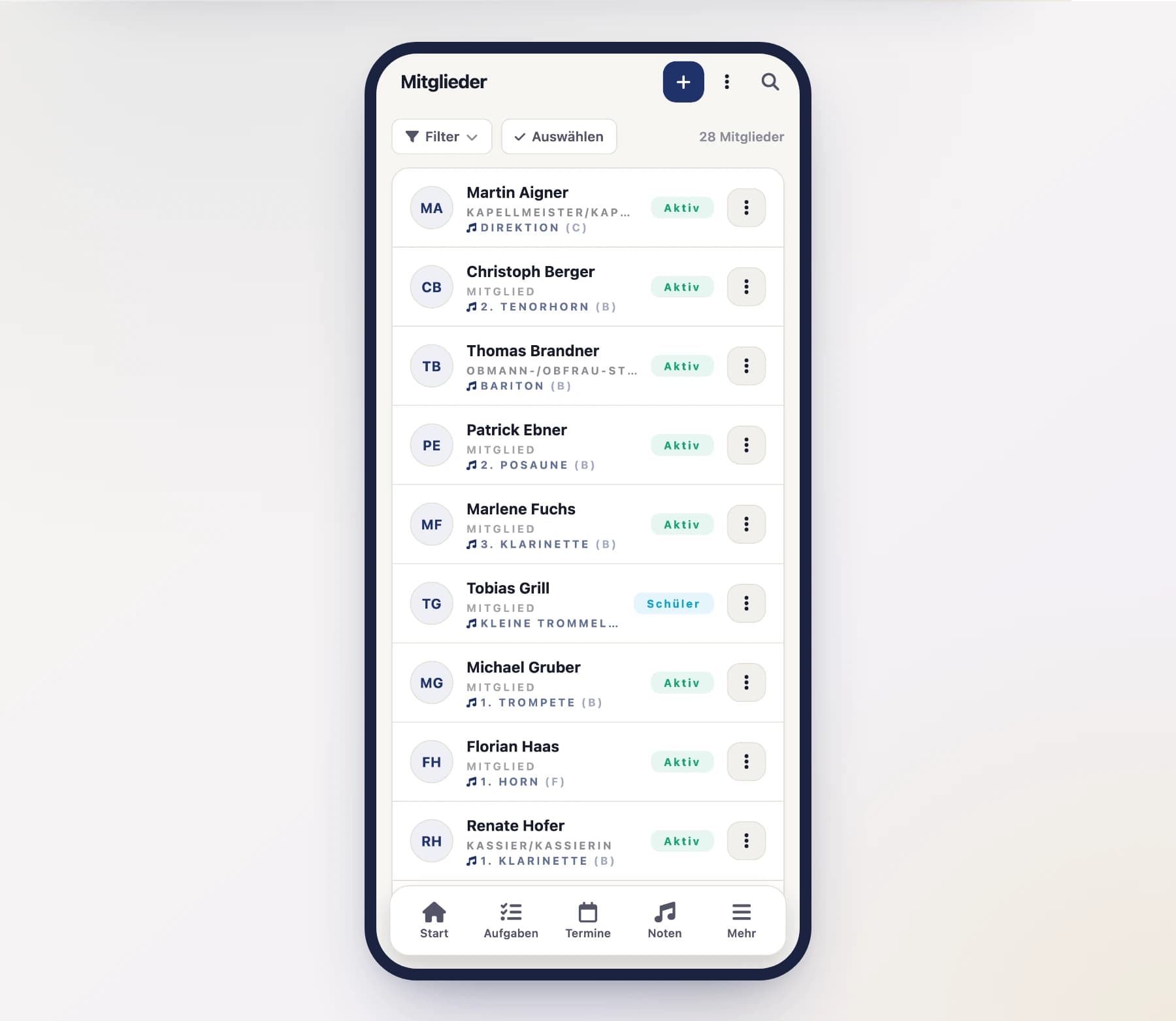
Who may add members?
Only people with the right permissions may add, edit or delete members – usually the board, the secretary or an administrator. As an ordinary member, you can maintain your own personal data, but not other people's entries.
Adding a member
Start a new member
Open the member directory and tap "New" (or the plus symbol). The empty member form opens.
Enter the person
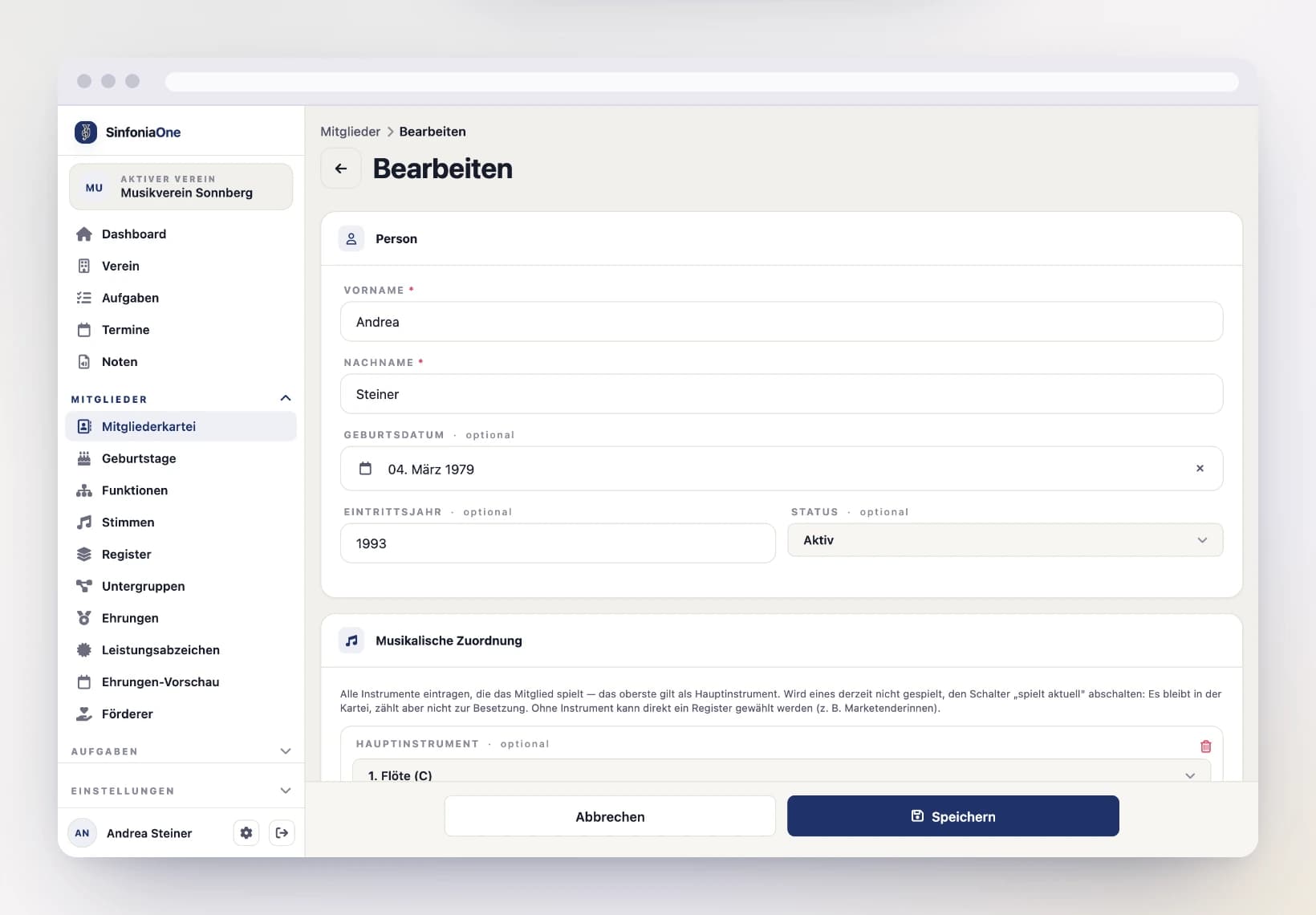
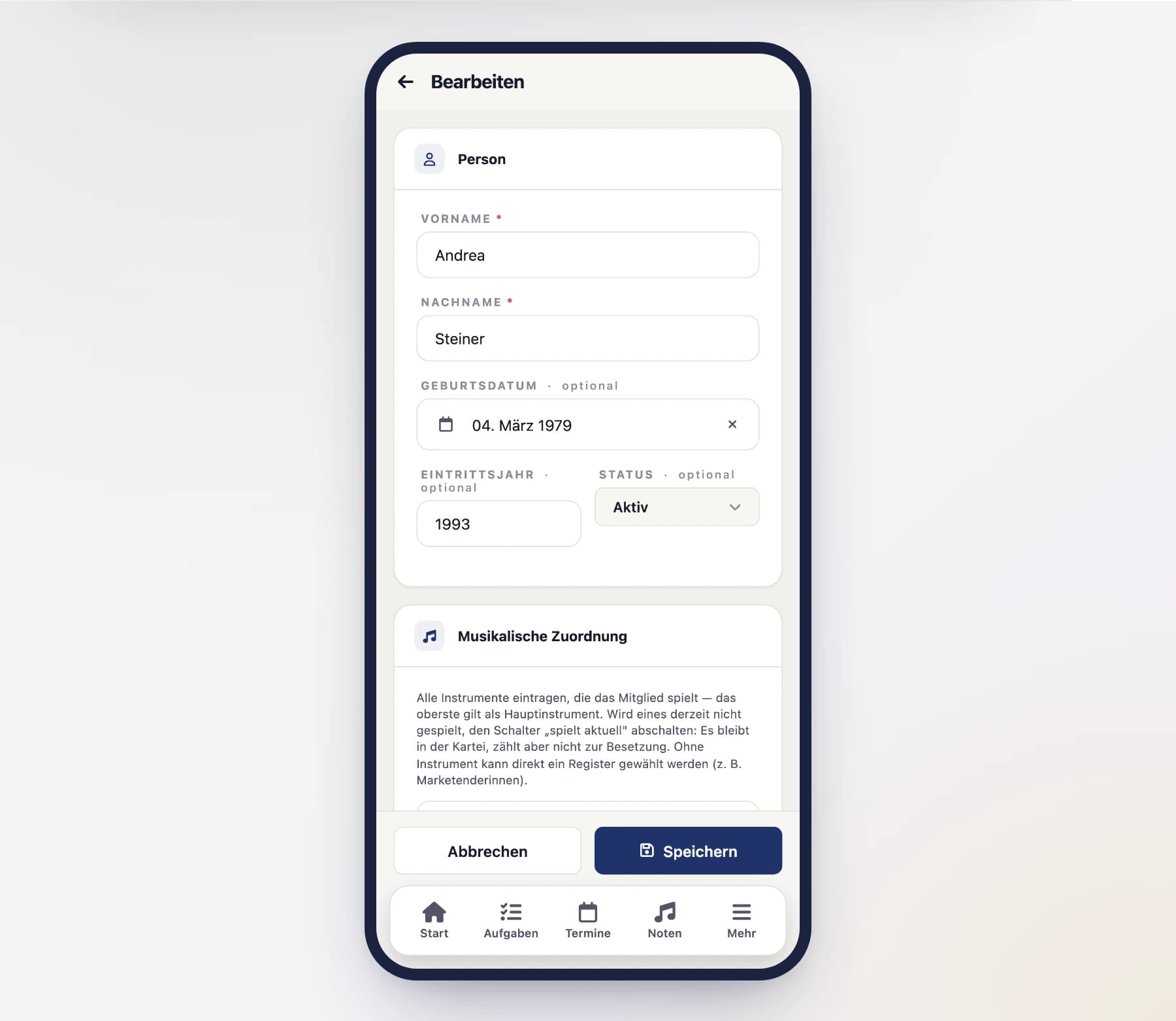
Fill in the details about the person:
- First and last name – the only required detail.
- Date of birth and year of joining (year of joining the club).
- Status – see below.
- Address and contact (email, phone).
- Notes – space for internal remarks.
Address from suggestions
In the Street field, just type the street name (with or without the house number) – SinfoniaOne offers matching addresses to choose from. Pick a suggestion and postal code, city and country fill in automatically. You can always enter the address by hand instead.
Assign instruments
Enter every instrument the member plays. Use "Add instrument" for further ones – there's no limit.
- The topmost instrument counts as the main instrument. Instrument 2, 3 and so on follow below.
- Each row has a "Currently playing" switch. Turn it off when the instrument isn't being played at the moment – after a change of section, for instance, or when someone only fills in at short notice.
Inactive doesn't mean deleted
A switched-off instrument stays on file – the knowledge "she can play this too" isn't lost. It simply doesn't count towards the current line-up and is ignored for events aimed at a section.
If the person doesn't play an instrument at all (yet), you can instead assign them directly to a section (e.g. "Woodwind") – typical for standard-bearers. Read more about parts and sections under Parts & sections.
Save
Tap "Save". The new entry appears in the list right away.
A member's status
The status shows at a glance what relationship the person currently has with the club:
- Active – plays regularly.
- Student – in training / young musician.
- Deputy – represents or accompanies another member (e.g. parents; see Linking accounts).
- On hiatus – temporarily not active.
- Former – has left, but stays in the directory.
The status is also the most important filter in the list (see below).
The status counts towards your plan
Only entries with the status Active count towards your plan’s member limit – plus every club account that does not (yet) have a directory entry. Students, deputies, members on hiatus and former members do not count: you can keep the club’s full history without needing a bigger plan. More on this under Subscription & billing.
Only “Active” gets events and tasks
Event invitations and task assignments reach only entries with the status Active. Students, deputies, members on hiatus and former members get no notification, don't see the entries in their list and appear in no response or attendance list – not even when someone picks them explicitly. If someone should take part, set their status to Active.
Searching, filtering and sorting
In a long directory, you find everyone quickly:
- Search – tap the search field at the top and enter a name or an email address.
- Status filter – with the status buttons, you show, for example, only the active members.
- Filter by position – show only the holders of a certain office (e.g. all advisory board members).
- Filter by account – “With account” or “Without account”: who already has access to the club, and who doesn't? That is the list you need before an invitation round. While this filter (or either of the two above) is set, the accounts without a directory entry at the end of the list disappear – they aren’t directory entries and don't answer the question.
- Sorting – order the list, for example, by name.
Your settings are kept while you stay signed in. The number on the “Filter” button shows how many filters are in effect; “Reset” next to it brings back all members (see The app at a glance).
Editing a member
In the list, tap a member to open their detail view, and then tap "Edit". You land back in the form and can change all the details. With "Save", you apply the changes.
What the detail view shows
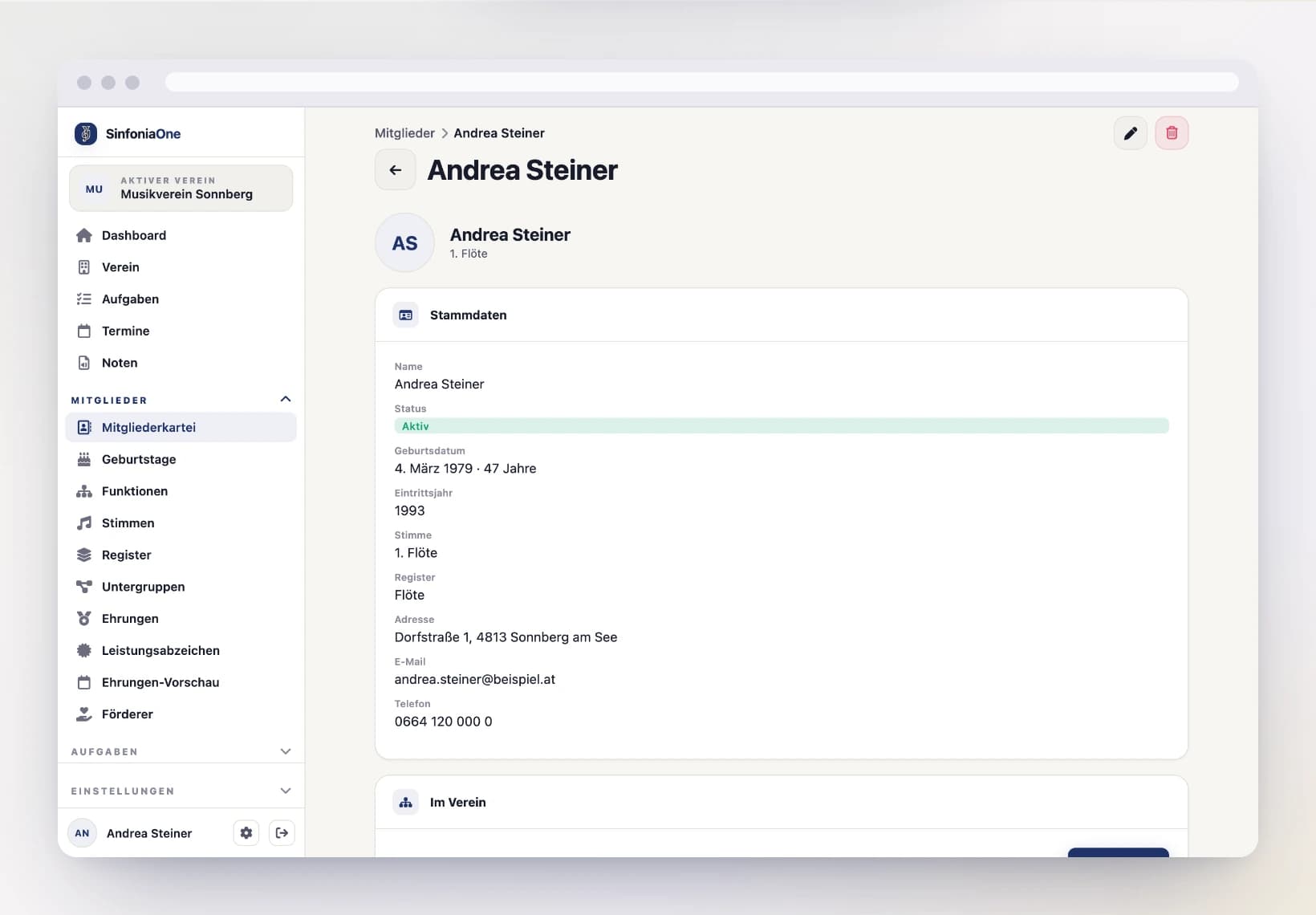
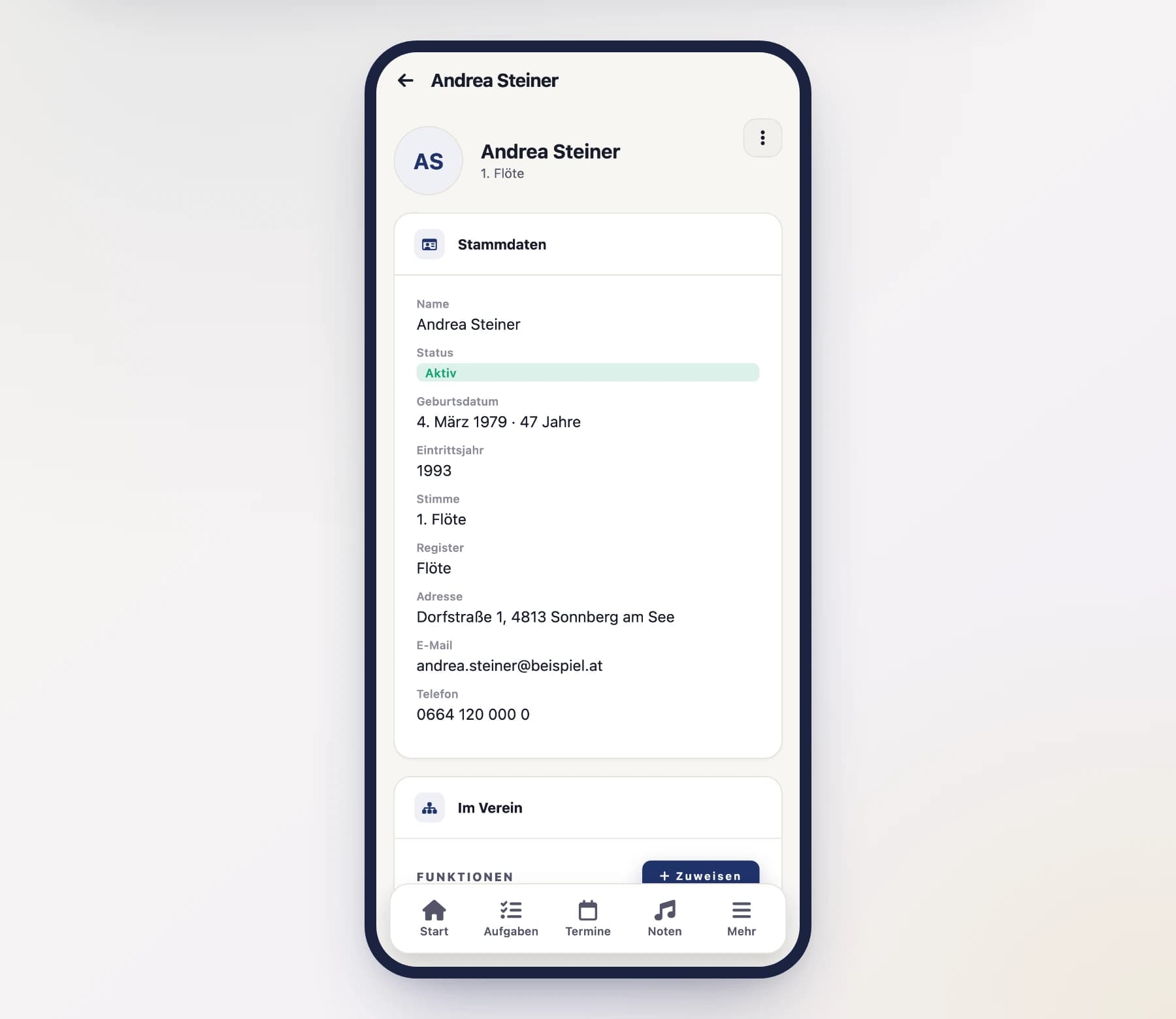
The detail view brings everything about a person together in a handful of cards:
- The person at the top – photo, name and status, followed by three groups: Membership (part, section, year of joining with duration), Personal (date of birth with automatically calculated age, address) and Contact (email, phone). On a phone, two buttons take you straight to a call or an email; on a computer the email address and phone number are the links themselves.
- In the club – what the person is for the club: their positions with terms, their section leadership (see Parts & sections) and their membership periods. Joins and departures including breaks are the basis for when honours fall due: a break pushes the anniversary back accordingly.
- Honors & badges – awards received. If you assign them to the honours catalogue, the preview knows that this honour has already been conferred.
- Account – everything around access: the linked account, the roles, the represented people, the password reset and removal from the club. Without a linked account, only the link button is shown here.
- Absences – longer breaks during which the person isn’t scheduled for events.
- Uniform stock – which items from the stock this person currently holds, with quantity and date. From here you issue something to them or record a return. Visible to everyone allowed to see the uniform stock. See Uniform.
You only see the cards you have rights for
Every card depends on its own right, not on access to the directory. Someone who may open the directory but is not allowed to see honours never gets the “Honors & badges” card at all – the same goes for membership periods, performance badges, account and uniform stock. A conductor therefore sees less than a secretary, even though both open the same directory. The internal notes are likewise reserved for those who may edit members.
Removing from the club
If someone leaves, their directory entry doesn’t have to go – their access does. Open the entry, go to the “Account” card and choose “Remove from club” right at the bottom under “Membership”.
The person loses access immediately: events, sheet music and tasks are no longer visible to them. Their user account remains (they can keep working in other clubs), and the directory entry remains as well – joining and leaving years, positions and honours are club chronicle. Afterwards, set the status to “Former” so the directory reads cleanly.
Accounts without a directory entry
Whoever came in through an invitation link may have no directory entry at all. Such accounts sit at the end of the directory list marked “No directory entry” and can be removed there just the same.
Two exceptions
Nobody can remove the club’s owner – ownership has to be transferred first. And you don’t remove yourself here, but via “Leave club” in the club overview. In both cases the action isn’t offered in the first place.
Triggering a password reset
If someone can no longer get into their account, the directory entry has a “Trigger password reset” button in the “Account” card, under “Access”. You neither set nor learn a password – the mail goes only to the address on the account. Details under Invitations.
Deleting a member
If you no longer need an entry, open it and choose “Delete”.
With a linked account, access ends too
If a linked account hangs on the entry, deleting it makes the person lose access to the club immediately – events, sheet music and tasks are no longer visible to them. The confirmation dialog tells you beforehand. This is how you remove someone from the club.
Deleting means trash
The directory entry itself isn’t gone right away: it moves to the trash and stays recoverable there for 30 days. Only after that – or after permanent deletion in the trash – is it irreversibly removed. More on this under Trash. Access does not come back with it: if you restore the entry, the person needs a fresh invitation.
Tip: change the status instead
If someone simply leaves, you don’t have to delete the entry. Set the status to “Former” and take away their access – that way positions, honors and membership periods are preserved for the club chronicle.
Maintaining your own data
Even without administrative permissions, every member can maintain their own directory entry: name, date of birth, address and contact details can be changed by yourself. That way the directory stays current, without the board having to enter every address change. Your part, your status or your positions are still set by the club administration.
Several member records at once
Tap “Select” in the filter row to tick several records and set their status, add them to a subgroup, record a club office or remove them together. See Working on several entries at once.