Membership statuses
Define which statuses your band uses – and what they mean for the active roster, the plan count and access to the app.
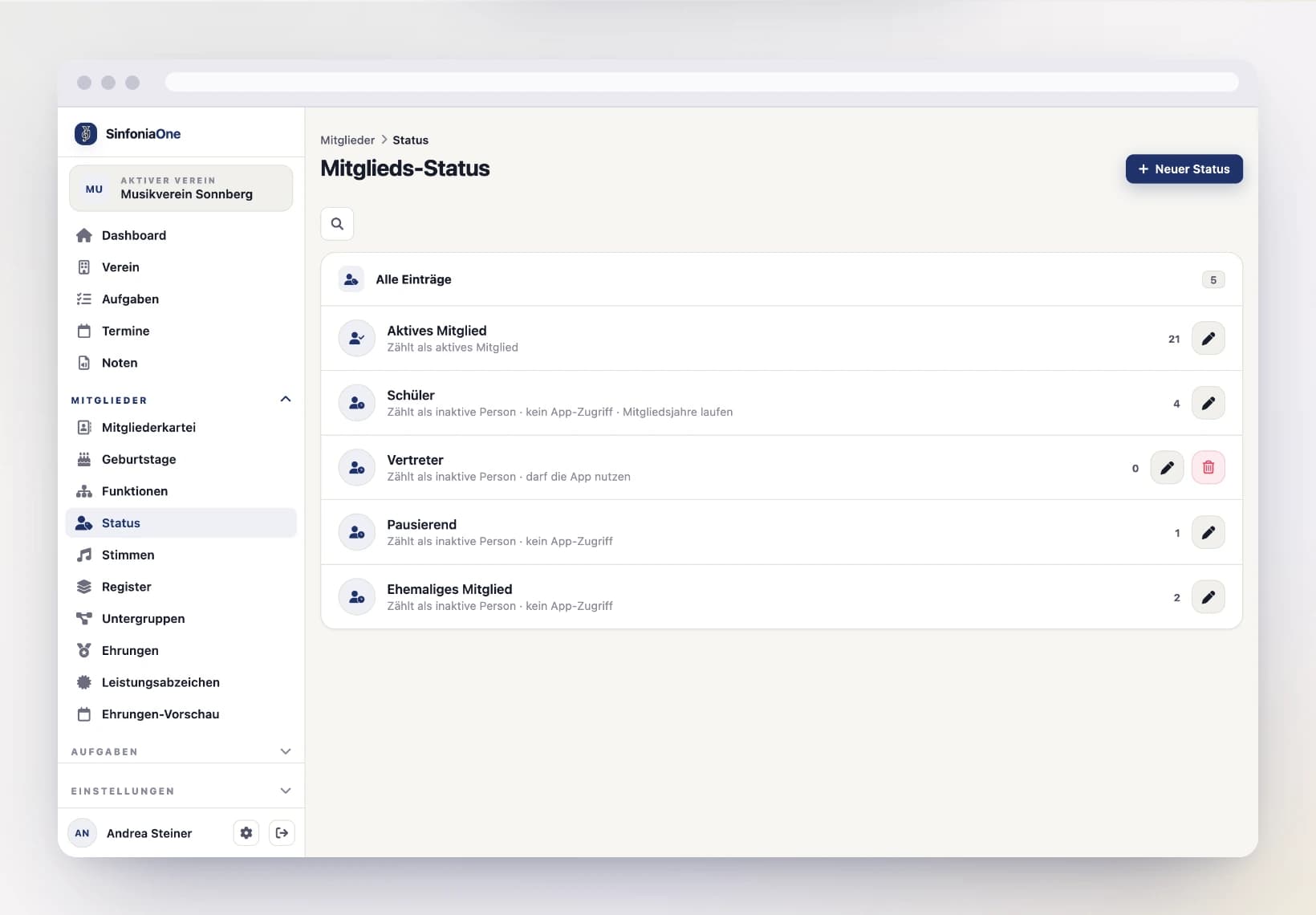
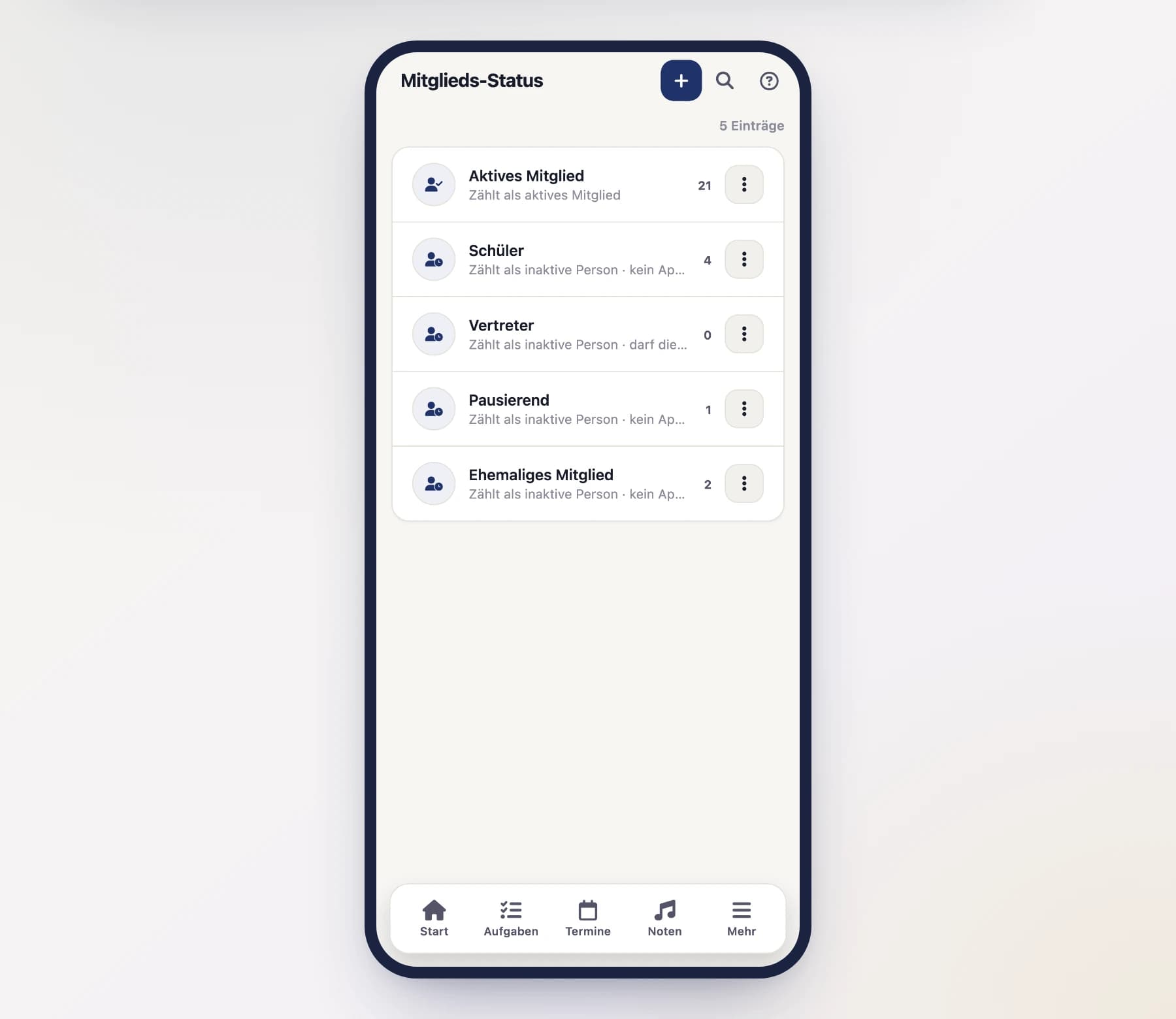
Every registry entry carries a status: active, student, paused, former. Which statuses exist is up to your band — you find the list under Members → Statuses.
Five come with the app, and most bands never need more. If you draw finer lines, add them: parental leave, honorary member, second band, candidate — whatever your minutes say may also go into the registry.
What a status means
A status is more than a label. Four flags say what it does:
Counts as an active member
The important one. It carries three things at once — whoever is flagged this way:
- belongs to the active roster: receives appointments and tasks, appears in response and attendance lists,
- counts towards the member total of your plan,
- may use the app, provided an account is linked to the entry.
Everything else counts as an inactive person. They stay in the registry in full, with address, membership years and honours — they simply don't play along.
Several statuses may count as active
If your band distinguishes “Active” from “Active (youth band)”, set the flag on both. Both then count.
May use the app
Whether someone with a linked account can open your band in the app. For an active status this is switched on automatically.
For an inactive status you decide — and that is why the flag exists: deputies (parents, guardians) don't play along, but their account exists precisely so they can accept and decline for their child. On the shipped status Deputy it is therefore on from the start.
Without this flag the band is closed
If it is missing, the person opens the app and sees a note that their membership currently doesn't allow access, instead of the band. Other bands they belong to stay open — the decision applies only to yours.
As shipped, access is off for Student, Paused and Former. If your youth players should use the app, switch the flag on for “Student”.
Ongoing membership
Whether the membership years keep running — the basis of every honour. For an active status this is on automatically; as shipped, Student carries it too, because training years count towards membership.
Appears in the honours preview
Whether people with this status show up in the honours preview. Paused members do — they are still members and will be honoured after they return. Former members and deputies do not.
Creating a status
Open the list
Menu → Members → Statuses, then tap “New status”.
Name and order
The name appears everywhere: in the form, as a badge on the registry row, as a filter above the list. The sort order decides the sequence — lower number first.
Set the flags
Decide what the status means (see above). If you leave all of them off, it is a purely inactive person: listed in the registry, without appointments, without a plan seat, without access.
Renaming and deleting
You may rename any status, including the shipped ones. If your band calls a pause “parental leave”, that's what it is called.
Deleting works as long as nobody carries it. The list shows on every row how many registry entries hang on it; move them to another status first.
“Active” stays
The Active status can be renamed, but not deleted and not switched to “does not count as active”. The roster, the plan's member count and access to the app all hang on it — a band without it would have none of the three.
Who may change the statuses?
Any role that reads the registry may view them — otherwise the filters there would have no labels. Administrator, secretary and board may create, change and delete them. More under Roles & permissions.