Positions (club offices)
Assign, hold and end offices like chairperson, treasurer or conductor with a term of service – including sub-positions.
Positions are the offices in your club: chairperson, treasurer, conductor, secretary, drum major, advisory board member and more. They record who takes on which task in club life – with a term of service and history, cleanly kept for the club chronicle.
A position grants no app permissions
This is the most important point on this page: holding a position does not automatically let you do more in the app. Whether someone may, for example, keep the cash book or add members is controlled by roles – see Roles & permissions. Position = office, role = permissions.
Which positions exist
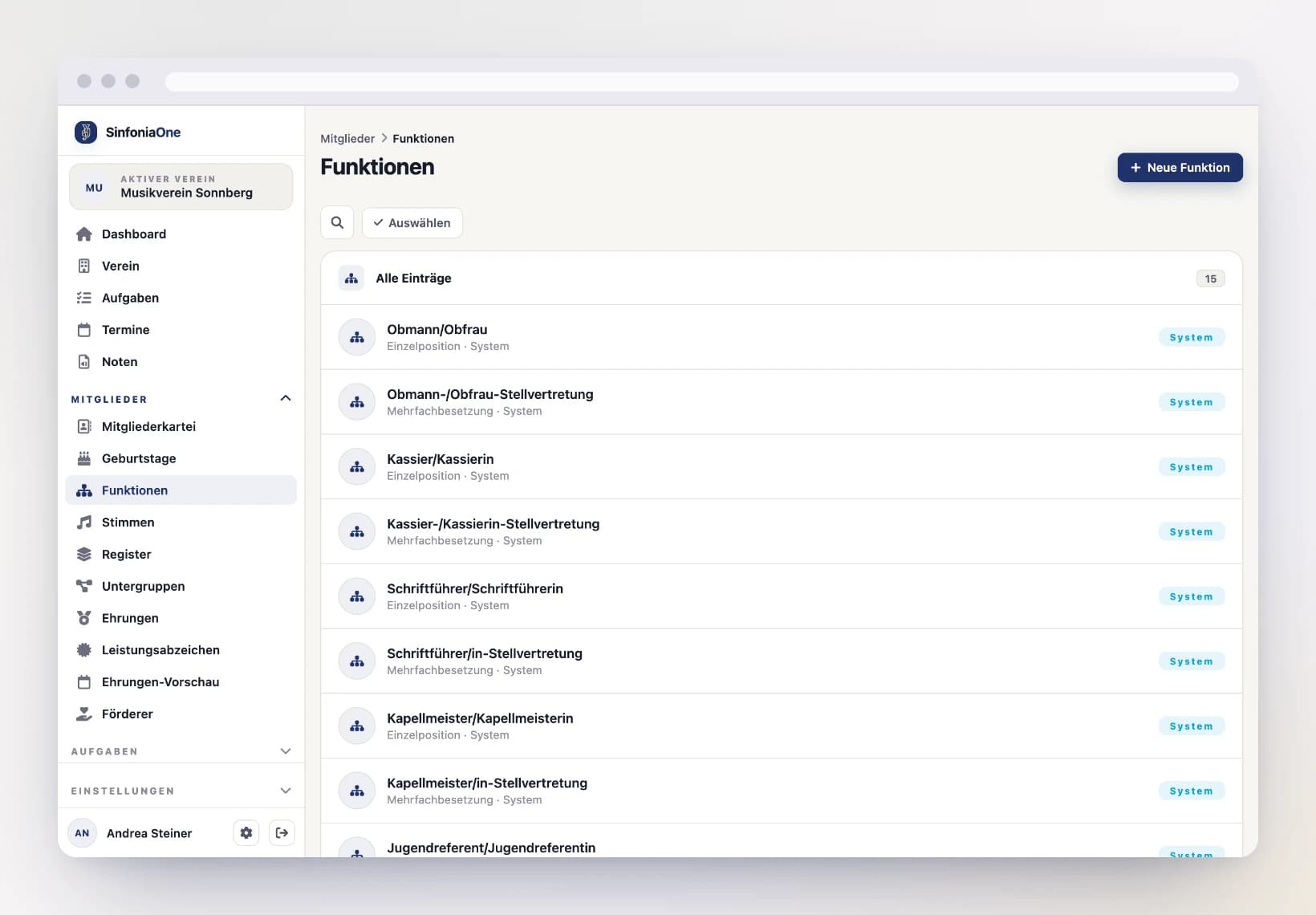
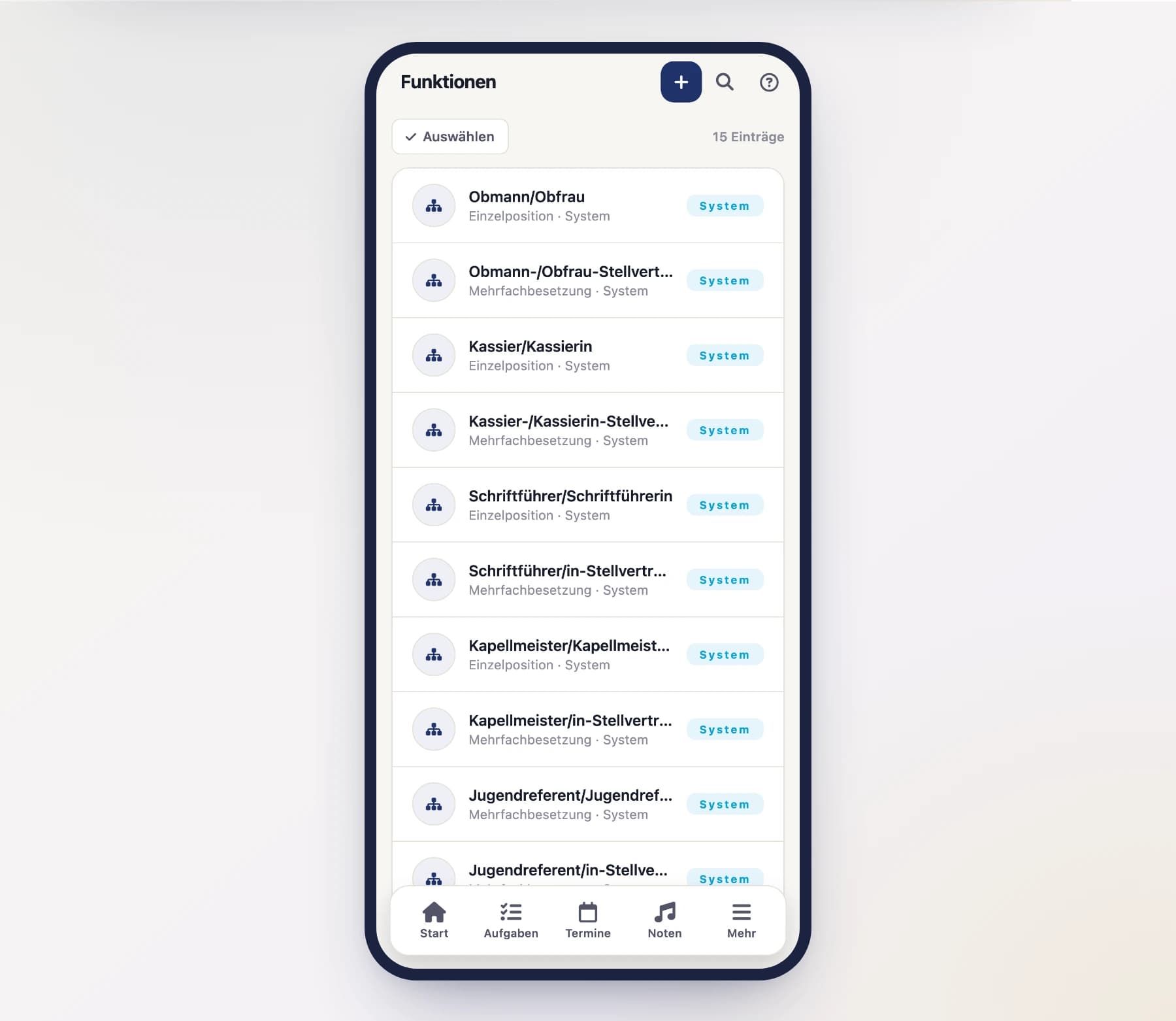
You'll find the list of positions in the menu under “Positions”. Some system positions are already predefined and cannot be deleted, because they are needed elsewhere (for example, when sending out minutes). But you can add your own offices to the list at any time.
Sub-positions: splitting one office
Some offices are really several. The classic case is the archivist: in many clubs one person looks after the sheet music, a second after the uniforms and a third after the instruments. For that you create sub-positions – offices of their own that sit underneath a main office.
Create a new position
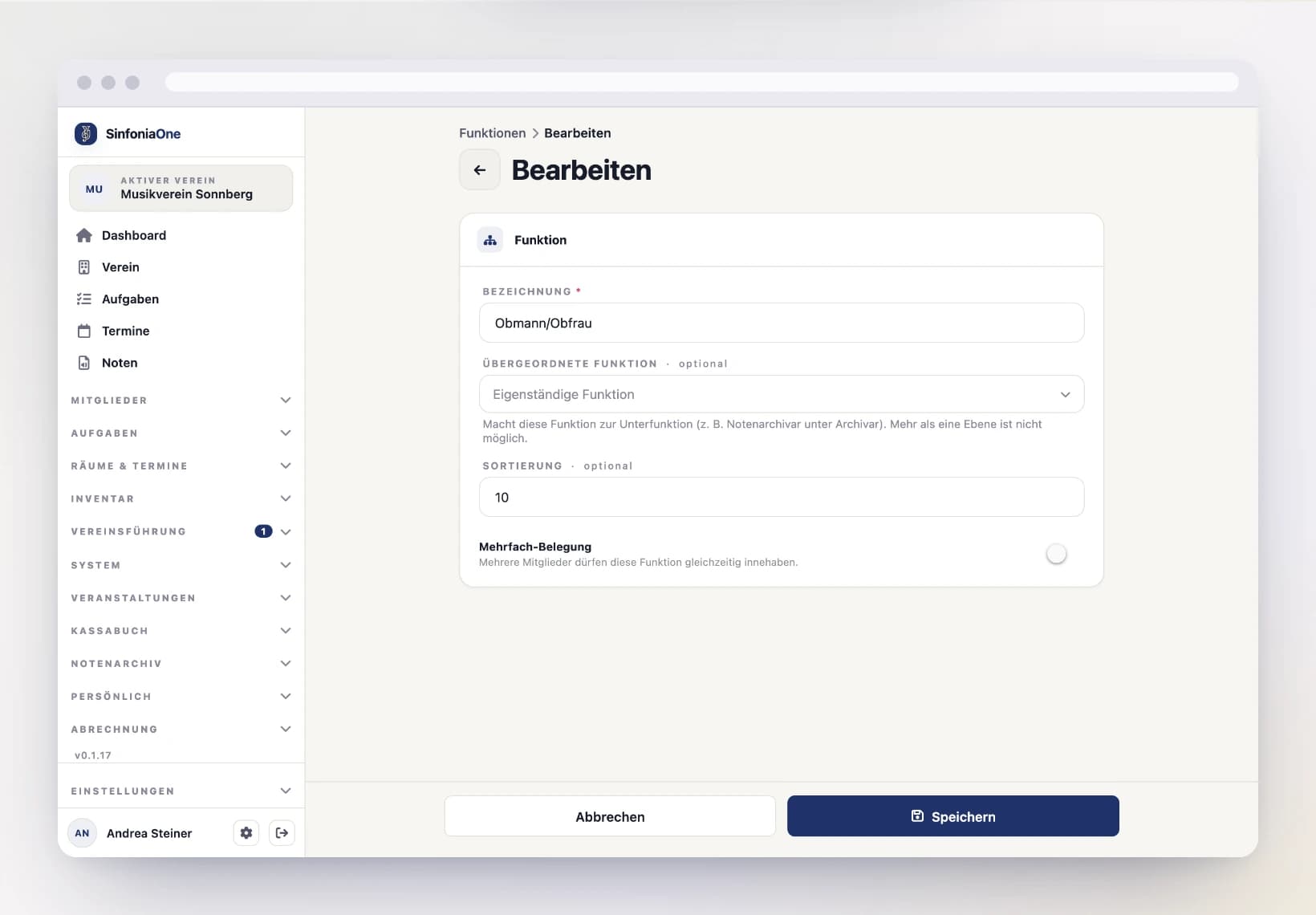
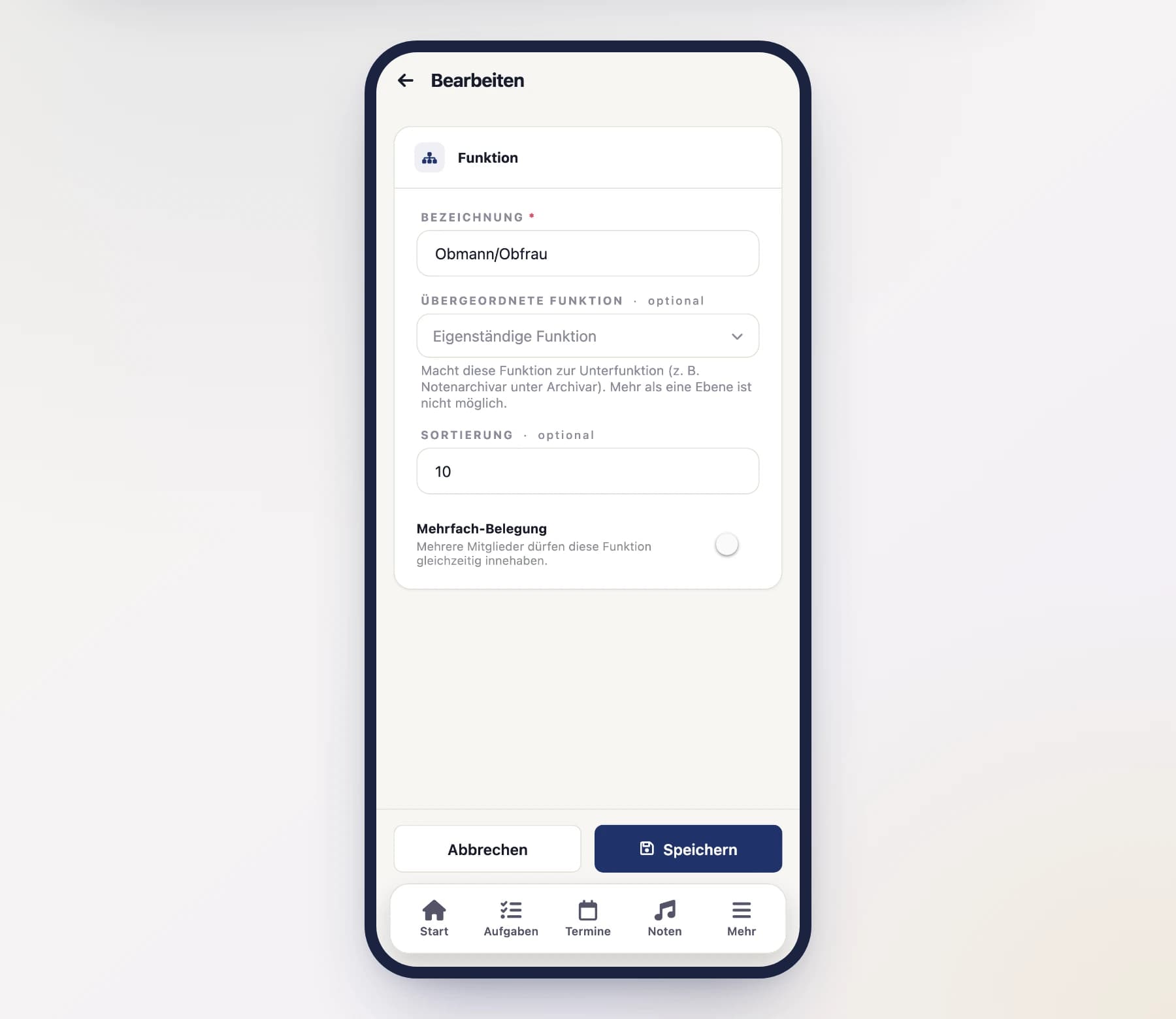
Under “Positions”, tap “New position” and give it a name, e.g. “Sheet music archivist”.
Pick the parent position
In the “Parent position” field, choose the main office – “Archivist” in our example. Leave the field empty and the position stays standalone.
Save
The sub-position appears in the list indented under its main office. When assigning it, it reads “Archivist › Sheet music archivist”, so it is clear where it belongs.
Exactly one level
A sub-position cannot have sub-positions of its own. Two levels are enough for club life and keep the lists readable – nest deeper and nobody can tell who is responsible for what any more.
A deputy is not a sub-position
The predefined “… deputy” offices deliberately stay standalone. A deputy does the same job in the holder's absence; a sub-position does a clearly separated part of it. That is why they do not sit under their main office.
Sub-positions grant no app permissions either
Holding “Sheet music archivist” as a position still lets you do nothing in the sheet music archive. The matching role is also called “Sheet music archivist” and is assigned separately – see Roles & permissions.
Assigning an office to a member
Open the member
In the member directory, open the person and go to the "Positions" section.
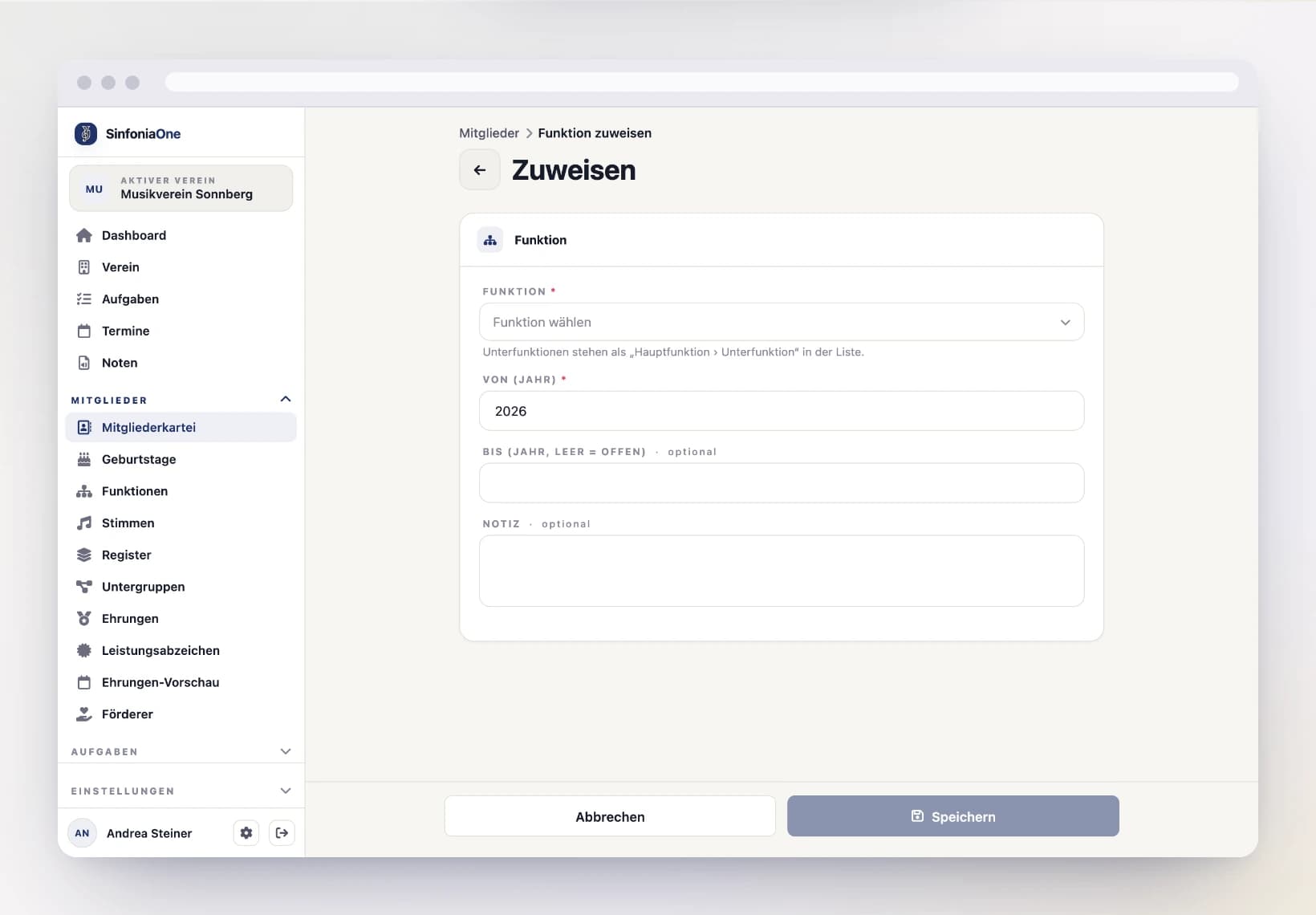
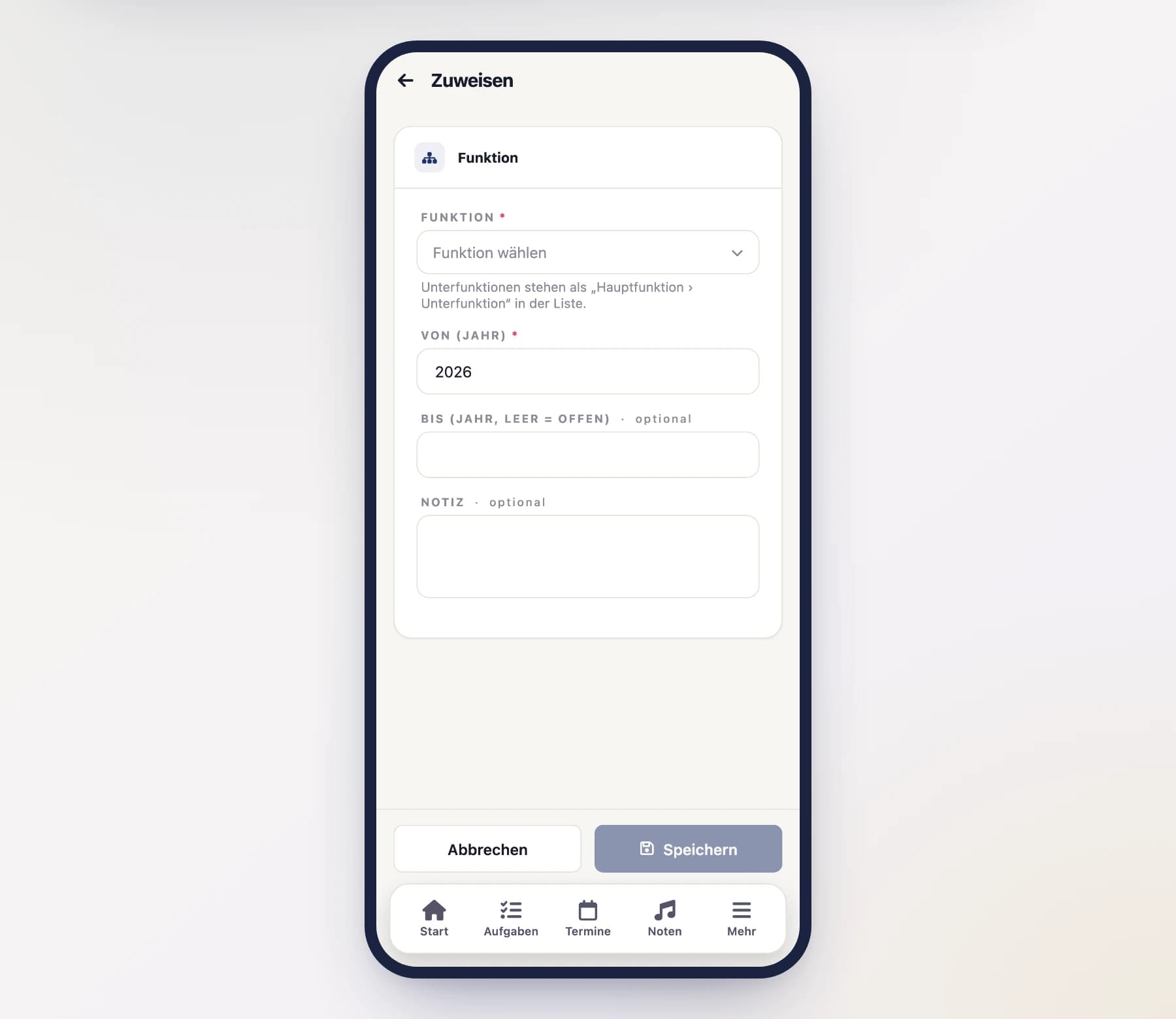
Enter the term of service
Enter the from year (when the person starts holding the office). Leave the to year empty as long as the office is currently held.
Save
After saving, the office appears in the person's detail view – and the person shows up in the directory when you filter by this position.
History and ending an office
Positions are kept as history: an office doesn't disappear when it ends – it stays on record with its years. That way you can see later, too, who held which office and when.
- End an office: enter the to year on the entry. The office then counts as expired, but remains visible in the history.
- Change a term: in the person's detail view, tap the office – for current offices the name in the “Positions” row, in the history the pencil. You land in the form and can correct the office, the from and to year and the note.
- Delete a term: in the history there is a bin next to the pencil; a current term is deleted in the form at the bottom via “Delete permanently”. That is the way out for an entry that should never have existed – it is gone for good, there is no bin to restore it from. If an office has simply come to an end, enter the to year instead: it then stays on record in the chronicle.
- Fill anew: simply assign the same position to another person with a new from year. Some offices may also be filled multiple times (e.g. several advisory board members).
Offices for the chronicle
Because positions record the history, it pays to keep them tidy. Your club's history of officeholders is fed from them.
Tasks for a position
A task can be attached to a position instead of a person – whoever currently holds the office is affected. If the position has sub-positions, the “Incl. sub-positions” switch in the task form decides whether their holders are meant as well. The switch is on by default: a task for “Archivist” therefore also reaches the sheet music archivist.
Inheritance only runs downwards
A task for the sub-position “Sheet music archivist” does not reach the whole archivist circle. Otherwise splitting the office would be pointless.