Creating a festival
Create a new festival with time period, location, status and festival lead – or start from a proven festival as a copy.
Before you plan areas, shifts or the POS, you first create the festival itself. That's the shared framework everything else comes together under later.
Who can create festivals?
New festivals can be created by the event lead and the board. As a regular member you then see the festival in the list and can pitch in – but you can't create or change it.
Creating a new festival
Open the Festivals area
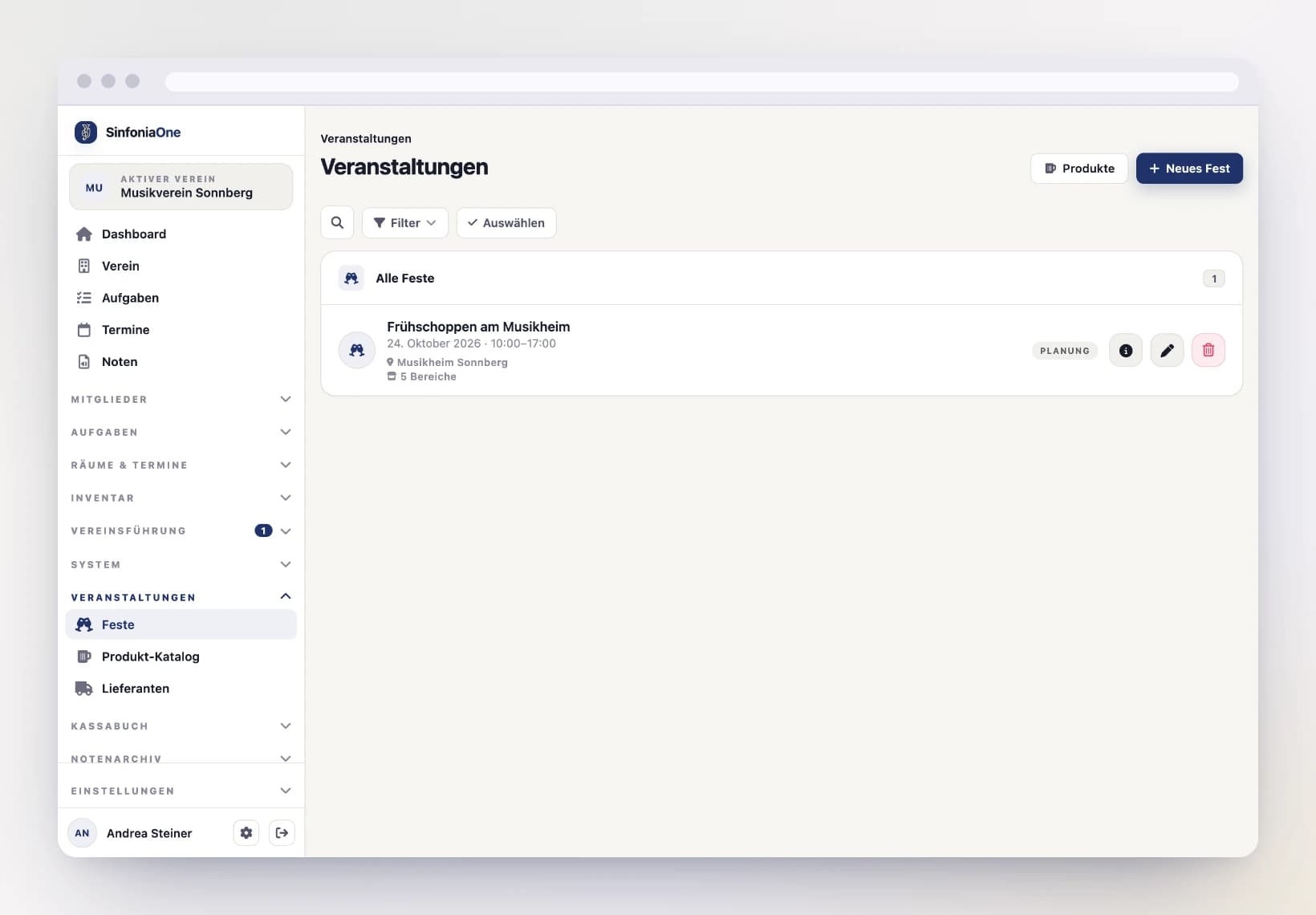
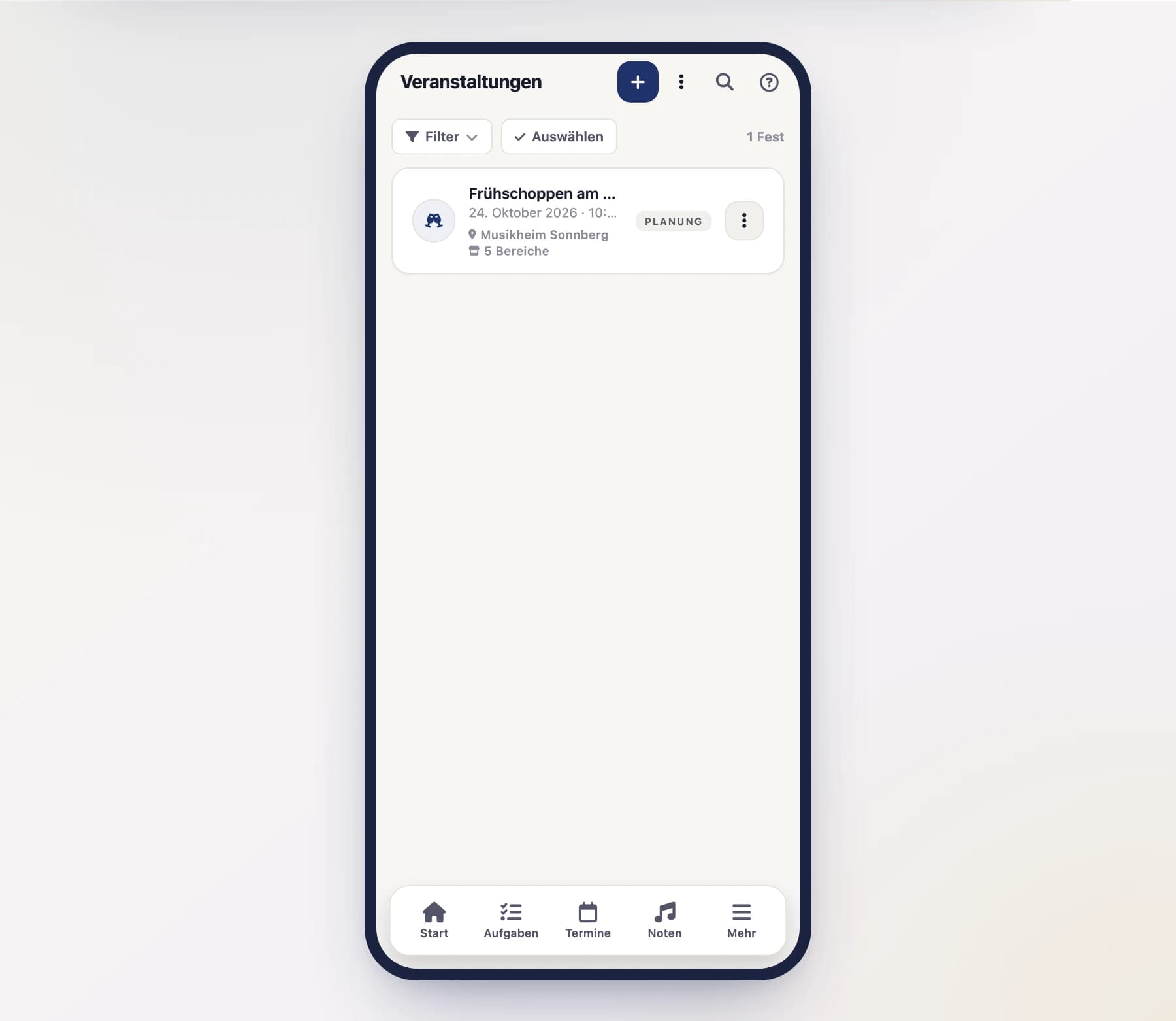
Open the Festivals area. You see the list of all your club's festivals – the upcoming ones at the top, the past ones below.
Fill in the basic details
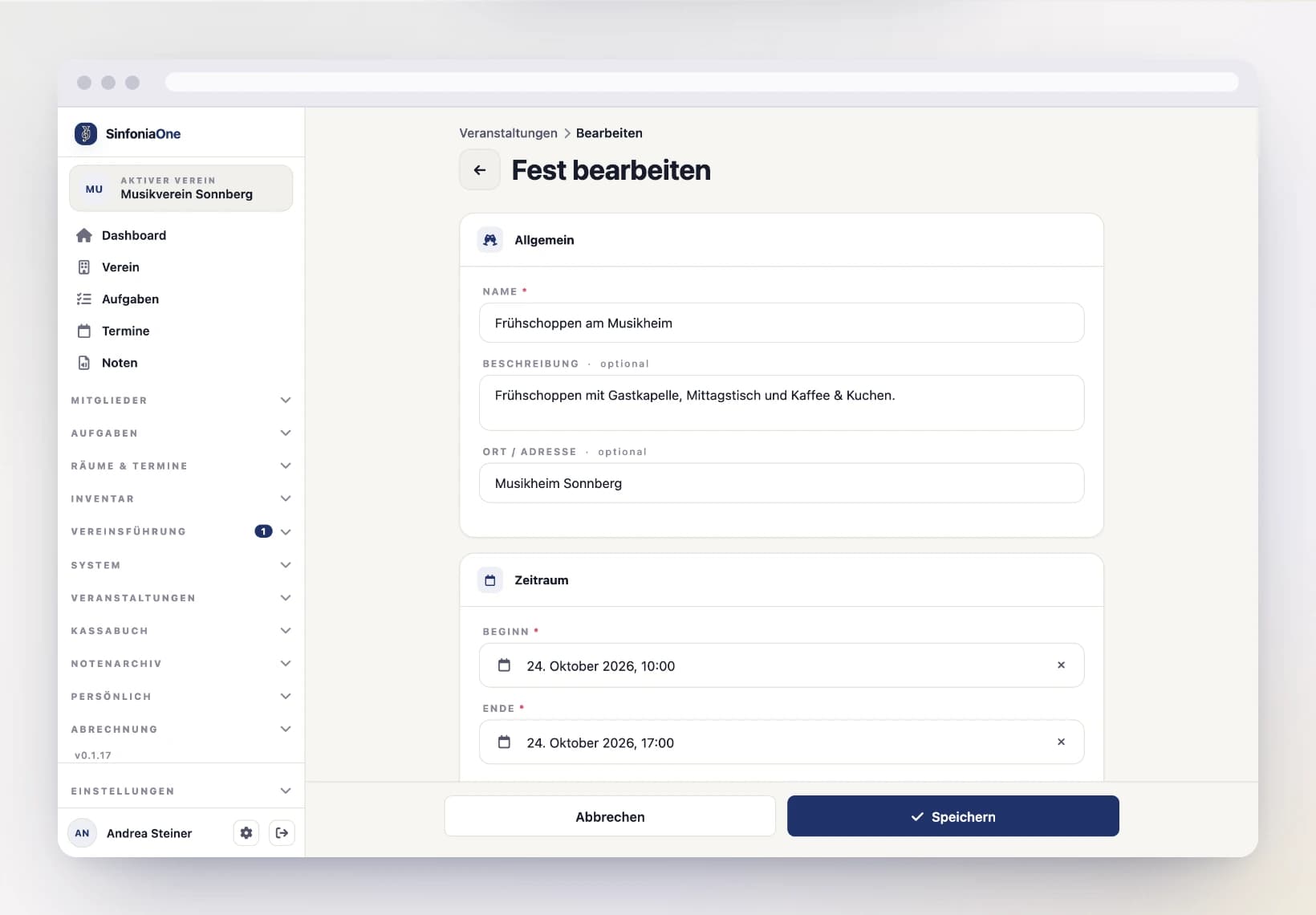
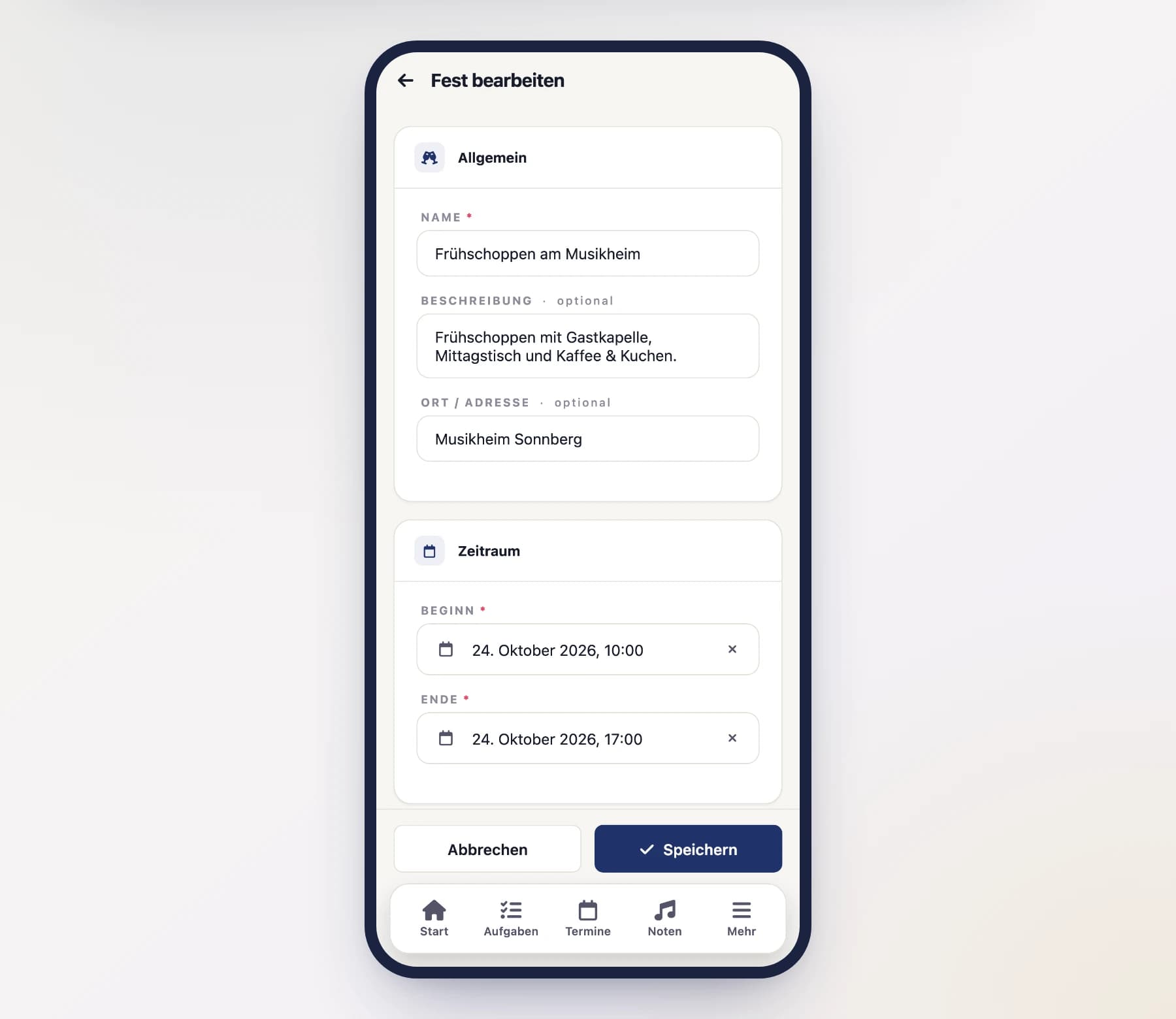
Enter the most important information about your festival:
- Name – for example "Matinee" or "Market festival".
- Time period – start and end of the festival.
- Location – where the festival takes place.
- Status – shows which phase the festival is currently in (for example planning, running, closed).
- Expected visitors – your estimate of how many guests you're counting on. This helps later with purchase planning.
- Weather note – a short note on the weather. In the review this lets you see whether a weak year was maybe down to the rain.
Set the festival lead
Set the festival lead – the person(s) responsible for this festival. The festival lead manages the festival including the finances.
Show in the calendar
Turn on "Show in calendar" if the festival should also appear as an event in the shared club calendar. SinfoniaOne then automatically creates a matching event so everyone in the club can see the festival.
Save the festival
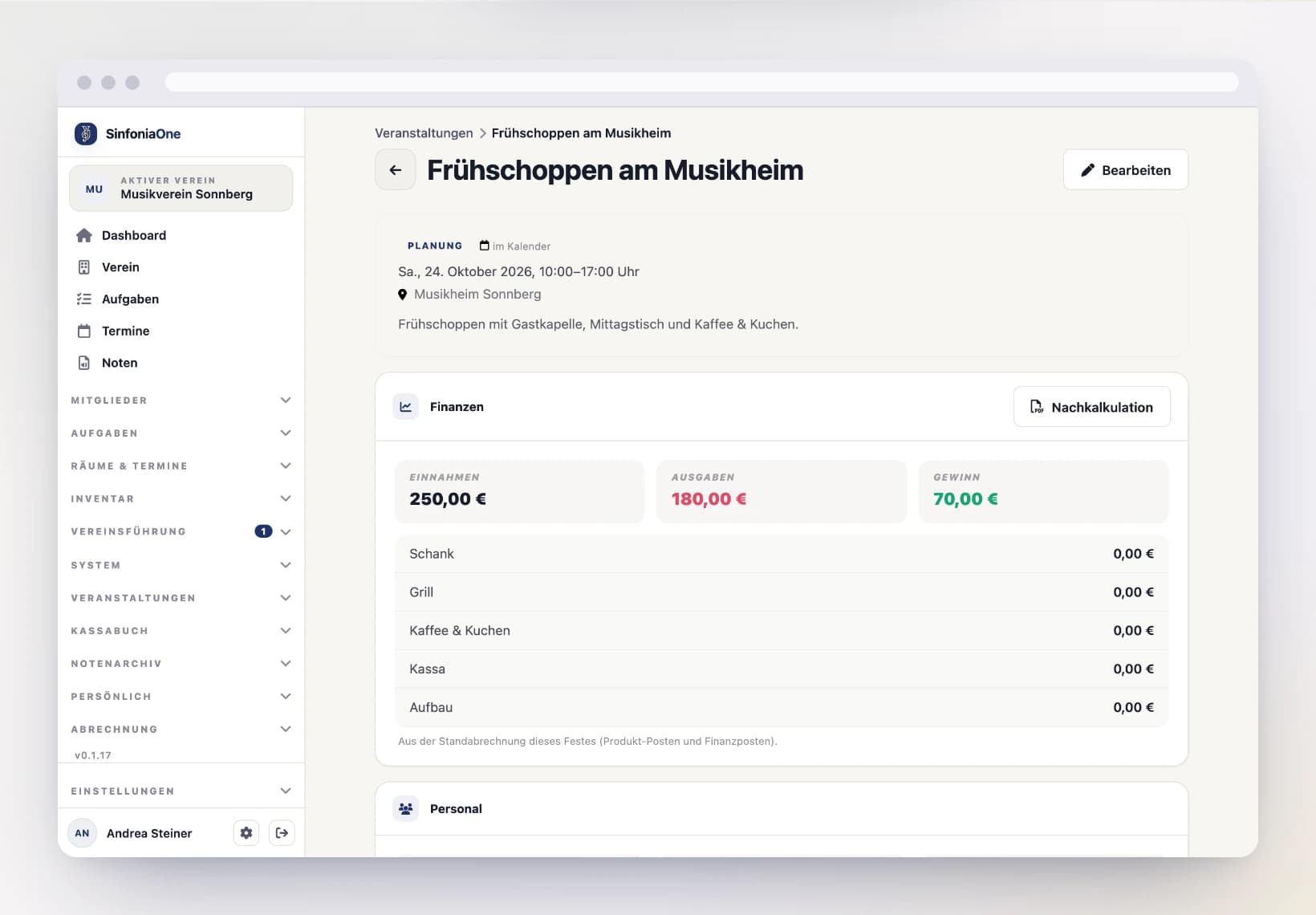
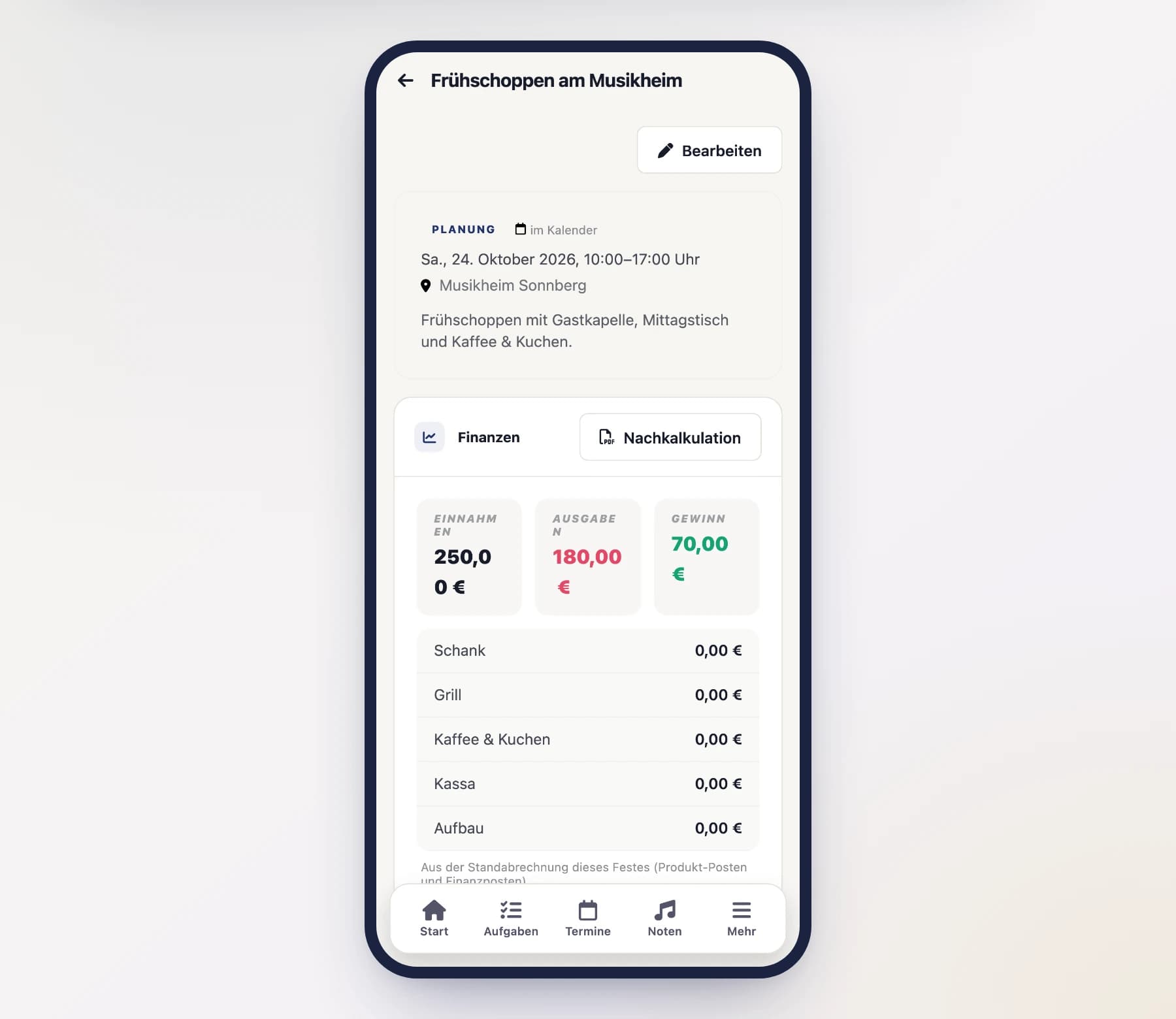
Tap "Save". Your festival is created and opens in the detail view – from here you next plan areas, products and shifts.
Starting a festival as a copy
If your club celebrates the same festival every year, you don't have to start from scratch each time. You copy last year's festival onto a new date – the planning comes along, the numbers of the old festival stay where they belong.
Open the template festival
In the festival list, open the festival you want to use as a template and choose "Copy as new festival".
Set date and name
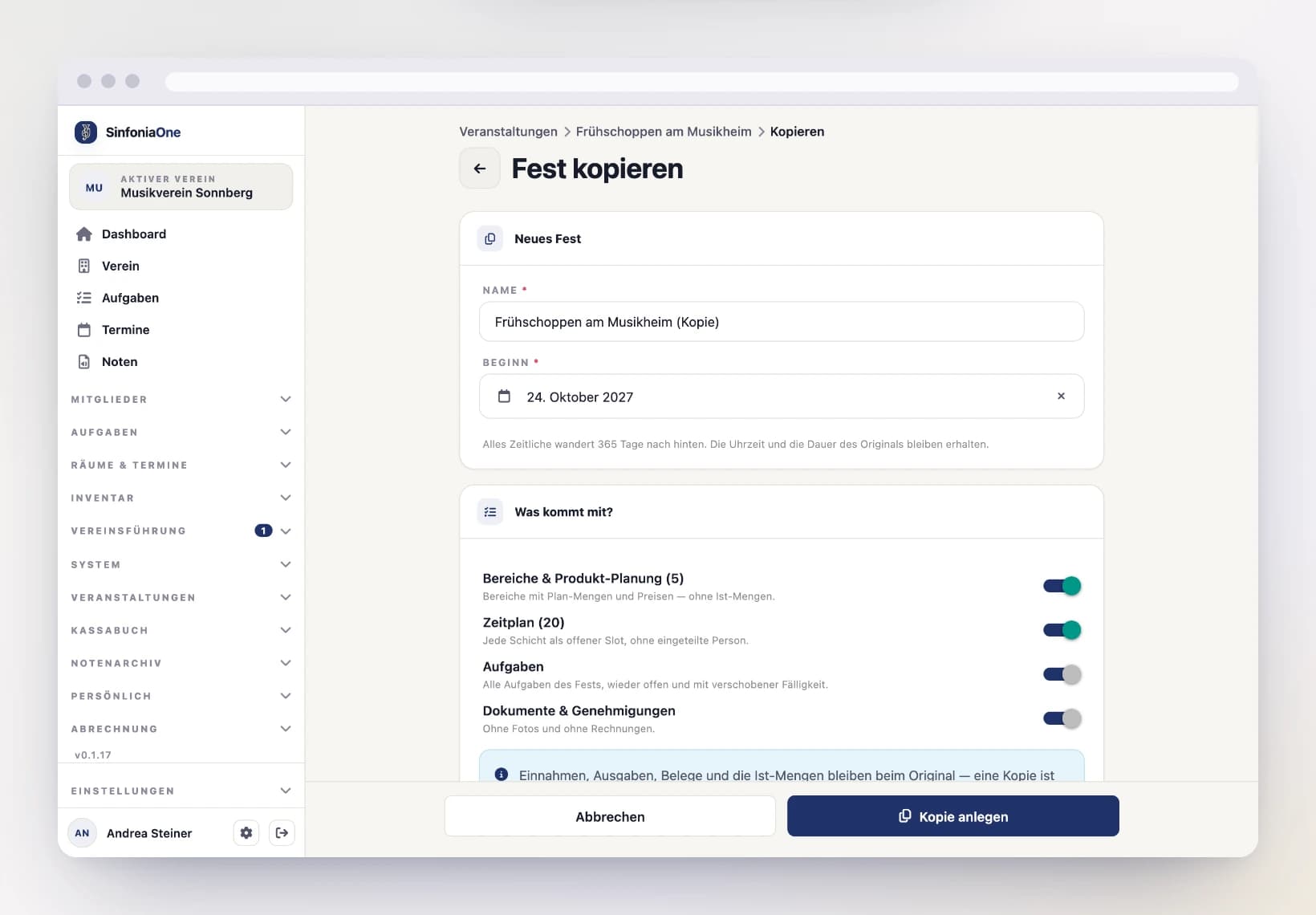
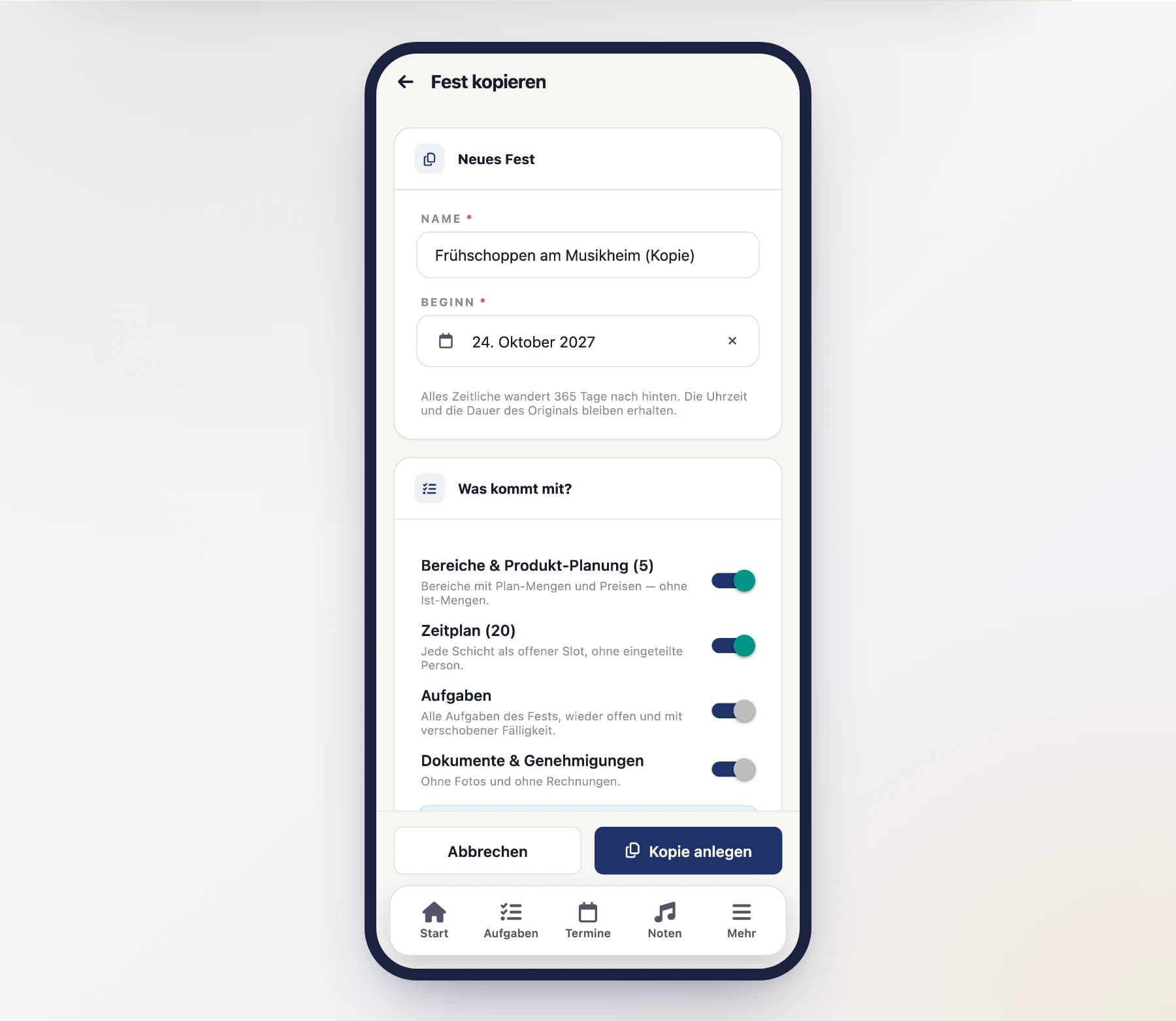
Enter the start of the new festival – the same date one year later is suggested. The time of day and the duration of the original are kept, and everything with a time moves by the same span: the schedule and the due dates of the tasks.
Choose what comes along
Four switches, all on to begin with. Anything the original doesn't have is greyed out:
- Areas & product planning – areas with planned quantities and prices, without the actual quantities.
- Schedule – every shift as an open slot, without an assigned person. Who helps this year is decided anew.
- Tasks – the festival's checklist, open again and with shifted due dates.
- Documents & permits – without photos and without invoices.
Create the copy
Tap "Create copy". The new festival opens with the status planning – the calendar entry is off at first so you can plan in peace.
The numbers stay with the original
Never copied along are income, expenses and receipts, the actual quantities (purchased, sold, left over), the weather note and the comments. A copy is a plan, not a second settlement.
Deleted festivals go to the trash
A deleted festival moves to the trash and can be restored there for 30 days – along with its areas. Only after that window, or after permanent deletion in the trash, is it gone for good. More on this under Trash.