Areas, purchasing & sales
Split the festival into areas, order per supplier and record sales per area — with nothing to maintain up front.
For a larger festival it helps to split the work into areas. Purchasing and sales are kept apart: you order per supplier and sell per area. There is nothing to maintain up front — the items come into being as you order. That way you can see exactly where how much was earned in the end — and you'll know for next year how much to order.
Optional for small festivals
Areas and orders pay off mainly for the big festival with drinks service and sales. For a small matinee, the simple POS with a few financial entries is often enough.
Creating areas
An area is a part of your festival — for example:
- Tap and bar — the drinks service.
- Grill / kitchen — the food.
- Cash desk and entry — the cash desk and admission.
- Raffle — the wheel of fortune or the prize draw.
- Setup/teardown — the setting up and tearing down around the festival.
In the festival, tap “+ Area” under Areas. For each area you define:
- Responsible — the area lead, the person responsible for this area,
- Budget — how much this area is allowed to spend.
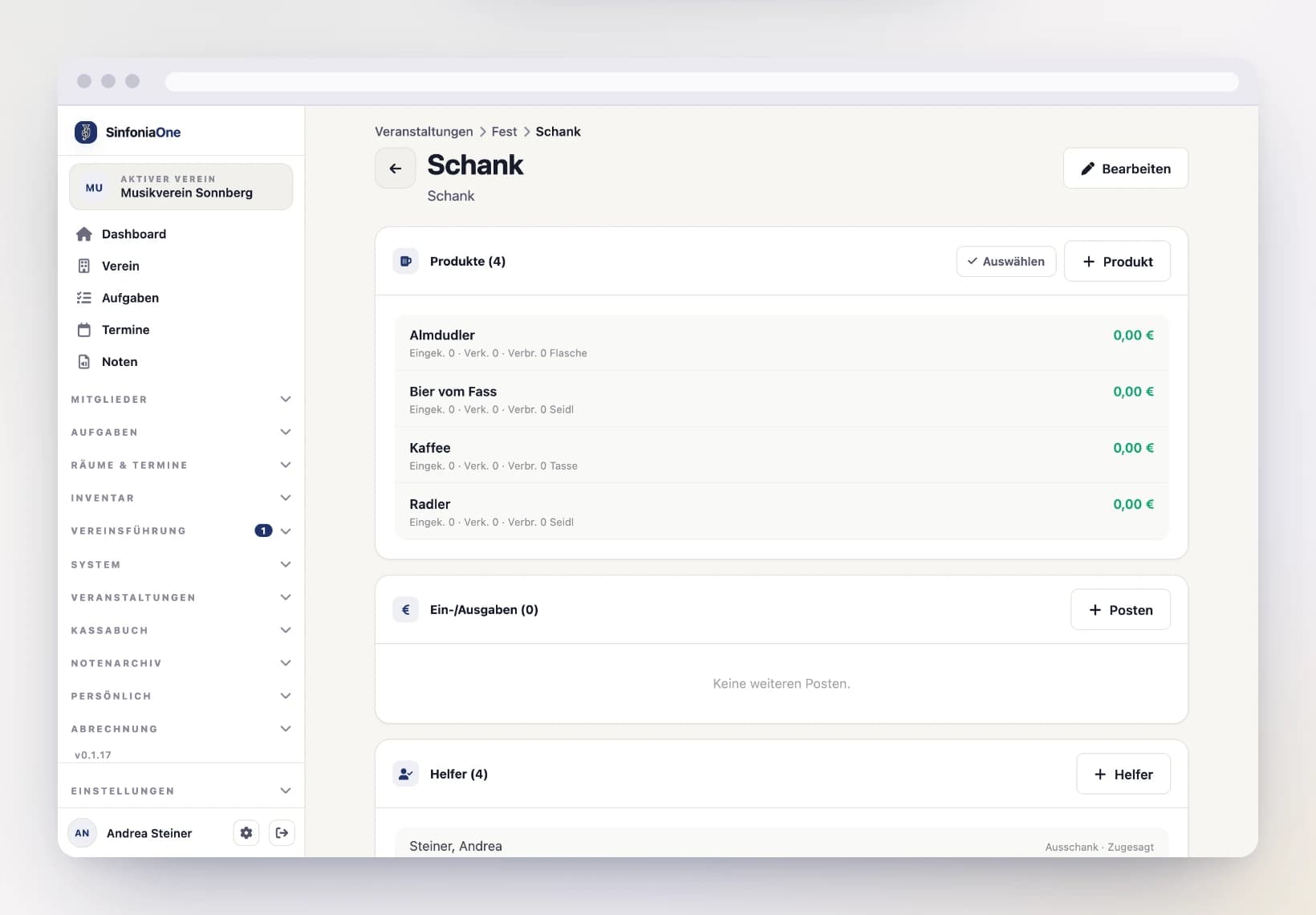
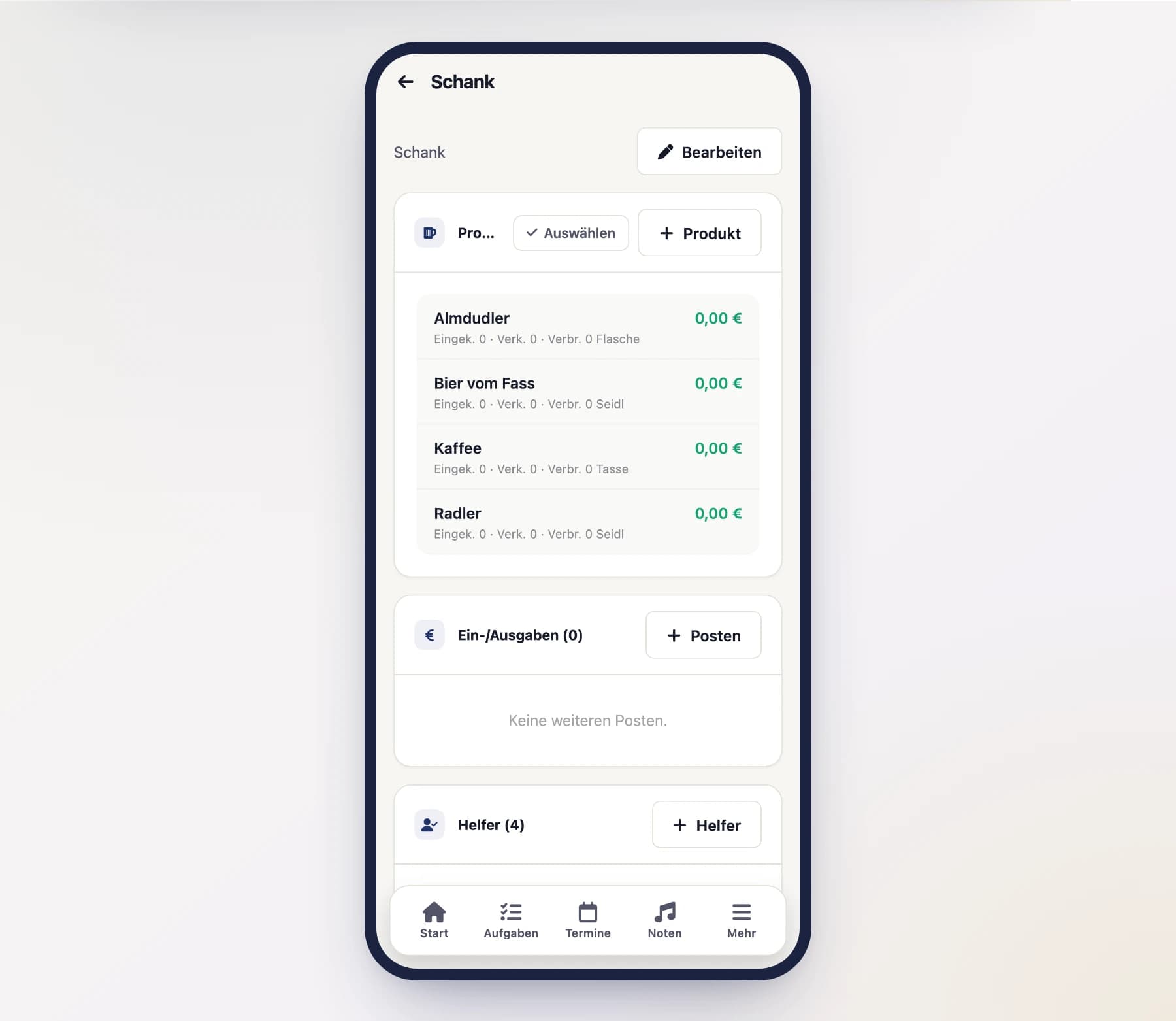
When you open an area, you see everything that belongs to it:
- Sales — what the area sold, see below.
- Purchasing for this area — what was ordered for it, one line per supplier.
- Other entries — income and expenses that are neither sales nor purchasing, see POS & finances.
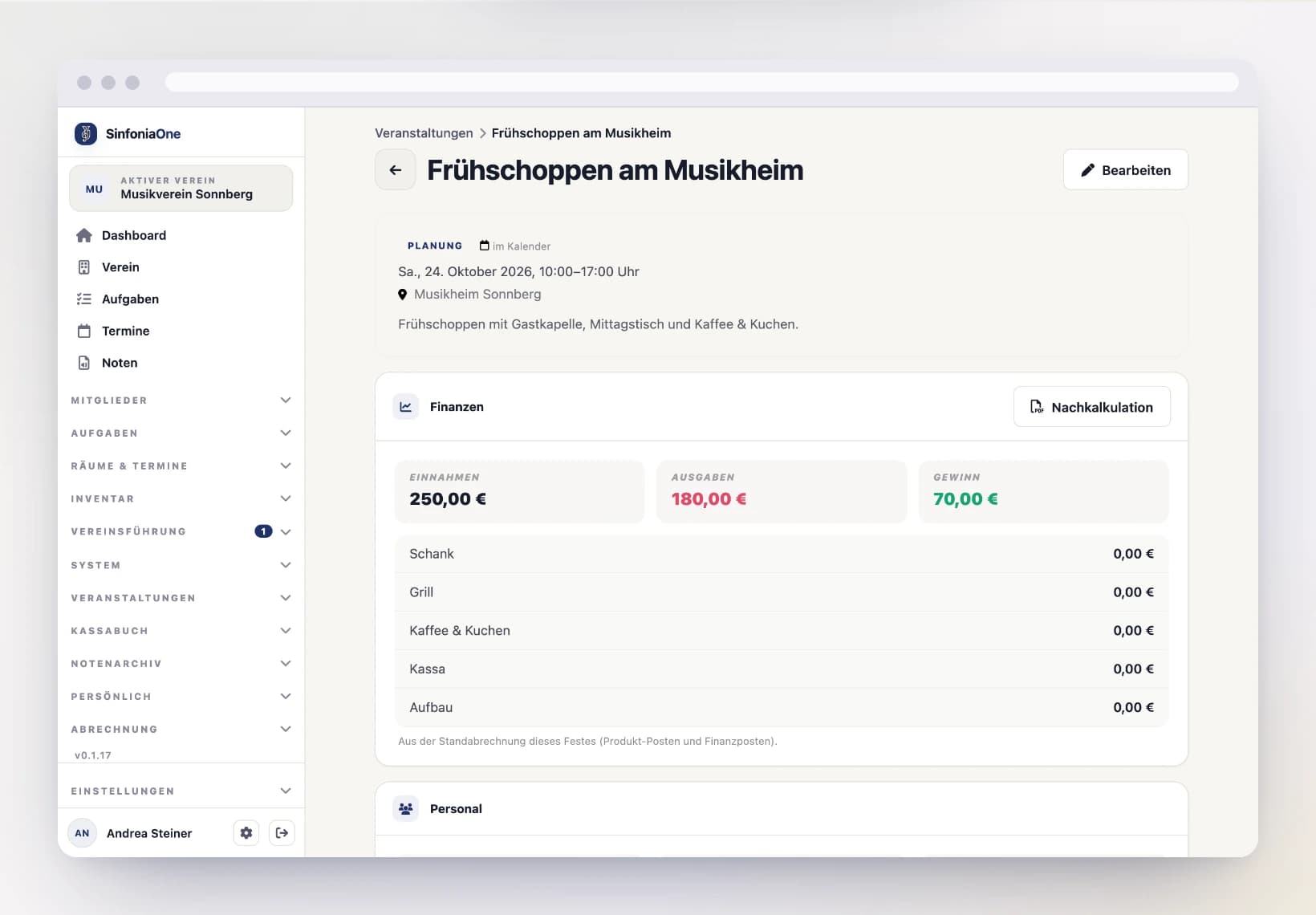
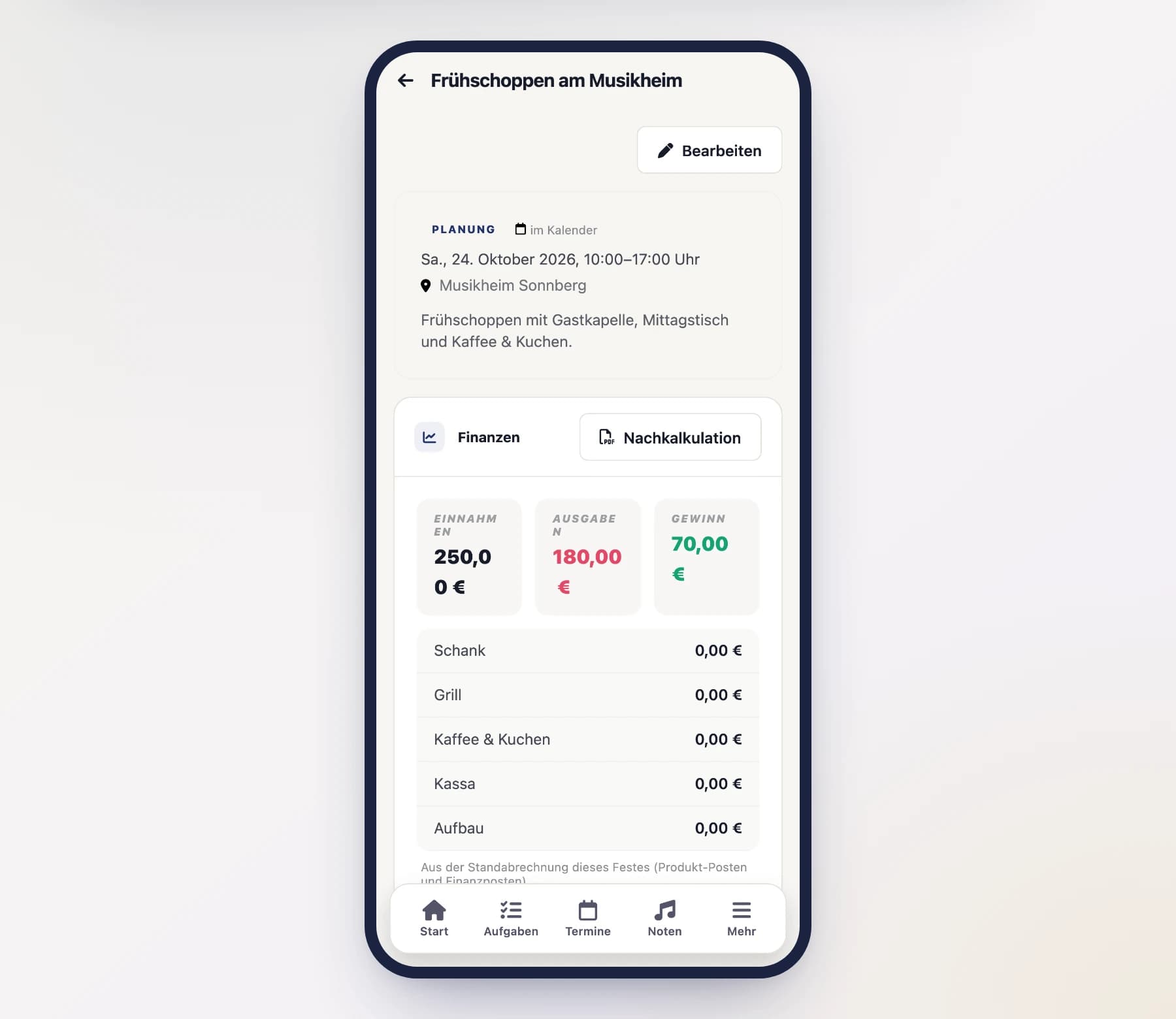
- Result — sales, purchasing, other income and expenses and, below them, what is left, for example “Result Tap”.
- The area's helpers, tasks and documents.
Purchasing
The festival has a Purchasing section, visible only with finance permission. There is one order per supplier. Each line shows the status, the amount and the next step as a button: “Ordered”, “Delivered”, then “Paid”. A new order starts out as planned — so you can see what you still have to tell the supplier. Below that you see “Total purchasing”.
Create an order
Tap “+ Order”. Under “Who are you ordering from?” you search for the name or type a new one; a new supplier is created along the way. If you pick a supplier you have already ordered from for this festival, you land in the existing order.
Enter the items
In the order, tap “+ Item” and enter:
- Item and quantity,
- Unit — free text such as “Keg 50 l” or “Crate 20 bottles”; nothing is converted,
- Price per unit and, if there is one, deposit per unit,
- For the area — or “For the whole festival”; the item then counts in the festival's statement, but in no area.
What you ordered from this supplier before is suggested in the order below the items, for example “Last time at Brauerei Waldsee:”. A tap fills in the form.
Fill in after the festival
Open the item and enter under “After the festival” what was returned and how many empties came back.
What the order shows
Every order has its own page. At the top you see the status, the dates (ordered, delivered, paid) and the supplier's contact details, below that the items.
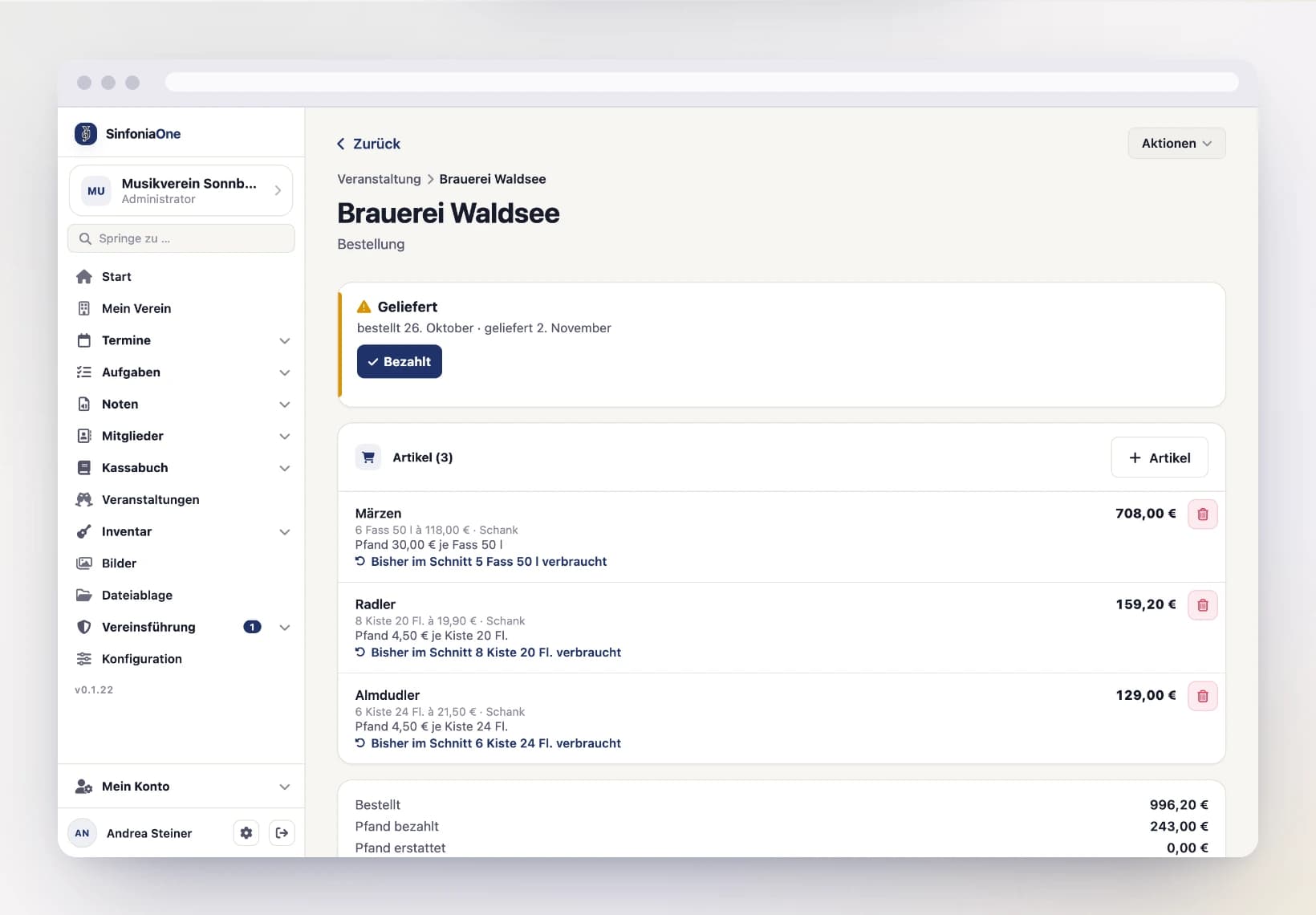
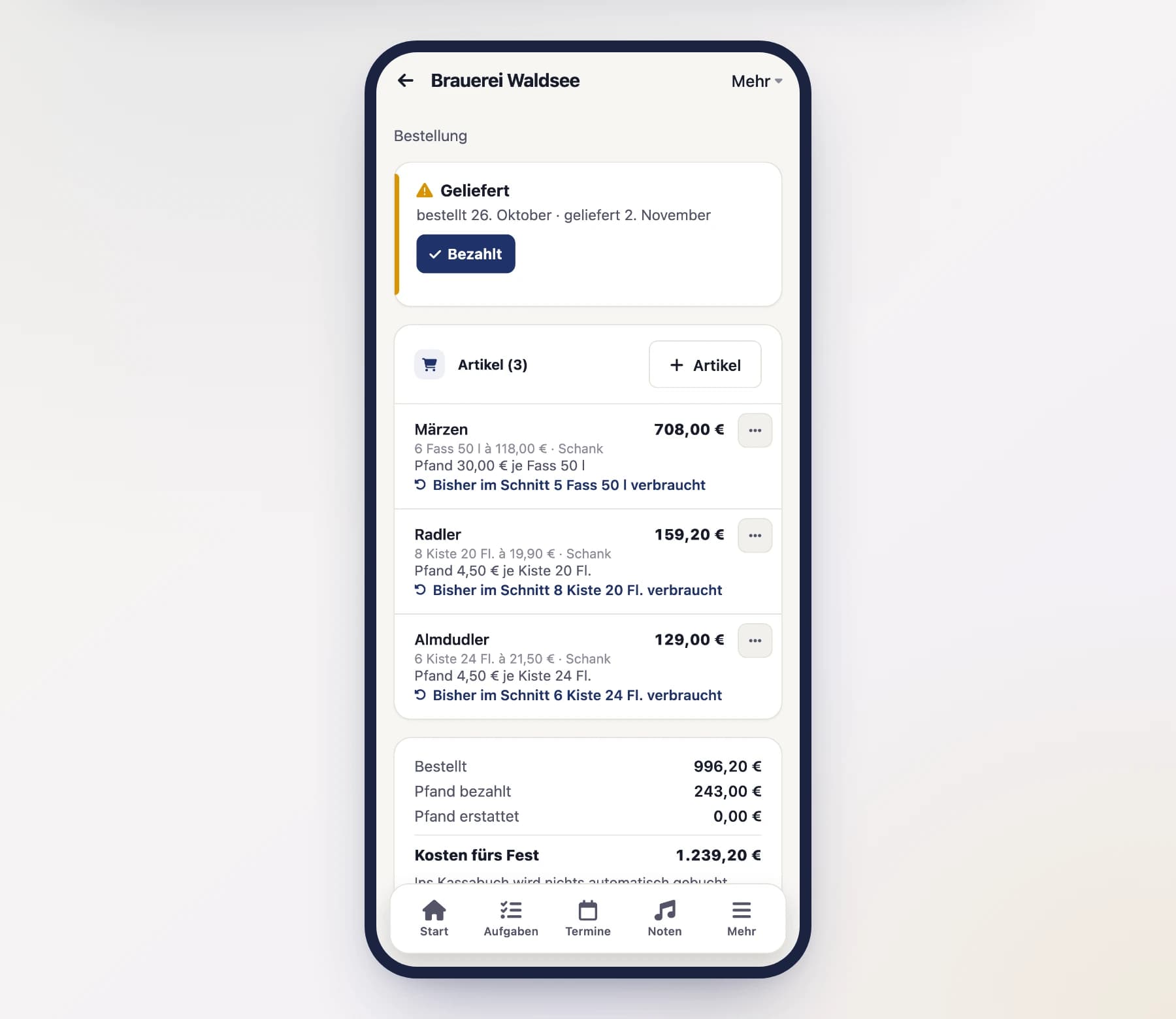
Below the items you find the totals:
- Ordered — quantity times price of all items.
- Returned — what comes off that again.
- Deposit paid and deposit refunded.
- Cost to the festival — what is left in the end.
How it is calculated
What goes back costs nothing. Deposit for missing empties counts as a cost. Nothing is booked into the cashbook automatically.
With finance permission, items that existed before show something like “Used on average so far: 5 Keg 50 l” — the figure comes from the review.
Under Actions at the top (More on a phone) you find the “Order sheet (PDF)” for the supplier and “Delete order”. A deleted order stays in the trash for 30 days. If a status was set by mistake, “Back to …” in the same place takes that step back, including its date.
Getting orders suggested
If the festival has no order yet and there is an earlier festival with orders, the suggestion “Order like “Market festival”?” appears under Purchasing for people who manage festivals. The template is the festival you copied from, otherwise the latest one of the same name.
“Suggest orders” creates one order per supplier:
- Quantity — what was actually used back then, that is ordered minus returned. Anything that went back entirely does not come along.
- Prices and deposits — the latest known ones.
- Area — found by its name. If it does not exist, the line applies to the whole festival.
Only suppliers that still exist and are active are included. Afterwards you can change everything as in any other order.
Suppliers
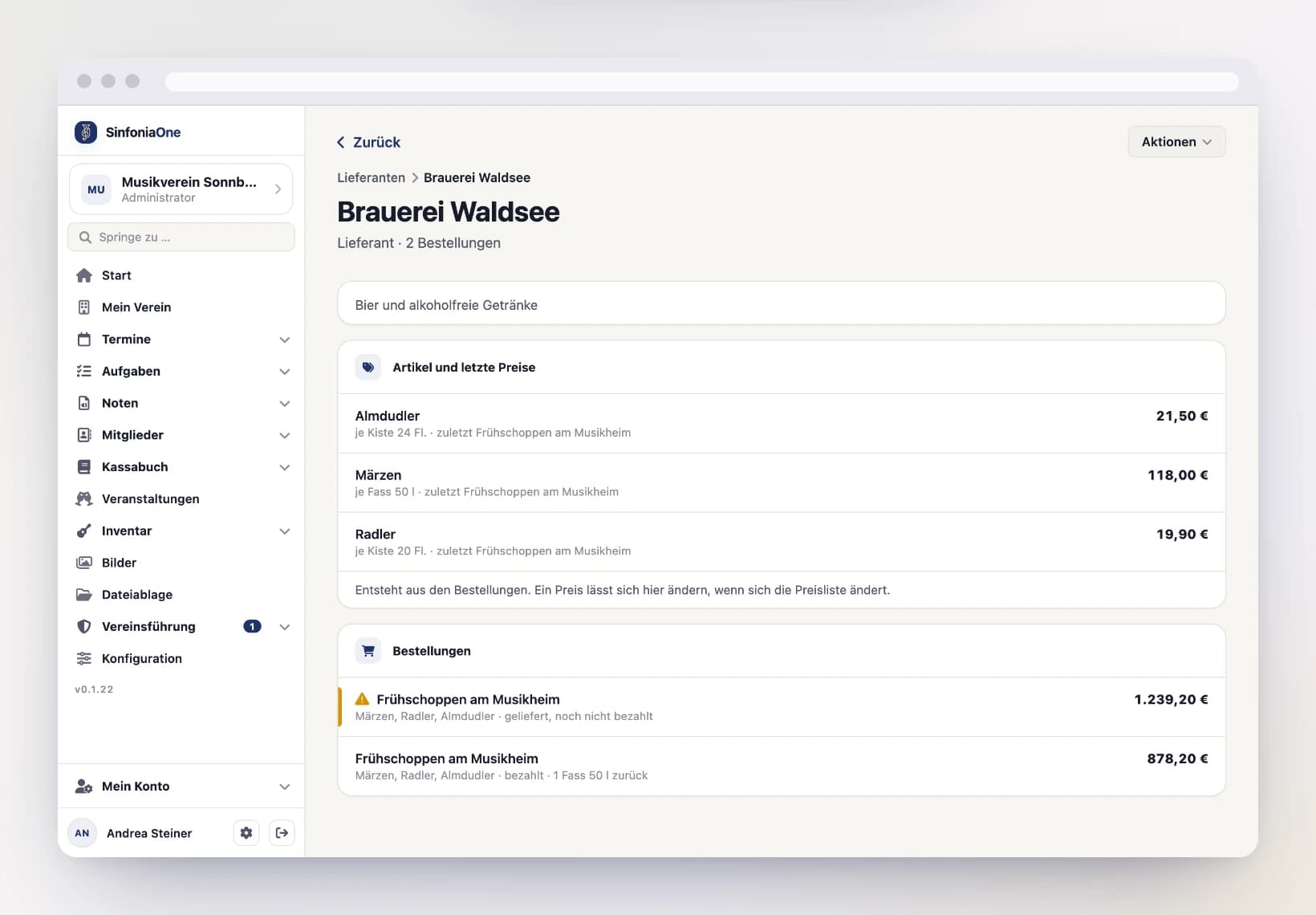
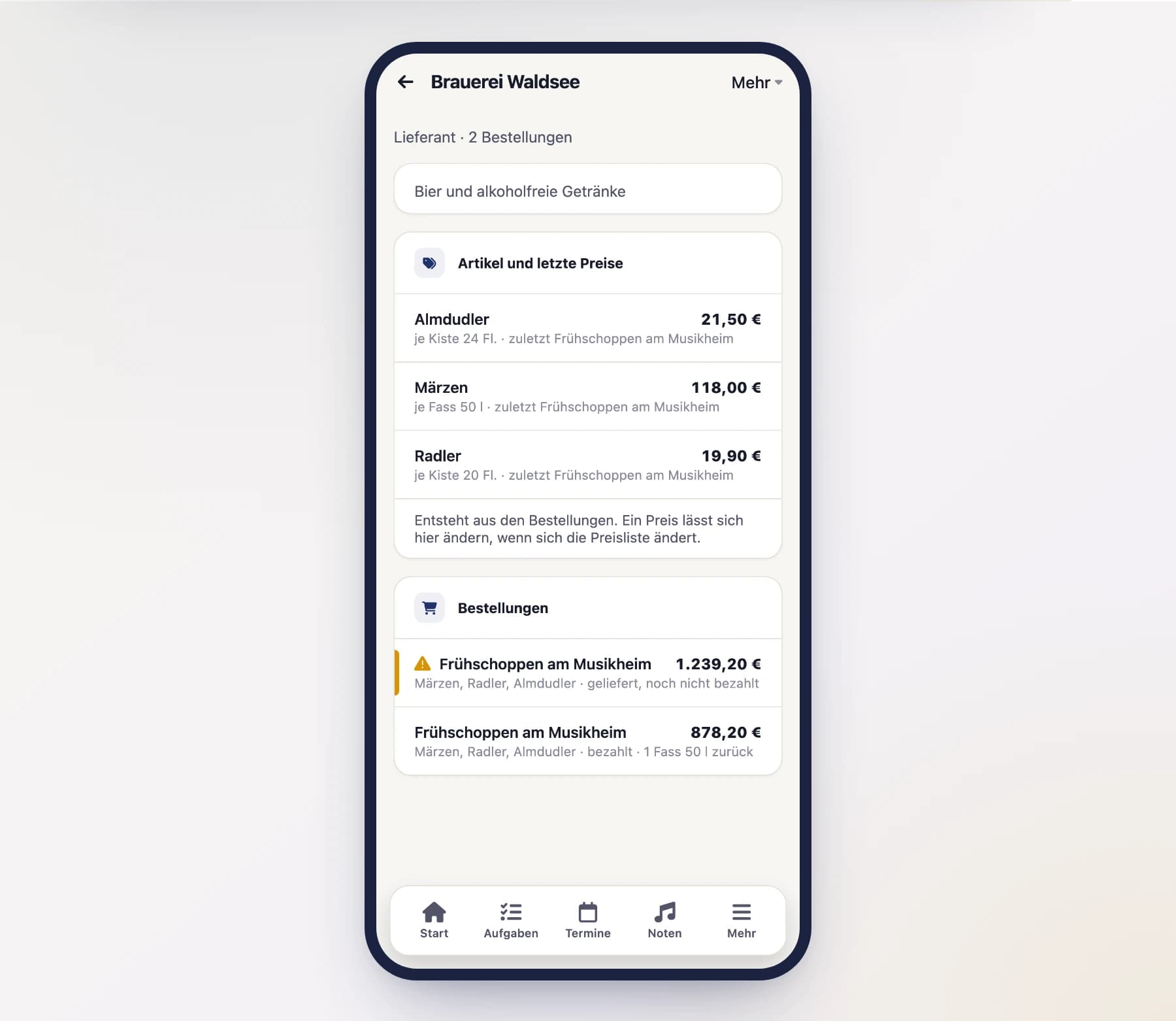
If you manage festivals, you reach the suppliers from the festival list (“Suppliers” action) and in the menu under Configuration › Events › Suppliers. A supplier shows:
- the contact details — contact person, phone, email and notes,
- “Items and latest prices” — this comes from the orders. Tap a price to change it when the supplier's price list changes; it applies to the next order,
- “Orders” — what was ordered from them, one line per festival.
Sales
Per area you choose how sales are recorded: “Takings only” or “With price list”. Only the chosen one counts, otherwise the same sale would count twice. The other one stays saved.
Takings only
What counts here is what is in the cash desks. An area can have several cash desks. Tap “+ Cash desk” and enter:
- Name — for example “Front cash desk”,
- Float — the change that was in the cash desk at the start,
- Cash count — what was counted at the end.
Takings = cash count minus float. Without a cash count, the cash desk does not count yet.
With price list
What counts here is what went over the counter. Tap “+ Item” and enter the item, the sales price and, after the festival, Sold (pieces). Sales are the sum of pieces times price.
Who may do what?
The area lead fills in their own area
Whoever is set as area lead fills in everything in their own area: cash desks, price list and other entries. Through Purchasing for this area they reach the order, see only their own lines and those lines' totals there, can edit them, and fill in what was returned and how many empties came back. Only people who manage festivals may create orders — responsibility for the whole festival stays with the event lead and the secretary.
Financial figures only with permission
Sales, purchasing and result are financial figures. They are only visible to people with finance permission — for example the event lead, the secretary, the treasurer and the auditor — and to the area lead in their own area. Members who only pitch in see the areas, but no money amounts.
What's next?
Once areas and orders are in place, the next thing you assign are the helpers: