Schedule
Assign people to areas by drag and drop, set duration and job, and spot double bookings.
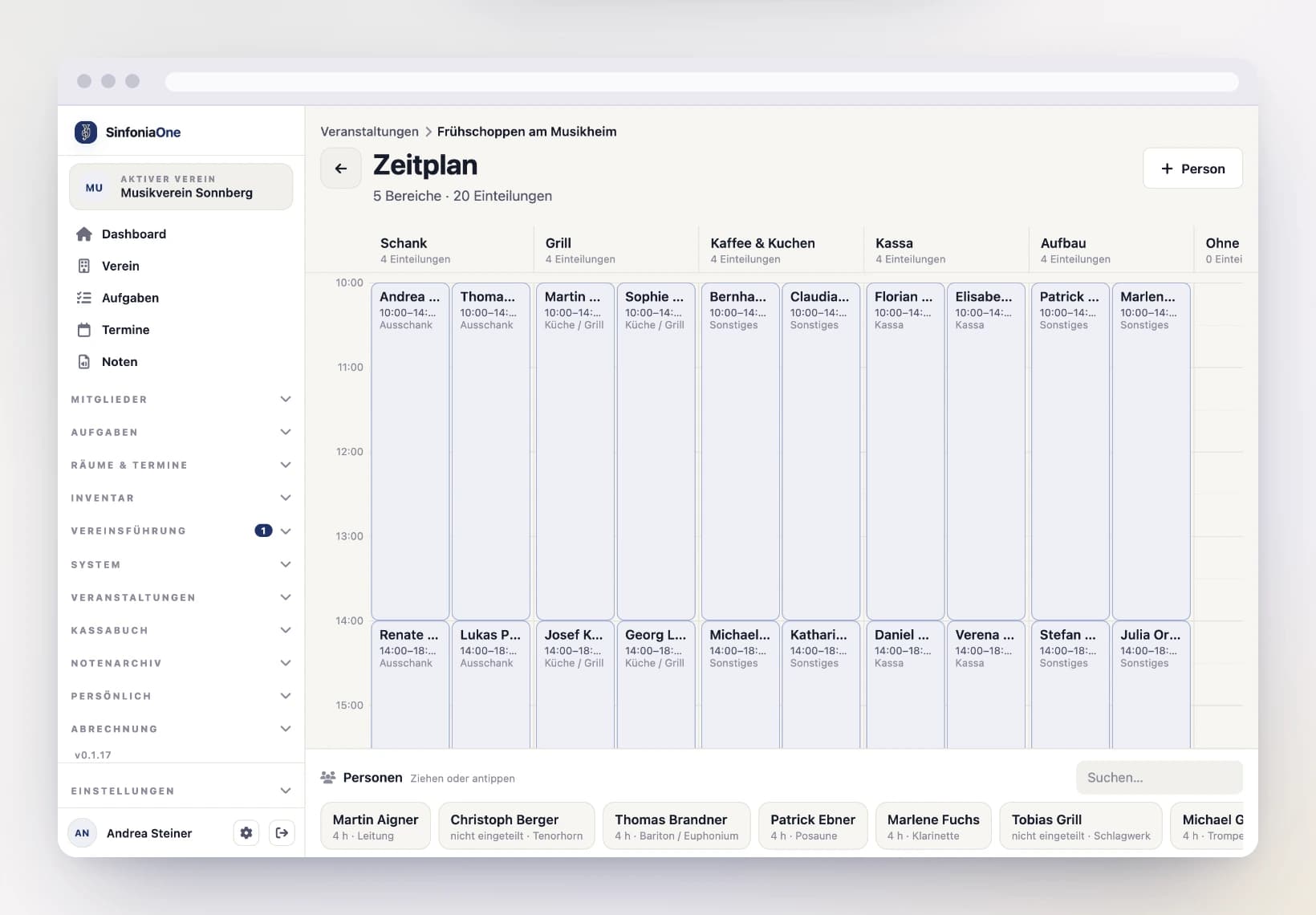
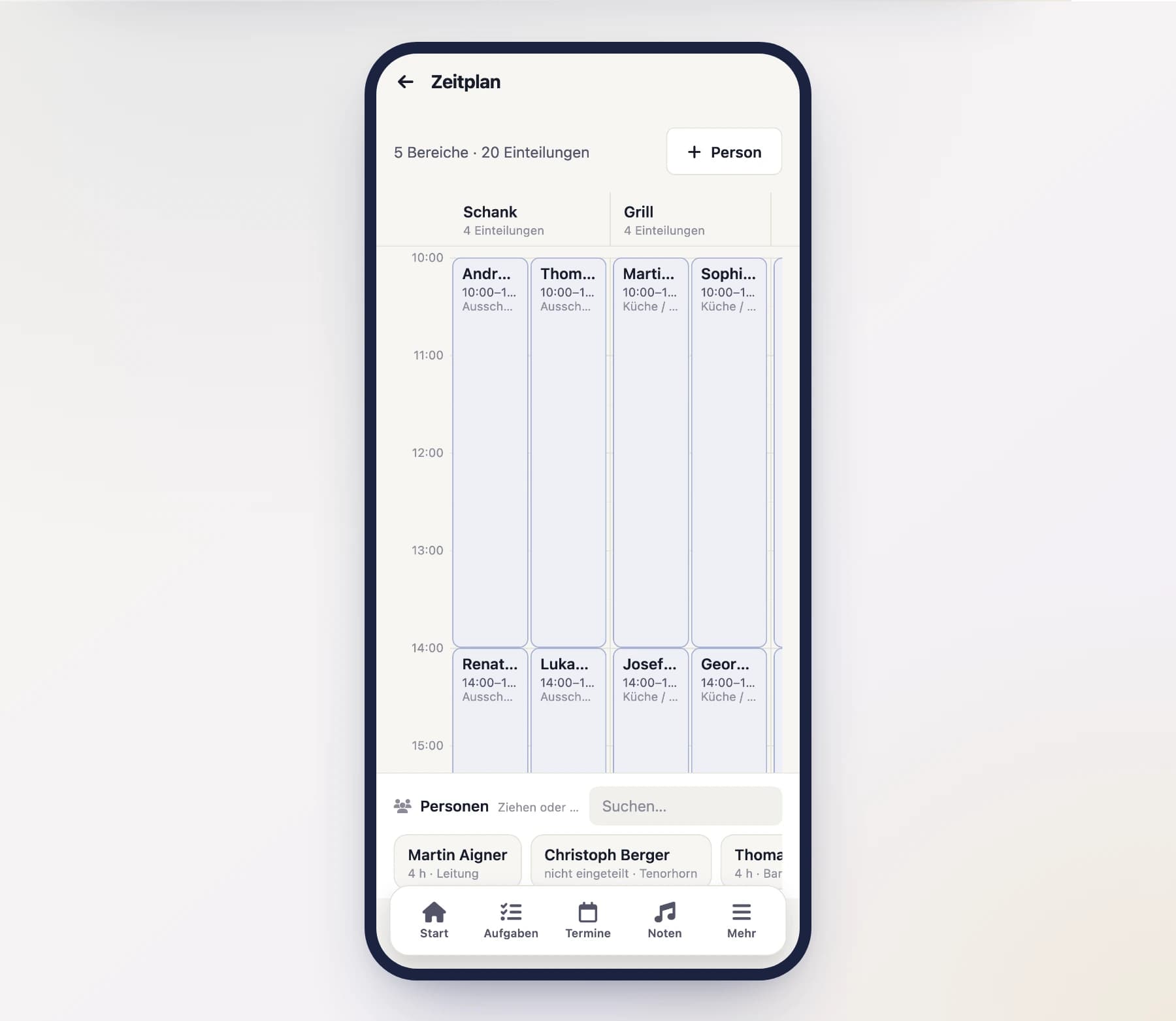
The schedule is your festival's roster grid: time runs from top to bottom, every area is a column, and every assignment is a coloured block. You drag people in like pinning notes to a board — and see at a glance where the gaps are.
You find it at your festival under Helpers → “Zeitplan”.
Assigning someone
Drag a person out of the bar
Everyone in your association is listed along the bottom. Drag a person onto the column you want, at the height where the shift should start. That creates a two hour block.
The job is pre-filled to match the area: drop someone on “Grill” and they get “Küche / Grill”.
Adjust the duration
Grab the block by its top or bottom edge and drag it longer or shorter. Time snaps to quarter hours.
Set everything else
Tap the block. A form opens where you change everything: person, area, job, start and end, status, note — and for external helpers their contact details too.
Dragging is never the only way
Every drag gesture has a tap equivalent: tap a person in the bar, or an empty spot in a column — both open the same form, where you enter area and time by hand. On a phone and with large text that is often the easier route.
One person, several areas
A person may be assigned to any number of areas — one after another (first the bar, then the grill), or even at the same time.
If two assignments overlap in time, SinfoniaOne tells you clearly:
- A yellow notice appears above the grid, naming the people affected.
- The blocks concerned get a yellow border with a warning sign.
- A warning sign appears next to the person in the people bar.
- While editing, the form shows you which other assignment overlaps.
The warning blocks nothing
Double bookings are reported, never prevented. Sometimes the overlap is intended — someone steps in at the till for a moment while officially rostered at the bar. Whether the overlap is fine is your call.
Changing or removing an assignment
- To another column or time: just drag the block there.
- To remove it: drag the block down into the people bar — or tap it and choose “Entfernen”. You are asked to confirm first.
Who may assign?
- The festival management (permission “manage events”) assigns in every area.
- An area lead assigns only within their own area. Other columns are marked with a padlock and cannot be changed.
- Nobody else sees the schedule.
Replies at a glance
If your festival is also entered as an appointment, a coloured dot next to each name shows their reply: green = accepted, yellow = maybe, red = declined. That way you do not accidentally roster someone who has declined.
No instant notification
Nobody is notified while you assign — a roster still being worked on should not trigger a flood of push messages. Share the finished plan via the roster PDF.