Financial year & reports
Close a financial year and export all reports for the audit and tax advisor as PDF or CSV.
At the end of each year you close the financial year and pull the reports – for the annual general meeting, the cash audit and the tax advisor. SinfoniaOne puts together all the analyses ready for you.
The financial year
A financial year bundles together all transactions, budgets and balances of a period – usually the calendar year. You create one financial year per year; all ongoing operations then run within it.
Each day belongs to at most one financial year: Periods can't overlap, and you can't book on a day without a financial year. Create a new one here with New financial year.
Closing a financial year
Prepare the closing
Make sure that all transactions of the year are recorded and that the account balances are correct. It's best to compare the balances one last time against the real bank statements.
Close the year
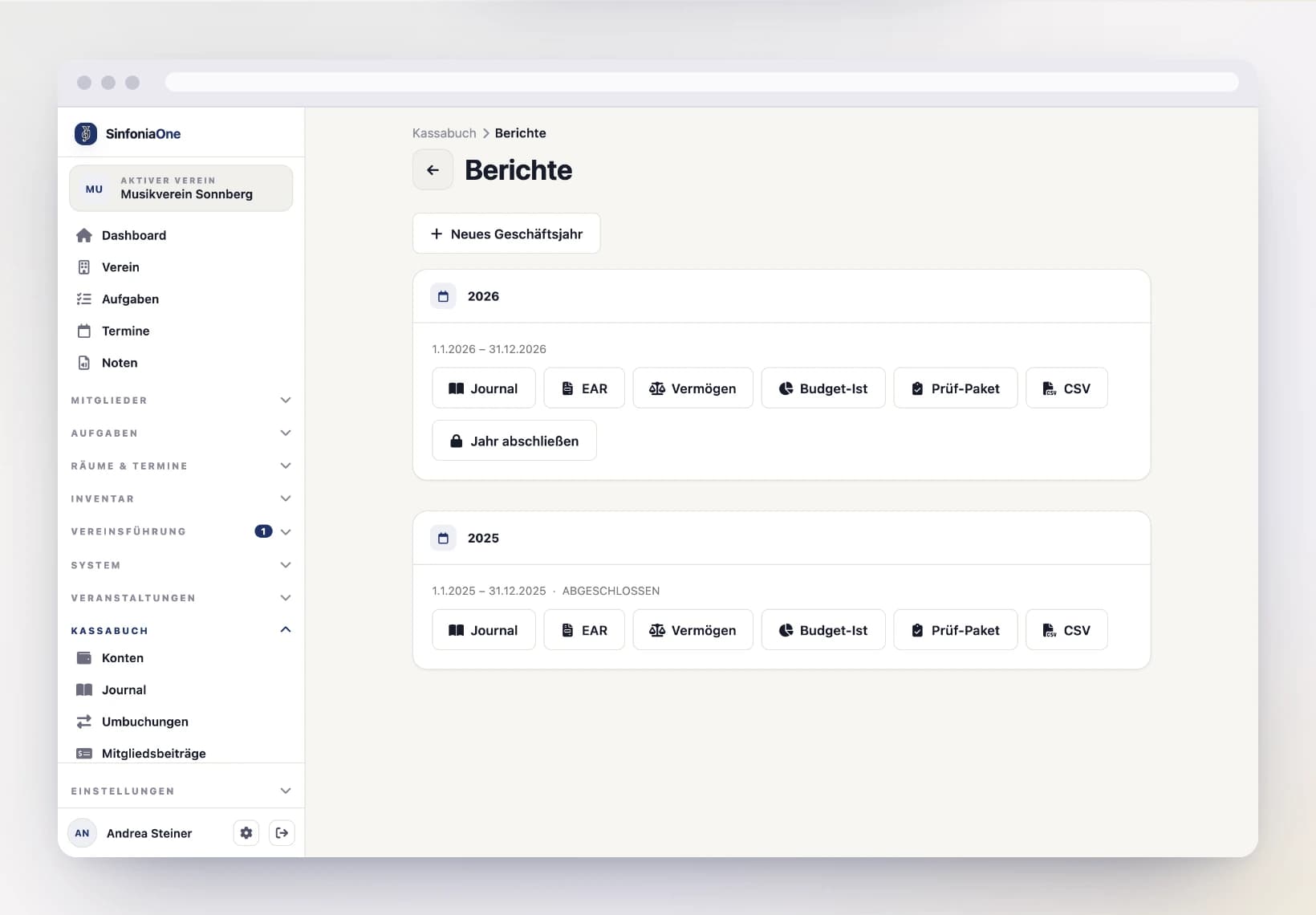
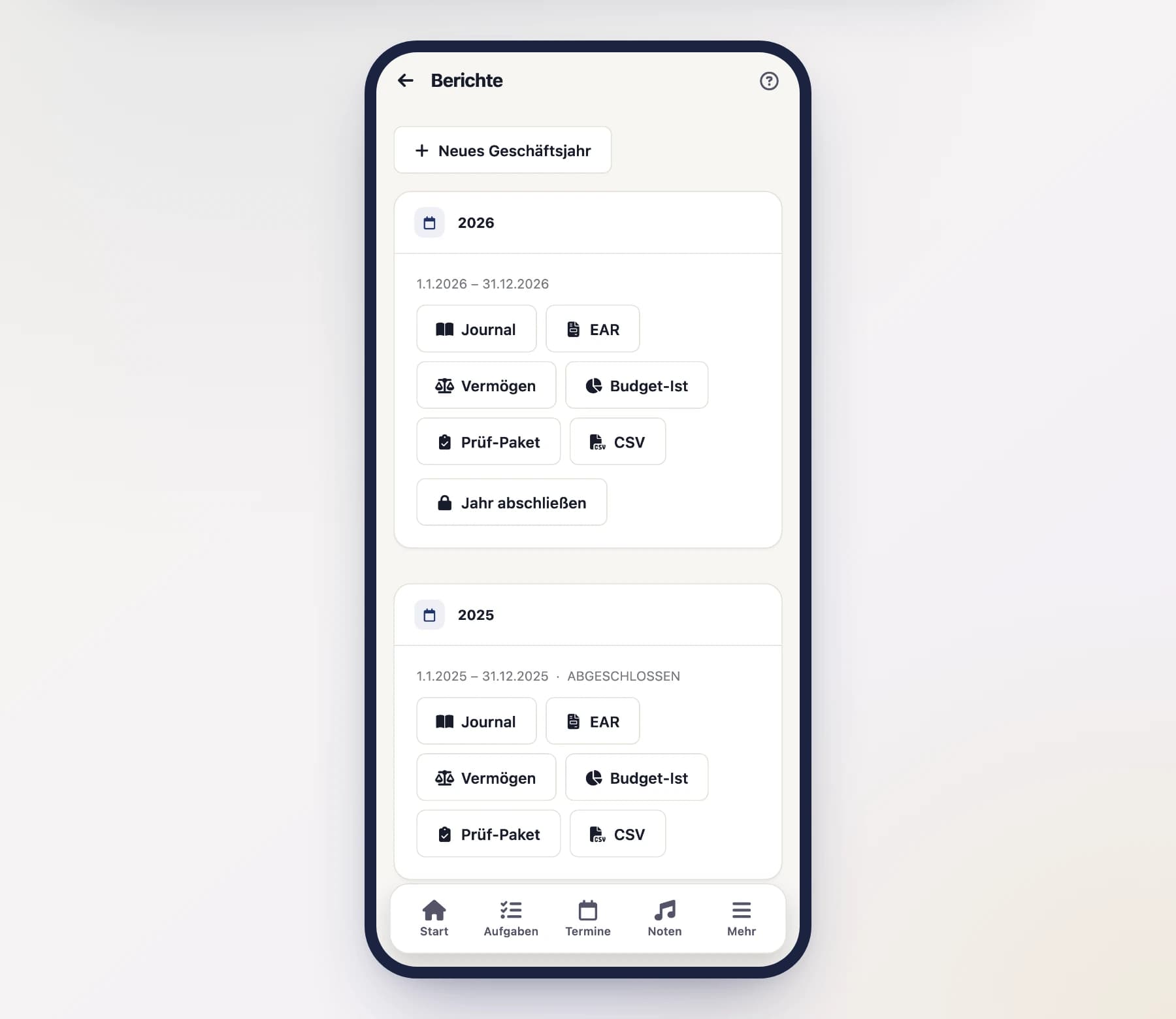
Open the Reports or Financial year area and tap "Close financial year". Years are closed in order: as long as an earlier year is still open, you get a refusal that names the open year.
What the closing does
With the closing, three things happen automatically:
- The closing balance of each account is carried over as the opening balance into the following year – you don't have to type it in.
- The transactions of the closed year are finalized and can afterwards only be reversed.
- The period and opening balance of the closed year stay as they are, and nothing more can be booked there. A reversal goes into the open year.
Think the closing through carefully
After the closing, the year's transactions are finalized. So take your time beforehand to check whether everything is complete and correct – a finalized year can only be corrected via reversing counter-entries.
The reports
Choose the financial year at the top. Below it, every report has its own row with a sentence on what it is for. Tapping a report opens it as a preview in the app: you can read it, zoom and print it there. If you need it as a file, tap "Download" in the preview – on a phone, the arrow at the top right. Only Bookings as a table arrives straight away as a CSV file, since it is meant to be passed on rather than read:
- Journal – the complete list of all transactions of the year.
- Income and expense statement – the comparison of all income and expenses, the centerpiece of the annual financial statement.
- Asset overview – the balances of all accounts, i.e. what the club owns.
- Budget vs. actual – the planned-versus-actual comparison of estimate and reality.
- Audit package – a bundled compilation for the auditors, with everything they need for the cash audit.
- CSV export – a spreadsheet file for the tax advisor for further processing.
Made for auditors and tax advisors
The auditor may only read the cashbook – but they can pull all reports themselves, in particular the audit package. That way they can audit the accounts without anyone having to look things up for them. You pass the CSV export on to your tax advisor.