Your Profile
Edit your photo, name, and contact details, subscribe to your calendar, enter absences, and keep an eye on your clubs.
Your profile shows who you are – your photo and name appear, for example, on dates and in your club's member list. You decide for yourself what it says there.
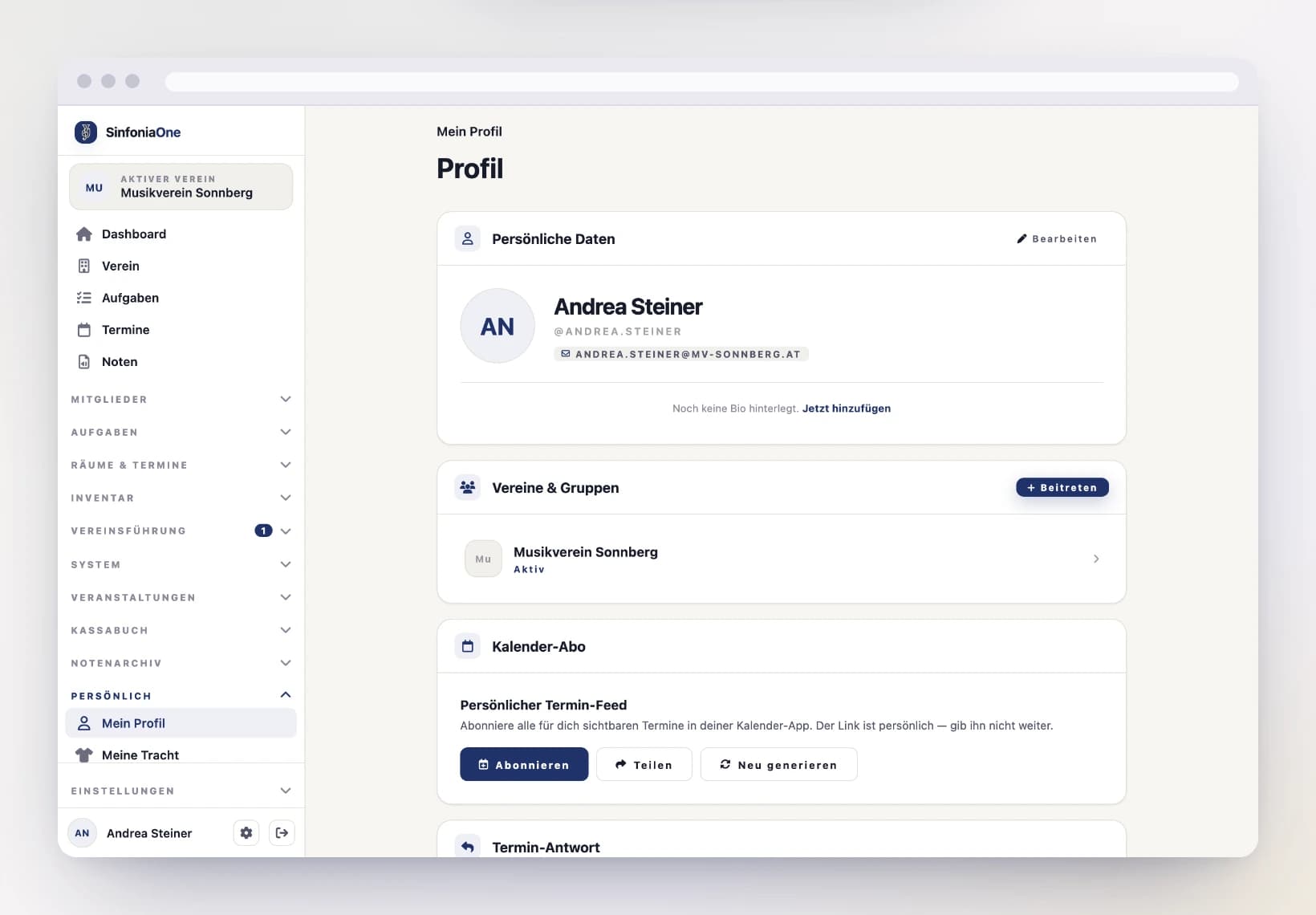
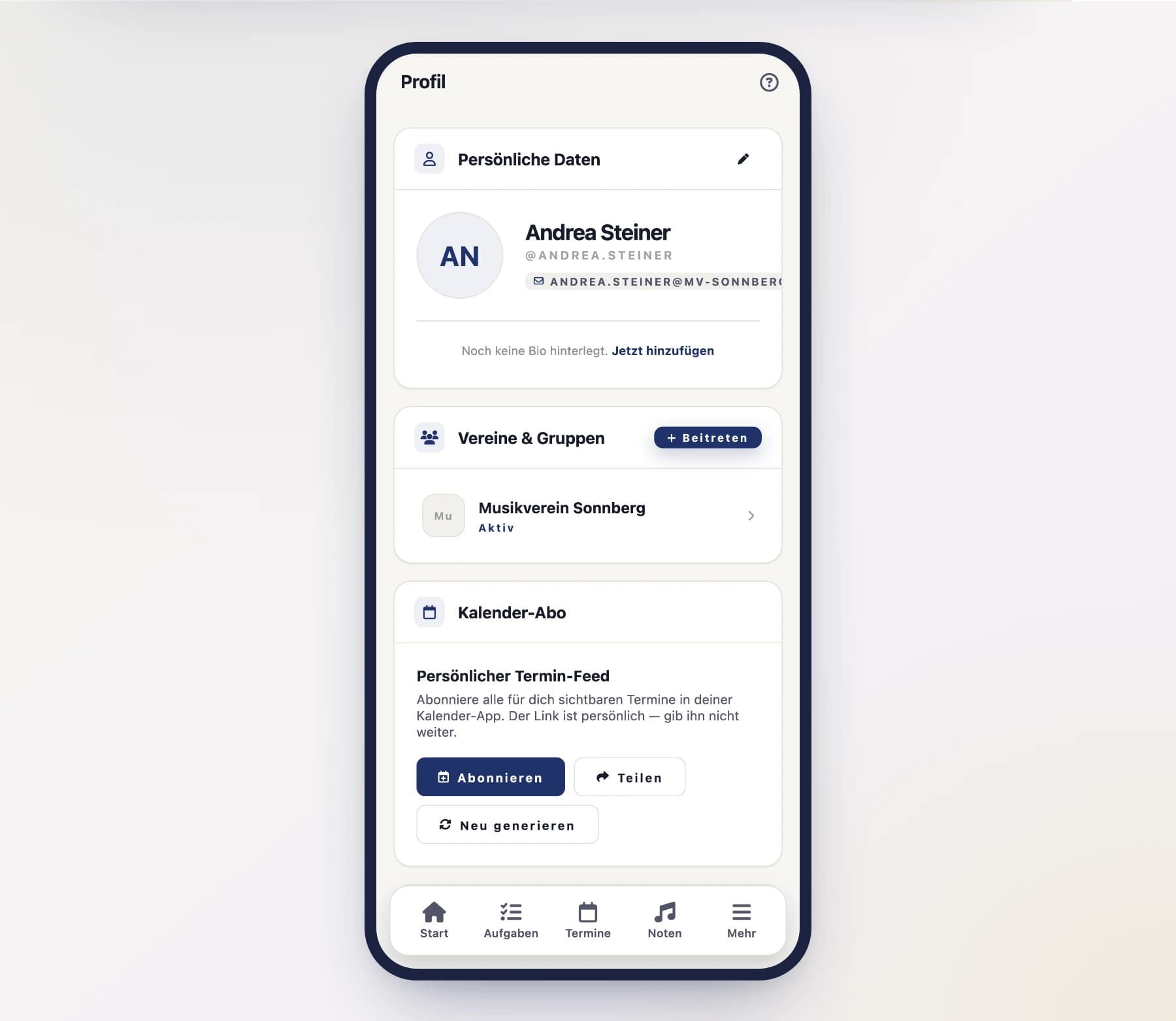
Edit your profile
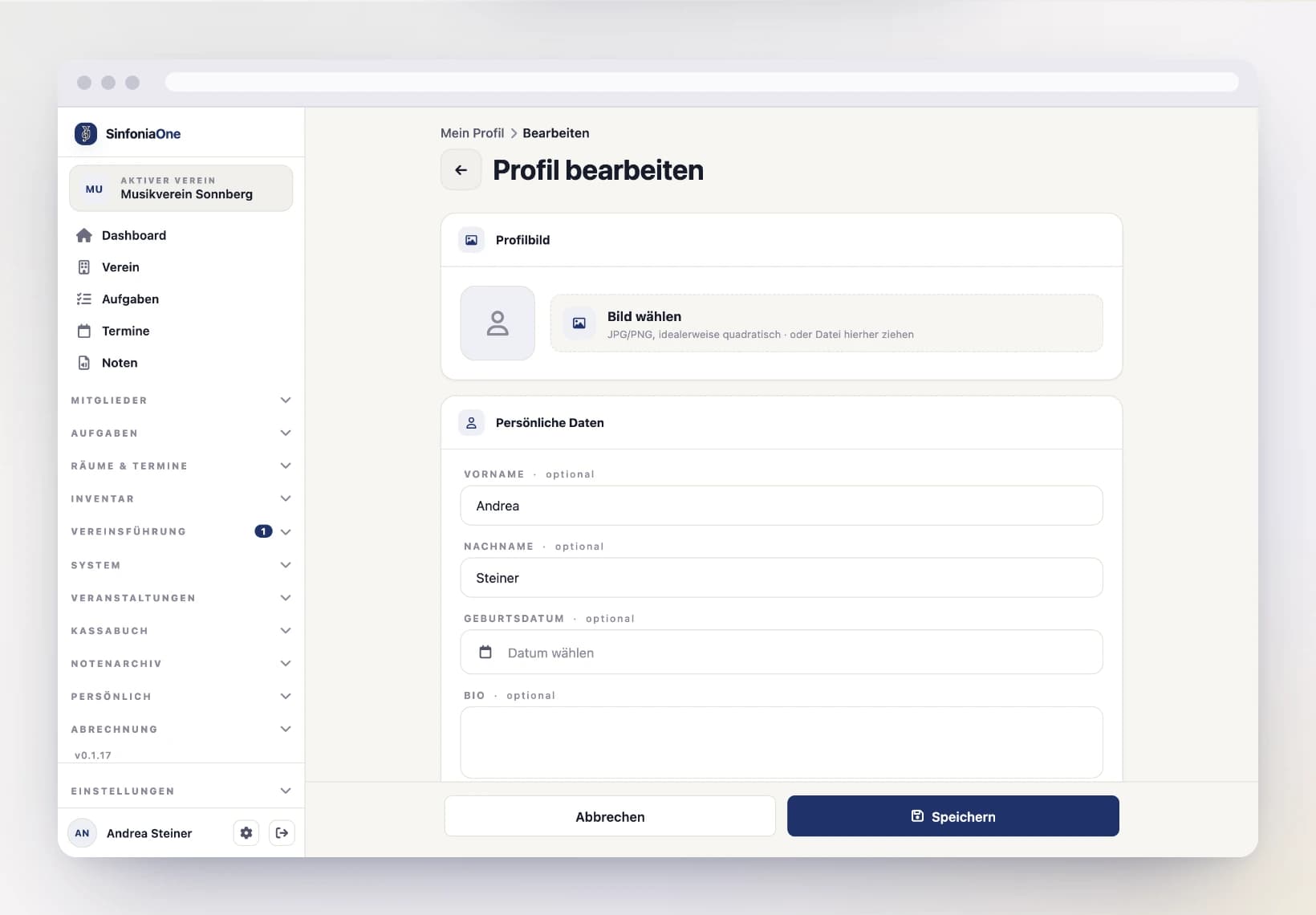
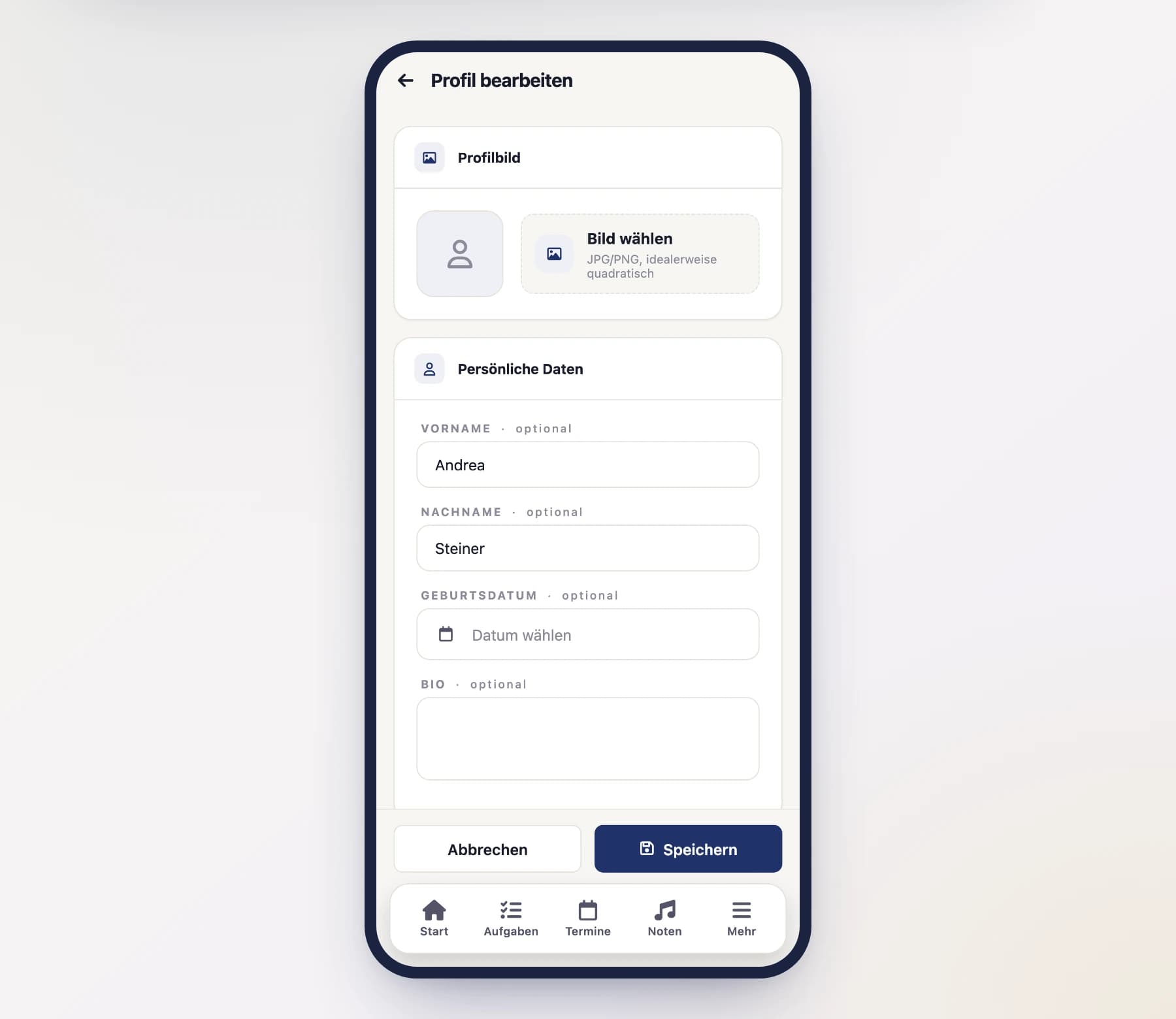
Change your photo and details
Here you can adjust:
- Photo (avatar) – tap “Choose image” next to the picture to pick a photo from your gallery. On a computer you can also drag one onto the dashed field.
- Name – how you're shown in the club.
- Username (
@name) – your short, unique name. - Location, phone, and email address – your contact details.
- Short bio – a few words about yourself, if you like.
Save
Tap "Save". Your changes are immediately visible in all your clubs.
Your email address needs confirmation
Your email address is also your sign-in name — so it does not change straight away. After saving we send a link to the new address. It only takes effect once you tap that link. Until then you keep signing in with the old one.
If no mail arrives, check your spam folder and make sure there is no typo — then simply save the address again.
Your record fills in automatically
If your account is linked to an entry in your club's member records, some details are gently carried over – so you don't have to enter everything twice.
Subscribe to your calendar
SinfoniaOne provides you with a personal calendar feed. When you subscribe to it, your dates automatically show up in your usual calendar app – on your phone, your computer, or in Outlook.
Open the calendar subscription
In your profile, open the "Calendar subscription" section and tap "Subscribe".
Choose the route
SinfoniaOne asks where your dates should appear:
- Calendar app on this device – for Apple Calendar, Outlook, or Thunderbird. Your calendar app opens and asks whether to subscribe.
- Google Calendar – opens Google Calendar in the browser and asks for confirmation there.
- Copy link – for any other calendar app: paste the address there as a subscribed calendar. In the phone app this entry is called "Share link" and opens your device's share sheet.
From then on your dates appear automatically and update on their own.
Don't just open the address in the browser
Opening the link directly only downloads a file with today's state – it never updates again. A subscription happens only through one of the three routes above.
View only, no editing
The subscribed calendar shows your dates – you can still only edit them in SinfoniaOne. You accept or decline as usual in the app.
Reminders come along
If the rehearsal management set a reminder before the start on an event (for example “1 day before”), your calendar app picks it up and reminds you itself – even when you don't have SinfoniaOne on the device right now. Cancelled events stay visible in the calendar but never wake you.
Default date response
You can set how you respond to new date invitations by default – for example automatically with "Accept". That saves you from replying to every single date.
You can read exactly how this works and how to answer individual dates differently anyway under Accepting and declining.
Enter absences
If you're unavailable for a longer period – vacation, illness, away on business – you enter an absence period. SinfoniaOne then automatically declines all dates in that period for you.
Create a period
In your profile, open the "Absences" section and tap "Add". Choose a start and end date.
Save
After saving, future dates in this period are automatically marked as declined. That way your club knows without you having to decline every date individually.
Delete or shorten an absence
If you delete or shorten an absence, SinfoniaOne withdraws the automatic declines from upcoming dates that are no longer inside it. If you've set a default response, it applies there again. If you've answered a date yourself in the meantime, your answer stays. Past dates stay unchanged.
Your clubs & roles
At the very bottom of your profile you can see at a glance which clubs you're a member of and which roles you have there. This makes it easy to understand why you see more areas in one club than in another.
Roles are set by the club
Which roles you have is determined by your club's board – you can't change them here yourself. More on this under Founding or joining a club.