Founding or joining a club
Join your existing club, found a new one, or switch between clubs.
In SinfoniaOne everything revolves around your club. One account can be a member of several clubs – and you can switch between them at any time. To start, there are two paths: join an existing club or found one yourself.
Did you receive an invitation link?
Then it is even shorter: open the link, create your account (or sign in) and tap “Join band”. The join request is skipped – you are in right away. You still pick your own password; the band can neither see nor set it.
Joining a club
Search for the club
Open "Discover clubs" and search for the name of your club. The field “Search club or owner…” does not search by email address.
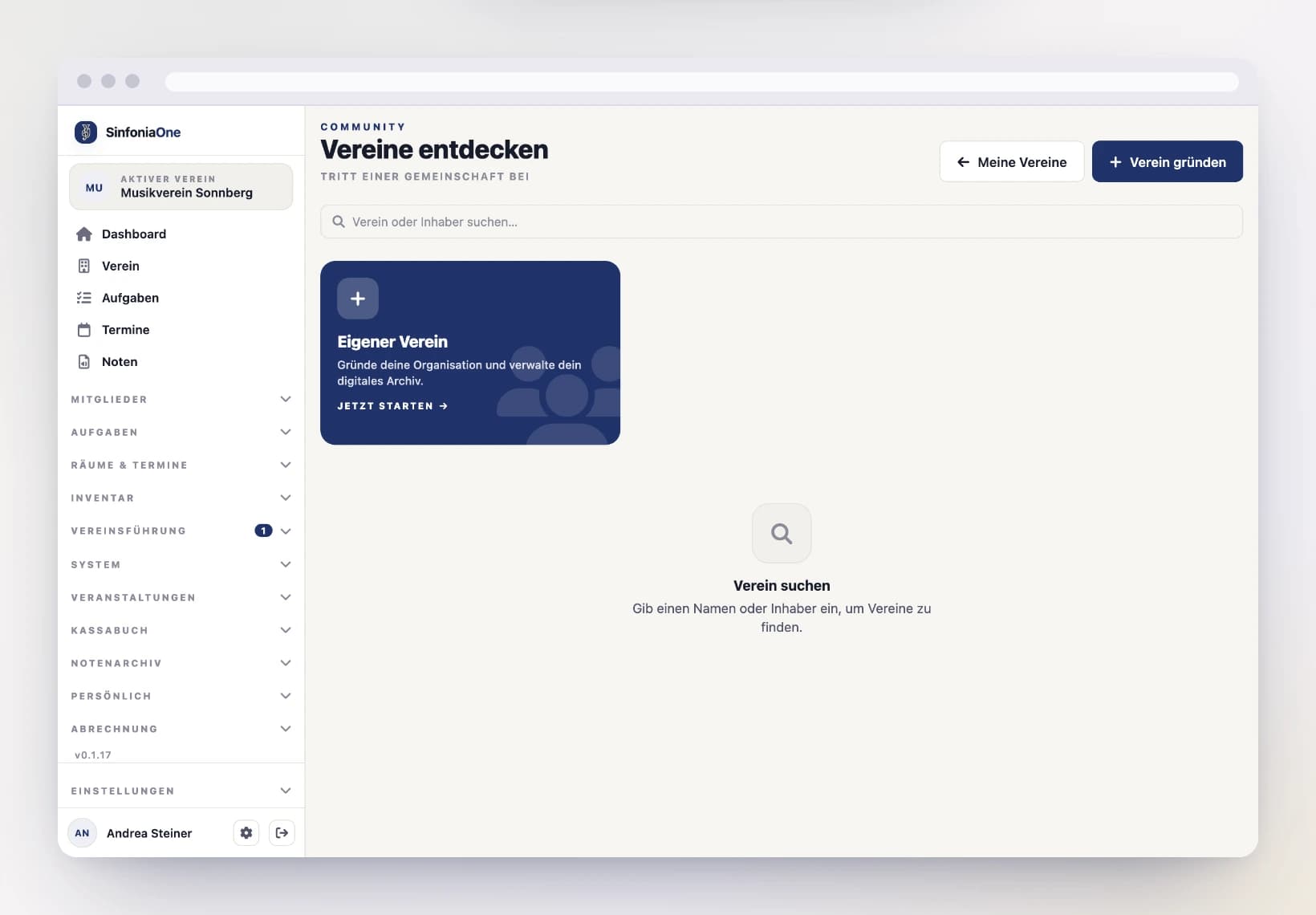
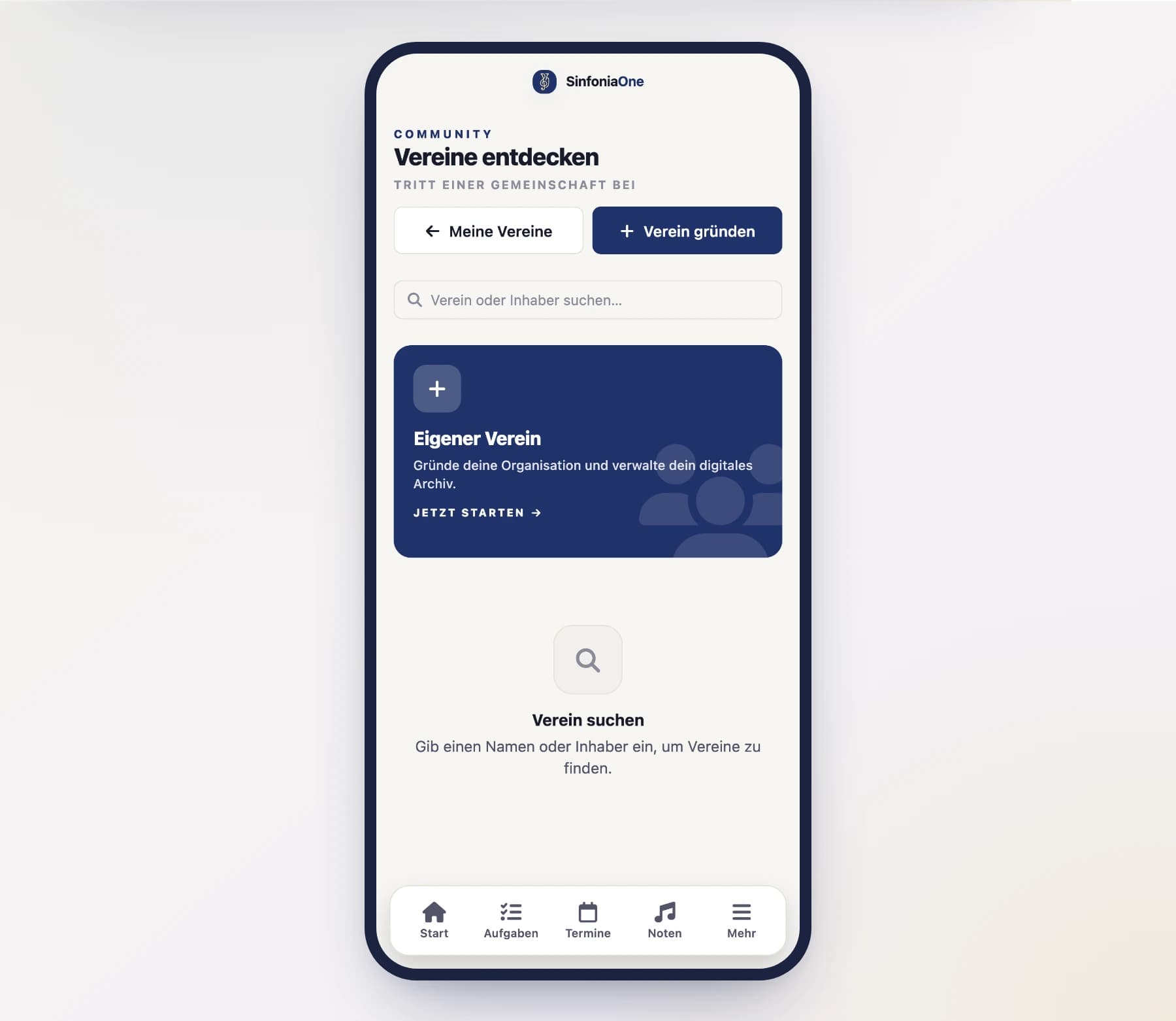
Request to join
At the right club, tap "Request to join". Your request goes to the people in charge of the club.
Now it's time to wait
Someone in charge has to confirm your request. Until then, the club shows "Request pending". As soon as you're approved, the club appears in your list.
Select the club
After approval, you select the club and can get started.
Founding a new club
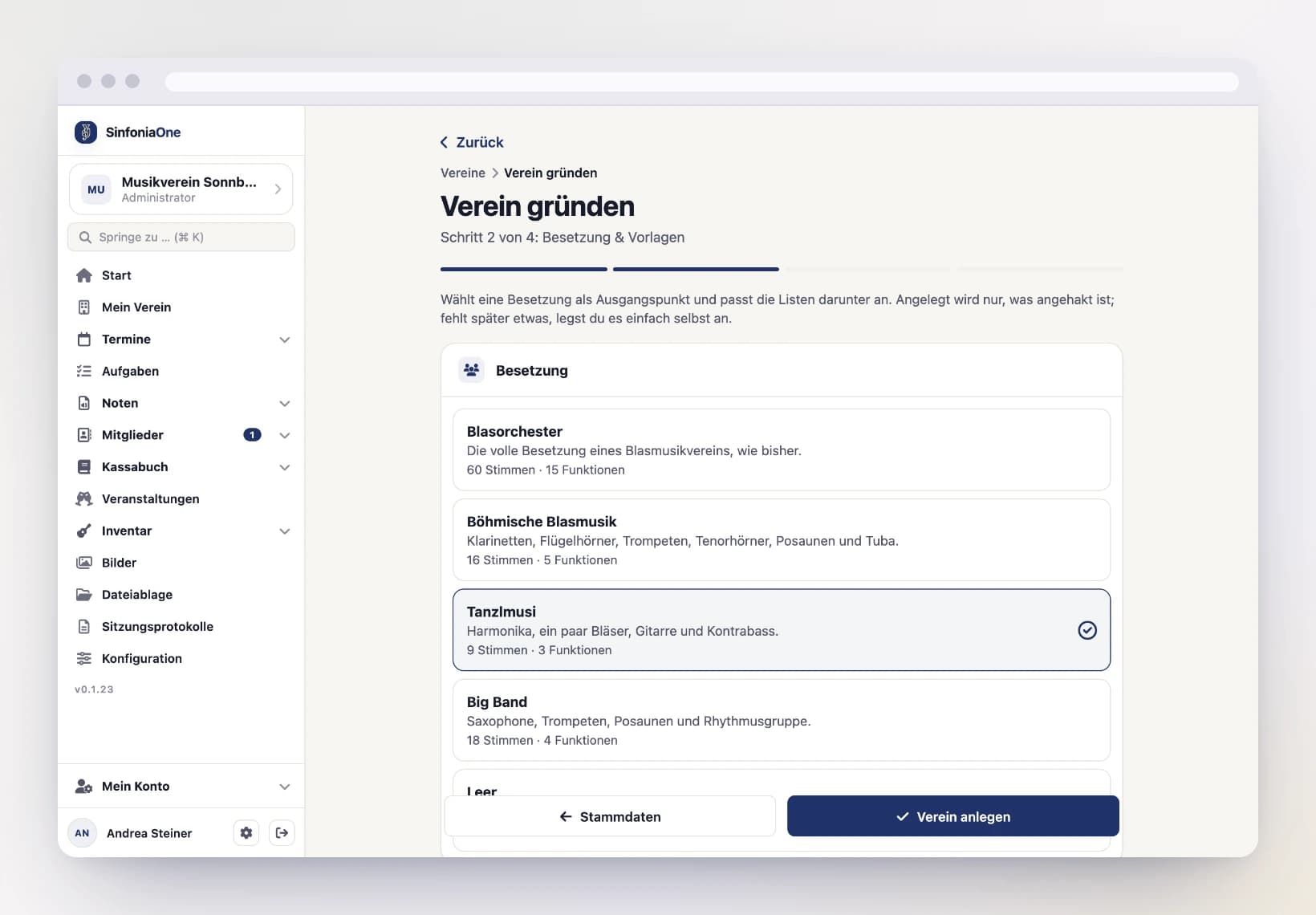
Tap "Found a club". A wizard walks you through the setup in four steps: in the first two you say what your club is called and what it should start with; then SinfoniaOne creates it. You can skip the two steps after that with "Next", or stop with "Go to home page".
Basic details
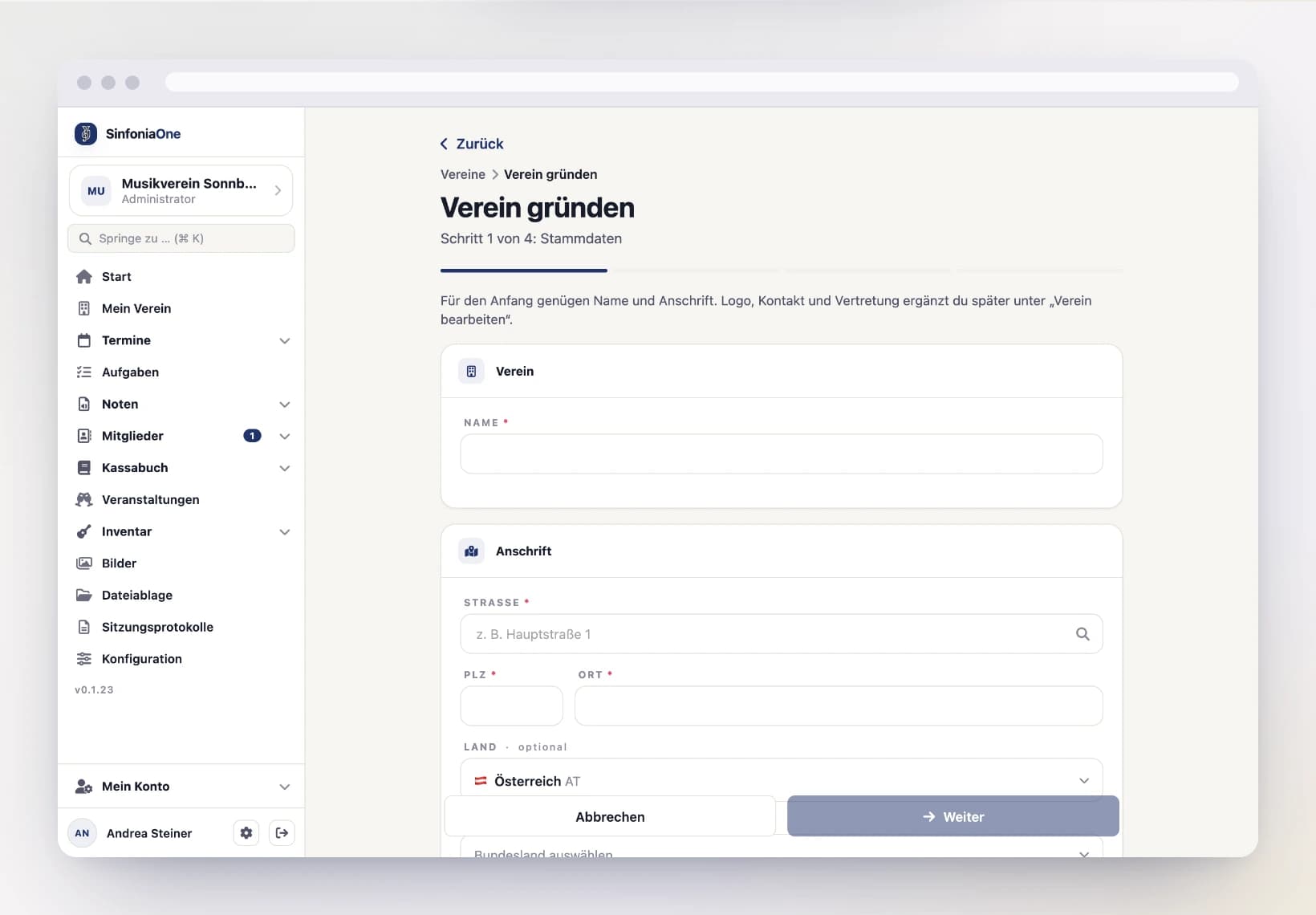
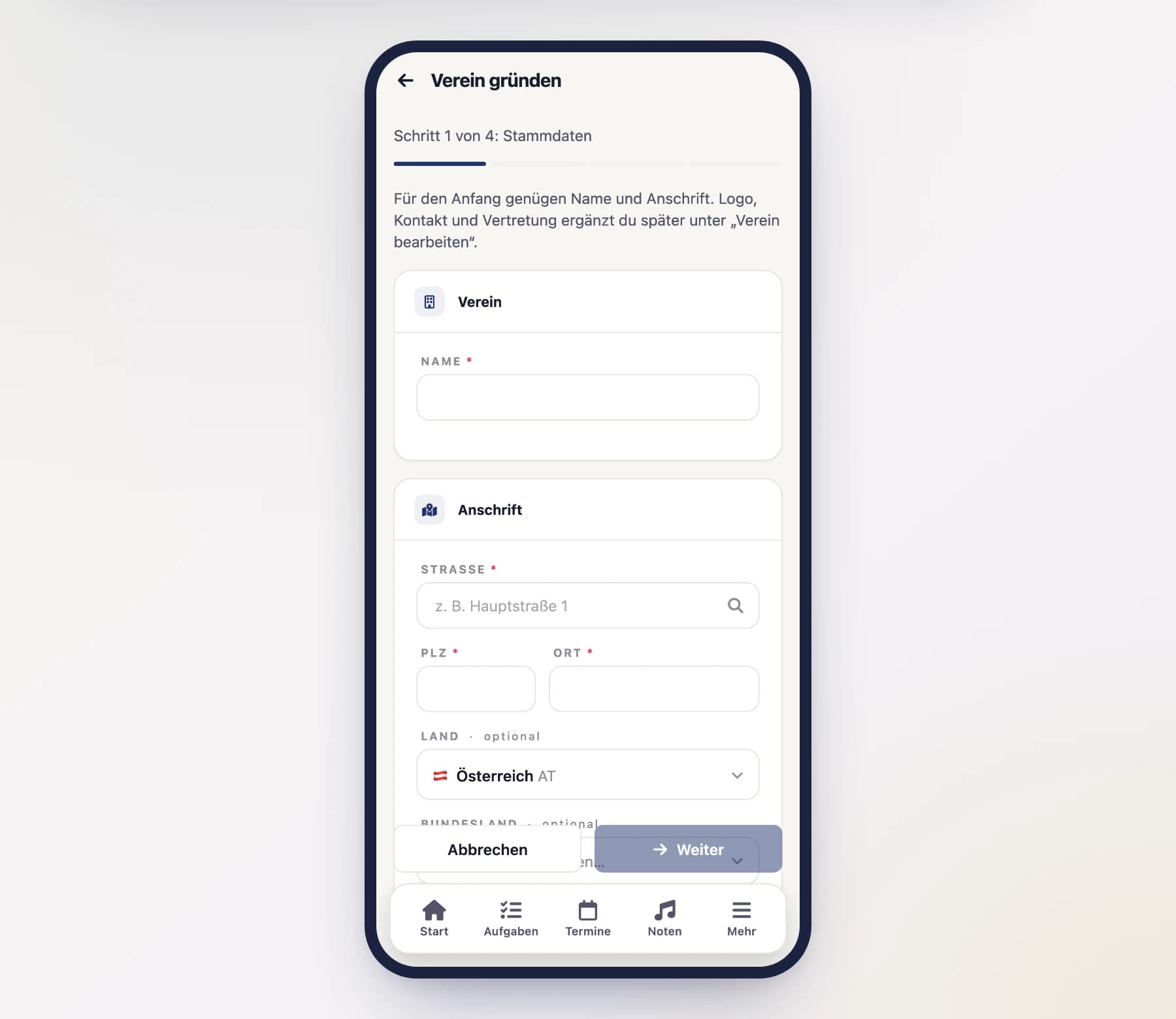
Enter your club's name and address – that is all it takes – and tap "Next". Logo, contact email, representative, founding year and description can be added later under "Edit club".
Address from suggestions
In the Street field, just type the street name (with or without the house number) – SinfoniaOne offers matching addresses to choose from. Pick a suggestion and postal code, city and country fill in automatically. You can always enter the address by hand instead.
If your club is based in Austria, the wizard also asks for the federal state. It determines which honours catalogue of your regional association your club can choose from. If you leave the field empty, it is derived from the postal code. If none can be derived from it, the honours list in the next step tells you so – then choose it here yourself.
Worth choosing at the edges
Postal codes are not unambiguous everywhere: East Tyrol has Carinthian postal codes, Tyrol and Vorarlberg share the 6xxx range, and Kittsee and the Jennersdorf district belong to Burgenland. Choose the federal state yourself there – the honours catalogue is created together with the club.
Clubs outside Austria do not see the field; they set up their honours catalogue themselves.
Ensemble & templates
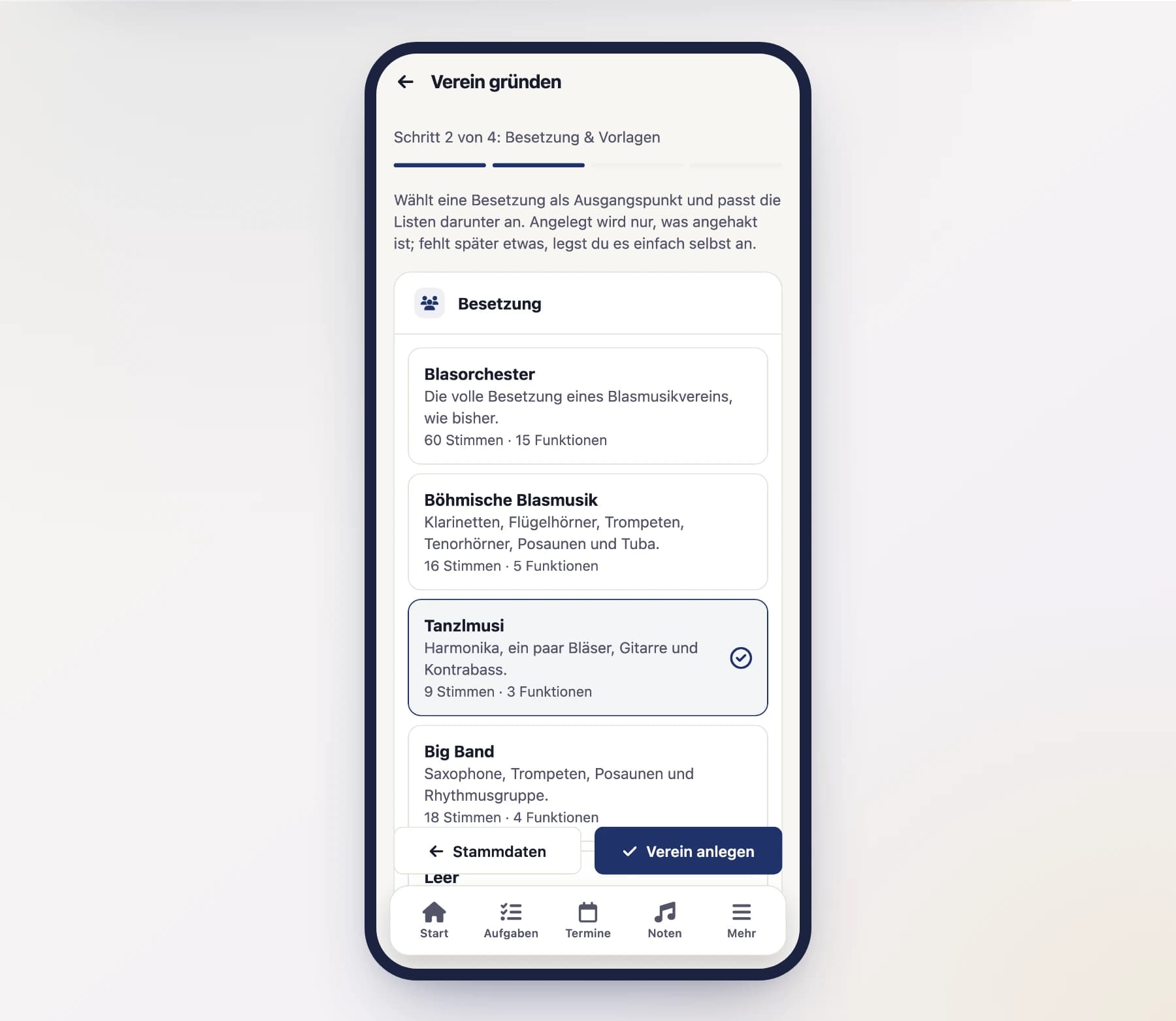
Here you decide which standard entries your club gets. Only what is ticked is created – if something is missing later, you simply add it yourself.
First pick an ensemble as a starting point. It ticks everything that fits it:
| Ensemble | Parts | Club offices | Member statuses | Honours |
|---|---|---|---|---|
| Wind orchestra (preselected) | all 60, as before | all 15 | all 5 | all of your regional association |
| Bohemian brass band | 16: conductor, E♭ clarinet, two each of clarinets, flugelhorns, trumpets, tenor horns, trombones and tubas, baritone, drum kit | chair, deputy chair, treasurer, secretary, conductor | active, paused, former | none |
| Tanzlmusi | 9: Styrian accordion, clarinet, two flugelhorns, trumpet, bass trumpet, tuba, guitar, double bass | chair, treasurer, secretary | active, former | none |
| Big band | 18: conductor, saxophones, four trumpets, trombones, bass trombone, piano, guitar, electric bass, drum kit | chair, treasurer, secretary, conductor | active, paused, former | none |
| Empty | none | none | active only | none |
Below are the lists Sections and parts, Club offices, Honours and Member statuses, each with its count ("9 of 64 parts"), the honours also with their regional association ("Landesverband Tirol"). Tap a list to open it; there you tick entries one by one, or everything with "All" and "None". Parts are grouped by section: untick a section and its parts go with it; tick a part and its section is added. If you switch the ensemble after your own changes, the wizard asks first.
Honours tied to a club office
Some honours count the years in an office, such as the conductor's badge of honour. If you untick that office, the honour is unticked too and tells you why: "Requires the office …".
"Active member" is always included – a new member record needs this status. Event types, cash book categories and genres are all created in full.
Tap "Create club". Your club now exists, and you are its owner. While it is being created, you can't leave the wizard: the "Basic details" button then shows "Creating club …". If SinfoniaOne rejects something in the name or address, you are taken back to the basic details, with the note at the field. If no answer arrives, for example on a weak connection, simply tap "Create club" again: if the club was already created, you continue with it, and no second club is created. If you have entered a different name in the meantime, the app tells you; tap again, and the club with the new name is created in addition.
Features
The wizard shows which features your club has – events, sheet music, members, cash book and so on. Anything your plan does not include is shown with a lock; tap it to learn what it is about. You don't have to choose anything here.
Members
Bring your members into the club: with "Invite members" each person gets their own invitation link, with "Import member list" you take over an existing list into the member records. Both are also available later under "Members".
Finally, tap "Go to home page" – the "Getting started" card takes it from there. If you leave the wizard after the club has been created, your club is still complete. If you reload the page in the browser, you continue with step 3 for this club; no second club is created. If you leave it instead – with "Go to home page", the back arrow or through the menu –, the wizard is finished, and "Found a club" then starts a new club. Only while your club has not been opened yet, for example without a connection, does the app remember it: "Found a club" then continues with it. After that, the app asks once for the declaration on releasing and exporting sheet music – it waits while the wizard is open.
Start for free
New clubs automatically start on the free plan and are ready to use right away. More on this under Subscription & billing.
First steps in your new club
After the wizard, the home page greets you with the "Getting started" card. It walks you through the key basics – each item checks itself off automatically as soon as you've done it:
Complete the club profile
Add a logo and club details so your club is recognizable.
Add members
Record your club's members – with part, section and contact details.
Upload your first sheet music
Bring scores and parts into the archive.
Create your first event
Add a rehearsal or a performance.
A small progress bar shows how far along you are. You can hide the card at any time using the × in the top right – it won't come back.
Not in a club yet?
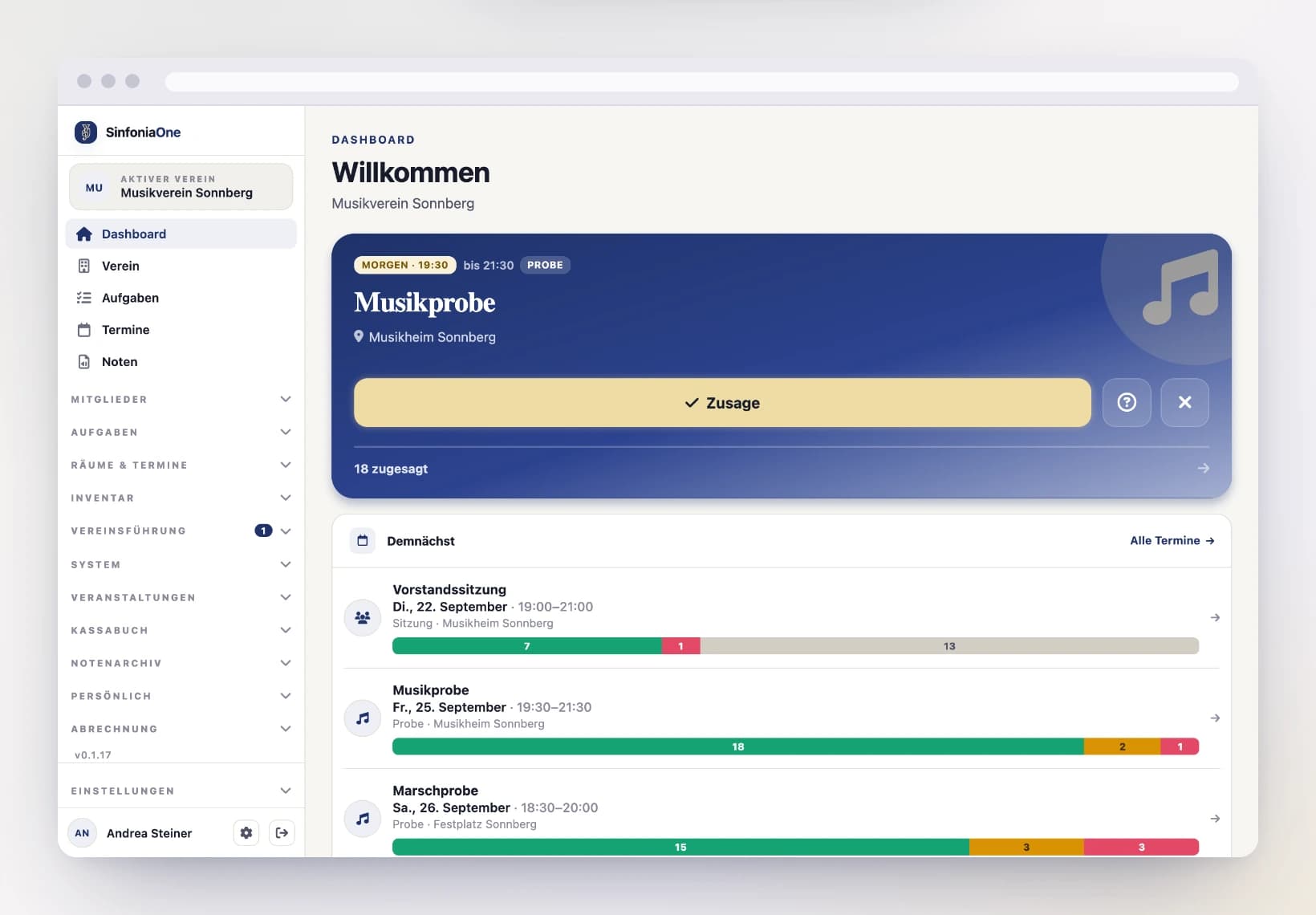
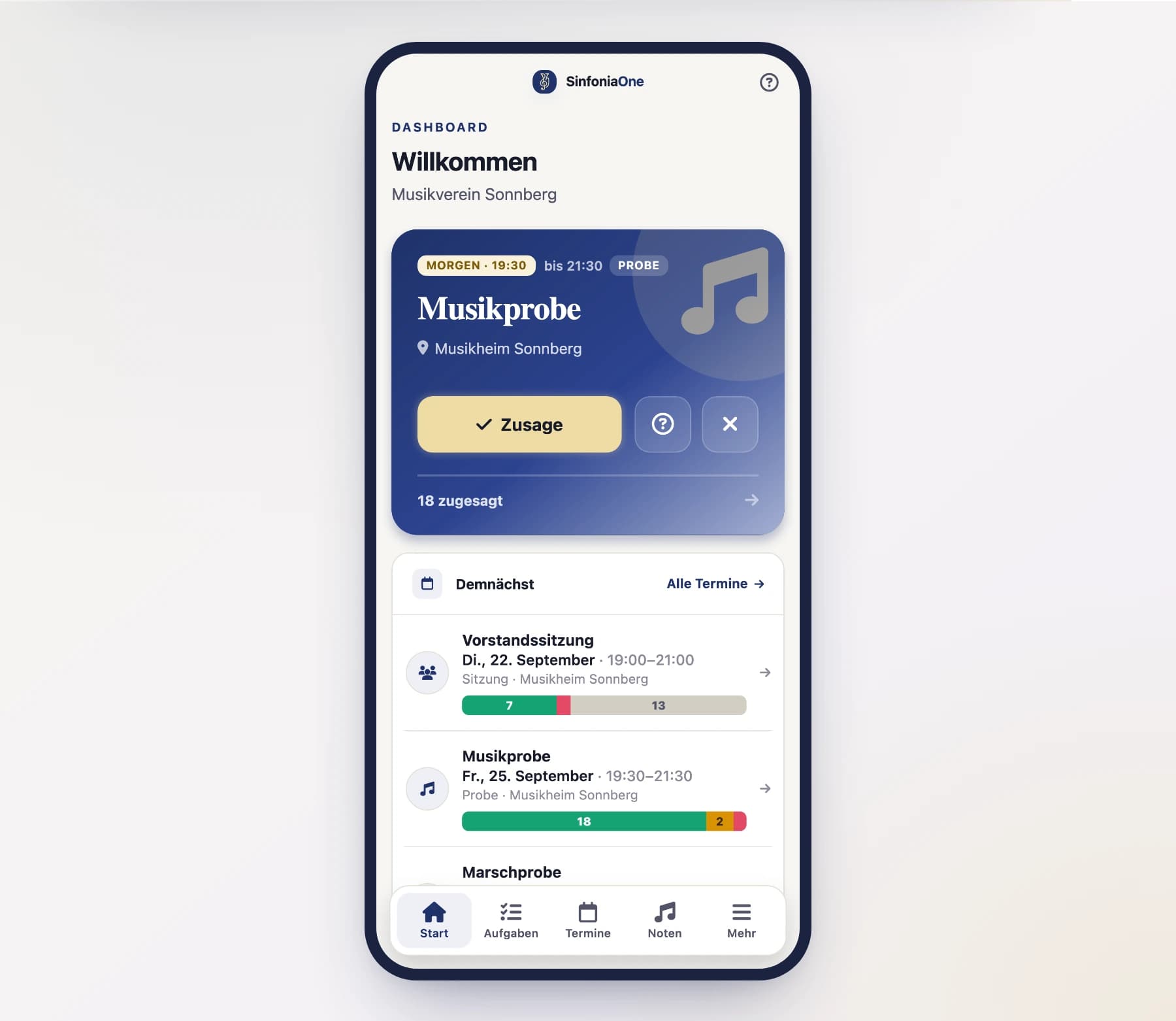
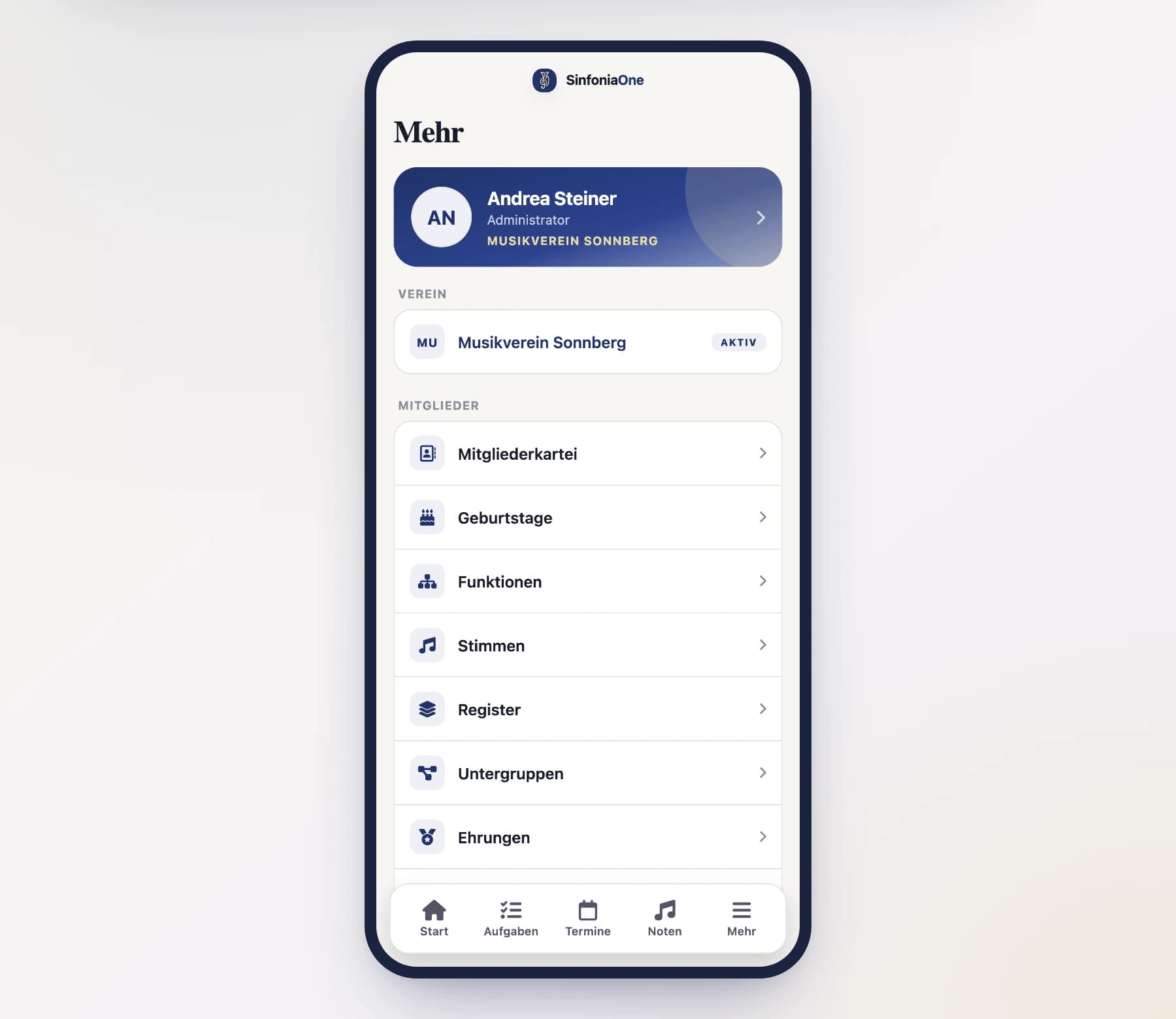
As long as you're not in any club, the Dashboard shows a welcome card with the "Create club" and "Discover clubs" buttons – so you can jump straight to the right starting point. You’ll find the same starting point on your phone under “More” in the Club section, and on a computer at the top of the sidebar.
Switching between clubs
If you're in several clubs, you can switch at any time:
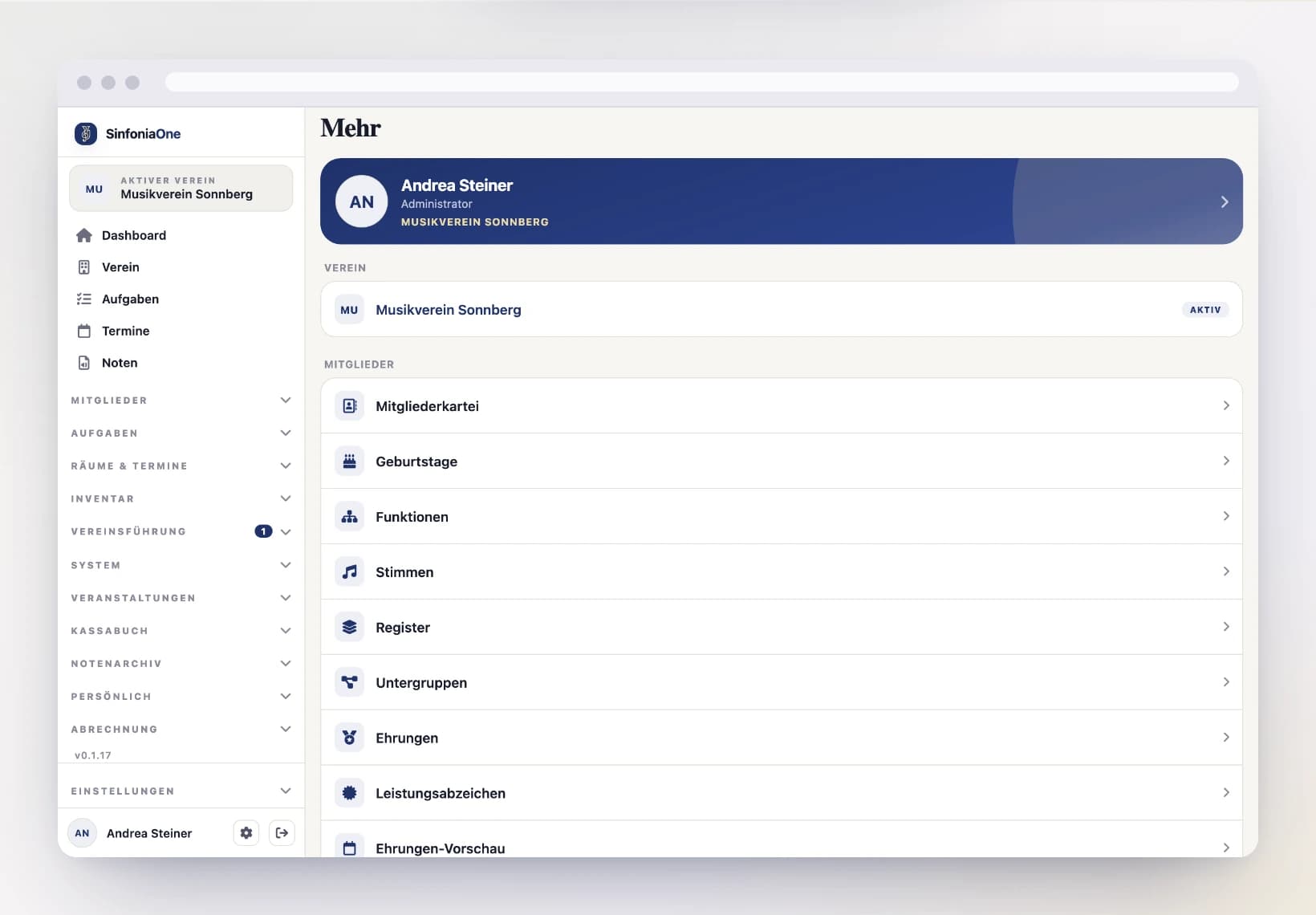
- On a smartphone: in the "More" tab, tap your club under "Club".
- On a computer: click your club at the top of the sidebar.
"Choose club" opens with all your clubs and your role in each – such as "Administrator", "Member" or "Deputy for …". Tapping another club switches to it; you stay on the same page. Below the list you'll find the club details and "Found or join". If you're in just one club, the button opens the club details directly.
If you switch without a connection, the lists show the error instead of old data, and back in the previous club everything is there. If the device doesn't know your permissions in the new club yet, after a few seconds you see the notice “Permissions not loaded yet” and only part of the app. The permissions load by themselves once you are connected again. Your saved sheet music stays available in the offline library.
Each club on its own
All data – sheet music, members, events, cash – always belongs to one club. If something's missing for you, first check whether the right club is selected at the top.
Links switch the club for you
A link from a notification, an email or a widget names its club, and so does the address you copy from the browser and send on. If you open it while a different club is active, the app switches there first and then shows the page. If the link belongs to a club you're not a member of, the app tells you so instead of showing an empty page. If a link is cut off or mistyped, it shows “This link doesn't exist” and leaves the address as it is, so you can spot the mistake.
Leaving a club
If you want to leave a club, you'll find the option under "Discover clubs" or in the club overview at the respective club. If you have a directory entry there, your attendance, responses and absences stay on it with the club.
Deleting a club
Only the club's owner can delete it, from the club overview at the club in question.
Thirty days to save your data — and to change your mind
The club does not disappear straight away. It is closed and deleted for good 30 days later. During that time you can still read, open and download everything — that is what the period is for. Nothing new can be added or changed, including the club's own details; a banner at the top of the club explains why. The owner can undo the deletion at any point, and everything carries on as before. Only drive accesses with write permission end immediately and do not come back after an undo; read-only ones stay.
What still works during the period
You can still fetch the ZIP bundles from the file storage, the photo bundles and the sheet music export. The export assurance and the rights details per piece can still be given for that. The club no longer appears under “Discover clubs”, and it no longer admits anyone by invitation or join request.
After that it is final
Once the period ends, the club's key is destroyed. Its files — sheet music, recordings, photos, receipts — and the encrypted fields of the member records become unusable in every copy, including the backups. Everything else is deleted from the app and can only remain in older backups until they expire. Emails already sent stay with the email provider for up to 45 days. You can't bring anything back after that.