Security
Create a passkey, change your password, set up two-factor sign-in, and delete your account if needed.
In the Security area of your profile you protect your account: you change your password, turn on an extra security code, and can permanently delete your account.
Passkey — signing in without a password
A passkey is a key that stays on your device. Instead of typing a password, you unlock your device when signing in — with your face, your finger, or the device PIN. A code from another app is no longer needed either.
That isn't just more convenient, it's more secure than both together: your device only hands the key to the genuine address. A lookalike sign-in page that slips past your eye gets nothing — it never even sees the passkey.
Your password stays
A passkey is an addition, not a replacement. You can still sign in with your password, for instance on someone else's device.
Setting one up
Open the area
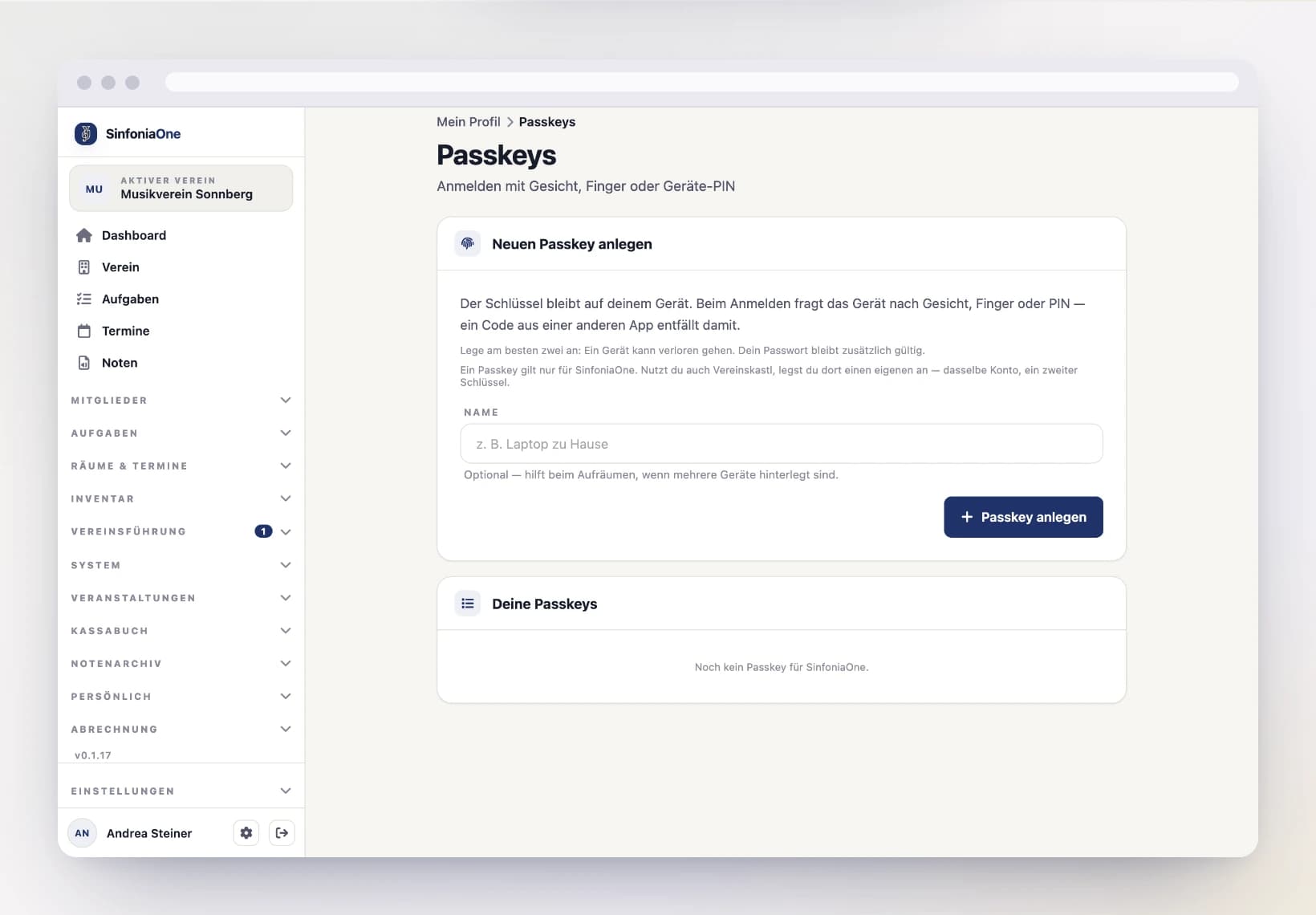
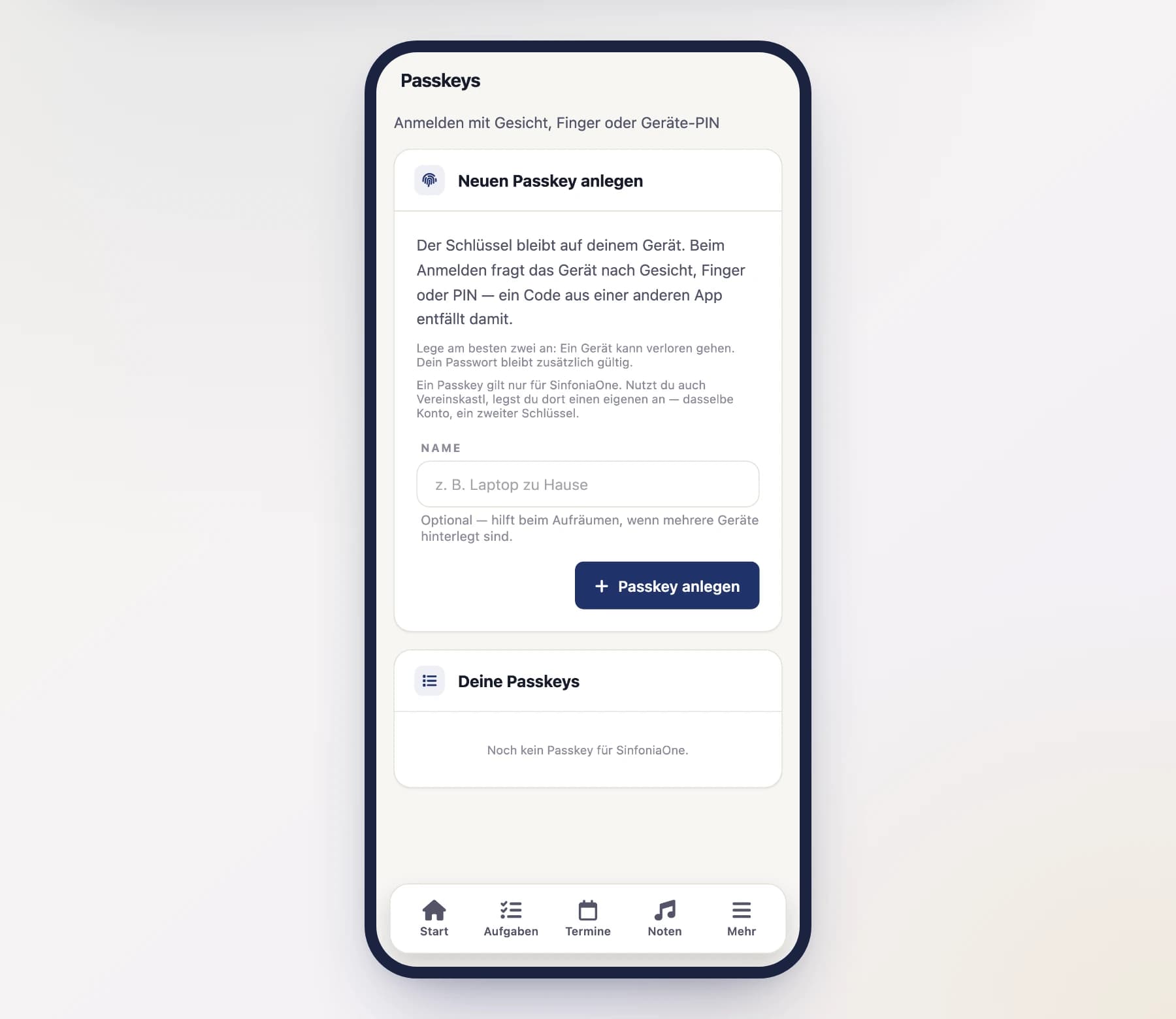
In your profile, open the Security area and tap "Set up" next to Passkeys.
Give it a name
Give the key a name that tells you which device it belongs to — "my phone" or "laptop at home", for example. The name is optional, but it helps once several devices are listed.
Confirm on your device
Tap "Create passkey". Your device asks for your face, finger, or PIN — and that's it. The key now appears in the list.
Signing in
On the sign-in page, tap "Sign in with passkey". In a browser, the input field often offers your passkey by itself as soon as you tap it.
Create two passkeys
A device can be lost or break. With a second passkey — on your computer in addition to your phone, say — you stay in control. Failing that, you can still get in with your password and, if set up, a backup code.
A passkey applies to one app
A passkey of its own in every app
A passkey is tied to one app and one address. If you use the same account in a second app, your passkey will not work there — you create one of its own, with the same finger and in the same ten seconds.
That isn't an oversight, it's the heart of the matter: because your device only hands the key to the address it was created for, a lookalike sign-in page gets nothing. A key that worked everywhere would be a key that could be stolen everywhere.
In practice: if the sign-in page finds no passkey even though you created one, it belongs to the other app. Sign in with your password once and create a second one here.
You can remove a passkey at any time from the same list. Remember to delete it in your device's key manager as well, otherwise it will keep being offered there.
Change your password
When you're logged in, you can change your password at any time – and you don't need to know your old password to do so. That's handy if you've only signed in via Google or Apple so far.
You can read exactly how this works under Signing in & password.
Two-factor sign-in
Two-factor sign-in makes your account considerably more secure. In addition to your password, you then need a 6-digit code when signing in, generated by an app on your phone. Even if someone knows your password, they can't get in without your phone.
You need an authenticator app
This is a free app that generates new codes every few seconds – for example Google Authenticator, Microsoft Authenticator, or a similar one. It's best to install it on your phone beforehand.
Setting it up
Scan the QR code
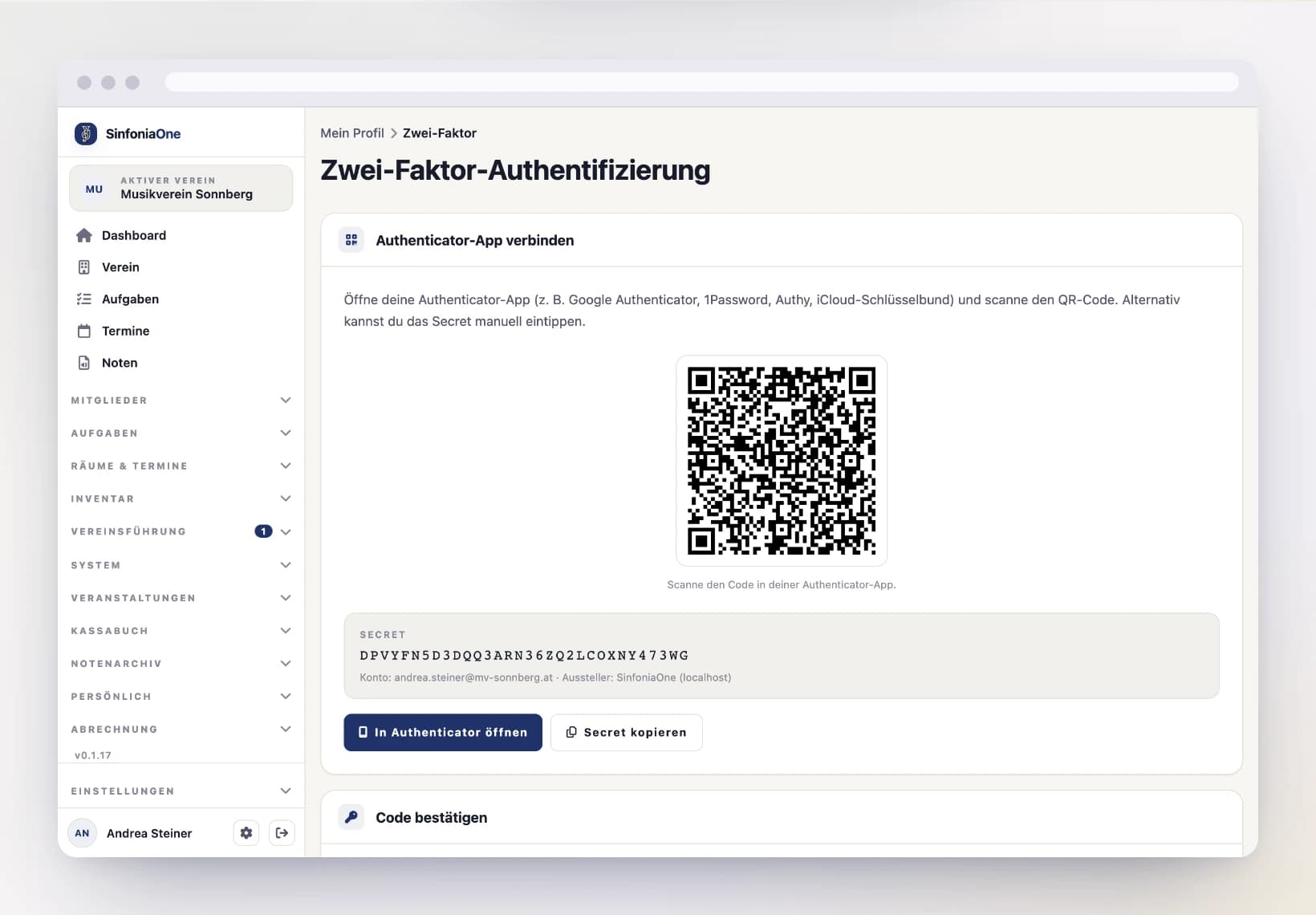
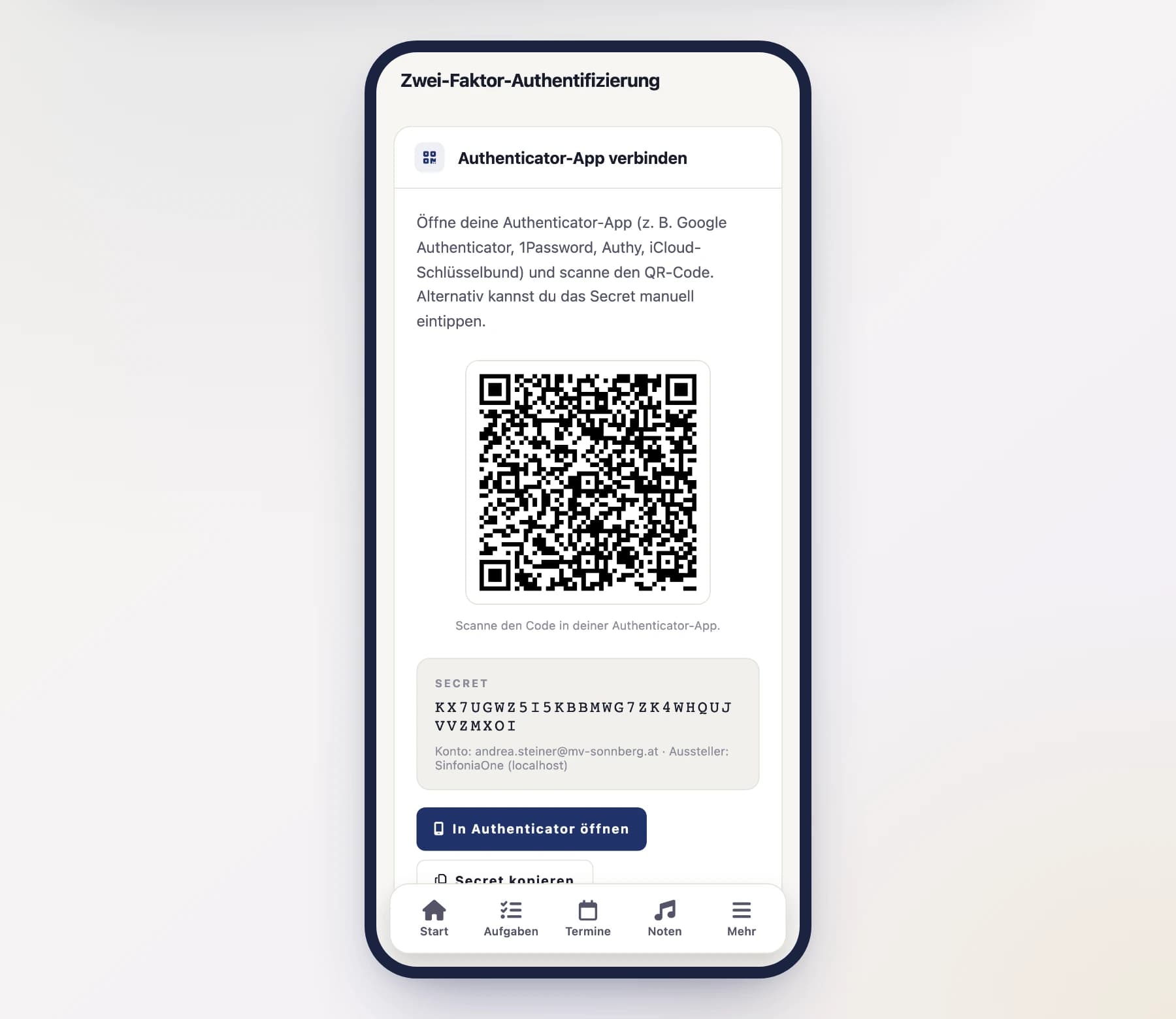
SinfoniaOne shows you a QR code. Open your authenticator app, choose "Add account" there, and scan the QR code. The app then creates an entry for SinfoniaOne and shows a 6-digit code.
Confirm the code
Enter the 6-digit code from your authenticator app into SinfoniaOne to confirm that everything works. The code changes every few seconds – use the one that's currently shown.
Note down your backup codes
Finally, SinfoniaOne shows you 8 backup codes. With them you can still get in even if you lose your phone or don't have the authenticator app to hand.
Keep your backup codes safe
Write down the 8 codes or store them in a safe place – not just on the phone you sign in with. Each code works only once. Without your phone and without your backup codes you can no longer get into your account.
From now on, SinfoniaOne asks you for your password and a code from the app when you sign in.
Turning it off again
If you want to switch off two-factor sign-in again, go back into the Security area in your profile and tap "Deactivate". For safety, you have to enter your password and a current 6-digit code to do so.
Backup codes used up?
If you keep two-factor sign-in switched on but have used up or lost your backup codes, you can have new ones generated – again in the Security area.
Delete your account
If you no longer want to use SinfoniaOne, you can delete your account completely. You'll find the option at the very bottom of the Security area.
Thirty days to change your mind
Your account is not deleted straight away. It is deactivated and only removed for good after 30 days. If you sign in again within that time, your account is back, with everything attached to it. All you need is your usual password.
After thirty days it is final
After that, your account and your personal data are deleted irretrievably, together with your memberships in all clubs. At that point it cannot be restored — not even from a backup.
Only you leave – the club stays
If you have an important role in a club, hand it over to someone else first. The club's data (sheet music, dates, cash) stays with the club – only your personal account is deleted.