App overview
Navigation, dashboard and design – how to find your way around SinfoniaOne.
Whether on your phone or on a computer – SinfoniaOne is laid out the same everywhere. Here you'll learn how to get around.
How you navigate
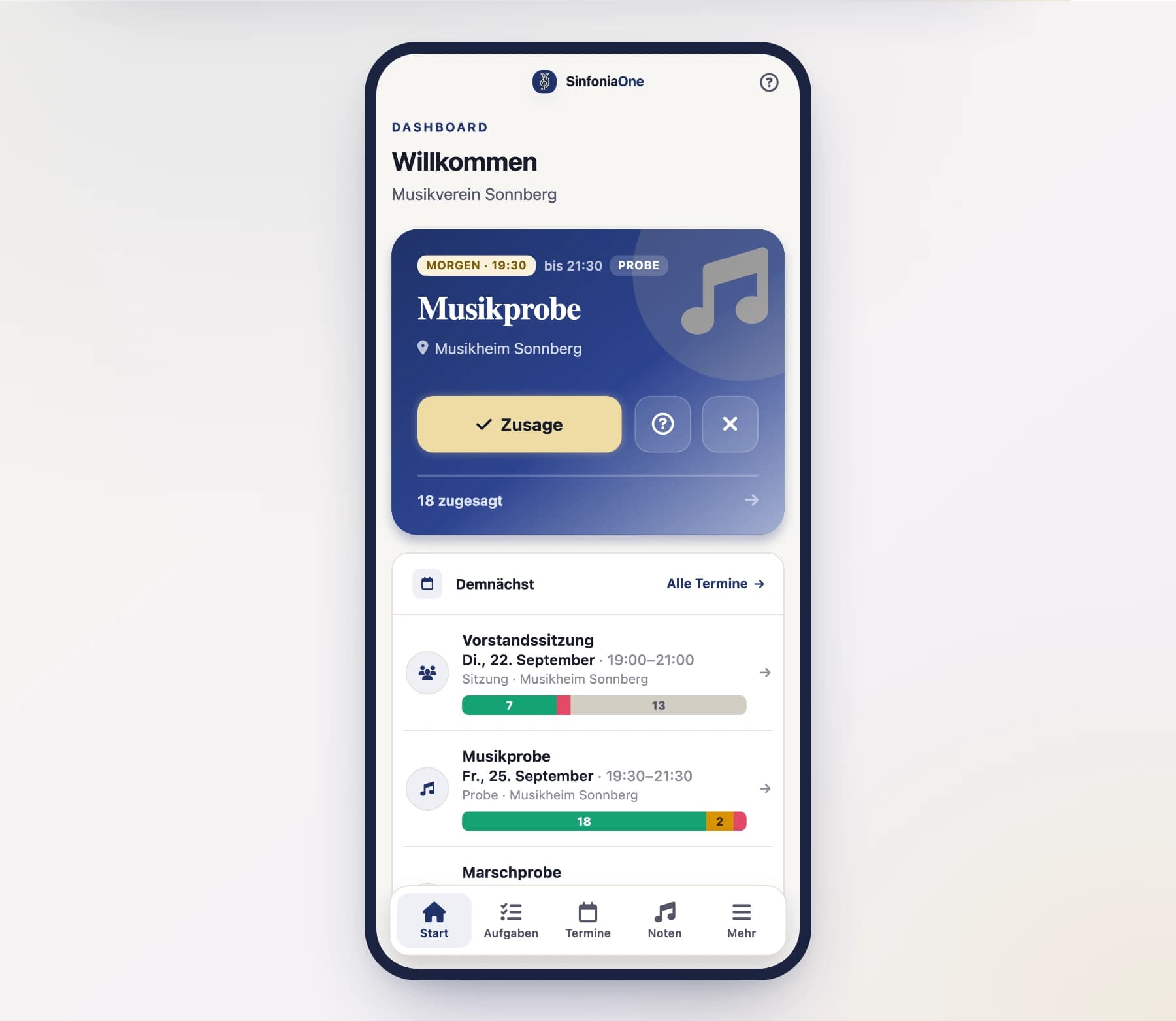
At the bottom you see a bar with five areas:
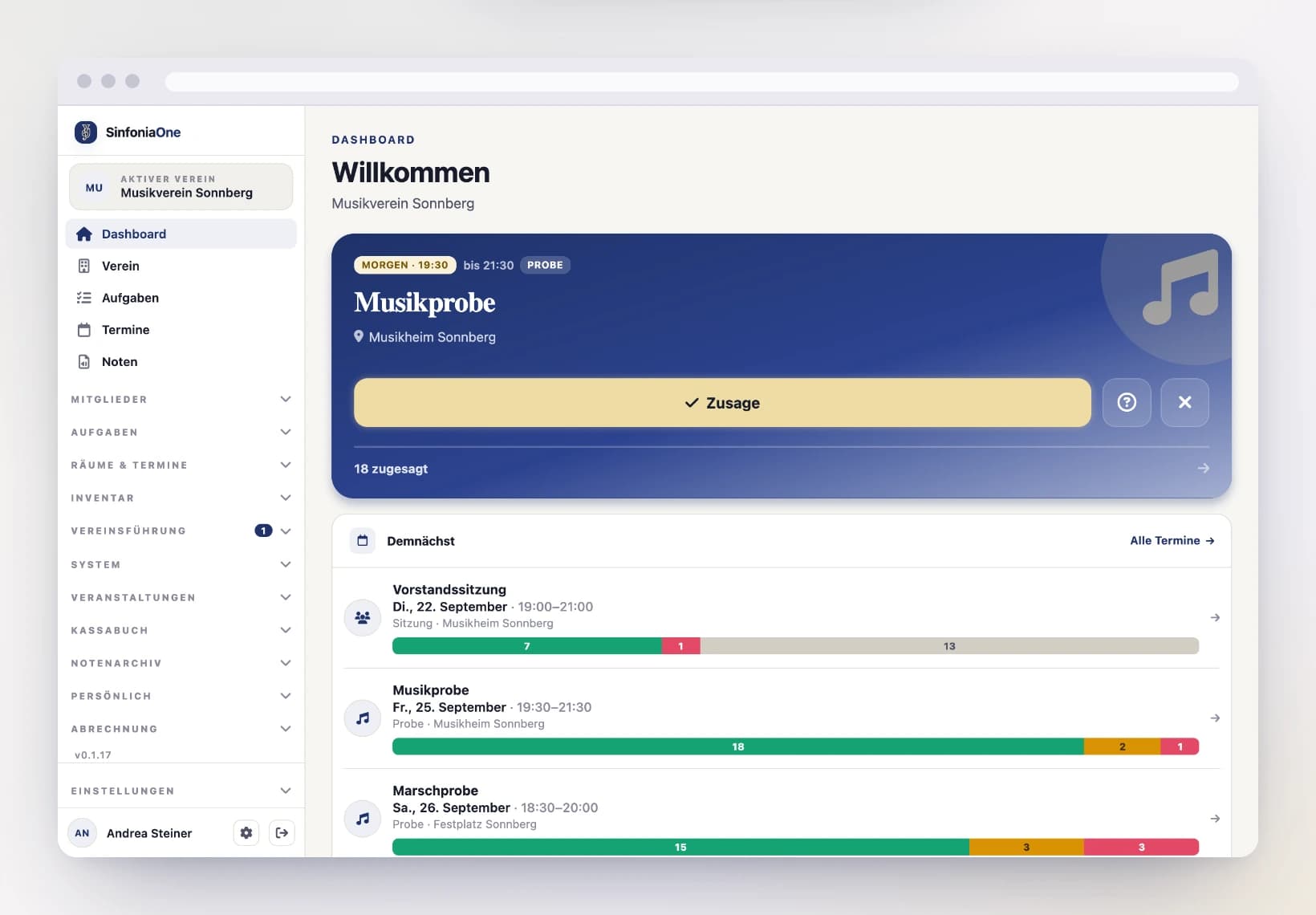
- Dashboard – your home screen with the most important things for today.
- Club – info and an overview of your club.
- Tasks – what there is for you to do.
- Events – rehearsals and performances.
- Sheet music – your sheet music archive.
On the far right there's the "More" tab. There you'll find everything else – members, instruments, minutes, cash book, settings – neatly in groups, as well as switching between your clubs.
On a computer you see a sidebar on the left with the same areas – without the detour via "More". At the very top you switch between your clubs; at the very bottom you'll find the settings. The area groups start collapsed; only the group of the page you currently have open is expanded automatically. Clicking a group title expands or collapses it.
Why you don't see some menu items
SinfoniaOne only shows you what you're allowed to use. If an area is missing (e.g. cash book or member list), it's usually because of your role in the club. More on this under Roles & permissions.
Menu items with a lock
Features your club has not booked stay in the menu and carry a lock. Tap one and you'll learn what the feature does. On the phone you'll find such main areas under More in the section “Not unlocked”. More on this under Subscription & Billing.
The top bar
At the very top of every screen there is a single bar — it carries everything that belongs to the page:
- On the left, the back arrow, when you came from another page.
- In the middle, the name of the page — “Members”, “Sheet music”, “Florentiner Marsch”.
- On the right, the page’s main action (for example + for a new entry) and the “⋯” button for everything else.
- At the far right, the magnifier — but only on pages that hold a list. Tapping it turns the bar into a search field and searches the list that is currently open. The arrow on the left closes the field again; your search text stays and shows up as a marker in the filter row.
On the home screen the SinfoniaOne logo stands there instead of a title.
More room for the content
On a phone the page title lives only in this bar — no longer repeated as a large heading below it. The list therefore starts noticeably higher up and you see more entries at a glance. On a computer the large heading stays as before.
Searching and filtering in lists
The big lists — members, sheet music, events, tasks, uniforms, festivals, cash book — all work the same way: the magnifier searches, the “Filter” button narrows things down. On a phone the magnifier sits in the top bar, on a computer in the filter row above the list.
- The filter area starts collapsed. Tap “Filter” to open it.
- When filters are set, the button carries a number — that many filters are in effect. The area then opens by itself when you open the list, so no filter slips past you.
- While a search is running on your phone, the search text sits in the same row as a marker with an ✕ — one tap on it drops the search. On a computer you see it in the search field anyway.
- Next to it, “Reset” appears: one tap and the list shows everything again.
- At the right end of the same row, your phone shows how many entries the list currently holds.
You always search the open list
The search covers exactly the area you are in — sheet music in the music archive, members in the member file. There is no search across the whole app: it used to turn up things that were nowhere on your screen, and it took up room on every page to do it.
Filters stay until you leave
In these lists, filters, search and sorting are kept while you stay signed in — so you can open an entry and come back without setting everything up again. They are discarded when you sign out, when you switch to another club and when you close the app (in the browser: the tab).
Working on several entries at once
In every list you can select several entries and handle them in one step — instead of repeating the same tap thirty times.
Open the selection. Tap “Select” in the filter row above the list. On a phone you can also press and hold a row — the selection opens with that row already ticked.
Tick the rows. Every row now has a checkbox. Tapping a row ticks it or unticks it; it no longer opens while you are selecting. The bar at the bottom shows how many are selected, and “Select all” takes everything currently in the list.
Pick an action. The bar at the bottom carries the actions that fit this list. For anything you cannot simply undo — deleting, cancelling, voiding — SinfoniaOne asks first.
“All” means: all the ones you can see
If you have searched or filtered, “Select all” only takes the visible rows. Change the search afterwards and entries that disappear drop out of the selection automatically — nothing can act on rows you no longer have in front of you.
Whatever does not fit is skipped — with a reason
A selection rarely fits every row: one due is already paid, one appointment has not been cancelled yet, one booking is locked. SinfoniaOne then does everything it can and gives you one message afterwards — including the reason for the skipped rows. It does not abandon the whole selection just because one row does not fit.
What you may select follows your role: bulk delete is only for people who may delete a single entry too. Actions you lack the right for do not appear at all.
What each list offers
| List | Actions for the selection |
|---|---|
| Member records | Set status, add to a subgroup, record a club office, remove |
| Sheet music | Add to a setlist, set genre or publisher, delete |
| Appointments | Cancel, reopen, delete |
| Tasks | Complete, reopen, delete |
| Journal | Set category, delete |
| Statement lines (bank import) | Book (using each line’s own suggestion), pick a category and book, ignore |
| Membership fees / rental fees | Book as paid, issue an invoice, discard |
| Invoices | Book as paid, void, delete |
| Incoming invoices | Paid, open again, delete |
| Uniform issues | Record the return, delete |
| Uniform reports | Resolve, reopen, delete |
| Join requests | Approve, reject |
| Recycle bin | Restore, delete permanently |
| Reference data (composers, publishers, genres, sections, parts, rooms, templates …) | Delete |
Join requests: approving always creates a new record
Approving several requests at once gives every person access and a new member record built from their account details. Linking a request to an existing record stays a one-by-one job — only a person can tell which account belongs to which record.
Picking from a list
Selection fields — the composer of a score, the account of a booking, a member’s part — open a list to tap. If the list is long, there is a search box at the top. With only a few entries it stays away: you read those faster than you can type.
Typing may be imprecise:
- Upper and lower case do not matter, and you need not get accents right — “flugelhorn” finds the Flügelhorn, “grosse” the Große Trommel.
- Word by word, not as one string: every word you type has to appear somewhere, in any order. “trumpet 2” finds the 2nd Trumpet in B♭.
- The small print counts — whatever stands next to the name (“in B♭”, “Income”) is searched as well.
The same search box sits in the part clouds before an export or download, in the follow-up questions of a multiple selection (“Set category”, “Add to a subgroup”) and in the permission list of a role. If a search hides something you already ticked, the number appears below — it stays selected all the same.
When filter pills turn into a selection
Inside lists the filters sit side by side as pills. Where there are many — thirty accounts, twenty rooms, a dozen appointment types — they turn into a selection field with a search box instead of a strip you would have to drag sideways.
Entering a date
Wherever a date appears — an appointment, a booking, a birthday — the field is a proper input field: you simply type the date. The calendar opens only when you tap the calendar icon on the left of the field.
Type it, don’t click it. Dates are written as DD.MM.YYYY. SinfoniaOne adds the dots for you — on a phone the number pad is enough: 01052026 becomes 01.05.2026.
Short forms work too. 1.5.26 means the same day. Leave out the year (1.5.) and the current year applies; type a single number (7) and it is that day of the current month. On a computer the fields also understand today, tomorrow, yesterday and +7 (in seven days).
With a time. If the field also holds a time, add it at the end: 01.05.2026 19:30. Retyping just the date keeps the time you set.
On a computer, Enter applies your entry, arrow up and arrow down move the day forward or back by one, and Esc restores the last valid value.
For a date range — a leave of absence, for example — two such fields sit side by side: start and end. You type both the same way, and SinfoniaOne will not accept an end that falls before the start.
A wrong date is never quietly corrected
If SinfoniaOne cannot make sense of your entry — 31.02., say — it tells you right below the field and leaves the field empty. Better to ask once than to silently store a day you never meant.
Uploading files
Wherever something gets uploaded — scanned sheet music, a receipt, the club logo, a CSV list — you meet the same dashed field. Tapping it opens your device's file picker.
On a computer there is a shortcut: drag the file straight from Explorer or Finder onto the field. The field changes colour once you are over it — just let go. Where several files are allowed, the field says so, and dragged-in files are added to your selection rather than replacing it.
If a file does not fit, SinfoniaOne says so
Every field only takes what makes sense in that place — the sheet music import, for instance, only takes PDFs. Drag in something else and a short message appears at the top naming the file, while your selection stays untouched. If a file lands next to the field, nothing happens: the browser no longer opens it, and your half-filled form stays as it was.
Dragging works in the browser only
On phones and tablets the field takes you straight to the file picker or photo library, so no hint about dragging appears there.
Your dashboard
The dashboard is your home screen. Across all your clubs, it sums up what matters right now:
- Your next event – with buttons to quickly accept or decline.
- The upcoming events in an overview.
- Your open tasks – to tick off directly.
Which club is this entry from?
If you belong to several clubs, every entry tells you where it belongs — on the home screen as well as in the event and task lists. On a phone the club sits at the start of the info line below the title, on a computer as a small tag next to the title. Either way the title stays readable. It shows the distinctive part of the name: “Musikverein Musterdorf” becomes “Musterdorf”. If that would make two of your clubs look alike, both keep their full name.
Only what concerns you
The dashboard shows only events you are invited to. Whoever manages events sees all of them in the event list — but only their own on the home screen. So the youth rehearsal appears there only if you play in the youth band.
Light, dark or automatic
You can adapt the app's look to your surroundings – dark for the dimmed rehearsal hall, say. You'll find the choice (Automatic / Light / Dark) in the settings. "Automatic" follows your device.
Where do I find what?
If you're looking for something specific, the overview at the end of each chapter helps – or the frequently asked questions.
Prefer to be shown?
Every area has a short tour right inside the app: it walks you through the screens and explains what you see. You are asked whether you want it the first time you open an area — and can find it any time afterwards under Help & tours.