Signing in & password
Log in, reset your password, and alternatively sign in with Google, Apple or GitHub.
Signing in
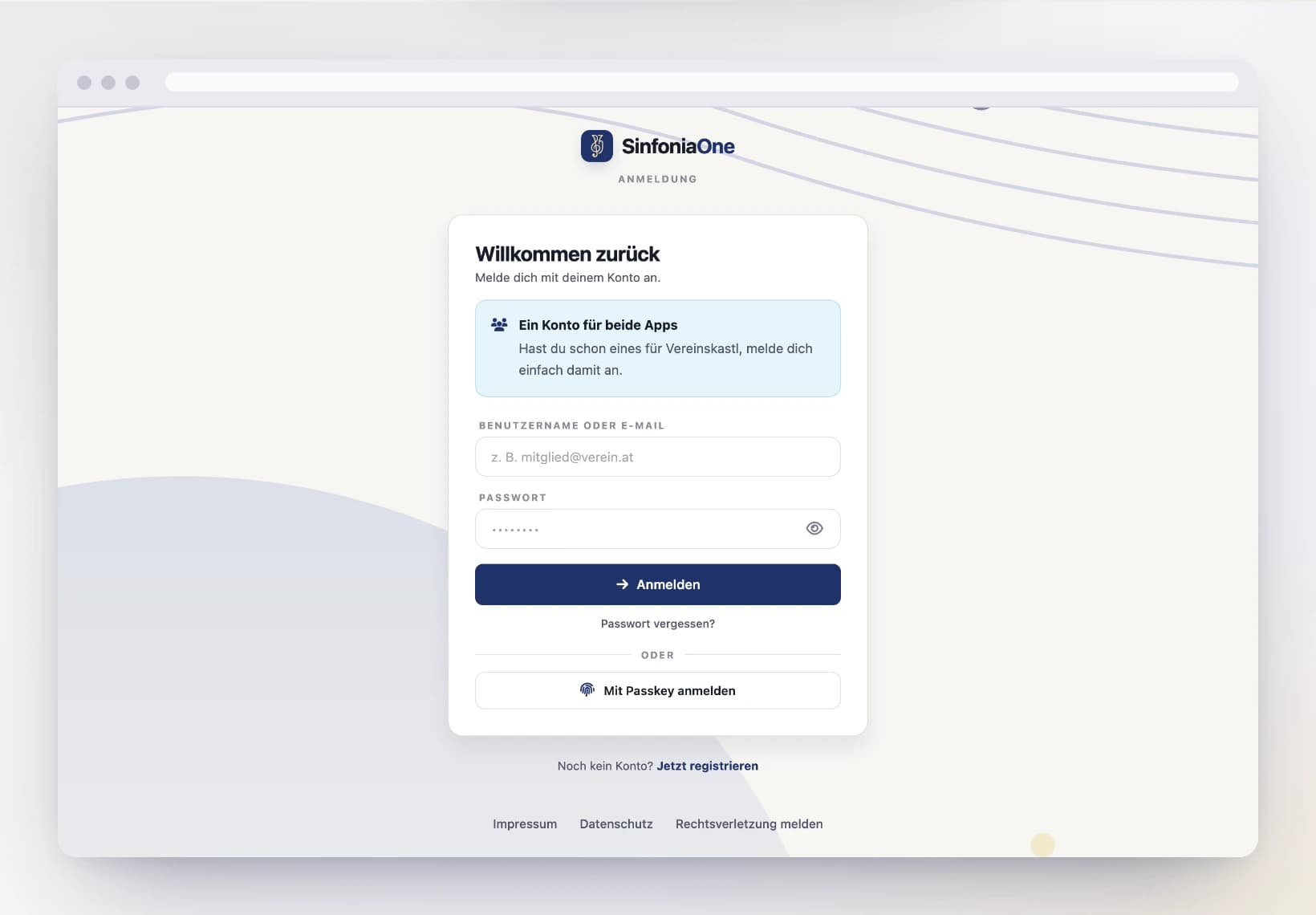
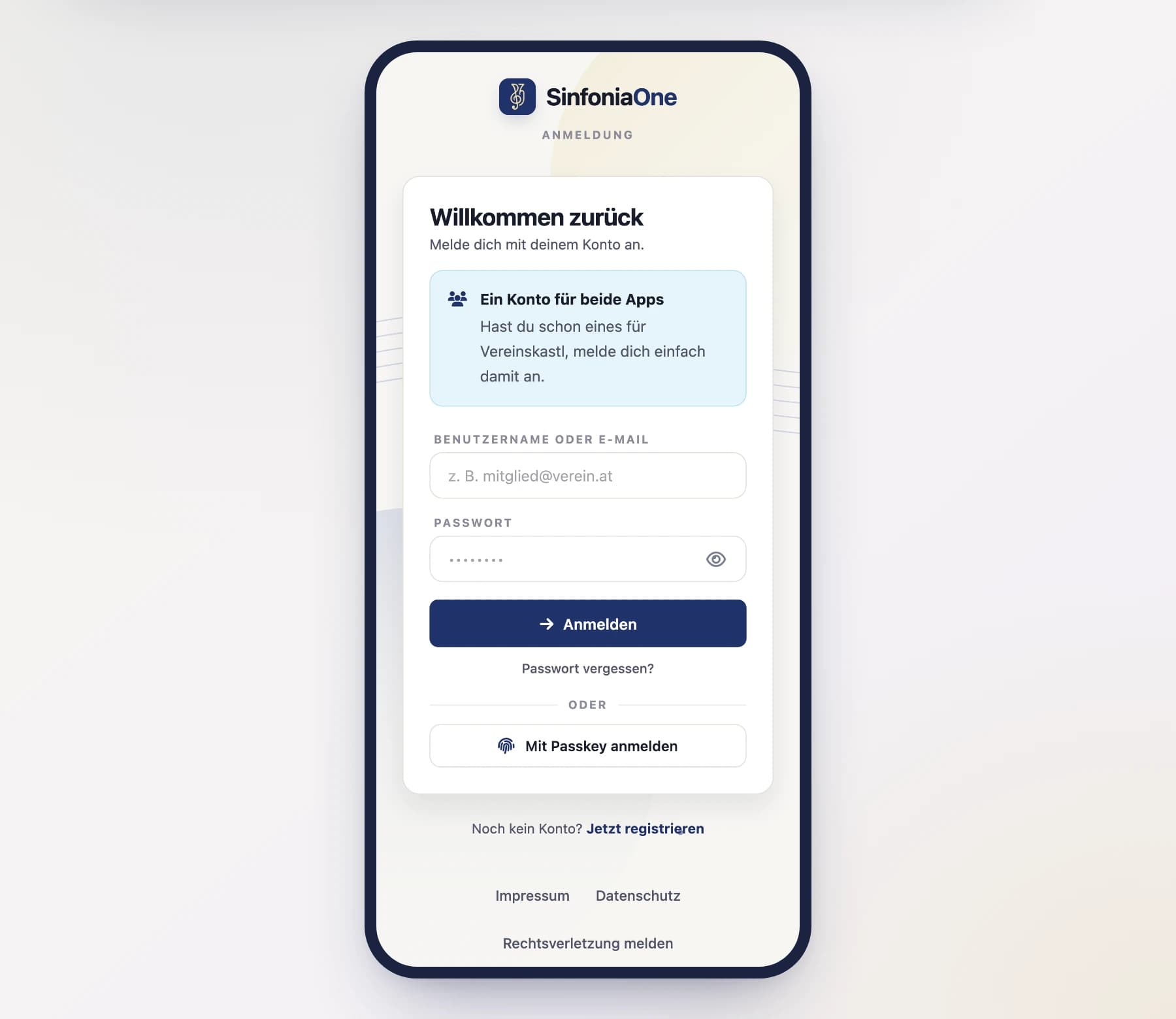
Asked for a security code?
If you've turned on two-factor sign-in, the app asks for a 6-digit code from your authenticator app in addition to the password. Enter it to sign in.
Forgot your password
No problem – you can set a new password:
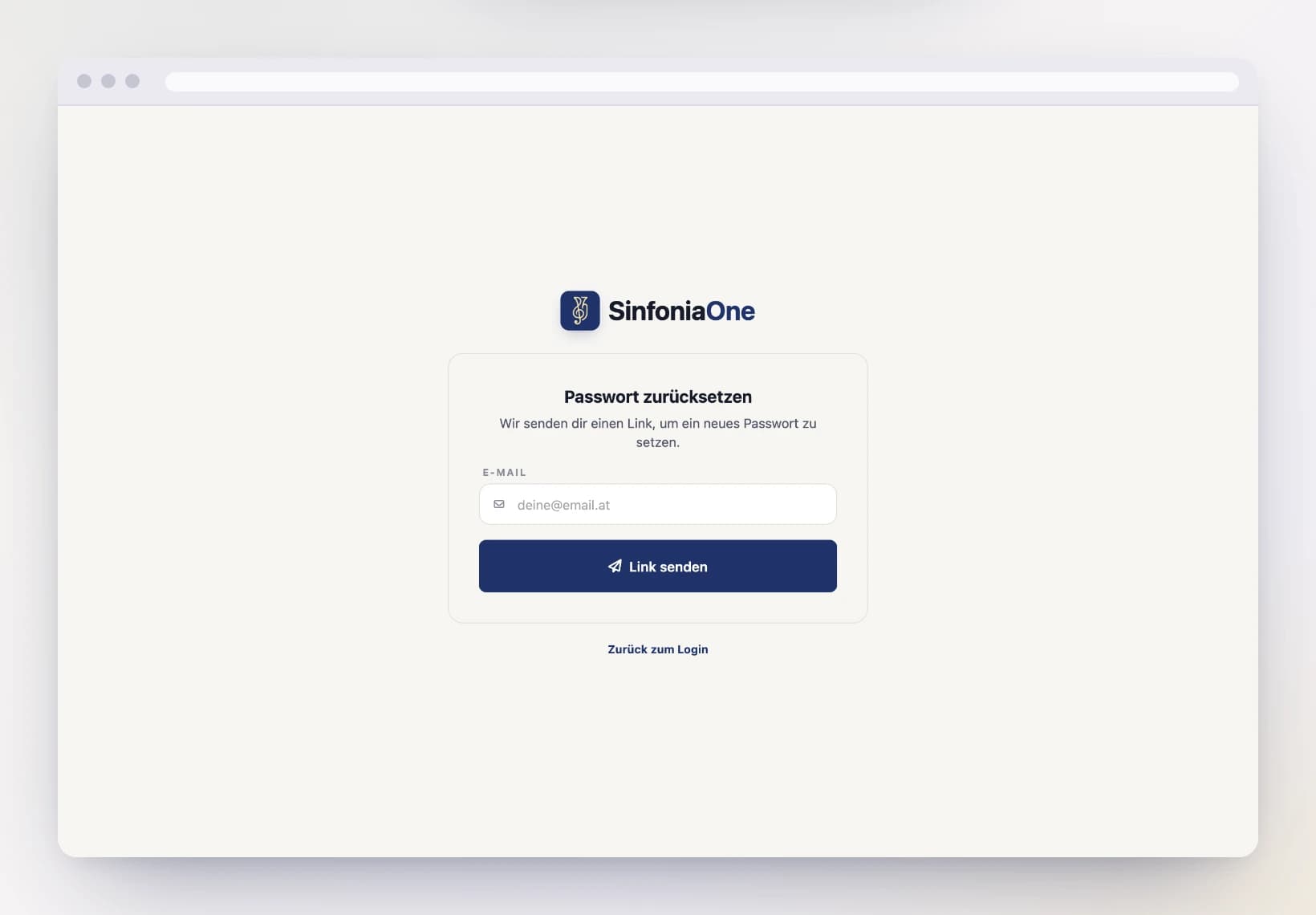
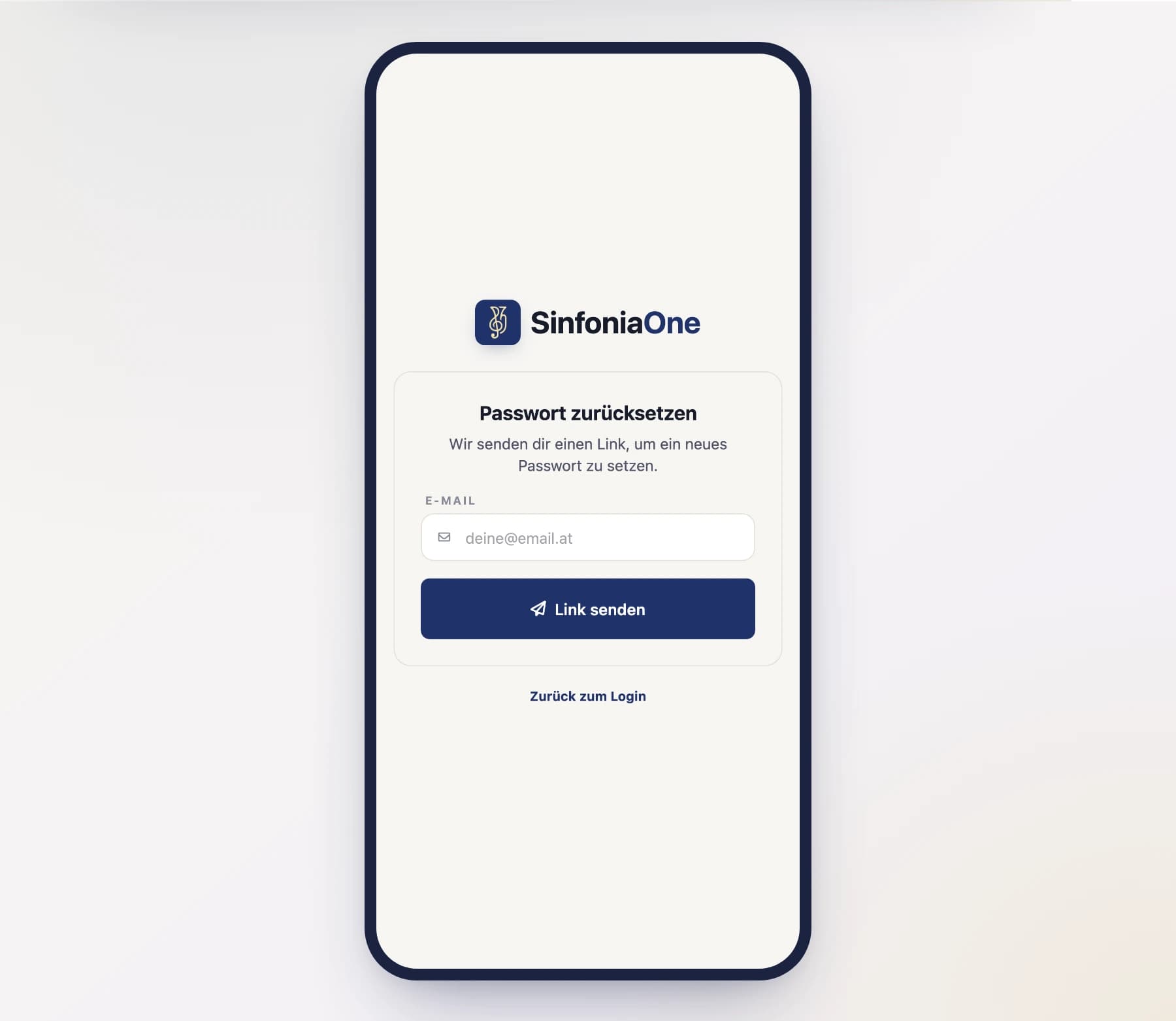
Open the link in the email
You'll get an email with a link. Open it and set a new password.
Sign in with your new password
Then sign in as usual with your new password.
Changing your password
If you're logged in and want to change your password, you'll find it in your profile under Security. You don't need to know your old password for this – handy if you've only signed in with Google or Apple so far.
Signing in with Google, Apple or GitHub
Instead of email and password, you can also sign in with an existing account:
Choose a provider
On the login screen, tap Google, Apple or GitHub.
Confirm the sign-in in the browser
The provider's familiar sign-in window opens. Confirm there that you want to sign in with this account – then it automatically goes back to the app.
Same email, same account
If you sign in with a provider that uses the same email address as your existing SinfoniaOne account, both are automatically treated as one account.
Apple not showing up?
Not every club or installation has all providers enabled. If a button isn't shown, use one of the other ways or the classic email sign-in.
Legal pages without an account
At the very bottom of the login screen and the sign-up page there are three links: Imprint, Privacy Policy and Report an infringement. They lead to the same pages as the settings do, but they work without signing in – for anyone who wants to read who is behind the app first, and for rights holders who want to report something and have no account at all.